
The Top 12 Apps to Screenshot Snapchat Without a Notification in 2026
Let's be real: Snapchat's disappearing messages are great until you desperately need to save something. Whether it's archiving a hilarious memory, keeping receipts from a crucial conversation, or protecting your privacy by saving proof of a chat, the infamous screenshot notification makes things awkward. You've probably seen sketchy mobile apps promising to get around this, but that's a fast track to getting your account banned. So, what's the smarter move? The answer is to ditch the mobile hacks and leverage the "Desktop Advantage."
This guide is your ultimate resource for the best apps to screenshot Snapchat safely and privately. We're zeroing in on desktop tools that work with Snapchat Web on your Windows or macOS computer. Why? Because they operate completely outside the Snapchat app's environment. This method is far safer, undetectable, and more reliable for archiving memories without triggering any alerts.
Here, you'll find a detailed breakdown of the top screen recording and capture tools that let you save your snaps discreetly. Forget the risk of account suspension; learn how to use your PC or Mac to save any Snap, Story, or Chat you need. Our goal is to help you find the perfect tool for your needs, so you can archive what matters without the drama.
1. SnapNinja
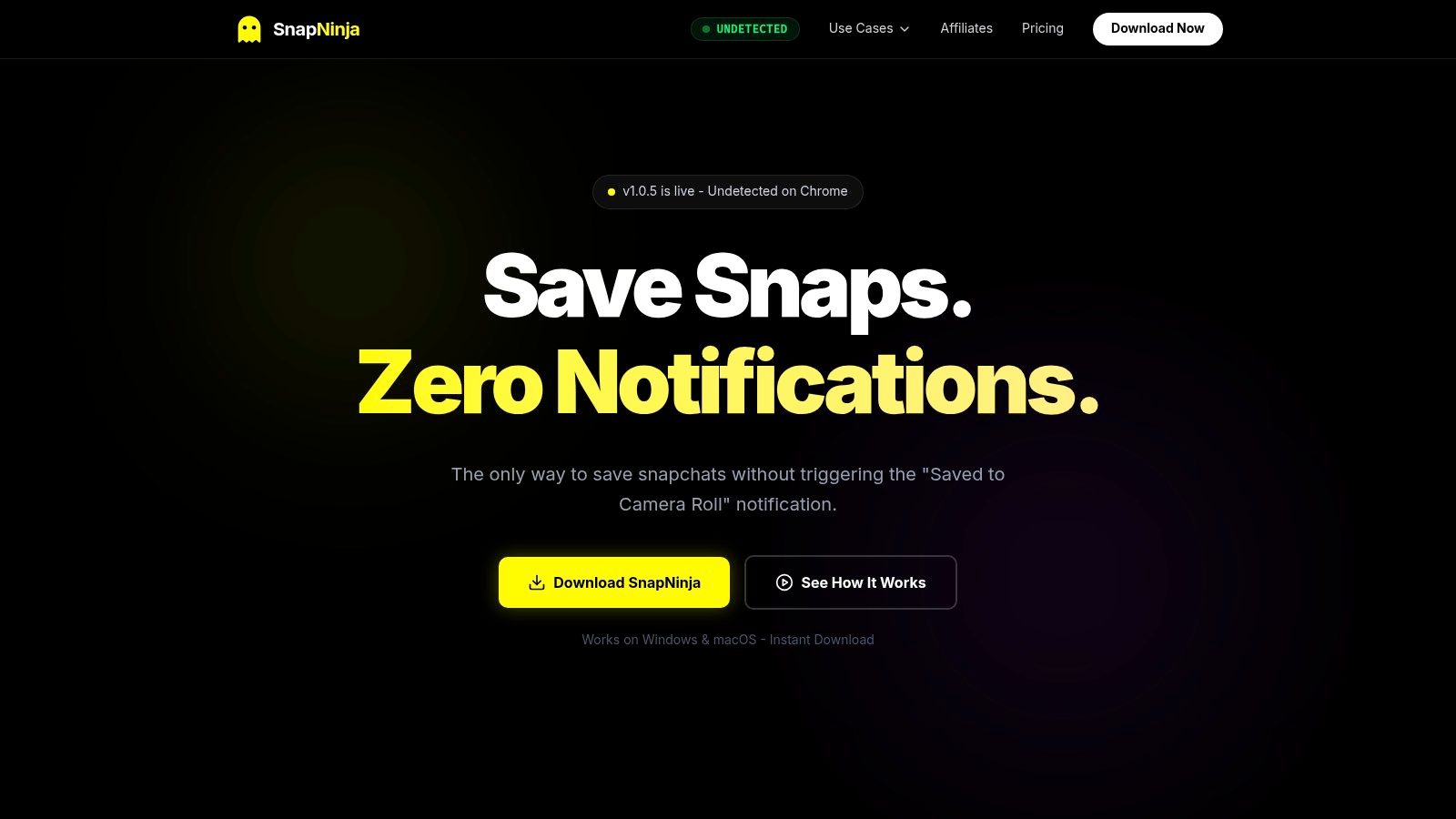
SnapNinja is the only solution on this list designed specifically to archive Snapchat content from your desktop without you having to lift a finger. It’s a dedicated app for both Windows and macOS that works with Snapchat Web to create an automated, silent archiving system. This is the "Desktop Advantage" in action: by operating outside the mobile app, it’s a significantly safer and undetectable alternative to risky mobile hacks that frequently lead to account bans.
Its core function is what really sets it apart: once you set it up, SnapNinja silently saves any photo or video you view on Snapchat Web directly to a local folder on your computer. There's no manual screenshotting or screen recording needed. This means you’ll never miss a moment, and more importantly, it bypasses the "Saved to Camera Roll" notification entirely because the saving happens on your computer, far away from Snapchat's detection systems. This makes it the perfect tool for anyone looking to keep receipts, archive sentimental memories, or just protect their privacy by saving important conversations.
Key Features & Analysis
SnapNinja is built around a philosophy of "smart privacy" and user control, emphasizing local storage and robust security claims.
- Automatic Background Archiving: This is the killer feature. It works on a "view-to-save" basis—any content you open in Snapchat Web is instantly saved to your computer. No extra steps, making the process totally invisible and effortless.
- Local-Only Storage: All saved media is stored directly on your hard drive, not some random cloud server. The company also claims to use AES-256 encryption for the local files, adding a layer of security and giving you complete control over your archived content.
- Cross-Platform Desktop Support: It’s built for desktop users, with full compatibility for both Windows and macOS, and is optimized for the Google Chrome version of Snapchat Web.
- Ease of Use: The setup is a simple three-step process designed for anyone. You install the app, log into Snapchat Web, and SnapNinja takes care of the rest in the background.
| Feature | SnapNinja's Approach | User Benefit |
|---|---|---|
| Detection Risk | Operates at the desktop/browser level, outside the mobile app's direct monitoring. | Drastically reduces the risk of detection and potential account suspension compared to mobile tweaks. |
| Archiving Method | Fully automated, background saving of viewed content. | Eliminates manual work and ensures no content is accidentally missed. |
| Storage & Privacy | Local-only storage with claimed AES-256 encryption. | Ensures you are the sole owner of your data, enhancing privacy and security. |
| Platform | Windows & macOS (Desktop-only). | Provides a stable and powerful solution for those who prefer using Snapchat on a computer. |
Practical Considerations & Verdict
While SnapNinja promotes a powerful and discreet service, it's smart to approach it with an understanding of the potential risks. The website doesn't display clear pricing or independent user testimonials, so you should do your own due diligence. Also, remember that using any third-party app to circumvent Snapchat's features is against its Terms of Service and can have ethical implications if used to violate someone's privacy.
Verdict: For users seeking a robust, desktop-based tool among the available apps to screenshot Snapchat, SnapNinja is a compelling choice. Its automated, local-only archiving system offers a level of convenience and perceived safety that mobile alternatives simply cannot match. It is best suited for responsible, personal archiving where consent is respected.
- Website: https://snapninja.app
2. TechSmith Snagit
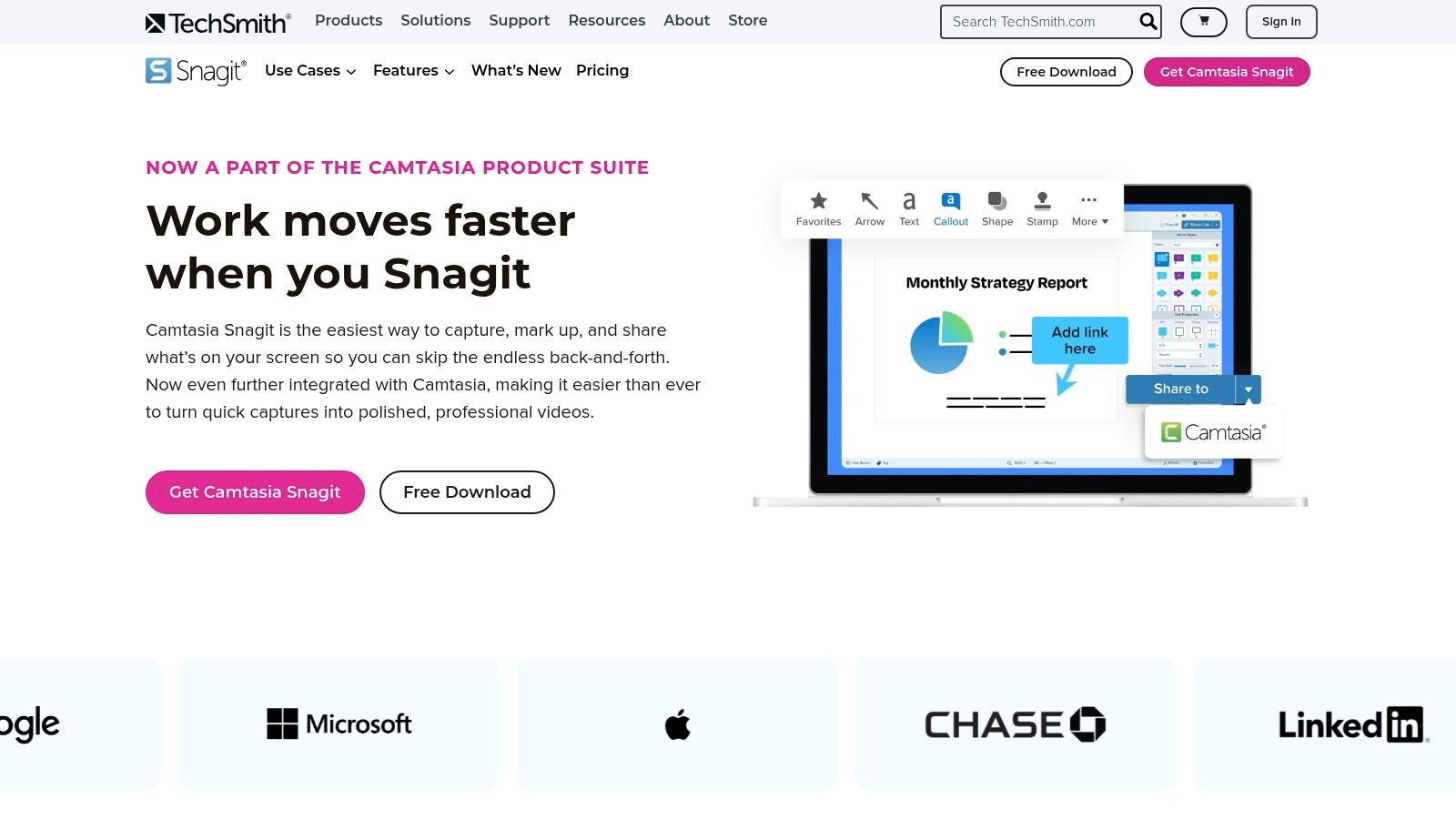
For users who prefer the desktop advantage, TechSmith Snagit is a pro-level screen capture tool that excels at grabbing content from Snapchat Web. It's less of a dedicated Snapchat tool and more of a powerful, all-purpose utility for Windows and macOS. Its strength lies in precision; you can select the exact pixels of a Snap or chat, avoiding unwanted UI elements.
Unlike mobile-based apps to screenshot Snapchat, Snagit operates entirely on your computer, interacting with the browser, not the Snapchat platform itself. This method is fundamentally safer, as it doesn't hook into Snapchat's code in a way that risks your account. It's an excellent choice for archiving important chat logs or saving a high-quality photo from a story without compression artifacts.
Key Features & Use Case
Snagit shines when you need more than just a basic screenshot. Its robust editor lets you instantly add arrows, blur sensitive information, or add text callouts—perfect for keeping receipts or creating reaction images. The scrolling capture feature is a lifesaver for grabbing long chat histories that would otherwise require multiple screenshots.
- Platform Compatibility: Windows, macOS
- Pricing: Snagit offers a one-time purchase for a perpetual license (currently $62.99), though it is transitioning to a subscription model starting with the 2025 version. A free trial is available.
- Best For: Users who frequently use Snapchat Web and need a reliable, high-quality tool for capturing and annotating content with professional polish.
Pros:
- Polished, reliable capture and annotation workflow.
- Excellent scrolling capture for long web pages or chats.
- Safer than mobile hacks since it’s a desktop utility.
Cons:
- Premium price point; not free.
- Overkill for users who only need simple, infrequent captures.
Website: https://www.techsmith.com/screen-capture.html
3. OBS Studio
For users who want to record video content from Snapchat Web, OBS Studio is the gold standard of free, open-source software. While primarily known among streamers and content creators, it’s an incredibly powerful tool for capturing high-quality, full-motion video from a browser tab. It’s less of a quick screenshot app and more of a full-featured recording suite for Windows, macOS, and Linux.
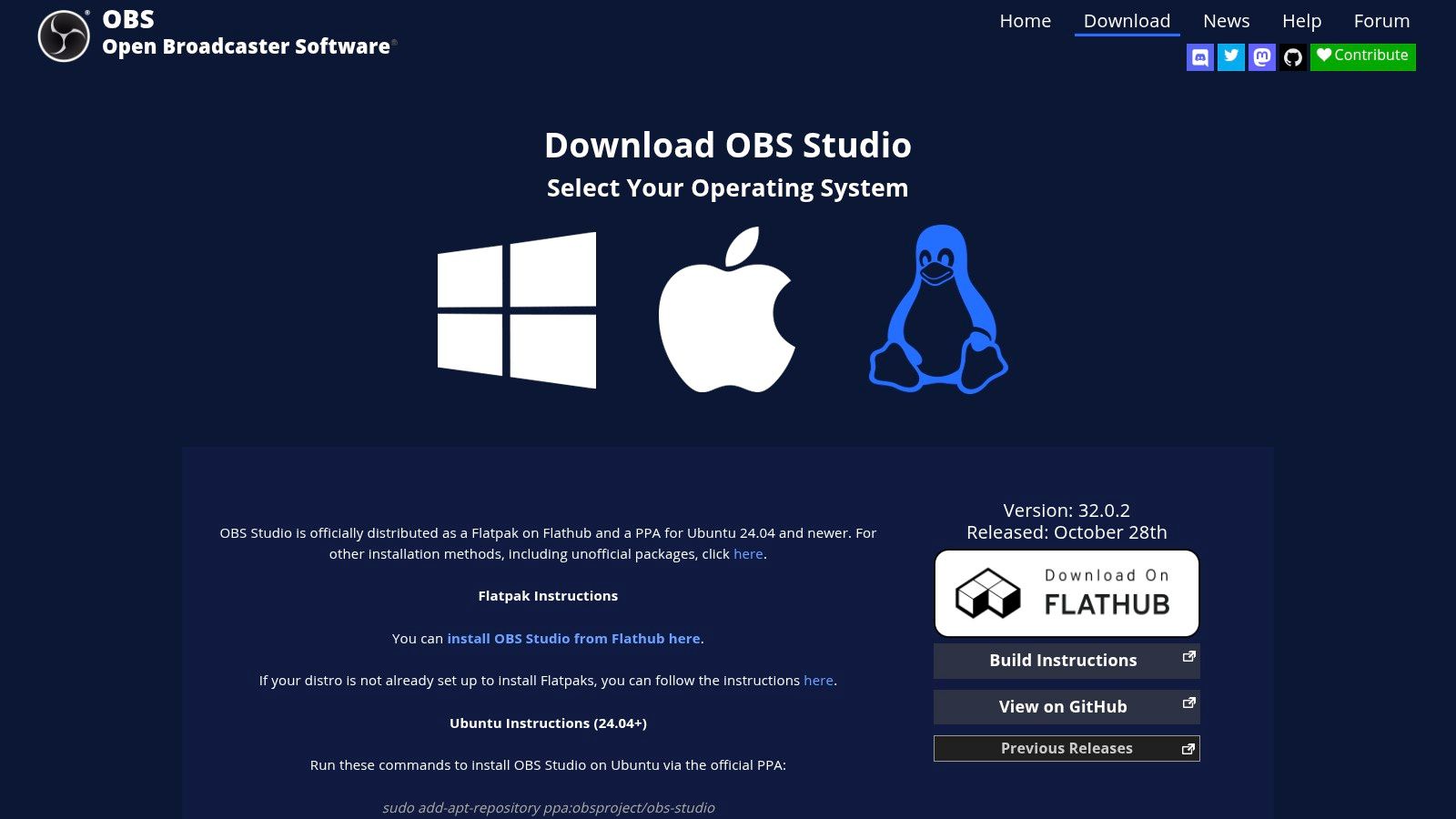
Leveraging the desktop advantage, OBS Studio interacts with your browser, not the Snapchat platform directly, making it a safe method that avoids triggering notifications or risking your account. Its strength lies in its ability to cleanly capture specific windows or browser sources, ensuring you record only the Snapchat Web content and nothing else from your desktop. This makes it one of the most reliable apps to screenshot Snapchat when video is the goal.
Key Features & Use Case
OBS Studio is the top choice for archiving video Stories, saving clips from Spotlight, or recording a video chat. Its professional-grade features allow you to capture lossless-quality video without watermarks. You can set up "scenes" to perfectly crop the Snapchat Web interface and use hotkeys to start and stop recording instantly. While it can take screenshots, its primary power is in video capture. For a deeper dive into video capture techniques, you can explore guides on how to screen record Snapchat using desktop tools.
- Platform Compatibility: Windows, macOS, Linux
- Pricing: Completely free and open-source.
- Best For: Users who need to capture high-quality, watermark-free video from Snapchat Web for archiving or content creation.
Pros:
- Absolutely free with no limitations or watermarks.
- Extremely powerful and highly configurable for video capture.
- Active community and extensive documentation for support.
Cons:
- Has a significant learning curve for new users.
- Overkill for those who just need simple static screenshots.
Website: https://obsproject.com/download
4. Bandicam
For those who need to capture video Snaps from Snapchat Web, Bandicam offers a lightweight and powerful solution for Windows. Primarily known as a game and desktop recorder, its screen recording capabilities make it an excellent tool for grabbing video stories, spotlights, or chat clips without sending a notification. Its simplicity is its core strength, allowing you to quickly select the Snapchat Web window and start recording with minimal setup.
Like other desktop-based apps to screenshot Snapchat, Bandicam operates independently of the Snapchat platform, making it a much safer method than risky mobile mods. It records what's on your screen, so Snapchat has no way of detecting the capture. This makes it ideal for archiving video content you want to keep, from funny moments with friends to important video messages that would otherwise disappear forever.
Key Features & Use Case
Bandicam excels at straightforward video capture with minimal performance impact, thanks to its hardware-accelerated recording. You can easily record system audio to capture the Snap's sound and even add a webcam overlay if you're creating reaction content. It’s perfect for users who need a reliable, no-fuss way to save video Snaps from their computer.
- Platform Compatibility: Windows
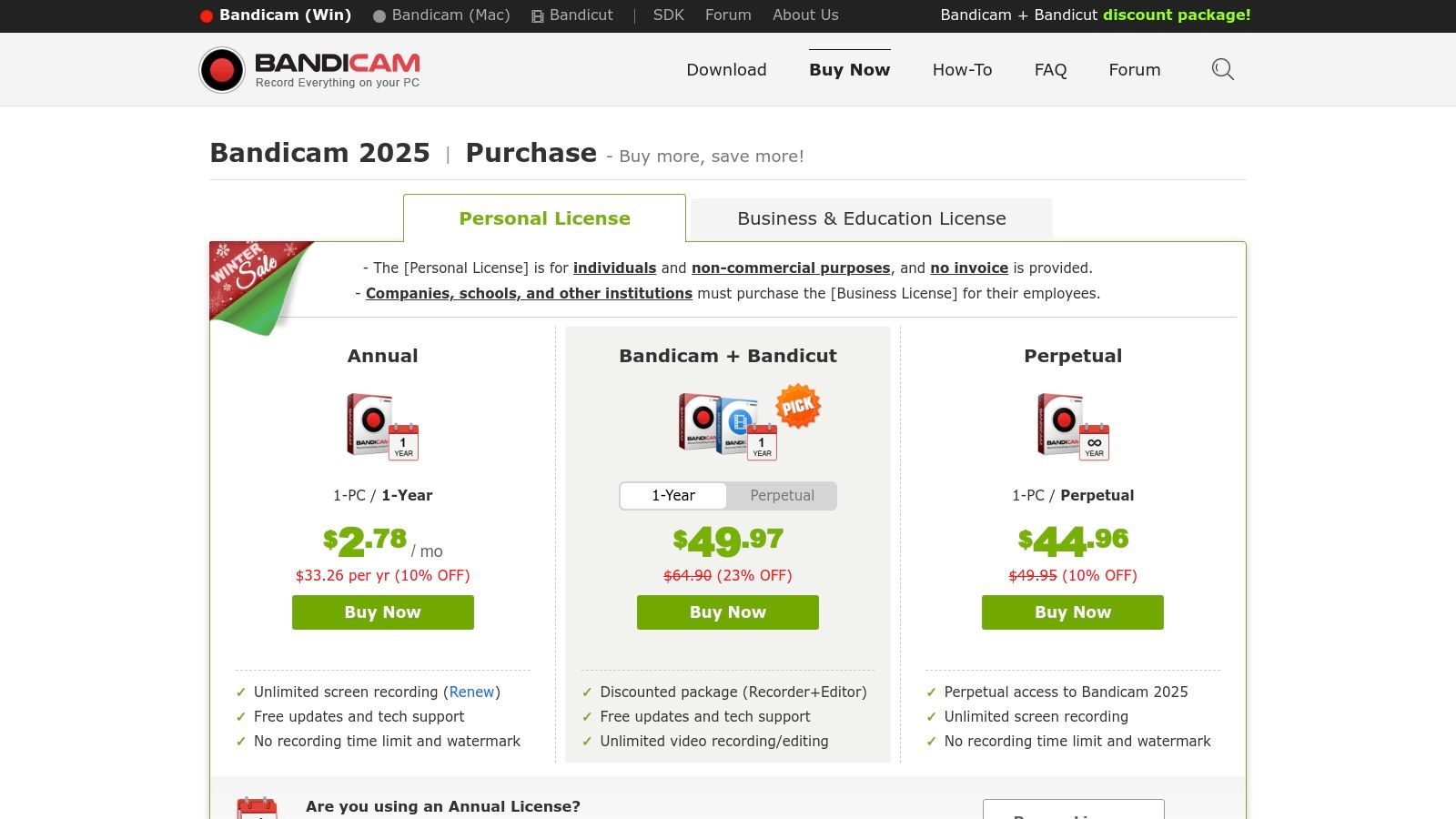
- Pricing: Offers a free version with a watermark and recording time limits. Paid licenses are available as a one-time purchase (starting from $33.26 for a 1-PC license).
- Best For: Windows users who primarily need to record video Snaps from Snapchat Web and want a tool that is simple, efficient, and light on system resources.
Pros:
- Low overhead and stable performance, even on older PCs.
- Clear, simple interface makes for quick and easy captures.
- Records high-quality video and audio from any screen region.
Cons:
- Exclusively for Windows users.
- The free version is limited by a watermark and time caps.
Website: https://www.bandicam.com/buy/
5. Movavi Screen Recorder
For those who need a simple yet effective way to capture video Snaps from Snapchat Web, Movavi Screen Recorder is a fantastic consumer-friendly tool for Windows and macOS. It simplifies the process of recording specific browser regions, making it easy to grab video stories or chat clips without capturing your entire desktop. Its intuitive interface and quick setup make it one of the most accessible desktop apps to screenshot Snapchat content, especially for users who aren't tech-savvy.
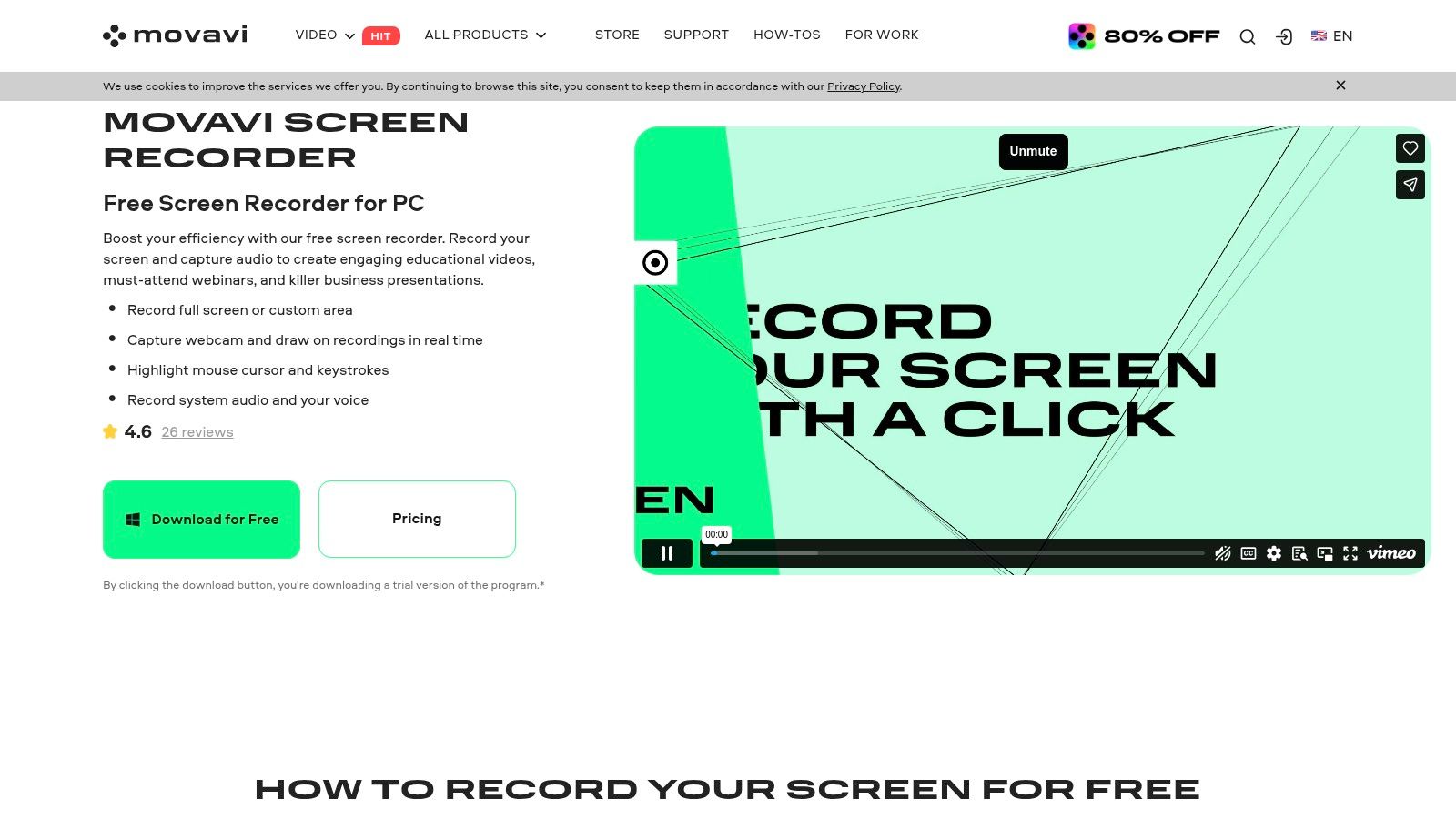
Similar to other desktop recorders, Movavi operates on your computer and interacts only with your browser, not the Snapchat app. This approach is inherently safer and keeps your account away from the risks associated with third-party mobile apps that violate Snapchat's terms. It’s a great way to archive important video messages or save a funny clip from a friend's story without them ever knowing.
Key Features & Use Case
Movavi’s strength is its simplicity. You can draw a frame around the Snapchat window, hit record, and save the video in minutes. It also allows you to include system audio to capture sound from video Snaps. Features like scheduled recordings and mouse-click highlights are useful bonuses, though less critical for this specific use case. The easy export presets let you quickly save your recording in a format optimized for sharing or archiving.
- Platform Compatibility: Windows, macOS
- Pricing: Offers a subscription model (starting around $44.95/year) and a one-time purchase option. A free trial is available but adds a watermark to recordings.
- Best For: Users who primarily want to record video content from Snapchat Web and value a straightforward, user-friendly interface with minimal setup.
Pros:
- Very easy to set up and use with a minimal learning curve.
- Clean interface focused on core recording functions.
- Frequently bundled with other Movavi software at a discount.
Cons:
- The free trial is limited by watermarks, making it unsuitable for clean captures.
- The subscription model can upsell you on additional bundled software.
Website: https://www.movavi.com/screen-recorder
6. Aiseesoft Screen Recorder
For users looking for a versatile desktop tool, Aiseesoft Screen Recorder is a solid all-in-one recorder for Windows and macOS. It functions as a powerful utility for capturing Snapchat Web sessions, offering precise control over what you record. Its main advantage is capturing video Snaps with system audio, something a simple screenshot tool cannot do.
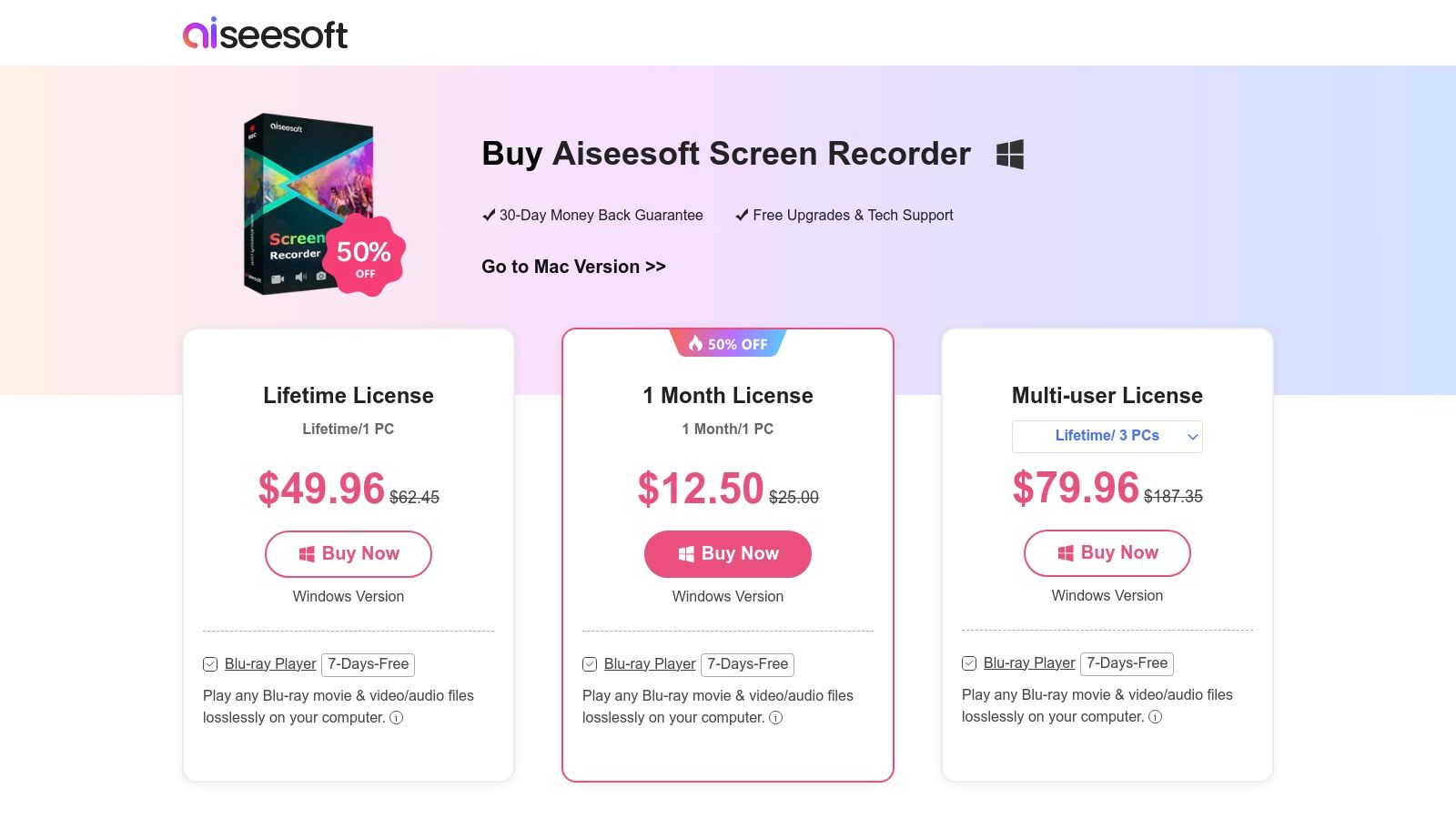
Similar to other desktop apps to screenshot Snapchat, Aiseesoft operates on your computer and interacts only with your browser window. This method is fundamentally safer than mobile hacks, as it doesn't hook into the Snapchat app itself, thereby avoiding detection and the risk of an account ban. It’s an effective way to archive video stories or save important chat logs with both visual and audio context.
Key Features & Use Case
Aiseesoft stands out with its straightforward interface and broad format support, making it accessible even for less tech-savvy users. You can capture a specific region, a single window, or your full screen. The software also includes basic editing tools like a video trimmer, allowing you to quickly cut out unwanted parts of a recording before saving. The task scheduler is a unique feature that lets you set up a recording for a specific time, which is useful if you know when a Snap will be posted.
- Platform Compatibility: Windows, macOS
- Pricing: Offers a limited free trial. A one-year license is $25, and a lifetime license is available for a one-time purchase of $39.
- Best For: Users who need to record video Snaps from Snapchat Web with audio and want a simple, reliable tool with flexible output options.
Pros:
- User-friendly interface is easy to navigate.
- Supports a wide range of video and audio output formats.
- Lifetime license option provides excellent long-term value.
Cons:
- The free trial has significant limitations on recording length.
- The checkout process sometimes includes upsells for other software.
Website: https://www.aiseesoft.com/purchase/screen-recorder.html
7. Apowersoft Screen Recorder
Apowersoft offers a versatile suite of screen recording tools that serve as another solid option for capturing content from Snapchat Web. With both a downloadable desktop client and a lightweight online version, it provides flexibility for users who might not want to install software. This approach is ideal for archiving video Snaps with audio, ensuring you get the full experience without relying on risky mobile apps.
Like other desktop utilities, Apowersoft operates on your computer and interacts with your browser, not directly with Snapchat's platform. This separation is crucial for account safety, as it circumvents Snapchat's detection mechanisms entirely. It’s a great way to save high-fidelity video stories or chat logs from the web client, providing a more reliable capture than simple screenshots, especially for dynamic content.
Key Features & Use Case
Apowersoft stands out with its scheduled recording feature, which could be useful for capturing a story you know is expiring soon but can't watch immediately. The ability to annotate in real-time while recording is also a plus for adding quick notes or highlighting specific parts of a chat. The platform's web-based recorder is a unique advantage, offering a quick solution if you’re on a computer where you can't install new applications.
- Platform Compatibility: Windows, macOS, Web-based
- Pricing: Offers a free limited version. Paid plans are available with yearly and lifetime options, with frequent promotions.
- Best For: Users who need a flexible desktop or web-based tool for recording video Snaps and stories with audio from Snapchat Web.
Pros:
- Flexible options with both desktop and web-based recorders.
- Scheduled recording is a unique and practical feature.
- Safer desktop-based method that avoids Snapchat detection.
Cons:
- The pricing and various product bundles can be confusing.
- Many advanced features are locked behind the paid versions.
Website: https://www.apowersoft.com/screen-recorder
8. Wondershare DemoCreator
For those who need to do more than just capture a Snap, Wondershare DemoCreator is a powerful desktop screen recorder and video editor rolled into one. While not specifically an app to screenshot Snapchat, it excels at recording high-quality video from Snapchat Web on Windows and macOS. Its strength is turning a simple capture into polished content, perfect for creators or anyone needing to document and present a Snap or chat log.
Similar to other desktop tools, DemoCreator interacts with your browser, not the Snapchat app, making it a much safer alternative to risky mobile hacks that can get your account banned. You can record a specific region of your screen, capture webcam overlays, and even draw on the screen in real-time. This makes it ideal for creating reaction videos or tutorials using content from Snapchat Web.
Key Features & Use Case
DemoCreator’s integrated editor is where it truly shines. After recording a Snap video or chat, you can immediately trim it, add AI-generated captions, or use text-to-speech features. This workflow is excellent for archiving important conversations as a video file or repurposing a funny Snap story for another platform like TikTok or Reels, complete with professional edits.
- Platform Compatibility: Windows, macOS
- Pricing: Offers a free plan with watermarks and limitations. Paid plans start at $45/year, with student discounts available.
- Best For: Content creators and users who want to not only capture Snapchat Web content but also edit it into a finished video without needing separate software.
Pros:
- Modern UI with a robust, built-in video editor.
- Advanced features like AI captioning and on-screen drawing.
- Cross-platform availability with flexible pricing plans.
Cons:
- The free version applies a watermark to exported videos.
- Some AI features require purchasing additional credits.
Website: https://democreator.wondershare.com/store/
9. Loom
Loom is primarily known as a video messaging tool for professional teams, but its fast, cloud-based screen recording makes it a surprisingly effective utility for capturing content from Snapchat Web. Instead of a simple image, Loom records your screen activity as a video, which is instantly uploaded to the cloud and made available via a shareable link. This workflow is perfect for quickly grabbing a video Snap or a dynamic interaction within a chat.

Operating as a desktop app or browser extension, Loom interacts with your browser, not the Snapchat platform directly. This desktop advantage means your account remains safe from detection, as Snapchat's mobile app safeguards are not in play. While it’s not designed as one of the dedicated apps to screenshot Snapchat, its rapid capture-and-share capability offers a unique way to archive and distribute content without complex editing.
Key Features & Use Case
Loom’s strength is its speed from recording to sharing. You can capture a full video story, save it, and get a link to send to a friend in under a minute. The cloud-based library also makes it easy to organize your saved Snaps, and higher-tier plans even offer automatic transcriptions, which could be useful for archiving important chat logs. It’s an ideal tool for users who need to share a captured Snap with a group or team instantly.
- Platform Compatibility: Windows, macOS, Chrome Extension, Edge Extension
- Pricing: A free "Starter" plan is available with limits (25 videos/person, 5 mins/video). Paid plans start at $12.50/user/month for more features.
- Best For: Users on Snapchat Web who want to quickly record video Snaps or stories and immediately share them with others via a simple link.
Pros:
- Extremely fast capture-to-link workflow for quick sharing.
- Strong collaboration and cloud features for organizing captures.
- Desktop-based recording is a safer alternative to mobile apps.
Cons:
- The free plan has significant limitations on video length and count.
- Overkill for simple image screenshots; it's video-focused.
Website: https://www.loom.com/pricing
10. CleanShot X
For Mac users who demand both elegance and power, CleanShot X is a premium screen capture utility that feels right at home on macOS. It’s an ideal tool for grabbing content from Snapchat Web with a level of polish that few apps can match. While not specifically designed as one of the dedicated apps to screenshot Snapchat, its feature set makes it perfect for the job, allowing for pixel-perfect selections of Snaps, Stories, or chat windows.
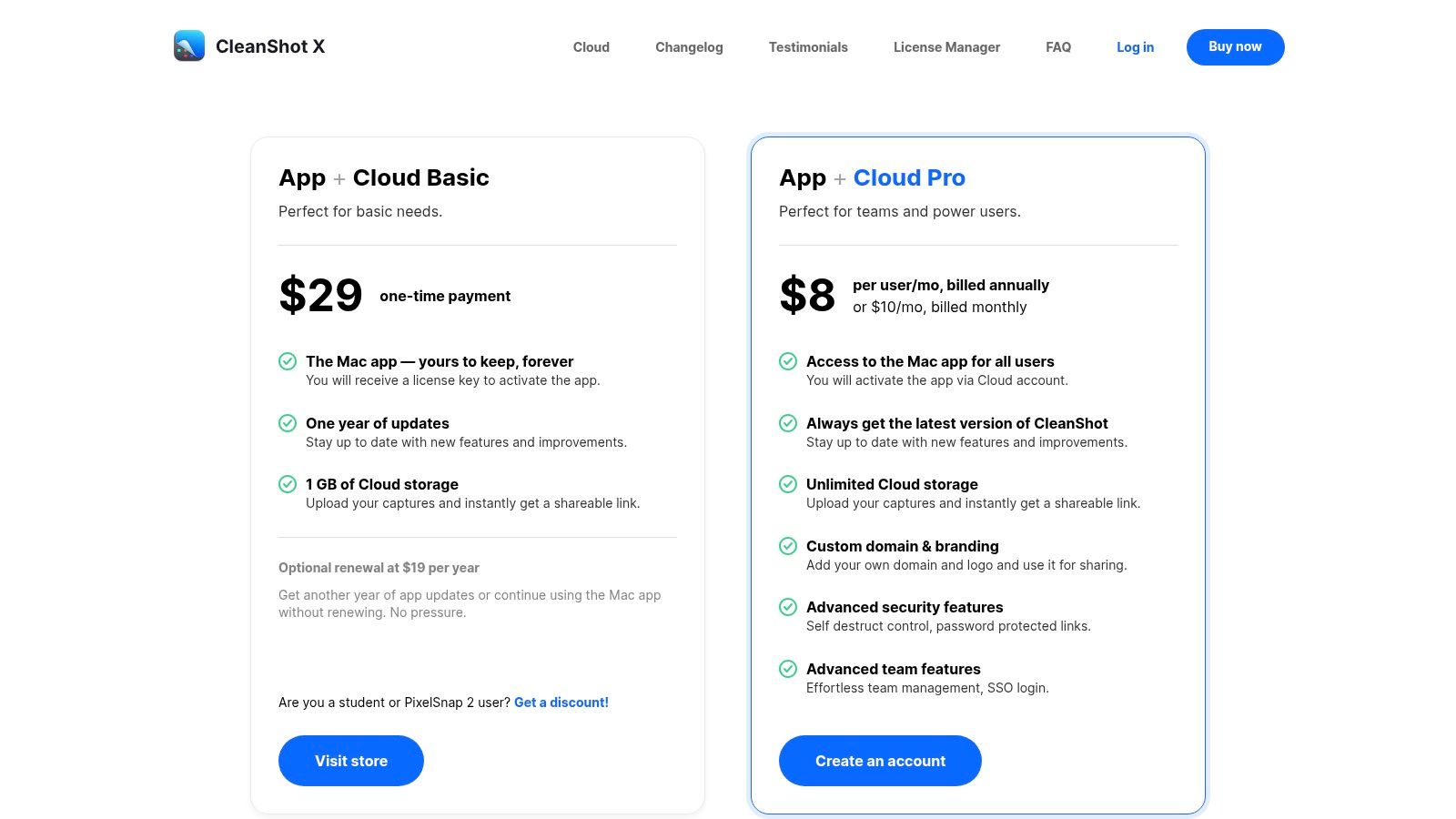
Similar to other desktop tools, CleanShot X interacts with your browser, not the Snapchat platform, making it a fundamentally safer way to archive content without risking your account. It operates discreetly in the background, ready to capture anything on your screen instantly. Its lightweight video and GIF recording capabilities also offer a quick way to save video Snaps or short clips from Stories directly from your browser.
Key Features & Use Case
CleanShot X excels with its speed and fluid user experience. The scrolling capture is a standout feature, effortlessly grabbing entire chat histories from Snapchat Web in a single, clean image. Its annotation tools are intuitive, allowing you to quickly blur names or add notes before saving. The optional CleanShot Cloud service provides a fast way to upload captures and share them with a simple link.
- Platform Compatibility: macOS
- Pricing: Offers a one-time purchase for a single Mac license (currently $29), with an optional subscription for cloud features and ongoing updates.
- Best For: Mac users who want a fast, beautifully designed tool for capturing and annotating Snapchat Web content and appreciate a seamless, native-feeling experience.
Pros:
- Extremely polished and fast native macOS experience.
- Powerful scrolling capture and annotation tools.
- One-time purchase option is great value.
Cons:
- Exclusively for macOS users.
- Advanced cloud and team features require a subscription.
Website: https://cleanshot.com/pricing
11. ScreenPal (formerly Screencast‑O‑Matic)
Known for its long-standing reputation in education and business, ScreenPal (formerly Screencast-O-Matic) is another excellent cross-platform tool for capturing content from Snapchat Web. It functions as an all-in-one screen recorder and image editor, making it a budget-friendly option for users who need more than just a simple screenshot. It operates on Windows, macOS, and even Chromebooks, offering a reliable way to save Snaps without interacting with the mobile app.
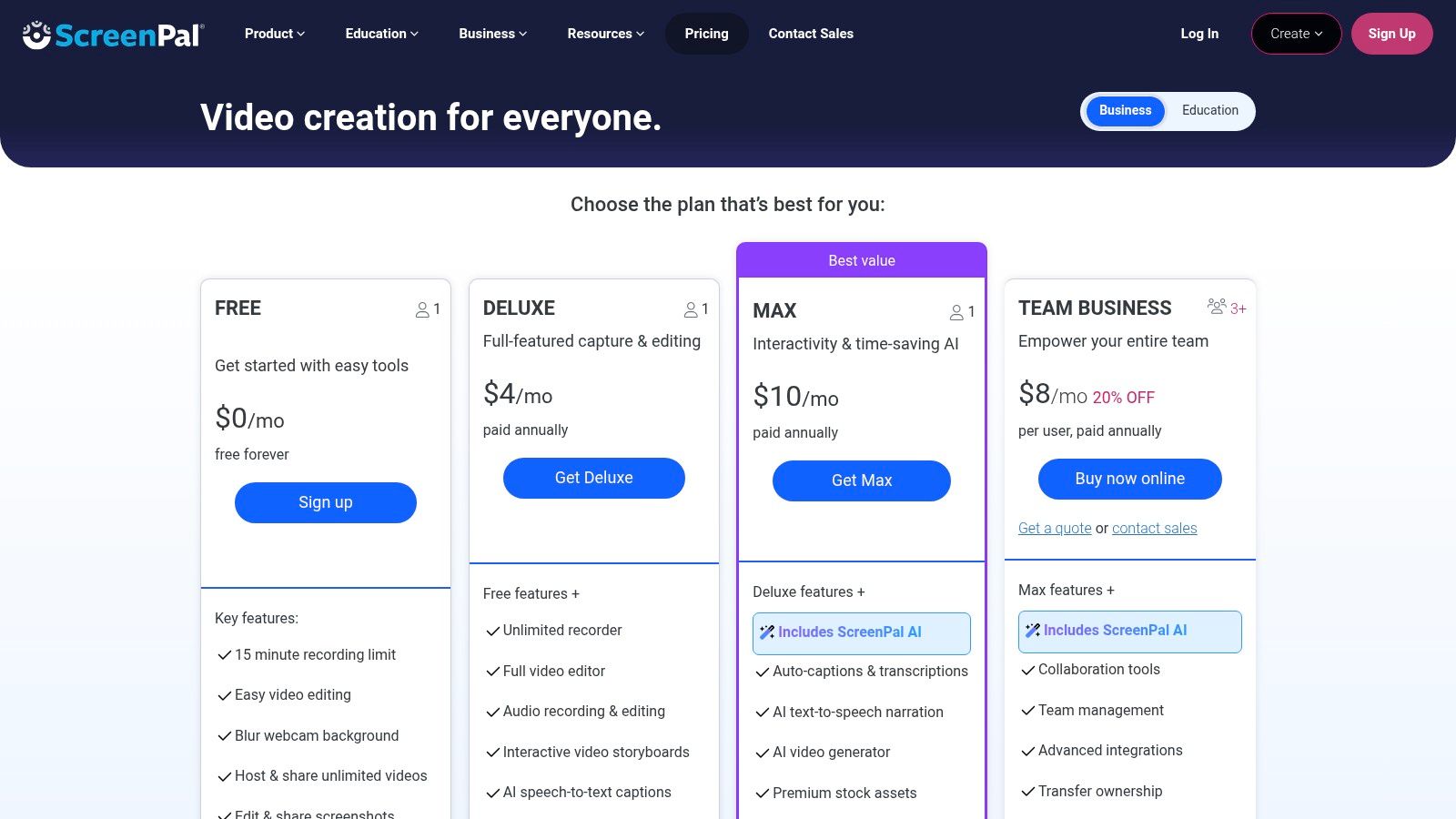
This method provides a significant "desktop advantage," as it captures your screen activity rather than hooking into Snapchat's platform. This is fundamentally safer and helps avoid the risk of account penalties associated with third-party mobile apps. You can record a video story, capture a fleeting image, or even export a quick interaction as a GIF, all without triggering any notifications on the sender's end.
Key Features & Use Case
ScreenPal's strength lies in its approachable interface and versatile toolset. While its free tier has limitations, the paid plans are very affordable and unlock a powerful built-in editor. This allows you to not only capture a Snap but also immediately blur sensitive info, add text, or trim a video recording. The ability to export as a GIF is perfect for creating reaction memes or sharing short clips from a video Snap.
- Platform Compatibility: Windows, macOS, Chromebook
- Pricing: Offers a free plan with limitations (e.g., time limits). Paid plans start at very budget-friendly price points, unlocking more advanced editing features.
- Best For: Students and casual users on a budget who use Snapchat Web and want a reliable tool for both recording video Snaps and taking annotated screenshots.
Pros:
- Very affordable and budget-friendly paid plans.
- Cross-platform support, including Chromebooks.
- Integrated editor is great for quick edits and GIF creation.
Cons:
- The free version has noticeable limitations and watermarks.
- The best features are locked behind its paid ecosystem.
Website: https://screenpal.com/plans
12. Awesome Screenshot & Recorder
For those who live in their web browser, Awesome Screenshot & Recorder is a lightweight and highly convenient tool for capturing content from Snapchat Web. As a browser extension for Chrome, Firefox, and Edge, it integrates directly into your workflow, eliminating the need to install separate desktop software. This makes it an incredibly fast way to grab a quick snapshot of a Snap or record a short Story video without leaving your browser tab.
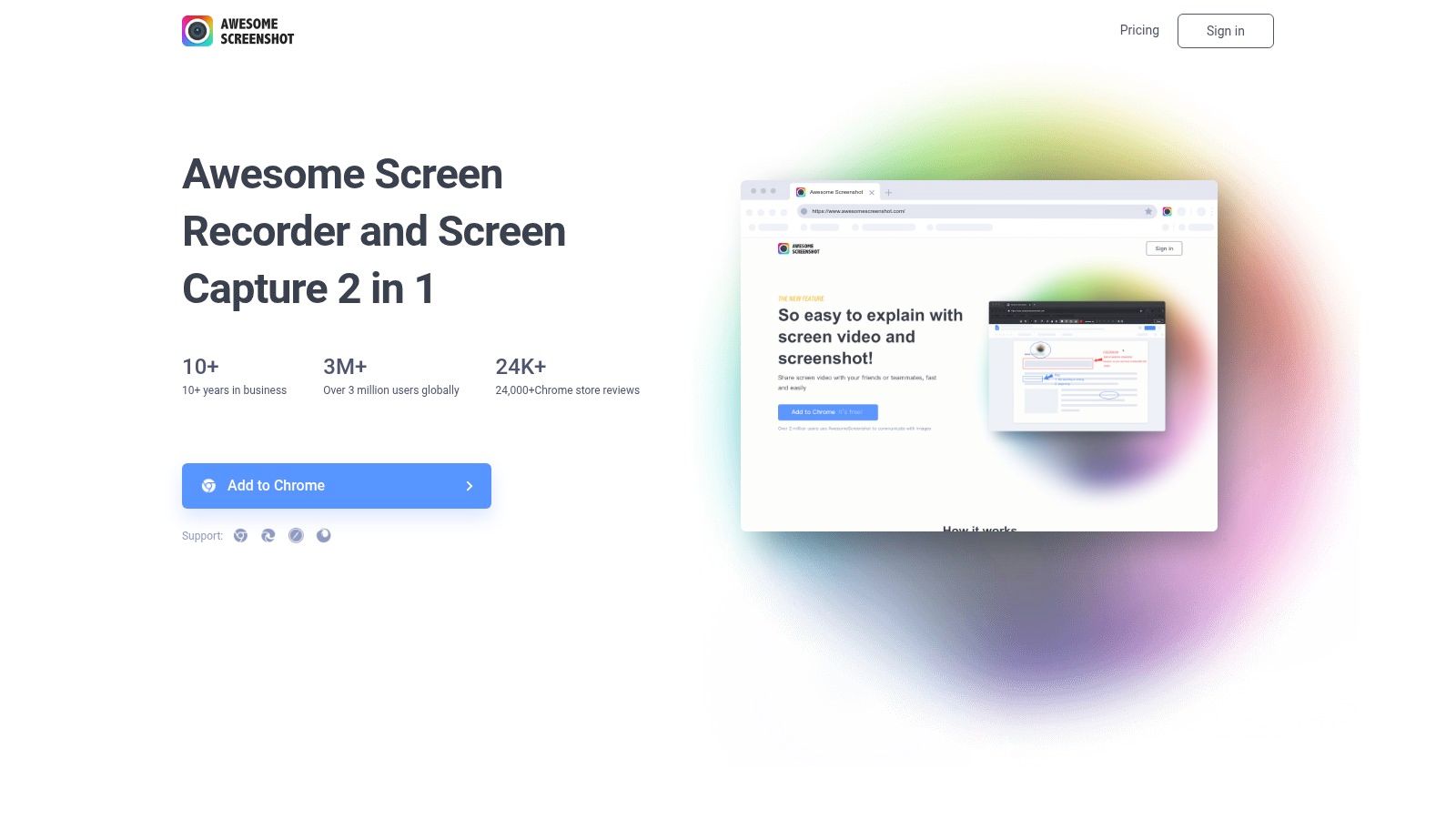
This extension operates on the browser level, making it a safe method for archiving memories from Snapchat Web without alerting the platform or risking your account. Because it’s not a modified app, it doesn’t violate Snapchat's terms in a way that typical mobile hacks do. Its main advantage is accessibility; with just a couple of clicks, you can capture a specific region of a chat, an entire visible part of a story, or even record a video Snap as it plays.
Key Features & Use Case
Awesome Screenshot & Recorder excels at speed and convenience. The built-in annotation tools are perfect for quickly adding text, blurring out names, or highlighting key parts of a chat receipt before saving or sharing. Its ability to record a browser tab is particularly useful for saving video Snaps or entire Stories as a single video file, which is much cleaner than taking multiple screenshots. The tool also offers cloud storage for easy sharing via links.
- Platform Compatibility: Chrome, Firefox, Edge (Browser Extension)
- Pricing: A free version is available with limitations on recording length and cloud storage. Paid plans start at around $6/month for more advanced features.
- Best For: Users who primarily use Snapchat Web and need a fast, browser-integrated tool for both screenshots and short video recordings with basic editing.
Pros:
- Extremely convenient and quick to use directly within the browser.
- Good for both image captures and tab-only video recording.
- Safer than mobile apps since it's a browser-level tool.
Cons:
- The free plan has limits on video recording time and downloads.
- Browser-based recording can sometimes use more CPU resources.
Website: https://www.awesomescreenshot.com
12 Snapchat Screenshot Tools — Feature Comparison
| Tool | Core features | UX ★ | Price 💰 | Target 👥 | ✨ Unique |
|---|---|---|---|---|---|
| 🏆 OBS Studio | Window/tab/browser-source capture, high-quality encodes, scenes/compositing | ★★★★☆ | 💰 Free | 👥 Power users, prosumers | ✨ Open‑source, highly configurable |
| TechSmith Snagit | Pixel‑accurate screenshots, scrolling capture, annotations, library | ★★★★☆ | 💰 Paid (license/sub) | 👥 Documentation & marketing pros | ✨ Polished markup + organized library |
| Bandicam | Lightweight region/window capture, hardware‑accelerated recording | ★★★★☆ | 💰 Paid (trial w/ watermark) | 👥 Windows users needing low CPU load | ✨ Low overhead, simple UI |
| Movavi Screen Recorder | Region/window recording, system/mic audio, quick export presets | ★★★★☆ | 💰 Paid (trial w/ watermark) | 👥 Casual users wanting easy setup | ✨ Fast exports & bundled discounts |
| Aiseesoft Screen Recorder | Screen/webcam/audio capture, scheduler, trimming, multiple formats | ★★★★☆ | 💰 Paid (lifetime options) | 👥 Users needing format flexibility | ✨ Broad format/support + scheduler |
| Apowersoft Screen Recorder | Desktop + web recorders, scheduled capture, cloud options | ★★★★☆ | 💰 Flexible plans (yearly/lifetime) | 👥 Users who need web-based capture | ✨ Web recorder + cloud workflows |
| Wondershare DemoCreator | Screen/webcam capture with built‑in editor, AI captions | ★★★★☆ | 💰 Paid (free limited plan) | 👥 Tutorial creators & social editors | ✨ Editor + AI captioning |
| Loom | One‑click screen+cam, cloud hosting, workspace libraries | ★★★★☆ | 💰 Freemium (limits) / Paid tiers | 👥 Teams & quick sharing | ✨ Instant share links & collaboration |
| CleanShot X | Mac‑native screenshots, scrolling capture, lightweight video/GIFs | ★★★★★ | 💰 Paid (one‑time + cloud sub) | 👥 macOS users seeking polish | ✨ Very polished Mac UX + CleanShot Cloud |
| ScreenPal | Screen & webcam recording, GIF export, editor with stock assets | ★★★★☆ | 💰 Budget plans / freemium | 👥 Education & budget creators | ✨ Affordable plans + simple editor |
| Awesome Screenshot & Recorder | Browser extension: full‑page/region screenshots, tab recording | ★★★★☆ | 💰 Freemium (limits) | 👥 Browser‑centric users | ✨ No desktop install; quick in‑browser capture |
The Final Verdict: Go Desktop for Smarter, Safer Snap Saving
Navigating the world of apps to screenshot Snapchat feels like a minefield. You're dodging sketchy mobile mods and the ever-present threat of that dreaded account ban. After diving deep into a dozen different tools, one clear truth emerges: the safest, smartest, and most reliable path forward is on your desktop.
The "Desktop Advantage" isn't just a marketing term; it's a fundamental strategy for protecting your account and your privacy. By using Snapchat Web on your Windows or macOS machine, you shift the entire game to your turf. The Snapchat mobile app, with its aggressive detection systems, is completely out of the picture. This is where tools like OBS Studio, Snagit, and the others we've covered truly shine—they operate independently, giving you the power to capture content without ever alerting the sender.
Choosing Your Weapon: Automation vs. Manual Control
Your choice of tool ultimately boils down to what you need and how much effort you want to put in. The decision is pretty simple:
For the "Set It and Forget It" User: If you want a seamless, automated solution specifically for archiving Snapchat content, SnapNinja is in a class of its own. It's the only tool on our list built from the ground up to be a silent, background archiver for Snapchat Web. It's the perfect fit for those who want to keep a complete, private record of conversations and memories without the hassle of manually capturing every single interaction.
For the "Hands-On" Power User: If you prefer total control and only need to capture specific moments, a traditional screen recorder is your best bet. OBS Studio is the undisputed king for free, powerful, and customizable recording, though it has a steeper learning curve. For a more user-friendly experience with solid editing features, paid options like TechSmith Snagit or Movavi Screen Recorder provide a fantastic balance of simplicity and capability.
Key Takeaways for Smart Snap Saving
Before you go, let's lock in the most important lessons from this guide. Keep these points in mind, and you'll never have to worry about getting caught or compromising your account.
- Ditch the Mobile Mods: Seriously. Tweaked or modded Snapchat apps for iOS and Android are the fastest way to get your account permanently banned. They directly violate Snapchat's Terms of Service and are actively hunted by their security team. The risk just isn't worth it.
- Embrace Snapchat Web: This is your secret weapon for safe and undetected captures. By using Snapchat on a desktop browser, you sidestep the app's internal notification system entirely.
- Understand Your "Why": Are you archiving a sentimental video, saving proof of a conversation, or grabbing a funny clip for a meme? Defining your purpose will help you choose the right tool, whether it’s an automated archiver like SnapNinja for "keeping receipts" or a manual recorder like Bandicam for a single clip.
- Respect Privacy and Ethics: Just because you can save everything doesn't always mean you should. Always consider the context and the trust of the person on the other end. This guide is about empowering you to archive your own digital life and protect your privacy, not to engage in malicious activity.
Ultimately, the power to save your digital memories is now in your hands. By moving your capture strategy to the desktop, you are choosing a smarter, more private, and infinitely safer method. You can finally save those fleeting moments—whether they're hilarious, sentimental, or important—without the anxiety of triggering that screenshot notification. Choose your tool wisely, act responsibly, and enjoy the peace of mind that comes with having a secure, private archive.
Ready to stop worrying about screenshot notifications for good? If you're looking for the only dedicated, fully automated solution among all the apps to screenshot Snapchat, check out SnapNinja. It works silently in the background on your desktop to archive everything you see on Snapchat Web, making it the ultimate tool for smart and private memory saving. Learn more and get started at SnapNinja.