Save snaps without them knowing: The Smart Way to Archive Your Memories
We’ve all been there. You screenshot a Snap, and your heart drops when you see it: the dreaded "You took a screenshot!" notification. It’s an instant giveaway. For years, people have been searching for a foolproof way to save snaps without the other person knowing, but most methods are just risky workarounds that leave you hoping you don't get caught. Snapchat is built on disappearing content, so archiving memories has always been a real challenge.
The Sneaky Screenshot Problem And Why Mobile Hacks Fail
Let's be real: Snapchat’s screenshot alert isn’t just a feature; it’s the bedrock of trust on the platform. It lets people share moments they wouldn't want living on the internet forever. This notification system is baked deep into the mobile app's code, designed to sniff out any attempt to save content. The second you hit that button combo on your phone, the app knows and snitches on you.
This has kicked off a constant cat-and-mouse game. The internet is littered with "hacks" that promise stealthy captures, but they all share a critical flaw: they operate on your phone, which is exactly where Snapchat has the home-field advantage.
The Most Common (And Riskiest) Mobile Tricks
You’ve probably seen the YouTube tutorials or Reddit threads pushing clever workarounds. They sound good on paper, but they all try to outsmart the app on its own turf—where its security is strongest.
Here are the usual suspects:
- The Airplane Mode Trick: The old classic. Load a Snap, flick on airplane mode, grab a screenshot, then force-quit the app or clear its cache before going online. The problem? Snapchat got wise to this ages ago. The app often just queues the notification and sends it the moment you reconnect. Busted.
- Third-Party Screen Recorders: Firing up a screen recorder from the App Store seems like a solid plan. Not so fast. Snapchat can detect recording overlays running in the background. If it's active when you open the Snap, the other person might still get an alert.
- Modded or "Tweaked" Apps: This is, hands down, the most dangerous route. It involves sideloading a counterfeit version of Snapchat (like "Snap++") that claims to have the notification feature disabled. Using these unauthorized apps is a serious violation of Snapchat's Terms of Service and is the fastest way to get your account permanently banned.
Key Takeaway: If a method requires you to mess with your phone’s settings or install a shady app, treat it as a massive red flag. These mobile hacks are unreliable at best and a direct threat to your account’s safety at worst.
Why Mobile Solutions Are a Dead End
The fundamental problem is simple: Snapchat owns its mobile environment. The app is built to watch everything that happens inside it. Trying to use an external tool on your phone to bypass its security is like trying to sneak into a fortress through the front gate—the alarms are set to catch you.
Snapchat constantly updates its detection algorithms to close these loopholes. A trick that works today might get your account flagged tomorrow. Countless users have shared stories of receiving warnings, temporary suspensions, or even losing their accounts for good after messing with these methods. We dive deeper into these challenges in our guide on how to screenshot on Snapchat without them knowing.
This is why a different strategy is needed—one that operates far from Snapchat's heavily guarded mobile turf. The smart move is to change the battlefield entirely: your desktop computer.
The Desktop Advantage: Why a PC or Mac is Undetectable
If you've ever tried saving snaps on your phone, you know it feels like a high-stakes game you're destined to lose. Snapchat's mobile app is a fortress, designed to detect any attempt to save content. But what if you could just walk around the fortress entirely?
That's the Desktop Advantage. When you switch from your phone to a desktop, the entire game changes. Snapchat's powerful detection systems are almost entirely focused on policing its mobile app, leaving a massive, exploitable gap on the desktop side.
This is the core principle behind SnapNinja. It sidesteps the mobile battle by working with Snapchat Web. Because SnapNinja operates outside the Snapchat app environment, it doesn’t trigger any of the internal flags that mobile hacks do. It simply archives what’s happening on your computer screen—an activity Snapchat's web platform can't distinguish from normal browsing. This desktop method is how you can reliably save Snaps without the sender ever knowing their "Saved to Camera Roll" notification has been bypassed.
Why The Desktop Is a Safe Zone
Think about it from Snapchat's perspective. On a phone, they control the whole environment. The app is a self-contained ecosystem where they can monitor every interaction. On a desktop, they're just another tab in your browser. They lose all that control.
Here's why it's a game-changer:
- No Risky API Hooks: Mobile hacks often try to "hook into" the Snapchat app's API, which is like trying to hotwire its brain. It's incredibly dangerous. SnapNinja doesn't touch the app's code; it works on a completely different layer.
- Completely External Operation: SnapNinja runs independently from your browser. It’s the difference between a security camera pointed at a building versus a spy inside. Snapchat can’t detect the camera because it’s not part of their system.
- Looks Like Normal User Behavior: As far as Snapchat's servers are concerned, you're just a user browsing Snapchat Web. There's no suspicious activity to flag because the capture process is invisible to them.
The Bottom Line: Using a desktop tool like SnapNinja is fundamentally safer because it doesn’t modify or interfere with the Snapchat app. It operates in a blind spot that Snapchat's mobile-first security simply wasn't designed to cover, making it the only reliable solution that bypasses their notifications.
Bypassing a Decade of Mobile Security
Snapchat's screenshot notification has been its defining feature for over a decade. While others like Instagram tested and abandoned similar alerts, Snapchat doubled down, embedding this detection deep into its mobile code. Ironically, that intense focus is what makes the desktop method so effective.
Snap’s recent transparency report shows they proactively detected 60.2% of certain violations, but that data overwhelmingly reflects their success within the mobile app—not their ability to police desktop tools. This gap is what allows people to save snaps without them knowing, whether it's for archiving memories or keeping receipts. If you want to dive deeper, you can read Snap's full Transparency Report on their official values page.
Let's look at a direct comparison to see why the desktop advantage is so huge.
Mobile Hacks vs The Desktop Advantage
It’s clear that when it comes to saving snaps, not all methods are created equal. The risks with mobile hacks are real and can lead to permanent account suspension. In contrast, the desktop method is safer and undetectable.
Here’s a breakdown of why SnapNinja on Windows and macOS is superior:
| Feature | Mobile Apps & Hacks (iOS/Android) | SnapNinja (Windows/macOS) |
|---|---|---|
| Detection Risk | Extremely High. Directly interacts with the app, triggering alerts and potential bans. | Virtually Zero. Operates externally, making it invisible to Snapchat's servers. |
| Method | Modifies the app, uses system exploits, or relies on unreliable timing tricks. | Captures media from Snapchat Web as you view it, mimicking normal browser use. |
| Account Safety | At Risk. Violates Snapchat's Terms of Service and can lead to permanent suspension. | Secure. Does not violate ToS in a detectable way, protecting your account. |
| Reliability | Inconsistent. Patched frequently by Snapchat updates, making methods obsolete overnight. | Stable and Consistent. Relies on the basic functionality of web browsers, which rarely changes. |
Ultimately, choosing a desktop tool like SnapNinja isn't just about convenience; it's about smart privacy and protecting your account. You're leveraging a platform blind spot that mobile hacks simply can't access.
Your Guide to Using SnapNinja Safely
Alright, let's get down to it. You get why messing with your phone is a bad idea and how your computer is the key. Now it's time to put that theory into practice. This is your playbook for using SnapNinja to save snaps without them knowing, turning your PC or Mac into a private vault for your memories.
The best part is how simple it is. Forget sketchy downloads, complicated coding, or messing with your phone's settings. This is designed to be so straightforward that even if you aren't a tech guru, you'll have it running in minutes.
Getting Set Up for Undetected Captures
First, you need to lay the groundwork. This initial setup is a one-time deal that ensures everything works smoothly. Think of it as prepping your workspace for a clean, efficient job.
Download SnapNinja, and I can't stress this enough: get it directly from their official website. Grabbing it from the source is the only way to avoid knockoffs that might be loaded with junk. Once you have the file, installation is a breeze—it works just like any other app you'd install on your Windows or macOS machine.
Next, do a quick browser check-up. Since SnapNinja works with Snapchat for Web, you'll want to be sure you're running an up-to-date version of a major browser like Chrome, Firefox, or Safari. This little step can save you from weird glitches.
The whole point is to keep everything separate from your phone, which is why it works so well. The flowchart below captures this strategy perfectly: you're moving away from the high-risk mobile environment and into the safety of a controlled desktop setup.
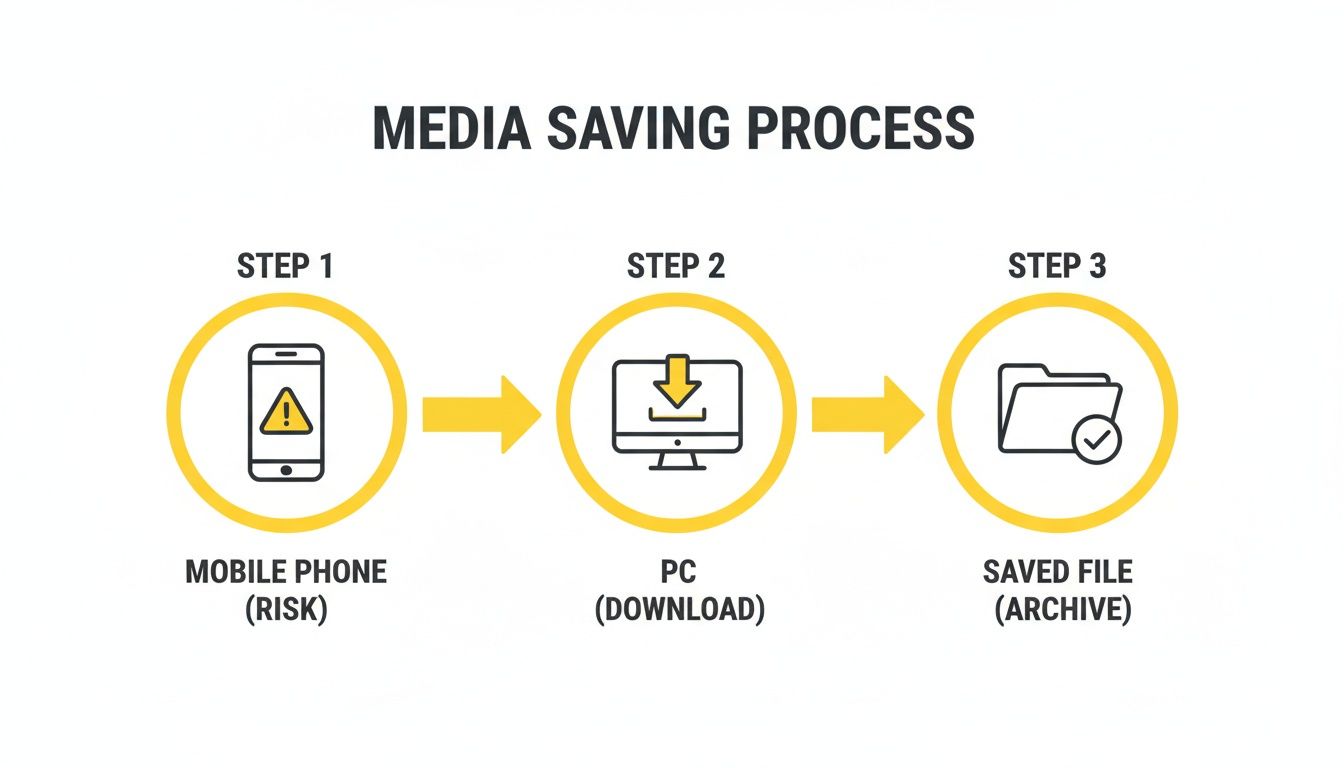
As you can see, the game plan is to shift all activity from the heavily monitored phone—where detection is a real risk—over to your PC, where you can privately download and archive files.
The Magic of Automatic Saving
This is where SnapNinja really shines. Once it's installed and running, the hard part is over. Seriously. From here on, the process is almost entirely hands-off.
Just log into your account on Snapchat Web using your browser, and make sure SnapNinja is active in the background. You'll usually see a small icon for it in your system tray or menu bar.
Now, just use Snapchat Web as you normally would. Open a Snap from a friend, watch a video, or click through a Story. The moment that media loads on your screen, SnapNinja sees it and instantly saves a copy to your computer.
Pro Tip: You don't have to do anything special. Just view the content, and it's saved. There's no screenshot flash, no clunky screen recording overlay, and most importantly, no "Saved to Camera Roll" notification is ever sent to the other person. The entire process is silent and invisible.
This is the core of the Desktop Advantage. Because SnapNinja isn't meddling with the Snapchat app itself but is instead capturing the data as your browser displays it, Snapchat's servers have no clue anything out of the ordinary is happening. It is the only reliable solution that operates outside the app environment.
Finding and Managing Your Saved Snaps
So, where does everything go? SnapNinja creates a dedicated "SnapNinja" folder, which you'll typically find inside your computer's "Documents" or "Pictures" directory.
This makes organizing your saved memories incredibly simple. Here are a few tips for managing your content:
- Check the Settings: Dive into the SnapNinja settings, where you can customize the save location. I like to point it to an external hard drive or a cloud-synced folder for automatic backup.
- Organize by Sender: The software is smart enough to name files with the sender's username and a timestamp (e.g.,
username_2024-10-26_1.jpg), which makes finding a specific memory later a piece of cake. - Secure Your Archives: If you're saving personal or sensitive content, take an extra step. Consider moving it to a password-protected or encrypted folder. Your privacy doesn't end with the capture; it's also about how you store the content.
The whole process is designed to be seamless, letting you focus on keeping the moments that matter without any technical headaches. For a more detailed walkthrough, check out our full guide on how to save Snapchat content without a notification. It's all about making smart privacy accessible.
Smart Privacy Practices For Archiving Snaps

You've got the tech down, but using a tool like SnapNinja is also about the why. It’s about smart privacy and responsible personal archiving, not spying. Think of it as building a private library of your digital life. You’re just deciding which moments deserve a permanent spot on your shelf. This lets you save snaps without them knowing for valid reasons that prioritize your memories and protection.
Real-World Reasons for Private Archiving
Saving content designed to disappear might sound odd, but there are plenty of legitimate situations where it’s essential.
Here are a few scenarios where saving a Snap is a smart move:
- Cherishing Sentimental Moments: Your partner sends a sweet video message, or a friend shares a once-in-a-lifetime moment. These are memories you'll want to revisit years from now.
- Keeping Personal 'Receipts': In more serious cases, a saved Snap can be a crucial personal record. It could be anything from confirming an agreement to documenting harassment—having your own copy is a form of self-protection.
- Saving Creative Inspiration: Friends share amazing art, hilarious memes, or brilliant ideas. Archiving these lets you build a personal mood board without awkwardly asking them to send it again.
The Goal Is Smart Archiving, Not Spying: The difference is your purpose. Are you saving a Snap to hold something over someone's head, or are you archiving a beautiful memory? Your intent defines the ethics here.
Securing Your Saved Content
Once you start saving Snaps, you also take on the responsibility of protecting that archive. Tossing sensitive photos into your generic "Downloads" folder is a privacy disaster waiting to happen. You wouldn't leave a personal diary open on a table, and the same thinking applies here.
Practical Steps for Digital Security
Here’s how you can lock down your saved Snaps and ensure your private collection stays that way.
- Create a Dedicated Vault: Make a specific folder just for your SnapNinja files. This keeps everything organized and walled off.
- Use Password-Protected Folders: Both Windows and macOS offer ways to password-protect folders, either natively or with third-party apps. This adds a critical layer of security.
- Consider Drive Encryption: For the highest level of security, use tools like BitLocker (Windows) or FileVault (macOS). These encrypt your entire hard drive, so even if your laptop is stolen, your files are unreadable.
- Be Mindful of Cloud Syncing: If you sync your archive to a service like Dropbox, make sure that account is locked down with a strong password and two-factor authentication (2FA).
By making these practices a habit, you ensure the content you choose to save remains for your eyes only. To see how SnapNinja handles your data, you can check out the full breakdown on the official privacy policy page.
Troubleshooting Common Issues and Pro Tips
Even the most reliable tools can hit a snag. Before you get frustrated thinking something’s broken with SnapNinja, let's run through the common hiccups. More often than not, it's a quick fix. Think of this as your go-to cheat sheet for keeping things running smoothly.
Solving Common Glitches
Here are the top three things that might go wrong and the simple fixes.
Problem 1: "SnapNinja Isn't Capturing Anything!"
This is the big one. You're viewing Snaps, but your save folder is empty. Don't worry, the fix is almost always one of these three things:
- Relaunch the App: The oldest trick in the IT book. Close SnapNinja completely—I mean, fully quit it. Make sure the icon is gone from your system tray or menu bar, then fire it back up.
- Clear Your Browser Cache: Sometimes your browser holds onto old data that messes with how Snapchat Web loads content. A quick cache clear can get rid of conflicts.
- Check for Updates: Make sure you're running the latest version of both SnapNinja and your web browser. Software updates often include patches to keep everything compatible.
Problem 2: "Saved Videos Are Low Quality or Choppy."
If your saved videos look pixelated, it’s almost never the tool’s fault. This is a classic symptom of your computer running out of steam. Capturing video takes more horsepower than grabbing an image.
Try closing other demanding apps like video games, Netflix, or photo editing software. Shutting them down frees up resources for a clean, high-quality capture.
Problem 3: "I Can't Find My Saved Files."
So you know it’s working, but you have no clue where the files are going. By default, SnapNinja makes its own folder, but it’s easy to change that setting and forget.
Just open the SnapNinja settings or preferences. You'll see the current save path listed right there. You can either double-check the location or change it to a more convenient spot.
The Golden Rule of Troubleshooting: When in doubt, restart. A simple reboot of SnapNinja, your browser, or your whole computer solves an estimated 90% of these minor conflicts.
Pro Tips for Power Users
Once you've got the basics down, use these strategies to streamline your workflow.
- Organize Like a Pro: Create subfolders inside your main SnapNinja directory by username or date. When you need to find a specific "receipt" or memory weeks from now, you won't have to scroll through hundreds of files.
- Capture Long Stories Seamlessly: When viewing a long Story, let the entire thing play through once without skipping. This gives SnapNinja the best shot at capturing every segment in the right order.
- Run Efficiently in the Background: Poke around in SnapNinja's settings for performance options. Some versions might have a "low-resource mode" that minimizes its impact while it waits for new Snaps, keeping everything running smoothly.
Got Questions About Saving Snaps? We've Got Answers.
When you're trying to figure out how to save snaps without them knowing, you're bound to have questions. The internet is filled with sketchy advice, so getting straight answers is crucial. We've gathered the most common questions and answered them directly.
Is SnapNinja Really Undetectable? Could It Get My Account Banned?
This is the big one. Short answer: yes, it's undetectable, thanks to the Desktop Advantage. Most risky methods—modded apps, screen recorders on your phone—mess directly with the Snapchat app. That’s a huge red flag for Snapchat's security and is exactly what gets accounts banned.
SnapNinja is different. It's built for your Windows or macOS computer and works with Snapchat Web, meaning it never touches the official mobile app. To Snapchat's servers, it just looks like normal web browser activity. There's no code injection, no app modification, just clean, invisible archiving. This is why it's so much safer; you're not tripping the alarms that mobile hacks are designed to catch.
Can This Save Video Chats and Stories, Too?
Yep, absolutely. The power of this desktop approach is its versatility. SnapNinja is designed to grab any media that shows up on your screen via Snapchat for Web.
So, you're covered for:
- Photo Snaps: Saved the second you open them.
- Video Snaps: The entire clip is captured as it plays.
- Stories: Archives the whole sequence, from start to finish.
- Chat Media: Any pictures or videos sent in your DMs.
Basically, if you can see it on Snapchat Web, SnapNinja can save it for you—automatically and without a trace. It’s the complete solution.
What Happens if Snapchat Updates Its Website?
A great question. Platforms are always changing. That's why we're constantly working to keep SnapNinja ahead of the curve. Our team regularly updates the software to stay in sync with any changes Snapchat rolls out to its web version.
We’re always monitoring for changes and pushing out new versions of SnapNinja to make sure it stays compatible and, most importantly, undetectable. Keeping your ability to archive memories safe is our main job.
Think of it this way: a random mobile hack is a one-and-done tool that breaks with the first update. SnapNinja is a supported tool built for the long haul.
Can I Use SnapNinja on My iPhone or Android?
This is a clear no. SnapNinja is exclusively for Windows and macOS, and that's a very deliberate choice. The entire reason it’s safe and undetectable is because it's a desktop tool.
If we tried to make it work on a phone, it would have to interact directly with the Snapchat app, putting it in the same boat as all the risky methods we warn against. The desktop-only design isn't a limitation; it's the core feature that guarantees your safety and allows SnapNinja to be the only reliable solution that works outside the app.
Ready to start archiving your memories without the risk? SnapNinja is the only tool that uses the Desktop Advantage to keep your account completely safe. Give it a try and see how easy it is to save any Snap you want, without a trace. Download SnapNinja now.