How to Screenshot Snapchat Without Notification: The Only Safe Method
If you're trying to figure out how to screenshot Snapchat without a notification, the only truly reliable and safe method is to ditch your phone and use your desktop computer. A dedicated desktop tool works outside of Snapchat's mobile detection systems, which is the secret to protecting your account while you archive the memories that matter.
Your Guide to Archiving Snaps Undetected

Ever seen a hilarious Snap, a cherished memory from a friend, or an important chat you needed to save before it vanished? You're definitely not alone. The fear of that dreaded "Screenshot" notification is often what stops us from keeping moments we wish we could.
This guide is designed to cut through the noise of risky mobile apps and outdated tricks that just end up getting your account flagged.
The secret is surprisingly simple: the Desktop Advantage. By using a tool specifically designed for your computer (Windows or macOS), you operate completely outside the environment where Snapchat's detection is strongest. This is all about "smart privacy"—it’s not about spying, but about giving you the power to archive your own digital life and keep receipts without risk.
Why Smart Privacy Matters
Think about all the legit reasons you'd want to save a Snap. It could be a sweet video message from a family member, a funny moment you want to look back on, or even a "receipt" from an important conversation. The whole point is to stay in control of your digital memories without making things awkward or breaking trust.
A desktop-first approach gives you the freedom to:
- Archive Memories: Keep a personal collection of photos and videos that would otherwise disappear forever.
- Keep Receipts: Save important information from chats—like addresses, plans, or confirmations—without alerting the other person.
- Protect Your Privacy: You get to manage your own data and decide what's worth keeping for your personal records.
The entire concept of ephemeral messaging has always been a cat-and-mouse game. As soon as a platform creates disappearing content, users will naturally look for ways to preserve it. The real challenge is finding a way to do it without compromising your account's safety.
The Problem With Mobile Hacks
A quick search online will show you countless "solutions" like the airplane mode trick, shady third-party screen recorders, and modded apps. Let me be clear: these methods are a fast track to getting your account temporarily suspended or even permanently banned. The Snapchat mobile app (iOS and Android) is built from the ground up to detect this kind of unauthorized activity.
Lots of these so-called "tricks" are unreliable at best and dangerous at worst. I've seen countless people try them only to get that dreaded notification or, even worse, a warning from Snapchat.
Why Common Snapchat Screenshot Methods Fail
Here's a quick rundown of the popular tricks people try and why they are so risky compared to a dedicated desktop solution.
| Method | Detection Risk | Account Safety | Primary Downside |
|---|---|---|---|
| Airplane Mode Trick | High | Low | Patched years ago; Snapchat syncs the notification once you reconnect. |
| Third-Party Screen Recorders | Very High | Very Low | Snapchat's app is specifically designed to detect screen recording software. |
| Modded Snapchat Apps (APKs) | Extreme | Extremely Low | Violates Snapchat's ToS and can lead to an immediate, permanent ban. |
| Using a Second Phone to Record | Low | High | Terrible quality and incredibly impractical for saving anything clearly. |
As you can see, the risk almost always outweighs the reward. These methods just aren't worth it when your account is on the line.
Snapchat's history with screenshot detection is long, dating back to just after its 2011 launch. It was a core part of its "ephemeral" promise. But even by 2014, the U.S. Federal Trade Commission (FTC) was questioning how effective these protections really were, noting some early iOS users could bypass alerts completely. You can read more about the history of screenshot detection and see how this battle has evolved.
Ultimately, the only way to truly screenshot Snapchat without a notification is to sidestep the mobile app's security checks entirely. That's where the desktop advantage comes into play, offering a secure and undetectable way to save what's important to you.
The Desktop Advantage: Why Mobile Hacks Will Get Your Account Banned
If you've spent any time Googling how to screenshot a Snap without getting caught, you've seen the same tired advice. People are still pushing tweaked mobile apps, glitchy screen recorders, and the old "airplane mode" trick.
Let's be blunt: following that advice is the fastest way to get your Snapchat account locked or permanently banned.
Snapchat's mobile app is a fortress. It's built from the ground up to detect shenanigans on your phone (iOS or Android). The moment you install a sketchy third-party app or try to record the screen, you're essentially setting off a silent alarm. It’s like trying to sneak into a bank vault by knocking on the front door—you’re not being clever, just incredibly obvious.
The Mobile Minefield
The mobile environment is Snapchat’s home turf. They make the rules, and their systems are incredibly good at spotting anyone trying to break them. Mobile hacks are a huge risk that can lead to an account ban.
Here's a look at why those mobile "hacks" are doomed to fail:
- App Integrity Checks: The Snapchat app is constantly checking its own code for unauthorized changes. If it finds anything out of place, it can trigger an instant suspension.
- System-Level Detection: Modern phone operating systems let apps like Snapchat know when a screen recording is running. You simply can't hide it.
- Behavioral Analysis: Snapchat’s internal security AI is trained to spot unusual patterns that scream "this person is trying to save something they shouldn't."
Trying to outsmart these defenses on your phone is a game you will lose. It’s not a question of if you'll get caught, but when.
The problem with every mobile hack is that you're playing on Snapchat's home field, by their rules. A desktop solution changes the entire game by moving the action to a neutral territory where Snapchat's mobile security can't touch you.
How a Desktop Approach Keeps You Safe
This is where the Desktop Advantage comes in. When you use a dedicated tool like SnapNinja on your Windows or macOS computer, you’re operating completely outside of the mobile app's jurisdiction. This desktop method is safer and undetectable, unlike mobile hacks that often lead to account bans.
Instead of trying to fight a battle you can't win, you just sidestep the conflict entirely.
SnapNinja works with Snapchat Web, which functions under a different security protocol than the mobile app. Since the tool is running on your computer, it doesn't trip any of the security wires that are hardcoded into the app on your phone.
Think of it this way: mobile hacks are like trying to pick a lock while a security guard is watching you on camera. Using a desktop tool is like having a key the security system was never designed to detect in the first place.
This method is all about keeping your account safe. Snapchat's screenshot notifications are just the surface of a deep and complex security system. In its 2025 Transparency Report, Snap shared a Violative View Rate of just 0.01%. That means only one out of every 10,000 views on the platform contained content that broke their rules. This stat alone shows how aggressively they monitor for any suspicious activity. You can dig into their full methodology by reading Snap’s official transparency reports.
At the end of the day, your top priority should be protecting your account. Mobile workarounds are a direct challenge to the platform's security, and they will eventually lead to a ban. A desktop tool, on the other hand, works quietly in the background, letting you archive your memories without ever putting your account at risk.
How SnapNinja Pulls It Off Without a Trace
So, how can you actually save a Snap without tripping the alarm and getting your account flagged? The answer isn't some glitchy workaround or a shady mobile app. It's a purpose-built privacy tool designed specifically for your desktop computer: SnapNinja.
Let's be clear, this isn't just another screen recorder. SnapNinja is a dedicated companion for Snapchat on the web, running quietly on your Windows or macOS computer. The process itself couldn't be simpler. You log into Snapchat's web version, and as you click through Snaps, videos, and Stories, the tool automatically saves them right to your computer in the background.
The real genius is that SnapNinja operates outside the Snapchat app environment. This clever separation is the secret sauce to avoiding that dreaded "Saved to Camera Roll" notification, positioning SnapNinja as the only reliable solution that bypasses it.
Why The Desktop Approach is Key
Trying to do this on your phone (iOS or Android) is a losing battle. Snapchat’s mobile app is a fortress, designed to detect everything from screen recording to other apps running simultaneously. Mobile hacks often lead to account bans.
Snapchat Web, however, plays by a different set of rules because it has to operate within a standard web browser. This creates a technical blind spot, and that's precisely where a tool like SnapNinja comes in.
This Desktop Advantage gives you a few major wins:
- No Direct Interference: The tool grabs the media content without directly interacting with Snapchat in a way that would trigger an alert. It captures what's displayed from a layer that Snapchat's web platform can't even see.
- Your Account Stays Safe: Because it doesn't mess with the official Snapchat app or violate their terms about using modified clients, your account isn't at risk of being flagged or banned. You're not trying to trick the mobile app; you're just using a different, much safer environment.
- Total Anonymity: The person who sent the Snap is never the wiser. Since no screenshot or screen recording event ever officially happens from Snapchat's point of view, no notification is ever sent.
The concept is surprisingly simple. Instead of trying to break into Snapchat's heavily guarded fortress (the mobile app), SnapNinja just sidesteps it entirely. It uses the fundamental architecture of the web to create a completely undetectable way to archive your digital moments.
This desktop method is what makes it the only truly reliable and safe way to save Snaps. It puts you back in the driver's seat, letting you decide what’s worth keeping.
It's More Than Just a Screenshot Tool
Calling it a "screenshot" tool doesn't really capture the full picture. While it perfectly saves static Snaps, its real strength is automatically downloading entire video Snaps and full Stories.
Think about it: a friend sends a hilarious 30-second video Story. Trying to film that with another phone is just going to give you a shaky, low-quality clip. With a desktop solution, you get a perfect, high-resolution copy of the original video file saved right to your hard drive.
This is a game-changer for a few reasons:
- Archiving Memories: That heartfelt video message from a loved one you want to keep forever.
- Keeping Receipts: Saving a conversation or an event for your personal records without making things awkward.
- Protecting Your Privacy: Saving important information or interactions for your own reference.
This whole process lets you build a personal library of moments that would otherwise vanish forever. It’s about preserving your own digital history, on your own terms. For anyone who just wants a tool that works without the technical headaches, SnapNinja is the definitive solution for saving Snaps privately and safely.
A Practical Walkthrough for Using SnapNinja
So, you’re ready to see how the "Desktop Advantage" works in the real world. Theory is one thing, but putting SnapNinja to work is where you’ll see its power. Getting it running on your Windows or macOS machine is surprisingly simple—we’ll go from download to your first saved Snap in just a couple of minutes.
There’s no need to worry about complex configurations or wading through tech-heavy instructions. This is a straightforward process for anyone who wants to archive their digital memories without sending up a single flare.
Getting Installed and Ready to Go
First things first, you need the software on your computer. The whole process is designed to be quick and painless, whether you're on a Windows rig or a MacBook.
The installation is as standard as it gets. On Windows, you'll click through a familiar installer. On macOS, it's the classic drag-and-drop into your Applications folder. No sketchy permissions, no third-party hoops to jump through—just a clean, simple setup.
Once it's installed, SnapNinja just sits quietly in your system tray (Windows) or menu bar (macOS). It’s designed to be a "set it and forget it" tool that’s ready to go whenever you are.
Pro Tip: I highly recommend setting SnapNinja to launch on startup. This way, it's always running in the background when you use Snapchat Web, and you'll never miss a thing because you forgot to open it first.
The Simple Three-Step Workflow
Once it's running, using SnapNinja is completely hands-off. You won't be fumbling with hotkeys or manually triggering a recording. It just works seamlessly in the background as you browse Snapchat Web.
This visual gives you a great idea of how it works, with SnapNinja acting as a silent interceptor between Snapchat Web and your computer's storage.
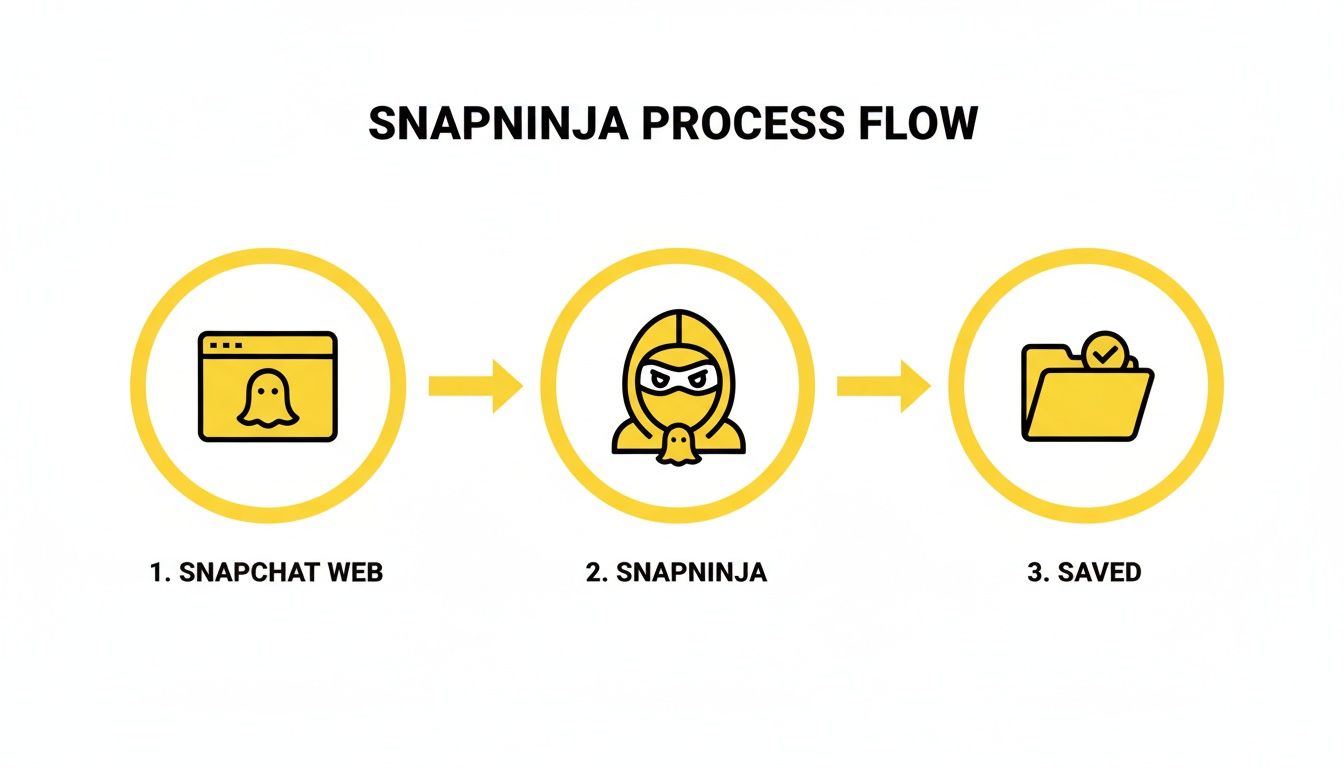
The real magic here is that the capture happens entirely on your machine, making it invisible to Snapchat's servers. Here’s what it looks like in practice:
- Log into Snapchat Web: Just open your browser and head to web.snapchat.com to sign in.
- View Snaps as Usual: Click on a conversation, open a Snap, or watch a Story. Do exactly what you normally would.
- Find Your Saved Media: As you view content, SnapNinja is already working, automatically saving every photo and video to a folder on your computer. You don't have to click a single button to save anything.
That’s really all there is to it. The tool handles everything behind the scenes. You just use Snapchat, and your memories get saved.
Finding and Organizing Your Saved Snaps
Now for the best part: finding your saved media. SnapNinja automatically creates a dedicated folder on your computer, which you can usually find in your main "Documents" or "Pictures" directory.
The files are saved in their original high quality. This is a huge step up from pointing another phone at your screen, a method that always leaves you with a blurry, pixelated mess.
The software’s interface is clean and minimal, designed to get you to your saved content without any fuss.
From this folder, you’re free to organize your files however you see fit. My advice? Create subfolders for different friends or dates to keep your archive tidy and searchable. This is especially helpful if you're saving important conversations or "receipts" that you might need to find quickly down the road.
By shifting this whole process to your desktop, you gain a level of control and security that mobile workarounds can never match. It's the most reliable way to screenshot Snapchat without a notification, all while keeping your account safe and your memories perfectly preserved.
Why Save Snaps? A Look at Smart Privacy
When we talk about saving disappearing messages, people's minds often jump straight to "spying." But honestly, that's selling the idea short. The real reasons are way more practical and come down to what I call "smart privacy"—the power to manage your own digital history.
This is about practicality, not prying. In a world of fleeting digital media, knowing how to screenshot Snapchat without a notification gives you a sense of control over your own memories and conversations. Using a desktop tool like SnapNinja becomes less about snooping and more about personal archiving in a way that doesn't disrupt the natural flow of a chat.
Keeping Receipts and Records
One of the biggest real-world reasons for saving a Snap is simply for record-keeping. Conversations on Snapchat are fast and fluid, which is great, but important details can easily get lost when they're designed to vanish forever.
Think about it in these everyday situations:
- Making plans: A friend sends you an address or a time for a get-together. Archiving that Snap means you aren't the one asking, "Wait, where are we meeting again?"
- Online deals or projects: You're coordinating a freelance gig or selling something on Marketplace. Saving the chat acts as an informal "receipt" of what you both agreed to, which protects everyone involved.
- Ensuring clarity: Sometimes, you just need a record of a conversation to refer back to. It’s not about stirring up drama; it’s about having a source of truth if someone’s memory gets fuzzy down the line.
Here’s where a desktop tool like SnapNinja, running on your Windows or macOS computer, really shines. It works quietly in the background, so you don't have to break the conversational rhythm to announce you're saving something. It becomes a seamless part of your own private digital file cabinet.
Archiving Memories That Matter
Snapchat isn't just about silly filters; it's a place where genuine, heartfelt, and hilarious moments unfold. While the disappearing act is part of the fun, it’s a real bummer when a moment is just too good to let go.
The heart of smart privacy is believing you have the right to decide which of your digital experiences are permanent. It's about curating your own life story, not just consuming content that vanishes.
You might want to hold onto things like:
- A surprise video message from a grandparent singing "Happy Birthday."
- The very first Snap your partner ever sent you.
- That ridiculously funny Story from a friend’s trip that you know you'll want to rewatch.
Let's be real, the screenshot notification can totally kill the vibe. Saying "I'm saving this" immediately makes a spontaneous moment feel formal and planned. The desktop advantage lets you preserve these memories for your own collection without that social awkwardness. This is all handled with respect for the user, as outlined in SnapNinja's approach to responsible privacy practices.
Fueling Your Own Creative Projects
For content creators, social media managers, and anyone who loves online culture, saving Snaps is incredibly useful. Viral trends, memes, and new video formats often pop up on Snapchat first.
Being able to save a trending video clip lets you study it, reference it, or draw inspiration for your own content on other platforms like TikTok or Reels. It shifts you from being a passive consumer to an active creator. Saving content is a key part of the modern creative process.
The urge to save things is natural, even when an app is built to prevent it. A 2023 study confirmed that while screenshot notifications made young adults more hesitant, the alerts weren't the only thing guiding their actions. Accountability cues alone didn't stop people from saving content they genuinely valued.
By operating outside the mobile app's direct line of sight, a tool like SnapNinja offers the only truly reliable method to save content without tripping that "Saved to Camera Roll" alert. It’s built for smart, private, and practical use—putting you back in control of your digital world.
Common Questions About Saving Snaps Privately
Jumping into the world of saving Snaps can feel a bit like walking a tightrope. You're probably asking yourself: Is this safe? What are the real risks? Is it even ethical? Those are exactly the right questions to be asking.
Let's cut through the noise. This isn't about being sneaky—it's about having control over your own digital memories. Here are some straight answers to the most common concerns.
Is Using a Tool Like SnapNinja Safe for My Account?
This is the big one, and the answer is a confident yes. The reason boils down to the Desktop Advantage. Most of the risky methods you hear about—modded apps, sketchy screen recorders—mess directly with the Snapchat app on your phone (iOS/Android). That's a huge red flag for Snapchat's security and an easy way to get your account banned.
SnapNinja, on the other hand, is built for your desktop (Windows and macOS) and works with the web version of Snapchat. It operates completely outside of the mobile app's intense security bubble. Because SnapNinja never touches the mobile app or trips its security wires, your account stays off their radar and remains safe. It's undetectable.
Will the Other Person Get Any Kind of Notification?
Absolutely not. That’s the whole point of using a desktop-based method. When you screenshot on your phone, the app immediately fires off that dreaded "You took a screenshot!" alert. With a tool like SnapNinja, the saving happens quietly in the background on your computer.
As far as Snapchat's servers are concerned, no "screenshot" or "screen recording" event ever happened. The software captures the media as it's being displayed on the web, meaning no alert is ever triggered on the sender's end. They’ll never know. This bypasses the "Saved to Camera Roll" notification, making it the only reliable solution.
What’s the Difference Between This and a Regular Screen Recorder?
Using a generic screen recorder on your phone is probably the most common mistake people make. Snapchat's mobile app is specifically built to detect these programs and will send a notification the second you try. It's an old trick, and they've been wise to it for years.
A purpose-built desktop tool is a different beast entirely. It isn't just mindlessly recording pixels on your screen. It's designed to intelligently intercept the media stream from Snapchat Web in a way that’s completely invisible to the platform. It's a specialized privacy tool, not a generic recorder, and that's precisely why it works without a trace.
Here's the key takeaway: Mobile workarounds put you in a direct firefight with Snapchat's security. A desktop solution moves the battle to neutral territory where Snapchat's mobile defenses can't even see you.
Can I Save Both Photos and Videos?
Yes, and this is where a good desktop tool really shines. It's designed to automatically save everything you open—individual photo Snaps, video Snaps, and even entire multi-part Stories. You don't have to scramble to start and stop a recording for every single video.
Imagine clicking through a friend's long Story from their vacation. As you watch, every single photo and video clip is automatically saved to your computer in its original quality. This is a game-changer compared to clunky methods like filming your screen with another phone, which always ends in a blurry, pixelated mess. With SnapNinja, you get a perfect, high-resolution copy of every moment.
Ready to take control of your digital memories safely and privately? SnapNinja is the definitive desktop solution that lets you save Snaps without notifications, keeping your account 100% secure. Stop risking your account with outdated mobile hacks and start archiving your important moments with confidence. Get started today by visiting https://snapninja.app.