How to Use Snapchat on PC: The Undetected Guide
Yes, you can use Snapchat for PC through the official Snapchat Web platform. But let's be real, that's not the full story. While it's a huge upgrade for chatting on a bigger screen, taking a screenshot will still send that awkward notification to the other person. If you're looking for real privacy and the freedom to archive memories without tipping anyone off, you need a smarter, desktop-first approach.
The Desktop Advantage: Why Use Snapchat on a PC
We all live on our phones, and using Snapchat there feels like muscle memory. But when it comes to having real control over your content and maintaining your privacy, the desktop is where the magic happens. Shifting your Snapchatting to a Windows or macOS machine is a total game-changer, especially if you're over the mobile app's built-in limitations.

On your phone, everything you do is tracked. That quick decision to screenshot a hilarious snap or an important bit of info always comes with a price: the dreaded "Saved to Camera Roll" notification. It can be awkward, or it can create some serious drama. This is the core problem with the mobile experience—it’s built to be temporary, giving you no good way to archive memories or keep a record of conversations.
The Problem with Mobile-Only Solutions
Trying to find a workaround on iOS or Android is usually a dead end. You'll find plenty of sketchy, "modded" third-party apps promising to solve all your problems, but they're notorious for getting accounts banned. Snapchat's security is no joke, and they're quick to flag unauthorized apps, putting your entire account and all your memories on the line.
This is exactly why the desktop advantage is so compelling. By moving over to your Windows or macOS machine, you're working in a much more powerful and flexible environment.
The Takeaway: It all boils down to control. Mobile apps are walled gardens designed to limit what you can do. A PC, on the other hand, gives you the freedom to work around those limitations safely and undetectably.
Why a PC-First Approach Is Smarter
Using the official Snapchat Web on your computer is a great start. The larger screen makes managing chats way easier, and typing on a physical keyboard is a huge relief. But more importantly, it sets the stage for smarter privacy tools that just can't work on mobile.
Snapchat's reach is staggering, with projections showing it will hit over 477 million daily active users by 2025. That growth points to a massive user base, and a significant chunk of them—a whopping 68% of Gen Z users—are frustrated with the app's saving restrictions. You can dive into the full data on Snapchat's growth at Statista.com to see the trend. This is where tools designed for PC come in, working alongside Snapchat Web to let you bypass restrictions without a trace.
This desktop-first method isn't about spying; it’s about smart privacy. It allows you to:
- Archive memories: Save that perfect, fleeting photo a friend sent you before it disappears forever.
- Keep receipts: Archive important details from a conversation for your own records.
- Protect your privacy: Document interactions discreetly without making things weird.
Ultimately, using Snapchat for PC with the right setup puts you back in the driver's seat. It's the safest, most effective way to manage your content without setting off alarms or putting your account at risk.
Mobile App vs Snapchat for PC: A Quick Comparison
Here's a clear breakdown of using Snapchat on your phone versus your desktop, highlighting the key advantages of the PC experience for smart privacy.
| Feature | Snapchat Mobile App (iOS/Android) | Snapchat for PC (Web) |
|---|---|---|
| Screenshot Notifications | Yes, sends an alert to the other user. | Yes, the basic web version still sends alerts. |
| Saving Content | Limited to official "Save in Chat" or screenshot alerts. | Can bypass limitations with the right desktop tools. |
| Account Safety | Using third-party apps carries a high risk of being banned. | Using the official web client is 100% safe. |
| User Experience | Small screen, touchscreen typing, optimized for on-the-go use. | Large screen, full keyboard, better for multitasking. |
| Content Archiving | Designed to be ephemeral, making archiving difficult. | Provides a platform for discreetly archiving important content. |
The table makes it clear: while the mobile app is great for its intended purpose, the PC provides a level of control and security that mobile simply can't match. It's the smarter choice for anyone who wants to manage their content on their own terms.
Using the Official Snapchat Web: The Easiest Way In
Ready to get Snapchat on your computer? The simplest and most secure way to do it is with the official Snapchat Web. This is the real deal, built by Snap Inc., so you don't have to worry about third-party apps compromising your account. It's a fantastic way to manage your chats and see everything on a bigger screen.
Getting started couldn't be easier. Just open your preferred web browser (it works best on Chrome or Edge) and navigate to web.snapchat.com. You'll see the familiar login screen where you can enter your username and password. As a quick security check, you’ll probably have to approve the login from the Snapchat app on your phone.
Once you’re in, you’ll see a clean, two-panel layout that feels a lot like other desktop messaging apps.
Your chat list sits on the left, and the active conversation takes up the main space on the right. It's straightforward and gets right to the point.
What You Can and Can't Do
Think of Snapchat Web as a streamlined version of the mobile app, designed for communication. It handles the core features really well.
- Chatting: This is where it shines. Typing on a physical keyboard is a game-changer for long conversations.
- Voice and Video Calls: The connection is generally stable, making it perfect for catching up without holding your phone.
- Viewing Snaps & Stories: Your friends' updates look great on a larger monitor.
But it’s important to know what you're giving up. Snapchat Web is not a complete replacement for your phone. You won't find your Memories, and the collection of Lenses and creative filters is a shadow of what's available on mobile. It's built for messaging, not content creation.
Heads Up: If you try to take a screenshot using your computer's native tools (like the Snipping Tool on Windows or Command+Shift+4 on a Mac), your friend will still get that infamous "You took a screenshot!" notification. This feature is baked right into the platform.
This is the big catch for anyone looking for a discreet way to save content. While using Snapchat on a PC is incredibly convenient for day-to-day chatting, the platform's core privacy features remain firmly in place. It's precisely this limitation that sends people looking for specialized tools that can operate without tipping off the other person. The official web version gets you on your desktop, but it doesn't solve the privacy puzzle.
The Undetected Method for Saving Snaps
Alright, so Snapchat Web is a decent way to chat on a bigger screen, but it doesn't get around that age-old problem: screenshot notifications. This is where we need to get a bit smarter and move beyond Snapchat's built-in limitations. If you're serious about using Snapchat on your PC for more than just messaging—especially for archiving memories or protecting your privacy—you need a tool that works outside of Snapchat's direct view.
This is where the desktop advantage really shines. Forget those sketchy third-party mobile apps that promise you the world but just get your account banned. The reason the desktop method is so much safer and more effective is because of tools like SnapNinja.
The Desktop Advantage in Action
Trying to use mobile hacks to save snaps is often a recipe for disaster. Most of them attempt to modify the official Snapchat app, which is a massive red flag for Snap's security systems. It’s like trying to sneak into a high-security building by kicking down the front door—you’re not going to get far.
SnapNinja takes a completely different, and frankly, much smarter approach. It's a desktop application built for both Windows and macOS that runs completely separate from Snapchat. It doesn't touch, alter, or inject any code into Snapchat's platform. Instead, it works intelligently in the background while you use the official Snapchat Web.
The Key Insight: Because SnapNinja operates on your desktop and not inside the Snapchat app environment, its activity is completely invisible to Snapchat's servers. It captures what's on your screen without ever tripping the wire that sends a "Saved to Camera Roll" notification.
This setup gives you the best of both worlds. You get the secure, official experience of using Snapchat Web, combined with the powerful, private archiving capabilities of a dedicated desktop tool. Your account stays safe, and your privacy is kept intact.
How It Bypasses Notifications
The process is brilliantly simple. As you're viewing snaps or stories on Snapchat Web, SnapNinja is just sitting quietly in the background on your computer. It detects when media appears on your screen and saves a high-quality copy straight to your hard drive.
The standard process, as shown below, always ends with that dreaded notification.
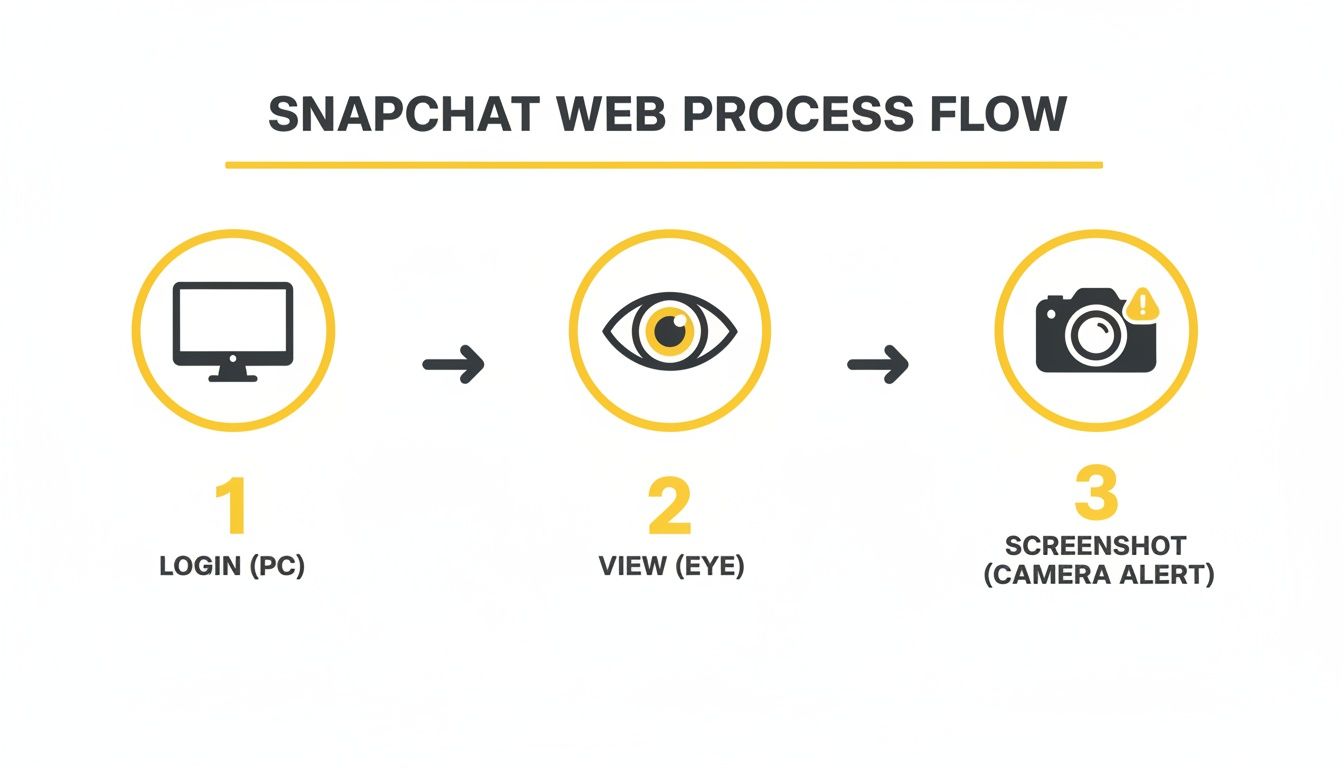
This visual shows exactly what SnapNinja was designed to avoid—that final step where the alert gets triggered.
From Snapchat's point of view, nothing out of the ordinary ever happens. You're just... viewing the content. There's no "screenshot" event for their servers to pick up on, which is the crucial difference that makes this desktop method so effective. If you want to get into the nitty-gritty, you can learn more about how to save Snapchat media without sending notifications in our more detailed guide.
Smart Privacy, Not Spying
Let’s be clear about one thing: this isn't about being creepy. This is about having control over your own digital life and creating a personal archive. People have plenty of legitimate reasons for wanting to save a snap:
- Archiving Memories: Your friend posts a hilarious video to their story, and you want to be able to watch it again later.
- Keeping Receipts: Someone sends you important info, like an address or a flight confirmation, and you need a record of it.
- Protecting Privacy: You're in a conversation where documenting what was said could be important for your own protection.
A tool like SnapNinja puts you in charge, transforming those fleeting digital moments into a permanent, private collection that only you can access. It only takes a few minutes to set up, and once it's running, it's completely automatic. It’s the perfect "set it and forget it" solution for anyone who uses Snapchat on their PC.
Archiving Snaps and Stories Like a Pro
Alright, you've got SnapNinja up and running on your computer. This is where things get interesting. You're no longer just casually chatting—you're stepping into the role of an archivist, creating a private library of moments that would otherwise vanish forever. This isn't about hoarding random screenshots; it's about building a smart, organized collection of what matters to you.
The best part about using Snapchat for PC this way is just how effortless it is. You browse Snapchat Web like you normally would, and SnapNinja works quietly in the background, grabbing high-quality copies of every photo and video you see. No fumbling with hotkeys or clicking extra buttons. It just works.
My advice? Get organized from day one. Create a dedicated folder on your desktop or an external hard drive. From there, you can sort your saved Snaps by date or by who sent them. This small habit makes a world of difference, turning a potential digital junk drawer into a clean, searchable archive.
Best Practices for Capturing Everything
To really master this, you need to think like an archivist. A single photo is easy, but catching a long, multi-part story requires a bit of attention.
Here are a few tips I've picked up:
- Watch Stories to the End: SnapNinja saves content as you view it. If you want to grab an entire Story, you have to tap through every single segment. If you skip a part, it won't be saved.
- Prioritize Important Chats: If you're waiting for important info from a specific person, open that chat first. This ensures you capture the critical stuff before the timer runs out.
- Review Your Archive Regularly: Every once in a while, pop into your saved content folder. It’s a good way to delete any duplicates or things you don't actually need, keeping your collection tidy.
This method is especially great for saving long video stories without a hitch. For a more detailed walkthrough on that, check out our guide on how to save Snapchat stories using your desktop.
Using Your Archive Responsibly
Having this kind of capability is powerful, but it's important to use it ethically. The goal is personal memory preservation, not spying. I use it to archive moments that are meaningful to me or to keep a record of important information for my own reference.
The whole point is to shift the control back to you. Instead of letting Snapchat decide when your memories expire, you become the curator of your own digital life.
This mindset helps you get the most out of using Snapchat on your PC without crossing any lines. Whether you’re saving a funny clip from a friend or documenting a conversation, you're in charge, and it's all happening privately on your own machine.
SnapNinja Use Cases What to Archive and Why
Here are some practical scenarios where SnapNinja becomes an essential tool for smart privacy and memory preservation.
| Scenario | Why It's Useful | SnapNinja's Role |
|---|---|---|
| Saving Sentimental Moments | Your partner sends a sweet video that disappears in 24 hours. | Automatically saves the video to your PC for you to cherish forever, without the awkward "saved to chat" notification. |
| Keeping Important "Receipts" | A friend sends you crucial details for an event or a confirmation number. | Archives the chat media, giving you a permanent record to refer back to without having to ask them to resend it. |
| Archiving Hilarious Stories | Your friend group posts a legendary story from a night out that you know you'll want to rewatch. | Captures every photo and video clip from the story as you view it, preserving the entire narrative for later. |
| Documenting Interactions | You're in a conversation where having proof of what was said could be important for your own protection. | Provides a discreet way to save the entire visual exchange, ensuring you have a record if you ever need it. |
Ultimately, this desktop method is about empowerment. It transforms Snapchat from a fleeting stream of content into a valuable, personal archive that you control completely.
Why You Should Avoid Snapchat Emulators
If you've spent any time Googling how to get Snapchat on your computer, you've probably seen a dozen guides pushing Android emulators like BlueStacks or LDPlayer. The idea sounds tempting, right? Just run the full-blown Android app on your desktop.
Let me be blunt: this is a terrible, outdated strategy that puts your account directly in the line of fire.
Running the Snapchat mobile app inside an emulator is a massive red flag for Snap's security systems. They are built specifically to detect when the app is operating in an unofficial, non-standard environment. Think of it like trying to use a fake ID to get into a high-security building—you might slip past the first guard, but you're not going to get very far before you're caught.
When Snapchat flags your account for using an emulator, the consequences come fast. You might get lucky with just a temporary account lock at first. But if you keep trying, or if the system detects other suspicious activity, you're looking at a permanent ban. All your streaks, memories, and contacts—gone for good.
A Smarter, Safer Path on Desktop
This high-risk approach is the complete opposite of why you'd want to use Snapchat on a PC in the first place. The entire point is to gain more control, privacy, and convenience safely. Emulators toss all that safety right out the window.
The real solution is to work with the official tools available, not against them.
By using the official Snapchat for Web client, you're playing by the rules and keeping your account in good standing. The magic happens when you pair this legitimate platform with an external tool like SnapNinja, which is designed to work alongside it because it operates outside the Snapchat app environment.
SnapNinja never touches or modifies the Snapchat app or its web code. It runs as a separate application on your Windows or macOS machine, which is fundamentally different from a risky emulator or some sketchy mobile hack. This is the core reason it’s undetectable. From Snapchat's perspective, you’re just another user on their official web platform.
Why Emulators Don't Make the Cut
Even if you completely ignored the huge risk of getting your account banned, emulators are often a frustrating experience. They can be clunky, slow, and hog your computer’s resources, offering a poor substitute for the real thing.
Here's the bottom line:
- Emulators are a known threat. They directly violate Snapchat's Terms of Service, and the company's security team actively hunts for them.
- SnapNinja is built for safety. It works with the official Snapchat for Web, never interacting with Snap’s servers in a way that triggers any alarms.
The choice is pretty clear. If you value your account and want a reliable way to save memories or keep receipts, stick with the official desktop method. Using an emulator is a gamble that just isn't worth taking.
To better understand our commitment to this safe approach, you can learn more about SnapNinja's privacy-first design on our website. It’s all about giving you power without putting your account in jeopardy.
Your Snapchat on PC Questions, Answered
Jumping into Snapchat on a desktop often brings up some valid concerns, especially around safety and keeping your account in good standing. We've heard these questions come up a lot, so let's clear the air and give you the straightforward answers you need.
Is It Really Safe to Use Snapchat on My PC?
Yes, it is—but with a huge caveat. Sticking to the official Snapchat Web client is perfectly safe. It’s made by Snap Inc., so you get the same security you'd expect from the mobile app.
The risk comes from unofficial Android emulators. These third-party programs can be a minefield, often triggering Snapchat’s security systems and putting your account at risk of being flagged or even banned. If you’re using a tool like SnapNinja that works with the official web version by operating outside the Snapchat environment, you're on solid ground. You get the desktop experience and archiving power without breaking any rules.
Will SnapNinja Get My Snapchat Account Banned?
Nope. This is probably the biggest reason to go the desktop route. SnapNinja is an external tool that runs on your Windows or macOS computer; it works by capturing what’s displayed on your screen. It never injects code or messes with the Snapchat app itself.
This is a world away from those shady mobile "mods" or sketchy emulators that Snapchat's systems are designed to sniff out and shut down. Since SnapNinja’s process is completely invisible to Snapchat's servers, your account stays safe. It’s a smarter, undetectable way to handle your privacy.
The Bottom Line: The desktop approach is safer because it operates outside the Snapchat environment. Mobile hacks try to work from the inside, which is precisely why they fail and get accounts banned.
Can I Save Snaps from Anyone with This Method?
You can save anything you can already see on Snapchat Web. If you can view a Snap from a friend or a public Story from someone you follow, you can archive it. The tool can't magically grant you access to private accounts or content you don't already have permission to view.
Think of it this way: if you can see it on your screen, SnapNinja can save it for you—privately. It’s meant to be your personal archivist for the content you're already engaging with.
Does This Work for Both Photos and Videos?
Absolutely. The tool is designed to handle every type of media you'll encounter on Snapchat Web. It doesn’t matter if it’s a quick photo in a chat, a video Snap, or a long Story with multiple video segments.
It just works. As you view the content, the tool automatically detects the media and saves a high-quality copy directly to your computer. You don't have to lift a finger—just watch things like you normally would, knowing a private copy is being saved for you without alerting anyone.
Ready to take back control and start building a private archive of your favorite moments? SnapNinja is the only tool that gives you the power to save Snaps and Stories on your PC safely and discreetly. Download SnapNinja today at https://snapninja.app and see what you’ve been missing.