
Snapchat on PC: Your Ultimate Guide to Using Snapchat on Desktop
So, you want to use Snapchat on a PC? Good news—you absolutely can. The official way is through Snapchat Web, a browser-based version that finally brings your chats to the big screen. And let's be real, typing on a real keyboard is a massive upgrade.
But what if you want to do more? What if you want to archive your own memories without sending up a flare? That’s where things get interesting, and that's where the "Desktop Advantage" comes in.
Why Using Snapchat on a PC Is a Game Changer
Your phone is great for snapping on the go, but it has its limits. Moving your Snapchatting to a Windows or macOS machine isn't just a novelty—it's a genuine power move that unlocks a new level of convenience and control.
For the longest time, getting Snapchat on a computer was a huge pain. When the app first launched back in 2011, it was strictly mobile-only. It took until September 2023 for the company to finally roll out Snapchat Web, giving everyone the desktop access they’d been clamoring for.
Before that official release, millions were stuck using clunky, high-risk Android emulators just to get their Snap fix on a computer. That alone shows you how huge the demand was among its 432 million daily active users.
The Real Desktop Advantage
So, what really makes using Snapchat on PC so much better? It boils down to a few key perks that your phone just can't match.
- Effortless Multitasking: Keep your chats open in a browser tab while you work, study, or game. No more constantly picking up your phone and breaking your flow.
- A Bigger View: Stop squinting at tiny details. A full-size monitor makes watching Stories and Snaps a much more immersive experience.
- Faster, More Comfortable Typing: A physical keyboard beats a tiny touchscreen any day, especially for long conversations. No contest.
The core appeal of the desktop experience is control. You get a bigger screen, better tools, and the ability to seamlessly integrate Snapchat into your workflow without being glued to your phone.
But even with the official web version, one massive challenge remains: archiving those fleeting moments. Taking a screenshot on Snapchat Web still sends that dreaded notification, which can lead to some seriously awkward conversations. This is where dedicated desktop solutions really shine, offering smarter ways to protect your privacy and archive your memories.
If you want to dive deeper into this, check out our guide on how to be a Snapchat downloader. This limitation is exactly why so many people are looking for a better, more discreet way to manage their snaps on a computer.

To make it even clearer, here’s a quick breakdown of how the two experiences stack up.
Snapchat on PC vs Mobile App: At a Glance
| Feature | Snapchat on PC (Desktop) | Snapchat Mobile App (iOS/Android) |
|---|---|---|
| Primary Use Case | Chatting, viewing content while multitasking | On-the-go snapping, quick replies, AR Lenses |
| Typing Experience | Full physical keyboard for fast, easy typing | Touchscreen keyboard, slower for long chats |
| Screen Size | Large monitor, great for viewing details | Small phone screen, highly portable |
| Multitasking | Excellent; runs in a browser tab alongside other work | Limited; requires switching between apps |
| Saving Media | Screenshot notifications are still sent | Screenshot/screen recording notifications are sent |
| Portability | Limited to your desk or laptop location | Extremely portable; use it anywhere |
As you can see, each platform has its strengths. The mobile app is king for portability and creating content, but for pure convenience in messaging and viewing, the desktop experience is hard to beat.
Getting Started with Snapchat Web
For years, we begged, and Snapchat finally delivered. They launched an official browser-based version called Snapchat Web, giving us a real, honest-to-goodness way to use the app on a computer. Let’s walk through how to get it running, what it's genuinely good for, and, just as importantly, where it falls short.

Think of it as a clean, streamlined extension of the mobile app that brings your conversations to your desktop. No more fumbling with clunky emulators or sketchy third-party tools just to use a proper keyboard. The setup is dead simple and takes less than a minute.
Your First Login
Jumping into Snapchat on your computer for the first time is a breeze. The only thing you'll need is your phone to confirm it’s really you.
Here’s the rundown:
- Fire up your favorite web browser—Chrome, Firefox, Safari, it doesn't matter—on your Windows or macOS machine.
- Head straight to web.snapchat.com.
- Type in your usual Snapchat username and password.
- A notification will pop up on your phone. Just open your Snapchat app and tap “Yes” to approve the login.
And just like that, you're in. The layout is instantly familiar, with your chat list on the left, the active conversation in the center, and video calling options up top. It's a clean, no-frills interface built for messaging and viewing—perfect for multitasking at your desk.
What You Can Do on Snapchat Web
The web version is surprisingly capable and covers the core features you use every day. You can chat, watch stories, and jump on video calls, all from a much larger screen.
- Chat Seamlessly: Send and receive snaps, texts, and stickers. Honestly, having a physical keyboard makes typing out long replies so much better.
- View Stories: Catching up on what your friends are doing feels way more immersive on a big monitor where you can actually see the details.
- Make Video and Voice Calls: Video calls on a laptop or desktop screen feel more like a real conversation instead of a cramped, handheld affair.
The bottom line? Snapchat Web is fantastic for communication. It’s built to let you stay in the loop without being glued to your phone, which is a game-changer if you're working or studying.
The Major Limitation: Archiving Snaps
Now for the big catch. While Snapchat Web successfully brings the chat experience to your PC, it also carries over the same strict rules. If you take a screenshot of a chat or a snap, the other person still gets that dreaded notification. This applies to the built-in screen recording tools on Windows and macOS, too.
This is where the real frustration kicks in. You might want to archive a hilarious photo, keep a record of an important conversation for your own reference, or save a sweet memory from a friend. But Snapchat's detection system makes it awkward, if not impossible, to do that without raising alarms.
This single limitation is why so many people are still searching for a better way to use Snapchat on PC. They need a solution that lets them archive their own memories privately, without sending up a flare. This is exactly where a dedicated desktop client like SnapNinja shines, as it operates outside the browser's restrictions, bypassing those built-in alerts entirely.
Why Android Emulators Are a Risky Choice
Before Snapchat for Web was a thing, getting Snapchat on PC felt like hacking into the Matrix. The only way in was through an Android emulator. You'd install a program like BlueStacks or Nox, which basically puts a virtual Android phone on your desktop.
This let you download and run the official Snapchat mobile app on your Windows or Mac. For a while, it was the only way to get the full experience—AR Lenses, the Discover page, everything—on a big screen. It was a clever workaround, and it worked.
But times have changed. While you can still technically use an emulator, it's a high-stakes gamble that could cost you your account. Snapchat has gotten way more aggressive about policing how people use their platform.
The Ban Hammer Is Real
Let's be blunt: Snapchat’s terms of service strictly prohibit using third-party applications to access their network. And yes, an Android emulator is considered a third-party app. Their systems are now incredibly good at spotting when a login is coming from an emulated device instead of a real phone.
When Snapchat flags your account, the penalties are harsh. You might get a temporary lock, or worse, a permanent ban. That’s it. Account gone. All those memories and conversations, wiped out. It’s a massive risk for a method that’s clunky, unsupported, and puts your account directly in the crosshairs.
The problem is that an emulator's entire job is to trick an app into thinking it's on a real phone. Snapchat sees this as a potential security threat, and their reaction is often swift and final. Mobile hacks are a surefire way to get banned.
Why Desktop Solutions Are a Smarter Play
This is where the Desktop Advantage becomes critical. Emulators and modified ".APK" files are mobile hacks—they mess directly with the mobile app itself, which is what triggers the red flags and puts your account on the chopping block.
A modern desktop tool like SnapNinja, on the other hand, operates on a completely different level. It’s built to work with the official Snapchat Web platform on your Windows or macOS machine, not the mobile app. This distinction is everything when it comes to keeping your account safe.
- No App Tampering: It doesn't modify or hack the Snapchat app. It simply works alongside your web browser.
- Undetectable by Design: Because it operates outside the mobile app environment, it doesn't trigger the alarms Snapchat’s detection systems are looking for. It’s a safer, undetectable method.
- Built for Privacy: The whole point is to give you control over your own data and memories without putting your account at risk. You can learn more about how this is achieved in our guide to smart privacy methods.
Look, emulators had their moment. They were a necessary workaround. But today, they’re just an unnecessary risk. With official tools like Snapchat Web and safer desktop companions now available, gambling with your account is a bad bet.
Mastering Smart Privacy to Save Snaps Undetected
Let's get straight to the biggest hurdle when using Snapchat on a PC: archiving snaps without tripping that dreaded "You took a screenshot!" notification. This isn't about being sneaky. It’s about practicing Smart Privacy—having control over your own digital memories and conversations.
Think about it. Maybe you want to archive a hilarious video story, keep a digital "receipt" of an important chat for your own records, or just save a sweet photo from a family member. Snapchat is built on disappearing messages, but sometimes you just need to make a moment permanent.
Why Standard PC Methods Fail Miserably
Your first instinct on a desktop is probably to use the built-in tools. On Windows, you have the Snipping Tool, and on a Mac, there's the Command+Shift+4 shortcut. These work for almost anything else, right?
Wrong. Snapchat Web is one step ahead. It's specifically designed to detect these system-level commands. The second you use a standard screen capture tool or even a generic screen recorder, Snapchat's browser code picks up on it and immediately fires off a notification to the other person. It's the same frustrating result as on your phone, just on a bigger screen.
The core problem is that these tools interact directly with your operating system in a way the browser can easily see. Snapchat is actively listening for these triggers, which makes discreetly archiving content with conventional methods a non-starter.
This puts you in a tough spot. You have all the power of a desktop but are still stuck playing by the app's restrictive rules. This is exactly why a more sophisticated approach is necessary—one that operates completely outside of Snapchat's line of sight.
The Desktop Advantage with SnapNinja
This is where the true Desktop Advantage shines, a concept that mobile hacks can't touch. The goal is to capture the content without ever letting the Snapchat app know it's happening. The only way to do this reliably is with a tool that works independently from the browser itself.
Enter SnapNinja. This isn’t a browser extension or a sketchy modified app. It's a dedicated desktop application for both Windows and macOS, built from the ground up to be the only reliable solution that bypasses the "Saved to Camera Roll" notification.
It works by monitoring the visual data being sent to your screen, operating outside the Snapchat app environment. Here’s a quick rundown of how it sidesteps detection:
- It operates in the background: You view the photo, video, or story on Snapchat Web as you normally would. SnapNinja sees what you see and archives it directly to your computer.
- It avoids browser hooks: Unlike screen recorders that hook into the browser, SnapNinja works at a deeper level, making its activity invisible to Snapchat's detection scripts.
- It's safer than mobile hacks: The biggest risk with tweaked mobile apps (for iOS or Android) is getting your account banned. Because SnapNinja doesn't modify the Snapchat app or violate its terms in a way its automated systems look for, it's a fundamentally safer method.
Because of this unique approach, SnapNinja stands out as a reliable way to bypass that "Saved to Camera Roll" notification for good. For a deeper dive, you can learn more about saving Snapchat content without notifications on our official site. It finally gives you the freedom to archive your memories, keep important records, and enjoy the content you care about on your own terms—privately and securely.
When Saving Snaps on a Desktop Makes Sense
So, we've covered the technical side of getting Snapchat on your computer. But why bother? Let's dive into some real-world situations where a desktop setup, especially with a tool like SnapNinja, becomes incredibly useful. This is about more than just convenience; it's about having control over your digital life.
Think about it: a friend sends a video story that's pure comedy gold. You know it’s a classic, but it’ll be gone in 24 hours. Instead of the awkward "Hey, can you save and send that to me?" dance, you can just quietly archive it from your desktop. No fuss, no detection.
Or maybe it’s a more serious chat. You’re confirming plans or discussing something you’ll need to remember later. Saving that chat isn't about being sneaky—it's about creating a personal record, a digital "receipt," to protect your privacy and refer back to later.
Archiving Memories and Keeping Receipts
Snapchat's disappearing act is fun, but it's also a huge liability. Some moments are too important to let them just evaporate.
- Saving Sentimental Snaps: Your partner sends a really sweet photo. A desktop tool lets you archive it to a private folder as a memento, completely avoiding the vibe-killing screenshot notification.
- Keeping Receipts of Conversations: Let's be real, online disputes happen. Having an untouched record of a conversation can be a critical piece of evidence you need for your own safety and peace of mind.
- Group Chat Gems: Someone drops a hilarious clip in the group chat. You can grab it for your personal collection without notifying the entire group of 10+ people.
It turns out, archiving content privately is more common than you might think. A huge number of users are already doing it every day.
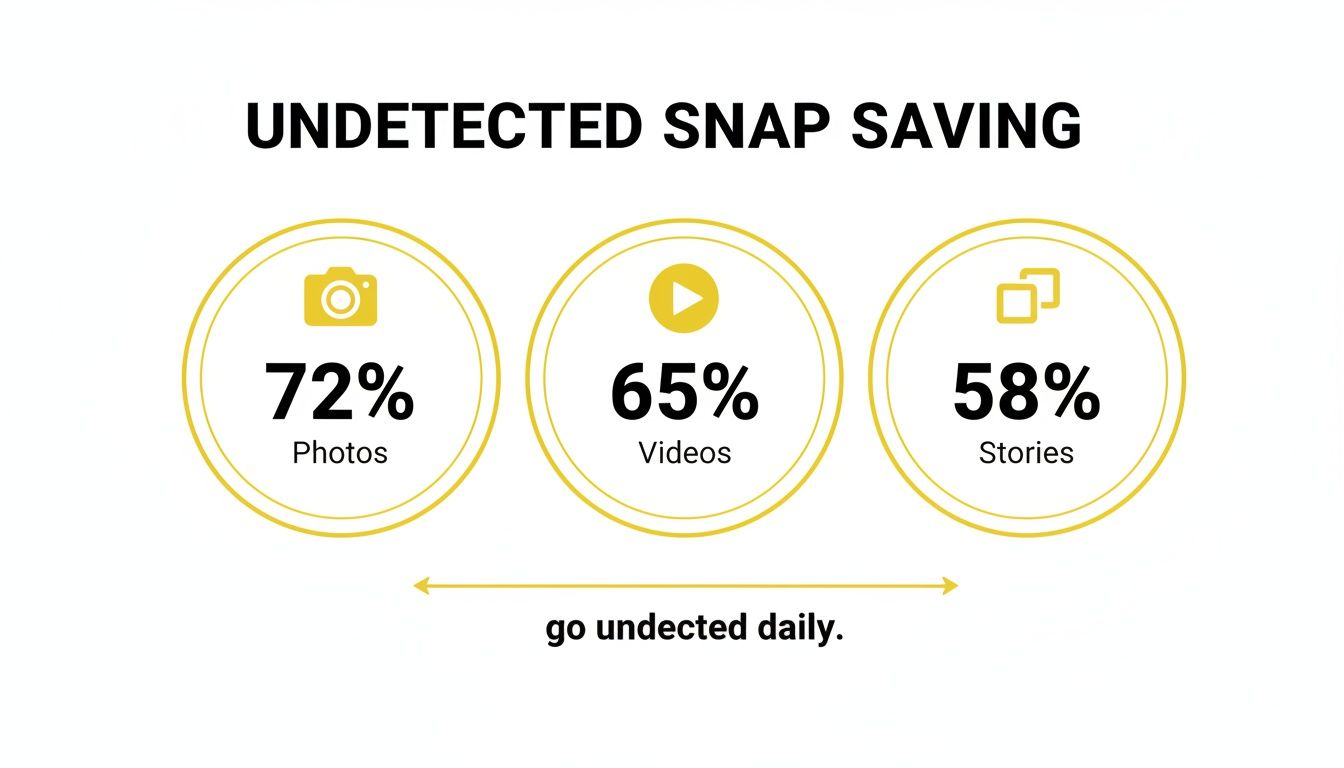
This data shows a clear trend: people want a private way to hold onto the photos, videos, and stories that matter to them. The demand for a discreet archiving method is undeniable.
How Desktop Tools Keep You Safer
This brings us to the core benefit of a desktop approach. Tools designed for Windows and macOS, like SnapNinja, are engineered to work with Snapchat Web, steering clear of the heavily monitored mobile app ecosystem.
By operating outside the mobile app's direct environment, a well-built desktop solution sidesteps the main red flags that get accounts suspended. Modified mobile apps are a direct violation of Snapchat's terms, and their detection systems are specifically designed to find and ban them—often instantly.
A native desktop application creates a buffer, a layer of separation that makes the whole process fundamentally safer. You get the privacy you need without putting your account on the line.
When it comes to saving Snaps, not all methods are created equal. Some are perfectly safe, while others carry a genuine risk of triggering notifications or even getting your account banned.
Snap Saving Methods: Safety & Detection Risk
Here's a quick comparison of the most common ways people try to save Snaps, highlighting the risks involved.
| Method | Platform | Notification Triggered? | Account Ban Risk |
|---|---|---|---|
| Native Screenshot | Mobile (iOS/Android) | Yes, always. | None |
| Screen Recording | Mobile (iOS/Android) | Yes, always. | None |
| Airplane Mode Trick | Mobile (iOS/Android) | Sometimes. Unreliable. | Low to Moderate |
| Third-Party Mobile Apps | Mobile (iOS/Android) | No (usually) | High. Very risky. |
| SnapNinja | Desktop (Windows/macOS) | No, designed for privacy. | Very Low |
As you can see, relying on tricks or sketchy third-party mobile apps is a gamble. A dedicated desktop tool is by far the smarter, more secure way to manage your Snapchat content without risking your account.
Snapchat on PC: Your Questions Answered
Jumping into the world of Snapchat on a PC can bring up some fair questions, especially when you’re thinking about keeping your account and your privacy safe. Let's tackle some of the biggest concerns.
Is It Really Safe to Use an Emulator for Snapchat?
You can technically get Snapchat running on an Android emulator, but it's a massive gamble. Snapchat’s terms of service strictly forbid using third-party apps, and their systems are good at sniffing out emulator activity.
Messing with emulators often leads to your account being temporarily locked. Keep doing it, and you risk a permanent ban. If you're looking for a safe, supported method, just stick with Snapchat Web.
Does Snapchat Know When I Screen Record on My PC?
Yes, it absolutely does. Snapchat Web is designed to spot when you use standard screenshot tools (like the Snipping Tool or Print Screen) and most screen recording programs on both Windows and macOS.
The moment it detects one, it sends that familiar notification to the other person, just like on your phone. This is why old-school methods don't work if you want to be discreet.
The takeaway: Any screen capture tool that directly interacts with your browser or OS is a sitting duck for detection. To actually archive content without setting off alarms, you need a tool that operates outside of that detectable bubble.
Will SnapNinja Get My Account Banned?
This is the big one, and the answer comes down to the Desktop Advantage. SnapNinja was built from the ground up to be undetectable because it works in a fundamentally different way than sketchy mobile hacks or emulators.
Instead of messing with the Snapchat app itself—which is what gets accounts flagged—it interacts with Snapchat Web from your desktop. It's a safer method that operates outside the app environment, designed to protect your privacy and archive your memories without risking your account.
Does SnapNinja Work on Both Windows and Mac?
Of course. SnapNinja is a true desktop tool, built for full compatibility with both Windows and macOS.
This was a key part of its design from day one. Unlike unreliable mobile mods that often only work on one platform (and crash constantly), SnapNinja delivers a consistent, safe experience whether you're on a PC or a Mac. You get the freedom to archive your memories securely, no matter what computer you use.
Ready to unlock the full potential of Snapchat on your computer? Get SnapNinja today and start archiving your favorite moments privately and securely.