Can You Screen Record Snapchat? The Undetectable Desktop Guide
So, can you screen record Snapchat? Absolutely. But the real question is how to do it without tipping off the other person. Snapchat is built on the idea of disappearing content, so its detection game is notoriously strong. Use your phone's built-in recorder, and the sender gets an instant notification. Every. Single. Time.
So how do you actually save those memories without setting off alarms?
The Smart Way to Record Snapchat Snaps
Forget what you've heard about sketchy mobile apps and complicated hacks. The only reliable way to record Snapchat secretly is to change your entire strategy. The answer isn't on your phone—it's on your desktop.
Countless third-party apps and tricks claim to bypass Snapchat's security on iOS or Android, but they're a fast track to getting your account flagged or permanently banned. Why? Because they all try to operate inside the very environment Snapchat has locked down. This is where the Desktop Advantage comes in.
By using your Windows or macOS computer, you move the entire process outside of the app's native detection systems.
Think of it this way: the Snapchat app on your phone is a high-security building with motion sensors everywhere. Mobile recording apps try to sneak past those sensors and almost always get caught. The desktop method is like setting up a high-powered camera across the street—you capture everything happening without ever stepping inside the building. It's completely undetectable.
The only truly reliable way to archive your memories or keep receipts without tripping Snapchat's alarms is to operate completely outside its mobile ecosystem. The goal here is smart privacy, not spying.
Choosing The Right Path
When you weigh the risks, the choice becomes pretty clear. Mobile methods are a gamble, plain and simple. The desktop approach, however, offers a reliable and private way to save important moments without putting your account on the line.
This decision tree breaks down the two main paths for recording Snapchat and where they lead.
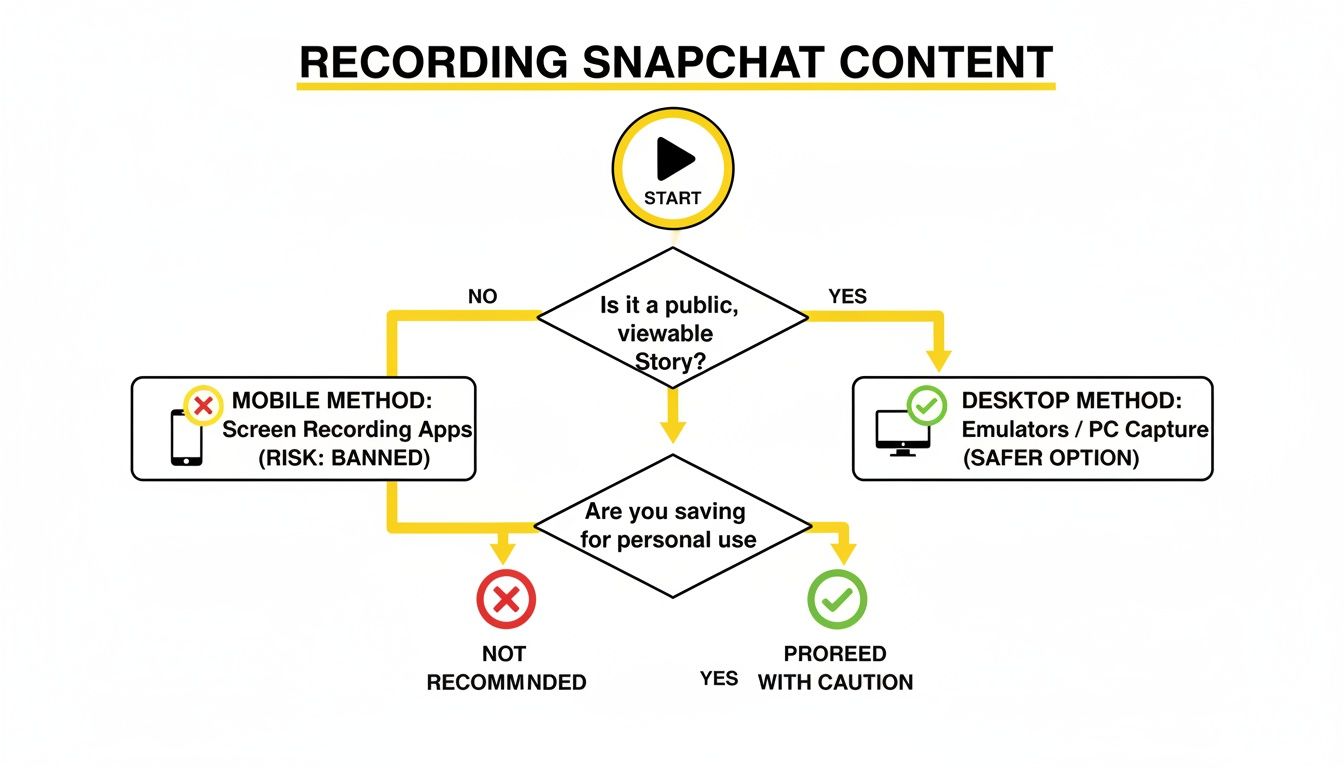
The flowchart makes it obvious: mobile hacks are a dead end. The desktop route is the only one that provides a safe, effective, and undetectable solution. That's the strategy we'll focus on, which is where a tool like SnapNinja comes in. It runs on both Windows and macOS, capturing content directly from Snapchat for Web without ever touching the mobile app. This makes it completely invisible to Snapchat's detection systems.
Screen Recording Methods And Their Risks
Here's a quick rundown of the most common ways people try to record Snapchat, along with the risks you’re taking with each one.
| Method | Detection Risk | Account Ban Risk | Recommended For |
|---|---|---|---|
| Built-in Phone Recorder | Very High | Low | Quick captures where you don't mind the other person knowing. |
| Third-Party Mobile App | High | Very High | Not recommended; these apps often violate ToS and can get you banned. |
| External Device (Another Phone) | None | None | Casual, low-quality recording for personal use only. |
| Desktop Screen Mirroring | Low | Low | A safer mobile-to-desktop method, but can still be buggy and unreliable. |
| Snapchat for Web + Desktop Recorder | None | None | The safest, most reliable method for high-quality, undetectable archiving. |
As you can see, using Snapchat for Web on your desktop is by far the safest bet, eliminating both detection and account risks.
How Snapchat Instantly Detects Screen Recording

Ever hit the screen record button and wondered how Snapchat knew, almost instantly? It’s not magic. The app has a direct, hard-wired connection to your phone’s operating system, which basically tells on you the moment you start recording.
On both iOS and Android, the Snapchat app is built to listen for specific signals from the operating system itself. When you use the phone’s built-in screenshot or screen recording feature, the OS sends out an alert. Snapchat is designed to catch that alert immediately, and that's what triggers the notification to the other person.
This creates a closed-loop system that is almost impossible to beat on mobile. It's not a flaw that third-party apps can easily exploit; it's a core feature of the operating system's security and privacy framework.
The Mobile Detection Mechanism
This direct line of communication between the app and the OS is exactly why most mobile "workarounds" fail or get you caught. They're fighting a system that’s designed to report their every move.
- iOS Integration: On an iPhone, Snapchat taps into Apple's official developer tools, which include specific notifications for any screen capture activity.
- Android Integration: It's a similar story on Android. The app uses special flags within the operating system that flip on the moment the screen is recorded or a screenshot is taken.
This has been a cat-and-mouse game for years. Shortly after Snapchat launched back in 2013, people started looking for ways to save Snaps. By 2014, Snapchat was already rolling out on-screen warnings, and its detection methods have only gotten smarter since. You can find more on the app's history over at Udonis.co.
Why The Desktop Advantage is a Game-Changer
Once you understand how mobile detection works, it’s easy to see why the desktop approach is so much more effective. When you use a tool like SnapNinja on your Windows or macOS computer, you’re playing in a completely different sandbox.
SnapNinja simply records the pixels on your screen while you're using Snapchat for Web. It doesn't interact with your phone's OS or trigger any of those mobile alerts. As far as Snapchat can tell, you’re just a regular user watching Snaps in a web browser. The recording software is running entirely separately on your machine, giving Snapchat no way to see what's happening. This separation is the secret to staying undetected.
Why Mobile Recording Apps Are A Trap For Your Account
If you've ever typed "can you screen record Snapchat" into Google, you've seen them. Countless apps on third-party stores pop up, all promising to let you secretly record Snaps right on your phone.
Let's be blunt: they're a trap, and they’re a fast way to get your account banned.
These aren't just simple screen recorders. They pose a massive security risk because, to work their "magic," they almost always demand you log in with your Snapchat username and password. The second you enter those details, you're not just logging in—you're handing over your account's keys to an unknown, unauthorized developer.
Snapchat's security team doesn't mess around. Their systems are finely tuned to spot weird activity, like your account suddenly being accessed from an unofficial app. This kind of behavior sets off immediate alarm bells, often resulting in a temporary account lock or, even worse, a permanent ban.
The Technical Trap Door
Using these apps goes way beyond breaking a rule in the terms of service. It’s a technical gamble you are almost certain to lose. They work by trying to intercept the data flowing between your phone and Snapchat's servers, a clumsy method that's incredibly easy for Snapchat to detect.
Imagine trying to pick a lock while a high-definition security camera is pointed directly at your hands. That's essentially what you're doing.
The real problem is that these apps operate inside the mobile environment that Snapchat has locked down. They leave behind digital footprints that are impossible to erase, making it a matter of when you get caught, not if.
This is exactly why the Desktop Advantage is the only reliable way forward. When you use a tool like SnapNinja on your Windows or macOS computer, you shift the entire recording process outside of Snapchat's direct line of sight.
SnapNinja is the only reliable solution that bypasses the "Saved to Camera Roll" notification because it operates entirely outside the Snapchat app environment. It simply captures the pixels on your screen as you use Snapchat for Web. It never needs your login details and doesn't interact with Snapchat's code at all. This complete separation makes your activity invisible and keeps your account safe.
A High-Risk Numbers Game
Snapchat's detection is incredibly widespread because they've invested heavily in protecting their core feature: private conversations. A whopping 85% of all Snapchat usage is one-on-one chats, so it's the space they guard most fiercely.
What are the odds of getting caught? Reports from user communities suggest a ban rate between 20-30% for accounts flagged for using these shady apps. Yet people keep trying, especially since 41% of all Snaps are videos, and the urge to save them is strong in high-usage countries like the US and India. You can dig deeper into these engagement trends over at Sproutsocial.com.
At the end of the day, mobile recording apps are a losing proposition. They put your account security on the line for a "solution" that's flimsy and fleeting. If you're serious about archiving memories or keeping receipts, your first move should be to steer clear of these apps entirely. The smarter, safer play is to use your desktop, where you stay in control and well out of reach of Snapchat's mobile detection.
The Desktop Advantage: How to Safely Screen Record Snapchat
So, we've established the risks of trying to record Snaps on your phone. Let's shift gears and talk about a real, working solution. If you want to safely screen record Snapchat, the answer isn't a new app or a clever trick—it's changing the playing field entirely. You have to get off Snapchat's home turf, and that's where the Desktop Advantage comes in.
By using Snapchat for Web on your computer, whether it's a Windows PC or a Mac, you create a natural barrier between Snapchat’s mobile detection systems and your recording tool. This isn't some shady workaround or a temporary glitch. It’s a completely different approach that puts you back in the driver's seat.
Why The Desktop Method Is Undetectable
Picture the Snapchat mobile app as a high-security fortress. Its code is woven directly into your phone’s operating system, creating a highly sensitive internal alarm system. Any screen recorder you install on your phone is essentially a spy trying to sneak around inside that fortress—it's only a matter of time before it trips a wire.
The desktop method doesn't even bother trying to get in. Instead, it just watches what’s happening on the screen from a safe distance.
When you use a purpose-built desktop tool like SnapNinja, it's simply capturing the pixels displayed on your monitor. It never interacts with Snapchat’s code, doesn't touch its API, and most importantly, it never asks for your login credentials. From Snapchat's perspective, you're just another user browsing Snaps on their website. The recording software is a totally separate process running on your machine, making it completely invisible to their servers.
A Smarter Workflow For Smart Privacy
This isn't about being sneaky; it's about smart privacy and giving yourself the freedom to archive what’s important to you. It might be a hilarious video from a friend you want to keep forever or a critical conversation you need for your records. The desktop workflow provides a reliable, stress-free way to do it.
By moving your recording activities to the desktop, you sidestep the entire cat-and-mouse game happening on mobile. You’re no longer vulnerable to app updates that patch exploits or algorithms designed to catch unauthorized apps.
Here’s a clear breakdown comparing the two approaches.
Mobile Apps Vs The SnapNinja Desktop Method
The table below starkly contrasts the high-risk gamble of mobile recording apps with the secure, undetectable desktop method that SnapNinja provides.
| Feature | Mobile Recorder Apps (iOS/Android) | SnapNinja (Windows & macOS) |
|---|---|---|
| Detection Risk | Very High | None |
| Account Ban Risk | Very High | None |
| Login Required | Yes (Major Security Risk) | No (Your Account Stays Secure) |
| Reliability | Fails After Updates | Consistently Works |
| Platform | iOS / Android (High Risk) | Windows / macOS (Safe) |
The difference is night and day. Mobile apps are a high-stakes bet against your own account, while the desktop method offered by SnapNinja is a secure, private, and permanent solution. It was built specifically for this, giving you a seamless way to save Snaps without triggering a single notification.
If you're ready to stop rolling the dice with risky mobile hacks, exploring the different SnapNinja plans is the logical next step. It’s the only method that truly respects both your privacy and your account's safety.
How To Record Snapchat Undetected With SnapNinja

So, you get the theory behind the Desktop Advantage. Now, let’s put it into practice. This isn't some complicated, tech-heavy process—it’s a simple workflow anyone can get the hang of in just a few minutes.
The secret is that the entire operation takes place outside of the Snapchat app's environment. You're just capturing what’s already visible on your computer screen, which is precisely why Snapchat can't see what you're doing.
The Simple Five-Step Workflow
Here is the exact step-by-step process for using SnapNinja to record Snapchat content without tripping any alarms. If you follow these steps, your activity stays completely private, and your account remains safe.
Log In on Your Desktop: First things first. Open your favorite web browser on your PC or Mac and navigate to Snapchat for Web. Log in just like you normally would.
Launch SnapNinja: Once your Snapchat session is running in the browser, open the SnapNinja application. This is the tool that does all the work, operating as a completely separate program on your computer.
Select Your Target Area: SnapNinja gives you the option to record your entire screen or to zero in on a specific window. For the cleanest recording, choose the browser window where Snapchat is open. This keeps any other desktop clutter out of the final video.
Record Before You Open: This is the most crucial part of the whole process. Make sure you start the recording in SnapNinja before you click to view the Snap or Story you want to save. Doing this ensures you capture everything from the very beginning.
View and Stop: Now you can click on the Snap and let it play through. As soon as it’s finished, just stop the recording in SnapNinja. The video is immediately saved right onto your computer's hard drive.
And that's really all there is to it. No alerts, no notifications, and no digital footprints left behind.
The real beauty of this method lies in its simplicity. Because SnapNinja never interacts with Snapchat's code or API, it completely sidesteps the "Saved to Camera Roll" notification system. From Snapchat's perspective, a user is just watching a Snap; it has no idea a screen recorder is running quietly in the background.
Why This Method Just Works
This approach is worlds away from those risky mobile hacks that often lead to account bans. You aren't modifying the app or trying to fool a server. You are simply making a perfect digital copy of what your screen is displaying—an action that is undetectable by any website, and that includes Snapchat.
Whether you want to archive a hilarious memory, keep a record of an important chat, or save a cool video for inspiration, this desktop workflow is the only truly reliable and safe answer to the question, "Can you screen record Snapchat?". It's designed for smart privacy, giving you back control without putting your account on the line.
You can get started and find out more about how to record Snapchat secretly with SnapNinja by visiting their official website.
Using Smart Privacy To Archive Your Digital Life
Let's shift our perspective for a moment. When people ask if they can screen record Snapchat, it’s rarely about spying. The real motivation is often about smart privacy—the simple desire to control your own digital conversations and memories.
In an ecosystem built on disappearing content, being able to create a personal archive is just a modern form of self-preservation. There are plenty of good reasons to save a Snap that have nothing to do with bad intentions.
Maybe it's a hilarious, once-in-a-lifetime video from a friend you want to keep. It could be an important address someone sent in a chat, or just a "receipt" from a conversation you need to refer back to. Saving these moments isn't any different from keeping old photos or letters.
Memory Keeping, Not Data Stealing
The goal here isn't to be sneaky; it's to empower you to keep what's rightfully yours—your memories and your conversations. Think of it less like recording and more like creating a personal backup for the temporary moments you share with friends.
When you use a tool like SnapNinja, you're not hacking or spying. You're simply choosing to archive content that was shared directly with you, for your own eyes only. It’s about preserving memories, not breaking trust.
This approach is strictly for personal use. The ethics are simple: don't share someone's private content publicly without their explicit permission. The ability to save a Snap comes with the responsibility to respect the sender’s privacy. SnapNinja's entire philosophy is built on this, providing a tool for personal archiving within a strong ethical framework. You can read more on our commitment to SnapNinja's privacy policy.
A Proactive Choice For Your Digital Life
Ultimately, deciding to archive your digital interactions is a proactive and responsible choice. It’s about making sure that important memories, bits of information, and personal "receipts" don't just vanish forever.
Instead of turning to risky mobile apps that could compromise your account, the desktop method gives you a secure and private way to stay in control. It makes you a savvy user who knows how to manage their digital life safely and effectively, all without setting off Snapchat's alarms.
Got Questions About Recording Snapchat? Let's Clear Things Up.
We get it—there's a lot of confusing information out there about what you can and can't do when it comes to saving Snaps. Let's tackle some of the most common questions head-on with some straight answers.
Does The Other Person Get A Notification If I Use A Desktop App?
Nope. This is the whole secret behind what we call the Desktop Advantage. When you use a tool like SnapNinja on your Windows or macOS computer, you're just capturing what’s displayed on your screen.
The software doesn't touch the Snapchat app or its servers at all. Since it’s working completely independently, Snapchat has no clue a recording is in progress, which means no notification is ever sent.
Is It Actually Illegal To Screen Record Snapchat?
This is a tricky one, and the answer really comes down to where you live and what you do with the recording. Saving a hilarious Snap from your best friend just for your own collection? You're almost certainly in the clear.
But, if you record someone's private content and share it publicly without their permission, you could land in hot water. That could easily violate privacy laws and definitely goes against Snapchat's terms of service. The golden rule is to be ethical—use it for personal memories, not for public exposure.
So, Does The Old Airplane Mode Trick Still Work?
In a word: no. This is one of those old-school myths that just won't die, but it’s completely unreliable today. Years ago, you might have been able to trick the app by quickly switching to airplane mode, recording, and then closing everything.
The modern Snapchat app is way smarter than that. It just holds onto that "screenshot" or "screen recording" notification and sends it the very second your phone gets back online. This trick absolutely no longer works, so don't even think about relying on it.
For a truly private and reliable way to archive your memories, SnapNinja is the only solution built to bypass Snapchat's detection systems safely on your desktop. Learn more at https://snapninja.app.