How to Save a Snapchat Pic Without Them Knowing The Desktop Method
Trying to figure out how to save a Snapchat pic without them knowing? You’ve probably realized it's not as simple as it used to be. The old airplane mode trick is a relic, and screen recording is a surefire way to send that dreaded notification.
Let's cut to the chase: to do this right, you have to get completely outside the mobile app's ecosystem. The only truly reliable method is using a desktop tool that works with Snapchat Web. This creates a buffer that Snapchat's mobile detection simply can't see, making your actions undetectable.
Can You Still Save Snaps Without Getting Caught?
Let's get straight to it: saving Snaps on the down-low is a whole different ballgame now. The classic workarounds you'll find buried in old Reddit threads just don't cut it anymore. Snapchat has gotten incredibly good at detecting when someone saves content.
This is where the concept of Smart Privacy becomes important. This isn't about spying. It’s about having control over your own digital interactions. Sometimes you need to archive a conversation to keep receipts, save a hilarious memory that's about to disappear forever, or protect your privacy by keeping a record of an important detail. It's about managing your data without causing social friction.

Why Old Tricks Fail
If you’ve tried the airplane mode method, clearing your cache, or even using some third-party screen recorders, you already know they're a gamble. And most of the time, you lose. Since it first got big back in 2011, Snapchat has built a seriously complex detection system.
With over 5 billion Snaps flying around every single day, the platform relies on multiple layers to catch save attempts in real-time. This includes direct hooks into your phone's operating system and even analyzing user behavior. That’s precisely why those simple tricks are so easily flagged now, potentially putting your account at risk. You can get a sense of their massive enforcement scale by checking out Snap's transparency reports.
The fundamental issue with any mobile-based method is that you're playing on Snapchat's home turf. The app is deeply integrated into your phone's OS, whether it's iOS or Android, giving it the power to directly monitor for screenshots and screen recordings.
To give you a clearer picture, I've put together a quick comparison of the common methods people try.
Snap Saving Methods: A Quick Comparison
| Method | Detection Risk | Quality | Our Recommendation |
|---|---|---|---|
| Screenshotting | Very High | High | Avoid at all costs. An instant notification is sent. |
| Airplane Mode Trick | High | Medium | No longer reliable. Often sends a delayed notification. |
| Mobile Screen Recorder | High | Varies | Most recorders are detected by the app. A notification is sent. |
| Third-Party Mobile Apps | Very High | Varies | Extremely risky. Can lead to account suspension and malware. |
| Desktop Solution (e.g., SnapNinja) | Very Low | High | The safest and most reliable method currently available. |
As you can see, sticking to your phone is a losing battle. The only approach that consistently works without tripping alarms is moving the whole operation to your computer.
The Desktop Advantage
The most dependable strategy is to take your phone out of the equation entirely and shift to a desktop computer. This is what I call the Desktop Advantage.
By using Snapchat Web on a Windows or macOS machine, you're creating a crucial layer of separation. The desktop environment isn't subject to the same surveillance as the mobile app, which creates a massive blind spot for Snapchat's detection systems.
This separation is the secret to how to save a Snapchat pic without them knowing. Instead of trying to outsmart the mobile app, you use a tool like SnapNinja that runs alongside your web browser. It operates silently in the background, making it completely invisible to Snapchat's security and keeping your account safe.
Why Mobile Hacks Get You Banned (And How Desktop Is Different)
If you've spent any time Googling how to save Snaps, you’ve undoubtedly seen suggestions for tweaked apps like "Snapchat++" or other mobile workarounds. I’ll get straight to the point: don't even think about it. Using these unofficial apps is the quickest way to find your account permanently locked.
These modified versions of Snapchat directly violate their Terms of Service. They function by messing with the official app's code, which is like waving a giant red flag at Snapchat's security team. They are incredibly skilled at sniffing out these unauthorized clients, and it's never a question of if you'll get caught, but when.

You Can't Win on Their Home Turf
Picture the mobile Snapchat app as a high-security fortress. It's built with deep connections into your phone's operating system, whether you're on iOS or Android, allowing it to monitor everything happening within its walls. When you try a mobile-based trick, you're essentially trying to fool the guards while standing in the middle of the courtyard.
This is exactly why those popular methods just don't work anymore:
- Modified Apps: The second you log in with one of these, Snapchat’s servers immediately recognize it's not the official app. Your account is flagged on the spot.
- Screen Recorders: Modern phones have built-in systems that tell apps when a screen recording is active. Snapchat taps directly into this to send that dreaded notification.
- Quick App Switching: Even weird behavior, like frantically swapping between apps, can be flagged by their systems as a potential attempt to get around security.
The bottom line is that any action you take on your phone is within Snapchat's direct line of sight. You're playing a game where the rules are designed for you to lose.
The Desktop Advantage: A Game-Changing Strategy
The real key is to move the whole operation to a completely different playing field: your desktop computer. This is what I call the Desktop Advantage, and it changes everything. By using Snapchat Web on a Windows or macOS machine, you create a critical buffer zone between your activity and Snapchat's powerful mobile monitoring.
A web browser just plays by different rules. It lacks the deep, system-level integration that the mobile app has, creating a massive blind spot for Snapchat’s detection algorithms.
This is precisely where a tool like SnapNinja shines. It’s built to work exclusively in this desktop environment, running alongside your browser. Since it operates completely outside the mobile app’s jurisdiction, it remains invisible to Snapchat’s main security protocols. It doesn't alter the app or trip any alarms because, from Snapchat's point of view, you’re just a regular user browsing the web. Operating away from the mobile app is fundamental to our user privacy approach, which you can learn more about on the SnapNinja privacy page.
This isn't just some clever loophole; it’s a strategic decision for maintaining your privacy and keeping your account secure. By moving to the desktop, you sidestep all the risks tied to mobile hacks and gain a reliable way to save your memories without anyone knowing.
How SnapNinja Works on Your Desktop
So, what's the magic behind saving a Snap without tripping the notification wire? It all comes down to the environment. This is where a tool like SnapNinja comes in, built from the ground up to take advantage of what I call the ‘Desktop Advantage.’ It’s not just another screen recorder; it's a dedicated piece of software that understands Snapchat Web inside and out.
The concept is surprisingly simple but incredibly effective. Instead of messing with the heavily monitored Snapchat mobile app, SnapNinja works with your web browser on a Windows or macOS computer. Think of it as a quiet background process that operates between your browser and your computer's operating system, completely off Snapchat's radar.

View It to Save It
From a user's perspective, the whole thing is seamless. There’s no clunky record button to hit or manual screenshot to time. SnapNinja is built on a simple principle: "just view it to save it."
When you open a Snap, watch a Story, or read a chat on Snapchat Web, the software instantly detects the media. It then automatically saves a copy directly to your computer’s hard drive in real-time.
Because this is all happening at the browser level—far away from the mobile app's walled garden—it never interacts with Snapchat’s notification systems. As far as Snapchat can tell, you're just viewing the content normally. There’s simply no trigger for that dreaded "Saved to Camera Roll" alert.
The key takeaway is that SnapNinja never touches the Snapchat app itself. It works on a different playing field where Snapchat's mobile detection rules don't apply, making it the only truly reliable and undetectable method.
The Undetectable Desktop Method
This is precisely why the desktop approach beats any mobile-based trick or third-party app. Those methods are a constant cat-and-mouse game with Snapchat's security team and can get your account banned in a heartbeat. A desktop tool like SnapNinja, on the other hand, is essentially invisible.
- No Mobile App Interaction: It works exclusively with Snapchat Web, completely avoiding the mobile app's security triggers.
- Background Operation: It runs quietly on your Windows or macOS machine, requiring zero input from you while you browse.
- Bypasses Notifications: By capturing content as your browser displays it, it sidesteps the specific functions Snapchat uses to detect saves and screenshots.
This makes SnapNinja the ideal solution for anyone needing to keep receipts from important chats or wanting to save a funny moment without creating that awkward "You took a screenshot!" moment. It’s smart privacy in action, giving you back control over your digital memories, safely and discreetly.
Getting SnapNinja Up and Running
Alright, let's walk through getting SnapNinja set up on your computer. I'll show you how to get it installed and running in just a few minutes—no technical wizardry required. It's a surprisingly simple process.
The magic here is what I call the "Desktop Advantage." By running everything on your Windows or macOS machine, you're operating completely outside of Snapchat's mobile app, which is how we avoid all of its screenshot and save notifications.
Your Quick Start Guide
First, you'll need to download the software. Just head over to the official SnapNinja website and grab the installer that matches your operating system, whether it’s Windows or macOS.
The installation itself is straightforward, just like any other program you'd install. Once it's done, don't expect a big, complex application to pop up. SnapNinja is designed to be discrete and run quietly in the background, staying out of your way.
Here’s what you’re actually working with:
- The Installer: The file you download from the SnapNinja site.
- The Background Process: The core engine of the tool that works silently after installation.
- Your Save Folder: You get to pick the exact spot on your hard drive where Snaps get saved.
With the software installed, the next step is to open your favorite web browser—Chrome, Firefox, Safari, whichever you prefer—and log in to your account on Snapchat Web. This is the most important part of the puzzle. SnapNinja works by syncing with your web browser session, not your phone.
This connection is the key to everything. SnapNinja intercepts the content your browser sees, completely bypassing the mobile app. That separation is precisely why the sender never gets that "Saved to Camera Roll" notification.
Finalizing Your Setup
Once SnapNinja is running and you're logged into Snapchat Web, you’re basically good to go. The only thing left is to tell it where to put your saved files.
It will likely have a default location, maybe a "SnapNinja" folder in your Pictures, but you can easily change this in the settings. Personally, I like to create a specific folder right on my desktop so I can find everything instantly.
Now for the easy part: just use Snapchat Web like you normally would. When you open a Snap or view a Story, SnapNinja automatically grabs it and saves it to the folder you chose. There’s nothing to click or command to run. The philosophy is simple: "View it to save it."
One quick tip from experience: make sure your web browser is fully updated. An old browser version can sometimes cause lag or connection issues, so a quick check can save you a headache later.
Before you start, just glance at your system tray (on Windows) or menu bar (on macOS) to confirm the SnapNinja icon is active. That little icon tells you it's running and ready. To see what features are available, check out the different tiers on the SnapNinja pricing page to find the right fit for you. It's a one-time setup that gets you ready for anything.
Common Mistakes to Avoid
Even with a great tool like SnapNinja, it’s easy to make a few slip-ups that can throw a wrench in the works. Think of this as a quick field guide to sidestepping those rookie mistakes so you can get things running smoothly right from the start. Getting this right is what gives you the Desktop Advantage and a seamless experience.
The biggest mistake I see people make is trying to force a desktop tool to work with the mobile app. It's a fundamental misunderstanding of how this works. SnapNinja is built specifically for Windows and macOS, and it's designed to hook into your browser session on Snapchat Web. That's the secret sauce—it's what makes it undetectable. Trying to link it to your phone is like trying to put diesel in a gasoline car. It’s just not going to work.
This visual guide really simplifies the desktop-only process.
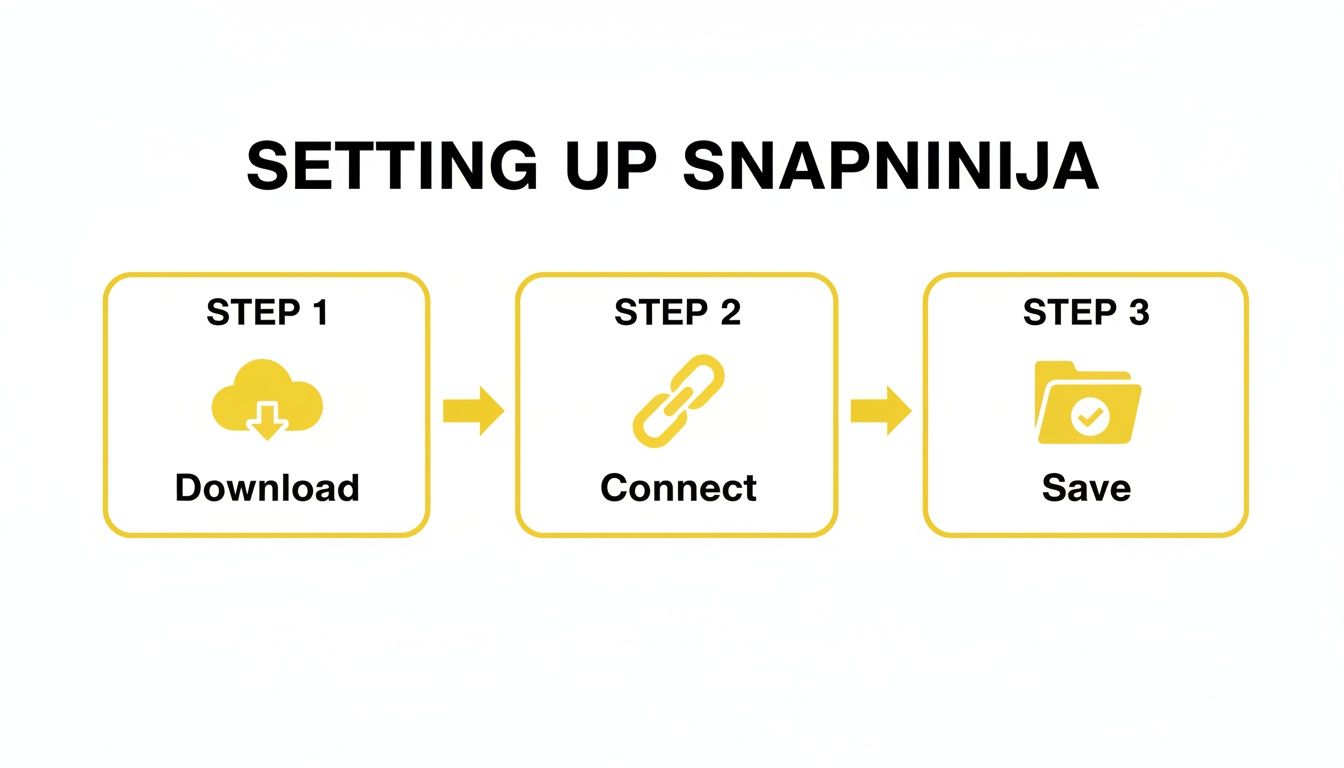
As you can see, everything from the initial download to the final save happens on your computer. Your phone isn't part of the equation at all.
Keeping Your Setup Smooth
Here's another small detail that makes a huge difference: keep your web browser updated. Since SnapNinja works directly with your browser, an old version of Chrome or Firefox can cause unexpected glitches or performance lags. If things feel sluggish, a quick browser update is almost always the fix.
It's also surprisingly easy to forget the tool is running silently in the background. If you notice a Snap didn't get saved, the very first thing you should do is check your system tray (Windows) or menu bar (macOS). Is the icon active? If the app isn't running, it can't do its job.
The whole point here is smart privacy, which means using your tools correctly and with respect. Remember, you're archiving content for your own personal use—saving a funny memory, keeping a digital receipt, that sort of thing. The trust of the other person should always be front and center.
Why Sticking to Desktop Is Non-Negotiable
It can be tempting to search for other workarounds, but they almost always come with a catch—poor quality, inconvenience, or even a risk to your account. Some guides suggest old-school methods like using a second phone to record the screen, but the result is usually a blurry, pixelated mess.
Other generic screen recorders are a gamble, as Snapchat is constantly updating its security on the web platform to detect them. If you want to see just how risky those other methods can be, you can find a good breakdown of various workarounds for bypassing Snapchat alerts and their pitfalls.
At the end of the day, a purpose-built desktop tool is the only method that gives you high-quality saves without putting your account on the line. Steer clear of these common mistakes, and you’ll be set.
Common Questions About Saving Snaps
If you're thinking about saving Snaps without tipping anyone off, you probably have a few questions. I've been in this space a while, so let's clear up some of the most common concerns I hear.
Is SnapNinja Going to Get My Account Banned?
This is the big one, and I get it. The short answer is no, and the reason is what I call the Desktop Advantage.
SnapNinja was built from the ground up to work only with Snapchat Web on a computer. It never touches or messes with the mobile app on your phone. This distinction is crucial. Sketchy, modified Snapchat apps are a one-way ticket to getting banned because they directly interfere with Snapchat's own code. SnapNinja, on the other hand, operates in a totally separate sandbox, making it invisible to Snapchat's mobile security flags. Your account stays safe.
Can It Save Videos and Stories, Too?
Yep, it handles everything you can see on Snapchat Web. It's not just for single photos.
- Photo Snaps
- Video Snaps (no matter how long)
- Complete Stories with multiple parts
It just works quietly in the background. The moment you open a Snap or a Story in your browser, SnapNinja grabs it and saves the file in its original quality. There's no special process for videos versus photos—it’s all automatic.
Why Not Just Use a Normal Screen Recorder?
You could try, but it's a real roll of the dice. Snapchat knows people attempt this and is constantly updating its detection methods, even for the web version. Using a generic screen recorder might send a delayed notification to the other person, or you could just end up with a glitchy, low-resolution video.
Think of it this way: using a generic screen recorder is like using an adjustable wrench for a delicate job. A purpose-built tool like SnapNinja is the precision instrument designed specifically for Snapchat's web environment. It's just more reliable.
Is Saving Someone's Snapchat Content Legal?
This is where things get tricky, as it really depends on where you live and what you plan to do with the content. Legality is complex. Saving a hilarious video from your best friend for your own memory bank is one thing. But sharing someone’s private photos without their permission? That's a completely different story and can land you in hot water, violating both privacy and copyright laws.
My focus here is on smart privacy—giving you the power to archive your own memories and personal moments. The golden rule is to always be ethical. Respect the other person’s privacy and understand your local laws on digital consent before you save a single thing. This is a tool for personal archiving, not for being creepy or malicious.
Ready to keep your memories safe without sending a single alert? Grab SnapNinja and see why it's the only reliable way to save Snaps. Download it now at snapninja.app.