
How to Save Snapchat Pictures Without Them Knowing (The Right Way)
You've probably seen those guides promising you can save Snaps without anyone knowing. The usual advice? A clumsy dance of flipping on airplane mode, grabbing a screenshot, and then frantically clearing your app's cache.
Let's be real: those mobile "hacks" are the fastest way to get your account flagged or, worse, permanently banned. It's time for a smarter approach.
Why Mobile Tricks to Save Snaps Are a Bad Idea
Let’s cut to the chase: trying to fool the Snapchat app on your iPhone or Android is a game you're going to lose. You're playing in their sandbox, where they write the rules and control every line of code. The official app is basically a digital fortress built entirely around the idea of disappearing content.

Snapchat's system is wired to detect anything that looks like unauthorized activity, and taking a screenshot is at the top of its hit list. When you try to find a workaround on your phone, you're fighting a losing battle against a system that's constantly updated to plug the very loopholes you're trying to exploit.
The Problem with Mobile "Hacks"
The most common mobile tricks aren't just unreliable; they're getting riskier by the day. They all rely on creating a short-lived communication gap between your phone and Snapchat's servers, but the app is rarely fooled for long.
Here’s why these methods are a dead end:
- Delayed Notifications: That classic airplane mode trick? It's a perfect example. You might snag a screenshot without an instant alert, but the app logs what you did. The second your phone reconnects, it often sends a delayed "screenshot" notification. You think you've gotten away with it, but the app was just waiting to tell on you.
- The Dangers of Third-Party Apps: This is the riskiest move of all. Downloading a "tweaked" or "modded" Snapchat app from an unofficial app store is a direct violation of Snapchat's Terms of Service. Their security systems are designed to hunt for these unauthorized clients, and getting caught often means a permanent account ban with no appeal.
- Constant Software Updates: A clever trick that works today will almost certainly be patched by next week. Snapchat's developers are always a step ahead, pushing out frequent updates that make these glitches obsolete. You end up in a constant cat-and-mouse game, with the risk of being caught growing with every attempt.
The real problem is you're trying to operate inside an environment that Snapchat completely controls. The app is deeply woven into iOS and Android, giving it the power to monitor screen activity and phone home to its servers.
It's Time for a Smarter Strategy
This isn't about giving up. It's about realizing the old tactics don't work anymore. Instead of fighting a war you can't win against the mobile app, the smart move is to change the venue entirely—to your desktop computer.
This is what I call the Desktop Advantage. By using Snapchat Web on a Windows or macOS machine, you're stepping outside of that tightly controlled mobile ecosystem. This shift is what allows tools like SnapNinja to do their thing effectively and safely.
Unlike mobile hacks that mess with the app itself, SnapNinja works from the outside. It captures the content as it appears on your screen, completely bypassing Snapchat’s internal notification triggers. It’s a fundamentally safer and undetectable way to archive memories because it never directly interferes with the Snapchat application. It's time to stop gambling with your account and start using a strategy that actually works.
Your Computer Is the Ultimate Snapchat Privacy Tool
Forget all the risky tricks you’ve tried on your phone. The real secret to saving Snapchat photos and videos without anyone knowing isn't on your mobile device at all—it's sitting on your desktop. If you’re tired of unreliable methods that get your account flagged, it’s time to shift your strategy to your PC or Mac.
Think about it. The Snapchat app on your phone is a tightly controlled ecosystem. Snapchat designed it that way, monitoring every single tap and swipe you make. This is exactly why mobile hacks often lead to account bans; you’re essentially trying to break into a high-security building, which almost always sets off an alarm.
But using your desktop browser changes everything. You’re no longer messing with the app itself. Instead, you're just interacting with a website—Snapchat Web. This is a far more open environment, and that distinction is the key. It allows a desktop tool to work alongside your browser without ever interfering with Snapchat’s code.
How to Bypass Notifications the Right Way
This is where SnapNinja becomes so powerful. It's the only reliable solution that operates outside the Snapchat app environment on your Windows or macOS desktop. It works on a brilliantly simple principle: it captures content as your browser displays it, not from within the app.
Because it operates externally, this method is basically invisible to Snapchat. The app's notification system is built to detect actions happening inside the mobile fortress—like taking a screenshot or starting a screen recording. SnapNinja does neither. It works from the outside, so the sender never gets that dreaded "Saved to Camera Roll" alert. They have no idea you've archived the memory.
This isn't some temporary glitch or a sketchy loophole. It's a reliable method that capitalizes on the fundamental differences between a locked-down mobile app and an open web browser. You're not picking a lock; you're walking through an open side door.
Why Your Desktop Is the Only Reliable Option
Every day, over 5 billion snaps are created, and nearly all of them are meant to vanish. Trying to save them on your phone is a losing game. A standard mobile screenshot triggers a notification 100% of the time, and that old airplane mode trick? It usually just delays the notification. If you're curious, you can dig into the latest Snapchat usage statistics and trends to see just how massive this platform is.
This is what makes a dependable archiving method so important, whether you're saving cherished memories, keeping receipts, or protecting your privacy. Mobile solutions are a gamble. The desktop advantage gives you consistency and peace of mind.
Here’s why this workflow is simply better:
- Keeps Your Account Safe: Since SnapNinja doesn't alter the Snapchat app or break its terms of service about third-party clients, the risk of getting your account banned is virtually zero.
- Completely Undetectable: The whole process happens outside of Snapchat's view. You can archive photos, videos, and entire stories without leaving a single digital footprint.
- Works on Autopilot: Once you set it up, the tool just runs in the background. As you browse Snapchat Web, every photo or video you open is automatically saved for you.
Ultimately, this isn't about spying. It's about giving yourself control over your own digital interactions. It’s a tool for archiving memories you don't want to lose, holding onto important information, or simply keeping receipts. By shifting over to your computer, you’re simply using a smarter, safer way to manage your snaps.
Getting SnapNinja Up and Running
So, you've seen why those old mobile tricks like screen recording and airplane mode are a recipe for disaster. It's time to shift gears to a more reliable, discreet method. Let's walk through setting up SnapNinja on your desktop, which is the cornerstone of this entire process.
The beauty of this approach lies in its simplicity. You won't be wrestling with complicated settings or trying to outsmart an app on your phone. Instead, you'll install a lightweight tool that works quietly in the background, creating your own personal archive of every Snap you view.
This entire workflow is about moving your activity away from the highly restrictive mobile app to the more flexible desktop environment.
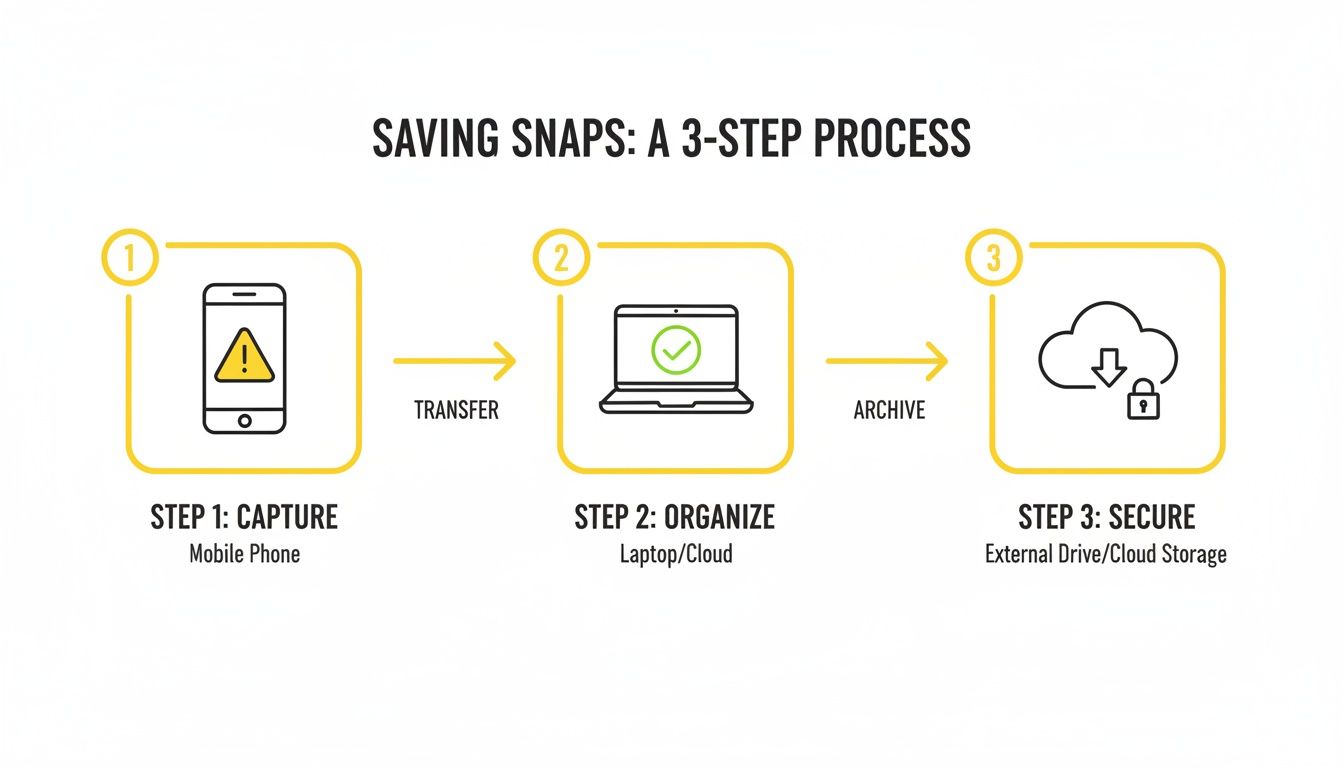
The core idea is simple: by using your computer, you sidestep the mobile app's built-in detection systems, making the whole process safer and far more effective.
H3: The Quick Install (Windows & macOS)
First things first, you need to get the software. Head over to the official SnapNinja app website to grab the installer for your system. I can't stress this enough: always download directly from the official source. This ensures you're getting the clean, up-to-date version without any unwanted extras.
Once you've downloaded the file, the installation is a breeze—no different than any other app you’ve put on your computer.
- On Windows: Just double-click the
.exefile you downloaded. The setup wizard will pop up and guide you through a couple of quick clicks. It’s usually done in under a minute. - On macOS: Open the
.dmgfile, and you'll see the SnapNinja icon. Simply drag that icon into your Applications folder, and you're all set.
There’s no need to mess with your firewall or tweak any advanced system settings. The tool is designed to be completely non-intrusive, so it won’t hog your computer’s resources or clash with other programs.
H3: Connecting to Snapchat Web
With SnapNinja installed, it’s time to log into Snapchat Web. The desktop tool and the web version of Snapchat work hand-in-hand, so this step is crucial.
Pop open your favorite browser—Chrome, Firefox, Safari, it doesn’t matter—and go to the official Snapchat Web login page. You'll sign in with your usual Snapchat username and password, just like you would on your phone.
Once you’re in, you’ll see your familiar chat list. From this point forward, you don’t even need to think about the SnapNinja app itself. It's already running in the background, waiting to do its job.
My Personal Tip: For the smoothest workflow, I recommend pinning the Snapchat Web tab in your browser. This keeps it readily available and ensures the tool is always active and ready to go whenever you're browsing.
H3: See It Work in Real-Time
Here's where the magic happens. Let’s say a friend sends you a video you want to keep. Normally, you’d be tempted to hit screen record and hope for the best. With this setup, the process is completely different—and completely silent.
You simply click on the Snap in your browser to view it. That's it.
As the photo or video appears on your screen, SnapNinja instantly detects it and saves a full-quality copy to a folder on your computer. There's no "save" button, no extra steps, and—most importantly—zero notifications sent to the other person. They will have no idea the content was saved.
This "set it and forget it" system works seamlessly for all types of content:
- Photo Snaps: Open a picture, and it’s immediately archived.
- Video Snaps: Watch a video, and the full file is saved automatically.
- Stories: As you tap through someone's Story, each individual photo and video is captured.
- Chat Media: Any media sent directly within a conversation is also saved.
This is what makes the desktop approach so powerful. You aren't performing an action that Snapchat's app can detect, like a screenshot. You're just viewing content. The tool handles the saving externally, keeping you completely off Snapchat’s radar.
Mobile Methods vs The SnapNinja Desktop Advantage
Still wondering if it's worth setting up on a computer? This quick comparison table lays out exactly why the desktop approach with SnapNinja is the only reliable choice compared to the common mobile workarounds.
| Method | Notification Risk | Account Ban Risk | Reliability |
|---|---|---|---|
| SnapNinja (Desktop) | None | Extremely Low | Very High |
| Screen Recording | High | Moderate | Low (Often detected) |
| Airplane Mode Trick | Moderate | Low | Inconsistent |
| Third-Party Mobile Apps | Very High | Very High | Extremely Poor |
As you can see, the common mobile tricks are a gamble at best. They either fail to work consistently or, worse, put your account at risk. The desktop advantage bypasses these issues entirely, offering a safe and dependable way to archive your Snaps.
Advanced Tips for Managing Your Saved Snaps
So, you've got SnapNinja set up and it's automatically saving your Snaps. That’s a great start, but let's take it a step further. We're going to move beyond simple archiving and build a powerful, organized system that actually works for you.
This is about turning a folder of saved media into a useful, searchable library. Whether you're a content creator, a super-organizer, or just someone who likes to keep their digital life in order, these tips will make a huge difference.

This is where you graduate from simply knowing how to save Snapchat pictures without them knowing to truly mastering the process.
Create a Smart Organization System
Let's be honest, that default "Saved Snaps" folder is going to get chaotic fast. A few minutes of organizing now will save you hours of frustration down the road. Don't just let everything pile up in one spot.
Start by creating subfolders for different people or topics. This is a game-changer for finding a specific photo or video later. For example, you could set up a structure like this:
- Friends/Close_Friends/[Friend's Name]
- Work/Project_Alpha/[Client Name]
- Hobbies/Concert_Videos
This simple habit transforms a messy media dump into a personal, searchable library. You're essentially building a filing cabinet for your memories.
For the Content Creators: Repurpose Like a Pro
If you're a creator, you know how hard it can be to get your own high-quality content back from some platforms. SnapNinja is a fantastic workaround for anyone posting to Spotlight who wants to repurpose those videos for TikTok, Reels, or Shorts without a watermark.
Because the tool saves the raw video file directly from Snapchat Web, you get a clean, high-resolution copy. It's perfect for re-editing and sharing. This is way better than screen recording, which almost always kills the quality and adds ugly compression artifacts. Just open your own Spotlight video on your computer, and SnapNinja will grab the original source file.
This workflow helps you maintain a consistent, high-quality content library across all your social platforms. It makes downloading your own work a breeze, ensuring you always have the best version for your portfolio.
Automate Your Workflow
To get the most out of SnapNinja, you need it running whenever you're using Snapchat. The best way to do that is to make it launch automatically when you turn on your computer.
- On Windows: Pop open the Task Manager, click the "Startup" tab, find SnapNinja in the list, and make sure it's set to "Enabled."
- On macOS: Head to "System Settings" > "General" and click on "Login Items." From there, you can add SnapNinja to the list of apps that open automatically.
Setting this up means you never have to remember to open the app. It'll just run quietly in the background, ready to save any Snap you view on the web. This is the key to a truly "set it and forget it" archive.
Managing Storage and Backups
All those saved photos and videos will eventually start to eat up a lot of hard drive space. It's smart to stay ahead of it. Set a reminder to spend a few minutes once a month cleaning out your archive and deleting anything you don't actually need.
For the really important stuff you want to keep forever, think about backups. You can copy your archive to an external hard drive or a cloud service like Google Drive or Dropbox. This protects your memories from a hard drive failure or a lost laptop. For those building massive collections, it might be worth checking the different SnapNinja pricing tiers to see if they offer more advanced storage features.
Troubleshooting Common Issues and Using the Tool Responsibly
Even the best software hits a snag now and then. If SnapNinja isn't working as expected, don't sweat it—most issues are surprisingly easy to fix. This part of the guide will walk you through the common bumps you might encounter and get your personal archive running smoothly again.
Just as important as the "how," though, is the "why." This method is about smart privacy, not spying. It’s for archiving memories, keeping a record of important conversations, or protecting your privacy. Using a tool like this responsibly is absolutely essential.
Fixing Common Capture Problems
So, you’re watching Snaps on the web, but nothing is appearing in your save folder. What’s going on? Nine times out of ten, it’s a simple communication issue between the tool and your browser, especially right after a Snapchat Web update.
Before you get frustrated, try these quick fixes first:
- Restart Everything: The old "turn it off and on again" trick works for a reason. Close your browser completely, relaunch the SnapNinja app, and give it another go. This simple step solves over 90% of temporary hiccups.
- Check for Updates: If Snapchat just rolled out a big change to their web platform, our tool might need a little update to catch up. Pop over to the official website and see if there’s a new version waiting for you.
- Clear Your Browser Cache: Old, stored data can sometimes cause conflicts. Clearing your browser's cache is a quick way to flush out any problematic data and get things talking to each other again.
Still no luck? The next place to look is your system's permissions. The app needs permission to see what's on your screen and to save files to its folder. Double-check your settings to make sure everything is enabled.
A quick pro tip: The tool captures what your browser displays. If a Snap doesn't fully load or your internet is acting up, the save might fail. A solid, stable connection is your best friend here.
The Ethical Side of Saving Snaps
Alright, let's talk about the important stuff. Knowing how to save Snapchat pictures without them knowing is a power that comes with real responsibility. This technology is built for personal archiving and smart privacy—not for anything shady.
Think of it like keeping a private journal. You're archiving your memories, holding onto a funny moment with a friend, or maybe keeping a digital "receipt" of a conversation. It’s all about preserving your digital life, not snooping on someone else's.
Using this content to harass, blackmail, or embarrass someone is not only wrong, but it can also land you in serious legal trouble. The whole point of this method is to help you with personal, legitimate needs:
- Archiving Memories: Saving that amazing video from a family member or a hilarious picture you'll want to look back on.
- Keeping Receipts: Documenting important info, like a landlord confirming a repair date in a chat.
- Content Curation: If you’re a creator, it’s a great way to save your own high-quality content before it disappears, so you can repurpose it later.
We developed this tool with smart privacy as the guiding principle. It's built on a foundation of trust and respect for others. Misusing it goes against everything it stands for. We strongly encourage you to read our full guide on responsible use and learn more in the official SnapNinja privacy policy. Always be mindful of others' privacy and use the tool ethically.
Answering Your Top Questions About Saving Snaps
Alright, we've walked through the whole process, but I'm sure a few questions are still rattling around in your head. Let's get those sorted out right now. Having clear answers is the best way to understand why this desktop approach is really the only reliable method left for saving Snaps without triggering a notification.
This isn't about exploiting some temporary bug. It's about a more deliberate, safer strategy that lets you decide what digital memories you want to keep.
Will This Method Get My Snapchat Account Banned?
This is the big one, and the answer is a confident no. Here’s why: SnapNinja works entirely outside of the Snapchat app ecosystem. It doesn’t inject code or mess with the Snapchat app itself, which is exactly what gets those third-party mobile apps nuked and accounts banned.
Instead, our tool simply interacts with the Snapchat Web page that's already loaded in your browser. From Snapchat's perspective, all it sees is a normal user browsing on their computer. Because it operates externally, it’s basically invisible to them and doesn't violate their terms of service in the way mobile hacks do.
Does This Work for Videos and Stories, Too?
Yep, absolutely. The tool is built to grab whatever media you're viewing on Snapchat's web version. That means it seamlessly handles:
- Individual Photos: These are saved the instant you open them.
- Full Videos: You get the complete, original video file downloaded to your computer—no choppy, low-res screen recordings here.
- Entire Stories: As you click through someone's Story, each photo and video segment is automatically saved as a separate file.
The moment the content loads on your screen, a perfect copy is already being saved to your designated folder. It all happens in the background without you having to lift a finger.
Is It Legal to Save Someone's Snapchat Picture?
The legal side of this really comes down to two things: where you live and what you do with the picture. If you're just saving a fun photo from a friend for your own personal collection, you're almost always in the clear. Think of it as the modern version of stashing a printed photo in a desk drawer.
The line gets crossed when you share that saved content without permission. Distributing someone's private or sensitive media is where you can land in hot water, both legally and ethically. It can violate privacy laws and, frankly, it’s a huge breach of trust. My strong advice is to use this for personal archiving only. Be smart and be respectful.
What Happens if Snapchat Updates Its Website?
This is where a dedicated desktop tool really shines over a random mobile glitch. Snapchat does push updates to its website from time to time, and yes, that can sometimes break how external tools interact with it. But a well-supported tool like SnapNinja is actively maintained.
When a site update causes an issue, the developers typically release a patch for the software to get it working again. You get ongoing support. It’s the difference between a reliable tool and a throwaway trick that works for a week and then disappears forever after an update.
Ready to take control of your Snaps safely and privately? Stop gambling with risky mobile apps and start archiving your memories the smart way. Join thousands of users who trust SnapNinja for 100% undetectable saving on Windows and macOS. Get started today at https://snapninja.app.