
How to Save Snapchat Stories Without Them Knowing (The Right Way)
Look, we’ve all been there. You see a hilarious or important Snap story, and your immediate instinct is to save it. But then you hesitate, knowing that dreaded "Screenshot" notification will pop up. For a long time, the only options were a bunch of sketchy mobile tricks that, let's be honest, rarely work anymore and put your account at risk.
The smartest and only truly reliable way to save Snapchat stories without the sender knowing is to move the action to your desktop. Using a tool like SnapNinja on your Windows or macOS machine, in tandem with the official Snapchat Web interface, is the key. If you want a no-install option, you can also view Snapchat stories anonymously using our free web-based downloader. This method operates outside the Snapchat app's environment, bypassing the notification systems built into iOS and Android and keeping your activity completely private.
Why Mobile Tricks Fail and The Desktop Advantage Prevails
If you've tried the old-school mobile hacks—toggling Airplane Mode, clearing your cache, or using some random third-party app—you know they're a gamble. For a short while, some of these workarounds might have tricked the system. But Snapchat is constantly updating its security, and those loopholes are now slammed shut.
The fundamental issue is that the Snapchat app on iOS and Android is deeply integrated into your phone's operating system. It’s designed from the ground up to monitor screen activity. The moment you take a screenshot or record your screen, the app knows and sends that notification. Even worse, resorting to "modded" or unauthorized Snapchat clients is a one-way ticket to getting your account permanently banned. It's a constant cat-and-mouse game, and you're almost guaranteed to lose.
This Is About Smart Privacy, Not Spying
Let's be clear: this isn't about being sneaky. It’s about smart privacy—having the control to create a personal archive of digital moments that are designed to disappear.
People want to save Snaps for all sorts of legitimate reasons:
- Archiving Memories: Keeping a hilarious video from a friend's trip or a once-in-a-lifetime family moment.
- Keeping Receipts: Documenting an important conversation or proof of an agreement you might need later.
- Personal Safety: Saving evidence of harassment or bullying for your own records.
- Content Curation: Grabbing a brilliant idea or a viral video from a creator's story before it's gone.
With over 5 billion snaps created daily, a staggering amount of meaningful content vanishes forever. According to the latest Snapchat statistics, old mobile tricks like the airplane mode method now fail 70-80% of the time after recent security patches. The need for a reliable way to save "receipts" or sentimental snaps is real, and mobile hacks just don't cut it.
The Desktop Advantage, Explained
So, if mobile is a dead end filled with account ban risks, what's the solution? Your computer. This is the Desktop Advantage.
Snapchat Web runs inside a browser on your Windows or macOS machine, which operates in a completely different environment than your phone. A web browser is like a sandbox—it's isolated from your computer's core functions. The website running inside it has extremely limited visibility into what else is happening on your machine.
This creates a critical blind spot that makes discreet saving possible.
Snapchat's website simply can't detect when an external, desktop-level program like SnapNinja is capturing your screen. It’s technically impossible for a website to monitor your computer’s processes in the same way a native mobile app can. This is the loophole that makes SnapNinja the only reliable solution that bypasses the "Saved to Camera Roll" notification, because it operates entirely outside the Snapchat app environment.
By leveraging this desktop advantage, SnapNinja can capture content from Snapchat Web, making it completely invisible to Snapchat's detection systems. You can archive any story, photo, or video without ever triggering a notification, keeping your account safe and your actions private.
Mobile Hacks vs Desktop Solution: A Quick Comparison
The difference between a risky mobile hack and a secure desktop solution is night and day. Here’s a quick breakdown that shows why the desktop method is superior.
| Feature | Mobile Apps & Hacks (iOS/Android) | SnapNinja (Windows/macOS) |
|---|---|---|
| Notification Risk | High. Most methods are detected by Snapchat. | Zero. The method is undetectable by Snapchat Web. |
| Account Safety | Very Risky. Using modded apps can lead to a permanent ban. | Safe. It works with the official Snapchat Web client. |
| Reliability | Low. Constantly patched and often fails to work. | High. Based on a stable, technical loophole. |
| Content Quality | Varies. Screenshots can be low-res; recordings can be clunky. | High. Captures stories in their original quality. |
| Setup & Use | Complicated. Often requires jailbreaking or sketchy installs. | Simple. Easy installation and one-click capture. |
Ultimately, while mobile tricks seem like a quick fix, they’re unreliable and put your account at serious risk. The desktop approach is, without a doubt, the smarter and safer way to go.
Setting Up SnapNinja for Undetectable Captures
Alright, let's get you set up. This is where we move from theory to actually saving Snaps privately. We'll walk through getting SnapNinja installed on your computer, whether you're on Windows or macOS. Don't worry, the whole process is incredibly simple—no tech wizardry required.
The beauty of SnapNinja is its simplicity. You won’t be messing around with confusing settings. The goal is to get you from download to fully operational in less than five minutes.
Before we dive in, make sure you have a modern web browser (like Chrome, Firefox, or Edge) and you're logged into your account on Snapchat Web. SnapNinja builds on that foundation to work its magic.
Your Quick Installation Guide
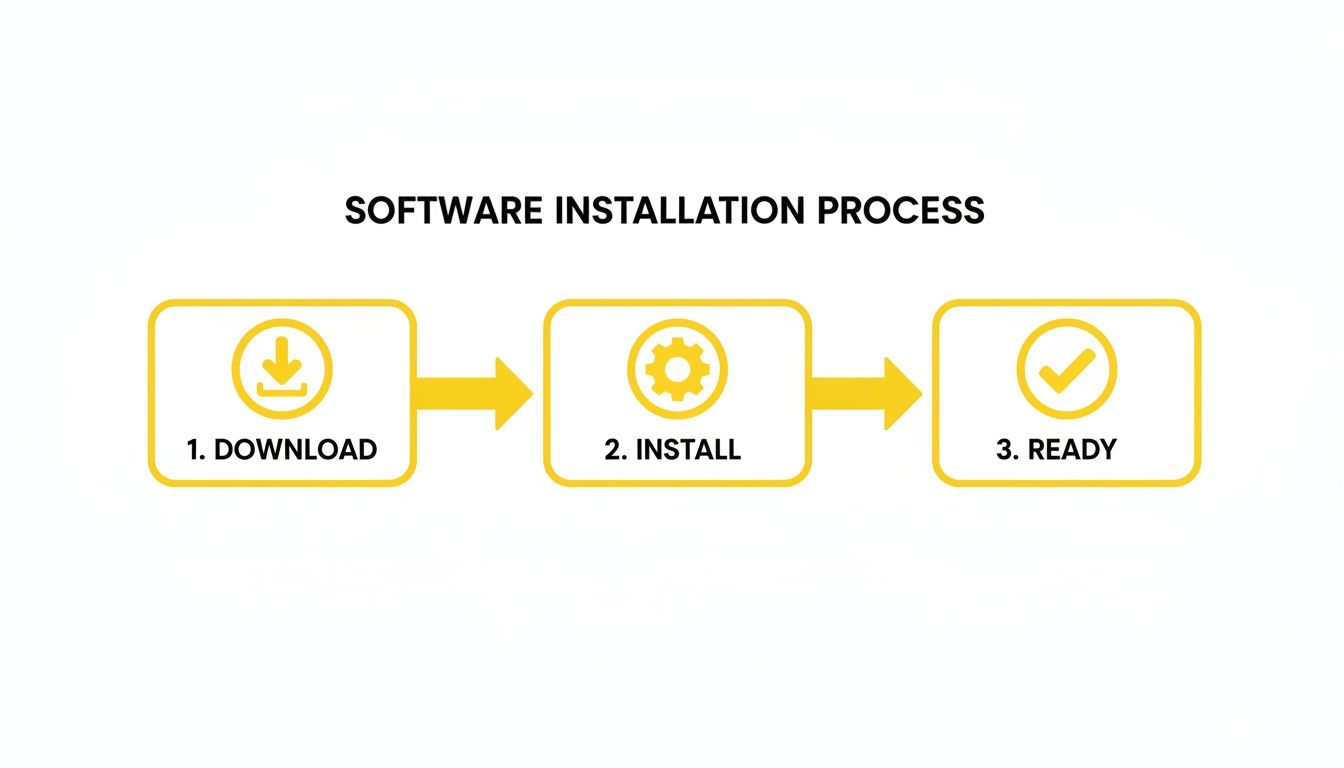
Getting SnapNinja up and running is a total breeze. First, you need to grab the software directly from the source. Head over to the SnapNinja website for the official installer for your operating system. I can't stress this enough: avoid third-party download sites. Getting it straight from them ensures you have the latest, most secure version. You can find the official SnapNinja download right on their homepage.
Once the download finishes, find the installer in your 'Downloads' folder and kick it off.
- For Windows users: Double-click the
.exefile. A standard setup wizard will pop up—just click "Next" a few times, agree to the terms, and let it do its thing. - For macOS users: Open the
.dmgfile. A window will appear—just drag the SnapNinja icon into your 'Applications' folder. Classic, simple Mac installation.
This initial setup gets the program onto your computer. The next part is just as easy but vital for making sure the tool works correctly.
Granting the Right Permissions
The first time you launch SnapNinja, your operating system will ask for a couple of permissions. This is a normal security checkpoint for any app that needs to interact with what’s on your screen.
This step is absolutely critical. SnapNinja needs permission to "see" your screen so it can detect when a story is playing in your Snapchat Web browser tab. This is precisely how it captures content without ever interacting with Snapchat's servers or code.
Why Permissions Matter: When you grant screen access, you're letting SnapNinja act as your automated personal archivist. It isn’t spying on your entire computer; it’s engineered to watch for media playing only within the Snapchat Web interface. This is the heart of the "Desktop Advantage"—it operates externally, which is the key to it being undetectable.
Your system might show a prompt that says "SnapNinja would like to record this computer's screen." I know it sounds a little intimidating, but it's just the standard OS language for this permission. Go ahead and approve it. Without this, the software can't do its job.
Final Configuration and First Run
With permissions sorted, you’re basically there. There are no complicated settings to adjust. SnapNinja was designed with a "set it and forget it" mindset.
The app will now run quietly in your system tray (on Windows) or menu bar (on macOS), using minimal resources. Its one and only job is to wait for you to open Snapchat Web and view a story.
Let's do a quick final check:
- Confirm SnapNinja is running in the background (look for its icon in your menu bar or system tray).
- Open your favorite web browser and head over to
web.snapchat.com. - Log in to your Snapchat account.
And that's it. You're officially set up and ready to start archiving Snaps discreetly. Now for the fun part: saving content without leaving a trace.
Capturing Stories Anonymously: A Practical Walkthrough
Alright, let's get to the good part. You’ve got SnapNinja installed, you’re logged into Snapchat Web, and now it's time to see it work. This is where you can finally archive those stories without letting the other person know.
The beauty of this setup? You barely have to lift a finger. SnapNinja runs completely in the background. There’s no record button to hunt for or screen area to select.
You just use Snapchat Web exactly like you normally would. Simply viewing the content is all it takes to save it.
The Capture Experience: How It Works
Let's walk through a real-world scenario. Your friend is at a concert and starts posting a hilarious series of stories. You know this is pure gold, but it’s going to vanish in 24 hours. This is the perfect time to archive a memory.
With SnapNinja running, here’s all you do:
- Head over to your friend's story on Snapchat Web and click to open it.
- Watch the story all the way through, from the first Snap to the last.
- That’s it. You're done.
Seriously, that's all there is to it. While you were watching, SnapNinja automatically detected the video stream playing in your browser and saved every single clip directly to your computer in its original quality. No pop-ups, no confirmation messages, and—most importantly—no notification sent to your friend. It's a completely invisible process.
The core idea is simple: If you can see it, you can save it. SnapNinja operates on the premise that any media displayed on your screen via Snapchat Web is fair game for capture, turning your regular viewing session into an automatic archiving process.
This seamless operation is what sets it apart. The software is smart enough to know the difference between a Snapchat Story and your regular web browsing, so it only kicks in when it needs to.
Finding and Organizing Your Saved Snaps
Okay, so you’ve watched a few stories. Where did they go? SnapNinja is built to be as organized as it is discreet.
By default, the app creates its own dedicated folder on your computer.
- On Windows, you’ll usually find it in your
Documentsfolder, labeledSnapNinja. - On macOS, it’s in a similar spot inside your user's
Documentsdirectory.
Inside that main folder, SnapNinja automatically creates subfolders named after each Snapchat user whose story you saved. So, if you just saved a story from "alexchen," you'll find a folder named alexchen waiting for you.
All the photos and videos from Alex's story will be inside that folder, neatly named with the date and time they were captured. This makes finding everything later a breeze.
The Quality You Keep Is the Quality You See
One of the biggest complaints about screen capturing is the loss in quality. Most screen recorders give you pixelated, blurry files. This is another area where the desktop method shines.
SnapNinja doesn't just "record" your screen. It intercepts the media stream that Snapchat Web is sending to your browser. This means you're getting a perfect, bit-for-bit copy of the photo or video, exactly as the person uploaded it.
- No Compression Artifacts: The saved files are clean and sharp.
- Original Resolution: If a Snap was posted in HD, that’s what your saved file will be.
- Full Audio: The sound is captured directly from the source, perfectly synced and crystal clear.
This focus on quality is a big deal, especially if you're saving something sentimental. You're preserving the memory just as it was meant to be seen. If you want to see how this stacks up against other options, our guide on how to screen record Snapchat the right way is a great read.
The whole process is designed around smart privacy and preserving memories. You get to keep what matters to you without any of the social awkwardness or risks. Next time a story pops up that you don’t want to lose, you can watch it knowing a perfect copy is being saved for you—safely and silently.
Pro Tips for Power Users and Content Creators
Once you get the hang of saving stories, you'll realize this method is more than just a simple party trick. SnapNinja isn't just for grabbing a single clip; it’s a full-blown archiving tool for anyone who takes their content seriously. Let's dig into some advanced techniques.
Knowing how to save a Snapchat story is just the starting line. The real power comes from using this skill efficiently to build a personal library of memories or a bank of high-quality content.
Mastering Bulk Story Captures
If you follow a lot of active accounts, stories can stack up fast. What if you want to archive everything from a specific event, like a music festival or a holiday weekend?
The process is surprisingly straightforward. Since SnapNinja runs in the background, all you have to do is go on a viewing spree.
- Just Start Watching: Open up Snapchat Web and click through your friends' stories one after the other.
- Zero Manual Work: You don't have to stop or save anything yourself. SnapNinja automatically detects when a new story from a new user begins and saves the files into perfectly named folders.
Think about it: three of your friends are at the same concert, all posting clips. Just watch all three of their stories back-to-back. When you check your SnapNinja folder later, you'll find three separate subfolders—one for each friend—containing every single clip you viewed.
Beyond Stories: Capturing Chat Media and Spotlights
That same "Desktop Advantage" also applies to media sent in direct messages. Whether it's a photo or a video someone sent you in a private chat, the method is identical.
Simply open the chat on Snapchat Web and view the media. The moment it plays on your screen, SnapNinja discreetly saves a copy to your computer, automatically sorted into a folder with that person's username. It's perfect for saving those heartfelt moments or important "receipts" without the awkwardness of a screenshot notification.
For content creators, the real goldmine is Snapchat Spotlight. The big problem with screen recording Spotlight videos on your phone is you almost always get UI elements in the final clip. SnapNinja pulls the raw video stream directly, giving you a completely clean file ready for your next TikTok or Instagram Reel.
My Personal Tip: Get organized from the start. Create a main folder on your desktop called "Snapchat Archives." Inside, make subfolders like "Friends," "Creators," and "Spotlight." Every so often, move the captured files from the default SnapNinja folder into your organized system. It keeps things tidy and easy to find later.
Organizing Your Digital Archive
As your collection grows, staying organized is everything. A messy folder of random files is almost as bad as not having them. While SnapNinja gives you a huge head start by auto-sorting by username, you can take it a step further.
Here are a few filing strategies that have worked for me:
- By Event: If you saved stories from a wedding, create a "Miller Wedding 2024" folder and drag all the related user folders into it.
- By Date: I like to create monthly folders (e.g., "Archives - 2024") to keep my personal collection in chronological order.
- By Purpose: If you're a creator, try sorting saved content into buckets like "Funny Clips," "Meme Templates," or "Viral Dances."
When you put a simple filing system in place, you transform a chaotic folder of Snaps into a valuable, searchable library.
Troubleshooting Common Issues and Staying Safe

Even with a tool as slick as SnapNinja, you might occasionally hit a small snag. Don't sweat it—most issues are simple fixes. Let's walk through common hiccups and, more importantly, talk about using this tool safely and responsibly.
The whole point here is to archive your memories privately, not to stir up trouble. Getting a handle on both the tech and the ethics is key.
When Things Go Wrong
So, the software isn't detecting a story, or a file you thought was saved is nowhere to be found. Run through this quick diagnostic checklist. These simple steps solve the problem 99% of the time.
- Restart Everything: It’s a classic for a reason. Completely close your web browser, then quit and relaunch the SnapNinja app. A fresh start often clears out temporary glitches.
- Check Your Permissions: This is a big one, especially on macOS. System updates can sometimes reset app permissions. Pop into your 'System Settings' under 'Privacy & Security' and make sure SnapNinja still has the green light for screen recording.
- Update Your Browser: SnapNinja is built for the latest versions of modern browsers. If you’re running an ancient version of Chrome, it might struggle to hook into the video stream properly.
If a saved file seems to have vanished, double-check that you're looking in the right spot (your Documents directory). It's also possible you clicked away before the story finished playing, so always let clips run to the end.
Smart Privacy and Responsible Use
This entire guide is built on the idea of smart privacy. This isn't about spying; it's about giving you control over your digital footprint and creating a personal archive.
You might be saving a hilarious memory, keeping a record of an important chat, or documenting something for your own protection. Just remember to use this power responsibly. Respecting someone else's privacy is just as critical as protecting your own.
The goal is to archive your digital life, not invade someone else's. Remember that just because you can save something doesn't always mean you should share it publicly without permission. Always consider the context and the trust the other person placed in you.
Why This Method Is Safer Than Mobile Hacks
It's really important to understand why SnapNinja is fundamentally safer for your account than any mobile-based workaround. The secret is the Desktop Advantage.
Shady, modded mobile apps try to directly alter the official Snapchat application. They inject code and meddle with the app's internal workings, which sets off every alarm bell in Snapchat's security system and is the fastest way to get your account permanently banned.
SnapNinja, on the other hand, never touches the Snapchat app or its API. It runs completely on the outside, on your desktop, and only observes what your browser is already showing you. As far as Snapchat is concerned, it's invisible—just another background process on your computer. This is what keeps your account completely safe from detection.
Got Questions? We’ve Got Answers
Even with a detailed guide, you might still have a few things on your mind. Let's clear up some of the most common questions.
Is This Really Undetectable? And Is My Account Safe?
Yes, this method is 100% undetectable and safe for your account. Here’s why: SnapNinja works on your computer and simply records what's happening on the Snapchat Web page in your browser. It never messes with Snapchat's actual app or servers.
Modified Snapchat apps on your phone are a huge red flag because they change the app itself. Our desktop tool is completely external and leverages the Desktop Advantage. Snapchat has no way to tell that the story you're watching in your browser is also being saved to your hard drive. This keeps your account out of harm's way, avoiding flags or bans.
Can It Save Both Photos and Videos from Stories and Chats?
Absolutely. SnapNinja is built to archive any media you can see on Snapchat for Web. That covers:
- Both photos and videos from a friend's Story.
- Media sent straight to you in a private or group chat.
If you can see it on your screen, SnapNinja can save it. It all happens in the background, and you get the media in its original quality.
What Happens if Snapchat Updates Its Website?
We're on top of it. Our team works hard to make sure SnapNinja stays ahead of any changes Snapchat might roll out. Minor tweaks to their web layout are expected, but the software is designed to handle them.
We release regular updates to maintain compatibility and keep the process invisible. We're constantly monitoring Snapchat's platform so you can keep archiving memories (or "receipts") without a hitch.
Can I Use This on My iPhone or Android?
SnapNinja is built specifically for Windows and macOS. This isn't a downside—it's the key to why it’s so safe and undetectable.
Mobile apps that promise to do this are almost always shady, modified versions of Snapchat that put your account at serious risk of being banned. By sticking to your desktop, you leverage the Desktop Advantage, staying completely separate from Snapchat's heavily monitored mobile environment. The desktop approach is all about keeping your account safe and your activity private.
Ready to start archiving memories without leaving a trace? With SnapNinja, you can finally capture any story, photo, or video privately. Get started over at https://snapninja.app.