How to Screenshot a Snapchat Chat Without the Notification (The Desktop Method)
The fastest and only truly safe way to screenshot a Snapchat chat without sending a notification is to use a dedicated desktop tool like SnapNinja with Snapchat Web. Forget those old mobile tricks like airplane mode—they’re a hit-or-miss gamble that will likely get your account flagged. A smart desktop app captures your screen from outside the browser, making the process completely invisible to Snapchat's detection systems.
Why Mobile Screenshot Hacks Are a One-Way Ticket to Getting Busted
Let's be real, we've all been there. You see a message or a photo in a Snapchat chat that you absolutely need to save. Maybe it's a hilarious conversation you want to archive, an important address, or just a "receipt" you want to keep for your own privacy and records. Your muscle memory kicks in to hit the screenshot combo, but then you remember: the dreaded "You took a screenshot!" notification.
A quick search pulls up a ton of so-called "hacks" for your phone. They sound convincing at first, promising a foolproof way to grab that screenshot without the other person ever knowing.
You’ve probably seen these common workarounds:
- The Airplane Mode Trick: The classic method where you load the chat, enable airplane mode, take your screenshot, and then desperately try to clear the app's cache before reconnecting.
- Third-Party Screen Recorders: You download a random mobile app from the store that claims it can record your screen without Snapchat noticing.
- Google Assistant/Siri Commands: You try to outsmart the app by using your phone's built-in AI to capture the screen for you.
Here’s the hard truth from a tech-savvy perspective: these methods are a massive gamble, and the odds are stacked against you.
The Problem With Trying to Trick Your Phone
Snapchat’s entire brand is built on the promise of disappearing content. Their engineers have spent over a decade patching the very loopholes these tricks try to exploit. The mobile app is deeply integrated into your phone’s OS (iOS or Android), giving it a direct line to system-level actions like screen captures.
When you try the airplane mode trick, you're in a race against the app's internal logs. Snapchat is smart enough to register the screenshot event and simply queue the notification. The moment you reconnect, it sends the alert. Clearing the cache is supposed to erase that pending notification, but recent updates have made this far less effective. More often than not, the other person still gets notified, and you look sneaky.
Third-party mobile apps are even more dangerous. Snapchat’s security systems are constantly hunting for unauthorized apps interacting with its platform. Using an unapproved screen recorder on iOS or Android is one of the fastest ways to get your account flagged, which can lead to a temporary lock or even a permanent ban.
The bottom line: Trying to bypass screenshot notifications directly on your phone puts your account in the danger zone. It's a cat-and-mouse game where Snapchat controls the entire board. These mobile hacks often lead to account bans, whereas a desktop method is far safer and undetectable.
This isn't just a scare tactic; it's the technical reality. Luckily, there’s a much smarter solution. The secret isn't a better mobile hack—it's changing the playing field entirely. This "Desktop Advantage" is the key to smart privacy and archiving memories without ever worrying about that notification again.
The Desktop Advantage: A Smarter Way to Archive Snapchat Chats
The real secret to saving Snapchat content isn't about outsmarting your phone; it's about changing the environment.
Think of the mobile Snapchat app as a fortress, packed with digital tripwires and surveillance (detection APIs) watching your every move. The second you try something it doesn't like, like taking a screenshot, alarms blare and the other person gets a notification. Trying to find a way around this on your phone is a losing battle.
This is where the Desktop Advantage comes in. When you use Snapchat Web on a Windows or macOS computer, you move the conversation out of that fortress and into a much more open environment. The app's aggressive, built-in monitoring doesn't operate the same way inside a web browser. This simple change of scenery is the key to staying off the radar.
Why Your Computer Is Snapchat's Blind Spot
Your computer's operating system and your browser are built to keep things separate. A website running in a Chrome tab is "sandboxed"—a technical term meaning it's walled off and has incredibly limited access to what the rest of your computer is doing. It has no idea what other programs you're running or if you hit a hotkey to capture your screen.
This creates a natural privacy gap that a smart tool can easily leverage. It isn't a "hack" or a security exploit; it's simply taking advantage of the fundamental way the web is designed. Snapchat poured its resources into locking down the mobile experience, making the desktop a perfect place for discreetly archiving memories.
This is precisely the gap SnapNinja was built to fill.
- It Works at the OS Level: SnapNinja grabs pixels directly from your screen, an action your computer's OS manages. Snapchat Web, stuck inside its browser tab, has no clue this is happening.
- It Never Touches the Browser: The tool doesn’t interact with Snapchat’s website, its code, or its servers. It just records what's displayed, making it completely invisible to any detection system. It bypasses the "Saved to Camera Roll" notification by operating entirely outside the Snapchat app environment.
The Big Takeaway: By moving to your desktop, you use the official Snapchat Web service, but the capturing happens completely outside of Snapchat's control. This makes it the safest and only reliable method to screenshot a chat without triggering a notification.
A Closer Look at Snapchat's Mobile Defenses
The screenshot notification has been a core part of Snapchat's identity since 2011. With over 5 billion snaps created daily by a user base projected to hit 460 million by 2025, this feature protects a staggering volume of private moments.
On a phone, the app is deeply integrated with the OS. It uses system-level tools like Android's DETECT_SCREEN_CAPTURE to instantly alert the sender. This system has become frighteningly effective, catching over 90% of capture attempts, according to security researchers.
Worse, Snapchat's "Ghost Defense AI" actively hunts for weird behavior on mobile, like suspicious app-switching or screen overlay apps. It logs anything it finds, and if it flags your account, you could get locked out. This is why all those old mobile workarounds have become totally useless and risky.
Using a desktop tool like SnapNinja bypasses this entire mobile fortress. The capture is external, silent, and, most importantly, keeps your account safe. It’s the difference between trying to pick a heavily guarded lock and simply walking through an open door. You can explore the different options available by checking out SnapNinja's pricing plans.
A Practical Guide to Using SnapNinja on Your Computer
Alright, enough theory. Let's walk through how this actually works. You’ll see just how simple it is to save your Snapchat chats safely using your computer. This process is designed to be dead simple on both Windows and macOS.
The whole idea is to move your activity from the high-surveillance zone (your phone) to a much safer, more private one (your desktop). This simple flow highlights why the Desktop Advantage is the only genuinely foolproof approach.
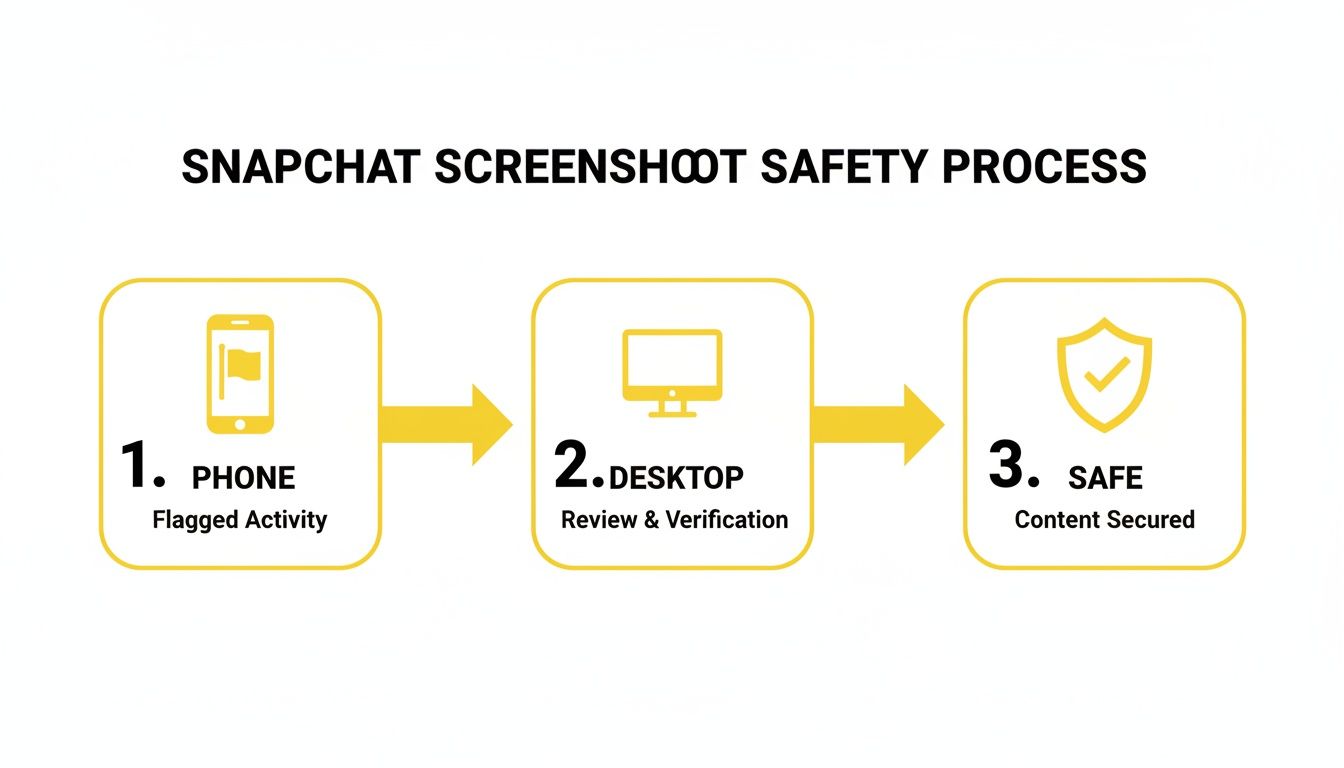
As you can see, what you do on your phone is monitored and flagged instantly. But using your desktop with the right tool creates a secure buffer, which is the key to preventing detection and keeping your account safe.
Getting Started with Installation
First, let's get SnapNinja on your machine. The install is quick and clean, with no confusing steps.
Just head over to the official SnapNinja download page. The site will automatically detect if you’re on Windows or macOS and offer the right version. Once it's downloaded, run the installer and click through the prompts. It's a standard installation, just like any other trusted app.
With SnapNinja installed, you’ll need to get Snapchat running on your computer.
- Open your browser of choice (Chrome, Firefox, Safari, etc.).
- Go to web.snapchat.com.
- Sign in with your normal Snapchat login. The first time, you'll likely need your phone to verify it's you.
And just like that, you have both pieces of the puzzle ready: the official Snapchat interface in your browser and your capture tool waiting on your desktop.
Configuring Your Capture Settings
Before you start archiving chats, take a second to tweak SnapNinja's settings. The tool's beauty is its simplicity; you only need to look at a couple of things.
When you open SnapNinja, you’ll see a clean, minimal interface. The two main settings you’ll care about are the capture hotkey and the save location.
The hotkey is your magic button—the keyboard shortcut you’ll press to instantly save a screenshot. The default might be something like Ctrl + Alt + S, but feel free to change it to something that makes sense for you. My advice? Pick a key combo you won't hit by accident.
Next, tell SnapNinja where to put your screenshots. You can save them to your Desktop, a dedicated "Snapchat Archives" folder, or anywhere else. Setting a specific folder from the get-go is a pro move. It keeps everything neat and organized.
Pro Tip: I always create a dedicated folder named "Snapchat Captures" inside my Pictures or Documents. It's a simple step that saves a lot of headaches later when you're trying to find a specific chat you saved weeks ago.
Once your hotkey and save folder are locked in, you're good to go. The setup is a one-time deal; SnapNinja will remember your choices.
Capturing Your First Chat Silently
Now for the fun part. This is where you see the Desktop Advantage in real-time. It's so smooth you'll wonder why you ever bothered with those risky phone tricks.
With SnapNinja running in the background, pull up the chat you want to save on Snapchat Web. Scroll to the exact message or photo you need and make sure the chat window is clearly visible on your screen.
Ready? Just press that custom hotkey you set up.
That's it. No flash, no sound, and—most importantly—zero notification sent to the other person. The screenshot is instantly and silently saved as an image file right where you told it to go. To the other user, absolutely nothing has changed.
The capture is immediate. You can grab a funny message, an important address, or a photo someone sent, all without missing a beat. It feels less like some complicated "hack" and more like a core feature of your computer.
The reason this works so well is that SnapNinja operates at the OS level, capturing the pixels on your screen. Snapchat Web, isolated in its browser tab, is completely blind to this. It's the digital equivalent of taking a picture of your monitor with a camera—the website itself has no clue. This fundamental separation makes the whole thing so reliable and, above all, safe.
Pro Tips for Safe and Effective Chat Archiving

Once you’ve nailed the basics of capturing chats with SnapNinja, a few extra tricks can seriously upgrade your archiving game. This isn't just about grabbing a single message; it's about being smart, staying discreet, and keeping your saved content organized for when you need it. These pointers will help you handle everything from long conversations to making sure your activity looks completely natural.
The goal is to act like a person, not a bot. While SnapNinja itself is undetectable, firing off captures rapidly could theoretically look like unusual behavior to a platform's general monitoring. It’s just good practice to space out your captures naturally, as you would during a normal conversation.
This slow-and-steady approach keeps the desktop method's biggest advantage intact: its invisibility. The system is built around smart privacy, and it's always better to avoid sudden spikes in activity for long-term peace of mind.
Mastering Long Conversations
Sometimes, the "receipt" you need isn't just one message—it's an entire conversation that scrolls on and on. Trying to capture that on a phone is a nightmare, but it's manageable on a desktop.
Here’s the most straightforward way to archive those marathon chats:
- Capture in Sections: Start at the top of the conversation and take your first screenshot with SnapNinja.
- Scroll and Overlap: Carefully scroll down so the very last message from your first screenshot is at the top of your screen. This small overlap is the secret to getting a seamless final image.
- Rinse and Repeat: Keep capturing overlapping sections until you have the entire chat saved as a series of image files.
Once you have all the pieces, stitching them together is easy. Free online tools like PineTools or Photopea have "merge images" features. Just upload your screenshots in the right order, and the tool will combine them into one long, continuous picture. It takes a few extra minutes but gives you a perfectly clean, readable record of the whole chat.
The sheer scale of Snapchat—where 70% of daily users open their camera at least once—is why bypassing screenshot notifications is so tough. With a projected 443 million daily active users by 2025, each spending around 30 minutes on the app, the platform is constantly guarding a massive volume of private content. Snapchat’s defenses use AI like "Ghost Defense" to spot not just direct screenshots but also behavioral red flags, ensuring 100% notification reliability on its mobile app. This is precisely why a desktop-based, OS-level tool like SnapNinja is the only truly reliable way to operate outside that heavily monitored environment. You can learn more about the tools people use for Snapchat on hoverwatch.com.
Why SnapNinja on Desktop Wins Every Time
It's tempting to try one of the many mobile workarounds that promise a quick fix. But when you look at the facts, the desktop method isn’t just a preference—it’s a fundamentally safer and more reliable strategy. The risks tied to mobile hacks, like getting your account banned, just aren't worth it.
By operating outside the mobile app's direct control, you leverage a structural blind spot in Snapchat's security model. This isn't a temporary loophole; it's a core principle of how web browsers and desktop operating systems are designed, ensuring your privacy and account safety.
Let's break down the real differences in a head-to-head comparison to see why the Desktop Advantage is the clear winner.
Desktop Method vs. Mobile Hacks: A Safety Comparison
The table below starkly contrasts the recommended desktop method with the common (and risky) mobile workarounds. It highlights the vast differences in safety, reliability, and potential consequences, showing why one is a professional tool and the others are just gambles.
| Feature | SnapNinja (Desktop Method) | Mobile Hacks (Airplane Mode, 3rd Party Apps) |
|---|---|---|
| Detection Risk | Virtually Zero. Operates at the OS level on Windows & macOS, making it invisible to the browser-based Snapchat Web. | Extremely High. Directly interacts with the iOS/Android app, which is specifically designed to detect these actions. |
| Notification Trigger | Never. The capture is completely external to Snapchat's code, bypassing the "Saved to Camera Roll" alert. | Often. Notifications are frequently just delayed, not prevented. Most of these hacks are now patched by Snapchat. |
| Account Safety | Safe. Does not violate Snapchat's Terms of Service, as you are using their official website as intended. | Risky. Can easily lead to temporary account locks or even a permanent ban for suspicious activity. |
| Reliability | 100% Consistent. It always works. No guesswork or luck is involved. | Hit-or-Miss. Success depends on your app version, OS updates, and pure luck. It's highly unreliable. |
| Ease of Use | Simple. You just set a hotkey and press it. No complex steps or perfect timing required. | Complicated. Requires precise timing, clearing your cache, or installing potentially unsafe third-party apps. |
Ultimately, the choice is between risk and reward. While mobile hacks might seem convenient, they expose your account to detection and penalties. The desktop method provides a clean, safe, and consistently reliable solution every single time.
Using This Method Responsibly and Ethically
Let’s be clear: the ability to save a Snapchat chat is a powerful tool. It's about smart privacy—managing your own data and protecting your interests, not about spying.
Think of it as creating a personal archive of your conversations. Maybe you want to save a genuinely sweet message from a loved one that would otherwise vanish forever. Or perhaps you need to keep "receipts" from an important chat—confirming plans, an address, or even documenting a conversation for your own safety. This is about giving you control over your own digital memories.
This guide is for people who understand the difference between responsible archiving and being intrusive.
Drawing the Line: Archiving vs. Spying
The ethical line here is crystal clear. Using a tool like SnapNinja to save your own conversation history for personal reference is just smart data management. Using it to harm or deceive someone else crosses that line and is a massive breach of trust.
Here are a few ground rules:
- For Your Eyes Only: The chats you save are for you. Saving a funny exchange to look back on is fine. Sharing someone’s private messages without their explicit consent is not.
- No Malicious Intent: This should be obvious, but never use this to bully, harass, or blackmail anyone. Capturing content to embarrass or hurt another person is completely out of bounds.
- Respect the Platform's Spirit: Snapchat was built on ephemeral content. While you have the technical ability to bypass that, always consider the other person’s reasonable expectation of privacy.
The point is to give you control over your digital life, not to enable you to violate someone else's. Think of it as keeping a private journal of your online interactions—secure, personal, and for your own reference.
Legal and Ethical Disclaimers
You also have to be aware of the law. Digital privacy and consent laws vary wildly depending on where you live. In many places, sharing someone’s private messages or photos without their permission can land you in serious legal trouble.
This guide on how to screenshot a Snapchat chat without notification is for informational purposes, helping you archive your own memories. It is your responsibility to use this knowledge ethically and within the bounds of the law.
Always put the privacy and trust of others first. If you want to understand how your own data is handled when using our tools, you can review our privacy policy. When in doubt, always act with integrity and respect.
Common Questions About Undetected Screenshots

Even with a solid plan, you probably still have a few questions. The idea of capturing anything on Snapchat without triggering that notification can feel too good to be true. But the logic behind the Desktop Advantage is sound, so let’s clear up any lingering doubts.
My goal is to give you direct, no-fluff answers and show you why the desktop method is the only truly reliable strategy, so you can feel completely confident about archiving your own digital memories.
Is Using SnapNinja on Desktop Truly Undetectable?
Yes, it is. The reason is rooted in how web browsers and your computer’s operating system (Windows or macOS) are designed to work. SnapNinja doesn't interact with Snapchat at all; it captures pixels directly from your computer's screen at the OS level. This happens completely outside of your web browser's environment.
Think of it this way: the Snapchat Web interface is stuck inside a "sandbox," a security feature that severely limits what any website can see or do on your machine. It simply doesn't have permission to monitor your background apps or system-level commands, like a hotkey. This is a massive difference from the mobile app, which is built with deep hooks into your phone's OS specifically to detect those actions. Because SnapNinja never touches Snapchat’s code, it leaves zero digital footprints.
Could My Snapchat Account Get Banned for This?
The risk of getting your account banned for using this desktop method is incredibly low because it's designed to be invisible. Snapchat's system only bans accounts for actions it can actually detect. Mobile hacks are a huge red flag, but the desktop method is safe.
Red flags that get accounts banned usually involve:
- Using sketchy, modified versions of the Snapchat mobile app.
- Logging into unauthorized third-party apps that scrape data from your account.
- Repeatedly trying old mobile hacks that trip their security alerts.
Since you're just using the official Snapchat website as intended, and the screenshot is a separate action, you aren't doing anything their systems are built to look for. From Snapchat's perspective, your activity looks completely normal.
The core principle is simple but powerful: By separating the viewing (on Snapchat Web) from the capturing (at the OS level with SnapNinja), you eliminate the connection that Snapchat needs to trigger a notification or a security flag.
Does This Work for Capturing Video Snaps?
SnapNinja is optimized for high-quality, instant static shots—perfect for text chats, photos, and Snap Map content. If you want to capture a video Snap, you'd need a desktop screen recorder, but the same safety principle of the Desktop Advantage still holds true.
Recording your entire desktop screen while a video plays on Snapchat Web is an action the browser can't detect. As long as your recording software operates at the OS level and doesn't inject code into the browser, you’re in the clear. Just never use a mobile screen recorder for this, as those are almost guaranteed to be flagged by the app instantly.
What if Snapchat Updates Its Website to Block This?
That's a fair question, but it’s highly unlikely to become an issue. For a website to detect an OS-level tool like SnapNinja, it would need permissions that go against the fundamental security and privacy models of every modern web browser.
Browser developers like Google (Chrome), Apple (Safari), and Mozilla (Firefox) go to great lengths to prevent websites from snooping on your computer’s background activities. Giving a website the power to monitor your entire system would create massive, unacceptable security holes. This "sandbox" model isn't a loophole we're exploiting; it's an essential feature that protects every user from malicious websites. The safety of the desktop method is baked into the very architecture of how the web works.
Ready to archive your Snapchat conversations with total peace of mind? SnapNinja is the only reliable and undetectable solution that works on your desktop to bypass notifications.