How to Use Snapchat on a Computer: A Complete Guide
Let's cut right to it. Yes, you can absolutely use Snapchat on your computer, and frankly, it’s a total game-changer. The official route is Snapchat for Web, which is great for bringing your chats to a bigger screen. But let's be honest, you're probably here because you want more than just chat. You're looking for the full desktop advantage—including the ability to archive memories or keep receipts without sending up a flare. This is where your PC or Mac becomes your secret weapon.
Why Using Snapchat on a Desktop Is a Game Changer
Forget those sketchy mobile hacks that are a fast track to getting your account banned. The safest and smartest way to manage your snaps is right from your computer. The experience is cleaner, typing on a real keyboard is infinitely faster, and most importantly, it unlocks a new level of privacy and control over your digital life.
Even though Snapchat started life as a mobile-only app back in 2011, the shift toward desktop use has picked up serious steam since Snap officially launched Snapchat for Web in July 2022. Before that, your only option was wrestling with clunky Android emulators. Now, a growing part of its massive user base is seeing just how much better the browser experience can be.
Your Path to Desktop Snapchat
So, what's the best way forward for you? It really all comes down to a single, critical question: do you need to archive snaps without the other person knowing?
This decision tree breaks it down, helping you pick the right method based on what you actually want to accomplish.
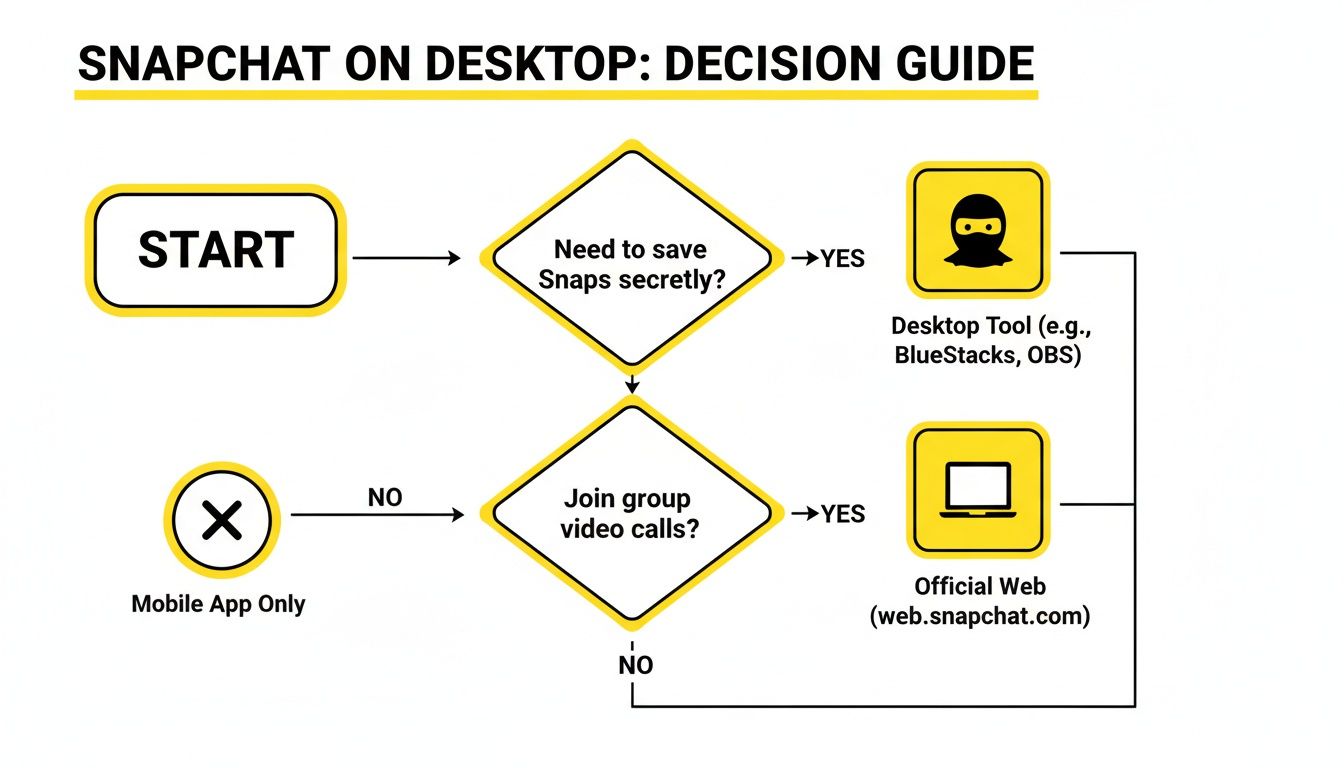
As you can see, there are two clear paths. One is for casual, everyday use through the official website. The other is for those who need to discreetly archive content for privacy, where a dedicated desktop tool is the only way to go.
The Desktop Advantage Explained
The biggest win when using Snapchat on your computer is having more control and doing it safely. I've seen countless people get their accounts suspended because they tried one of those mobile apps that promise to save snaps. Those apps are a huge red flag because they directly tamper with the Snapchat app itself, which is an instant ban risk.
By operating completely outside the official app's environment on your Windows or macOS machine, desktop solutions like SnapNinja are fundamentally safer and undetectable. You aren't hacking the app; you're just using your computer's own capabilities to manage what's displayed on your screen.
This guide is going to walk you through all the reliable methods. We'll focus on how to:
- Use the official Snapchat for Web for your daily chats and calls.
- Use your desktop to discreetly archive memories and keep receipts.
- Steer clear of the common mistakes that get mobile users banned.
Comparing Methods for Snapchat on a Computer
To make it even clearer, here’s a quick breakdown of the most common methods for using Snapchat on a desktop. This table highlights the key differences in privacy, features, and safety to help you decide which one fits your needs.
| Method | Main Benefit | Privacy Risk | Best For |
|---|---|---|---|
| Snapchat for Web | Official, secure, and easy for chats/calls. | Low. It's the official platform. | Everyday chatting, video calls, and staying in touch with friends from a browser. |
| Android Emulator | Full mobile app experience on desktop. | Medium. Can be slow, resource-heavy, and potentially flagged by Snapchat. | Tech-savvy users who want access to every single mobile feature, like filters. |
| SnapNinja | Archive snaps & stories without detection. | None. Operates outside of Snapchat's detection. | Anyone needing to save content for privacy, memory-keeping, or record-keeping. |
Ultimately, the official Snapchat for Web is perfect for most people who just want to chat. But if your goal is smart privacy and archiving content without detection, a dedicated desktop solution is the superior choice.
Getting Started with the Official Snapchat for Web
Want to get your Snaps onto a bigger screen? The easiest and most direct way is using the official Snapchat for Web. This is your go-to, no-fuss method for using Snapchat on a computer. It's secure, built by Snap, and handles all the basics without any complex software installation.

Getting set up couldn't be simpler. Just fire up your favorite browser, navigate to web.snapchat.com, and punch in your normal login details. The interface should feel comfortable right away, as it’s basically a bigger, wider version of the mobile app you already know.
Navigating the Web Interface
Once you’re in, you’ll find your chat list neatly organized on the left, with the active conversation taking center stage. It’s clean, intuitive, and lets you get right to it.
Here’s a quick look at what you can do immediately:
- Send and Receive Chats: This is a game-changer. Typing out long messages on a physical keyboard is so much faster, and everything syncs perfectly with your phone.
- Make Video and Audio Calls: Video calls are way better on a larger monitor. The first time you call, your browser will ask for permission to use your webcam and microphone—just click allow.
- View Stories: Kick back and catch up on what your friends are up to without having to squint at a tiny screen.
This official version is perfect for keeping conversations going while you’re working or studying. The real win here is multitasking. You can have a chat going in one tab while you're getting other stuff done, which beats constantly picking up your phone every two minutes.
The Built-in Limitations You Need to Know
Snapchat for Web is great for everyday chatting and calling, but it’s important to know what it can't do. Understanding its limits is key, especially when it comes to saving content and smart privacy.
The single biggest limitation? Screenshot notifications are still a thing. If you use your computer's native screen capture tool (like the Snipping Tool on Windows or Shift+Cmd+4 on a Mac) to grab a picture of a chat, Snapchat will still tell the other person.
It’s built to mimic the mobile app’s privacy features exactly. This means there’s no sneaky, built-in way to save a photo or archive a conversation without the other person knowing. Think of Snapchat for Web as the foundational first step—it gets you on your computer, but it doesn't unlock any new privacy superpowers.
Why Your Desktop Is the Safest Bet for Snapchat Privacy
This is where the conversation shifts from simply using Snapchat on a computer to using it smarter. For years, if you wanted to save snaps without the sender knowing, you had to venture into the shady world of modded mobile apps—tweaked APKs for Android or jailbroken versions for iOS.
Frankly, that whole approach is a ticking time bomb for your account.
Those modified apps directly tamper with Snapchat's code. Snapchat’s security team is constantly on the hunt for that kind of interference, which is why using a modded app is one of the quickest ways to earn a temporary, or even permanent, account ban. The "desktop advantage" changes the game entirely.
The Mobile vs. Desktop Showdown
The fundamental difference is pretty simple: mobile hacks try to alter the Snapchat app itself, while desktop tools work with your computer's operating system.
When you use a program like SnapNinja on your Windows or macOS machine, it isn't touching the Snapchat app or its website code at all. It operates on a completely different layer, far outside of Snap’s direct line of sight.
This is the key to why it’s so much safer. You're just logging into the official Snapchat for Web in your browser like any other user. The desktop tool works alongside it, but Snapchat has no visibility into the other software running on your PC.
Think of it like this: a mobile hack is like trying to sneak a hidden camera inside a high-security building. A desktop tool is like taking a picture of that building from across the street with a powerful lens. One is an immediate security breach; the other is undetectable from the inside.
Smart Privacy, Done the Right Way
Let's be clear—this isn't about "spying." It’s about having control over your own data and exercising smart privacy. We've all been in situations where we needed to keep a record of a conversation, save a precious memory before it disappeared, or archive a hilarious video.
Here are just a few real-world reasons why archiving snaps is so important:
- Keeping Receipts: Holding someone accountable for what they promised or said in a chat.
- Archiving Memories: Saving a sentimental video from a loved one that would otherwise be gone in 24 hours.
- Protecting Yourself: Documenting proof of harassment or bullying.
A desktop tool like SnapNinja is built for exactly this purpose. It’s the only reliable solution that bypasses the dreaded "Saved to Camera Roll" notification because it never interacts with Snapchat’s servers in a way that triggers an alert. It simply captures the content as it's displayed on your screen, meaning your actions remain completely invisible to the sender. This focus on security is a core part of the tool's design, and you can learn more about its privacy-first approach by reviewing the SnapNinja privacy policy.
Historically, the methods for using Snapchat on a computer split into two paths: high-risk mobile mods versus much safer web-based workflows. Through the late 2010s and early 2020s, many users tried 'tweaked' Snapchat APKs to bypass screenshot notifications, only to face serious account-ban risks. The official launch of Snapchat Web was a turning point. It finally allowed privacy tools to operate at the OS level on Windows and macOS while you use the official website, making detection significantly harder. You can discover more insights about this shift in user behavior and privacy on 99firms.com.
How to Privately Save Snaps with SnapNinja
Alright, let's get to the real reason you’re likely here. You're looking for a way to use Snapchat on your computer that gives you total control—specifically, the power to save snaps, videos, and stories without tipping anyone off. This is precisely the problem SnapNinja was designed to solve.
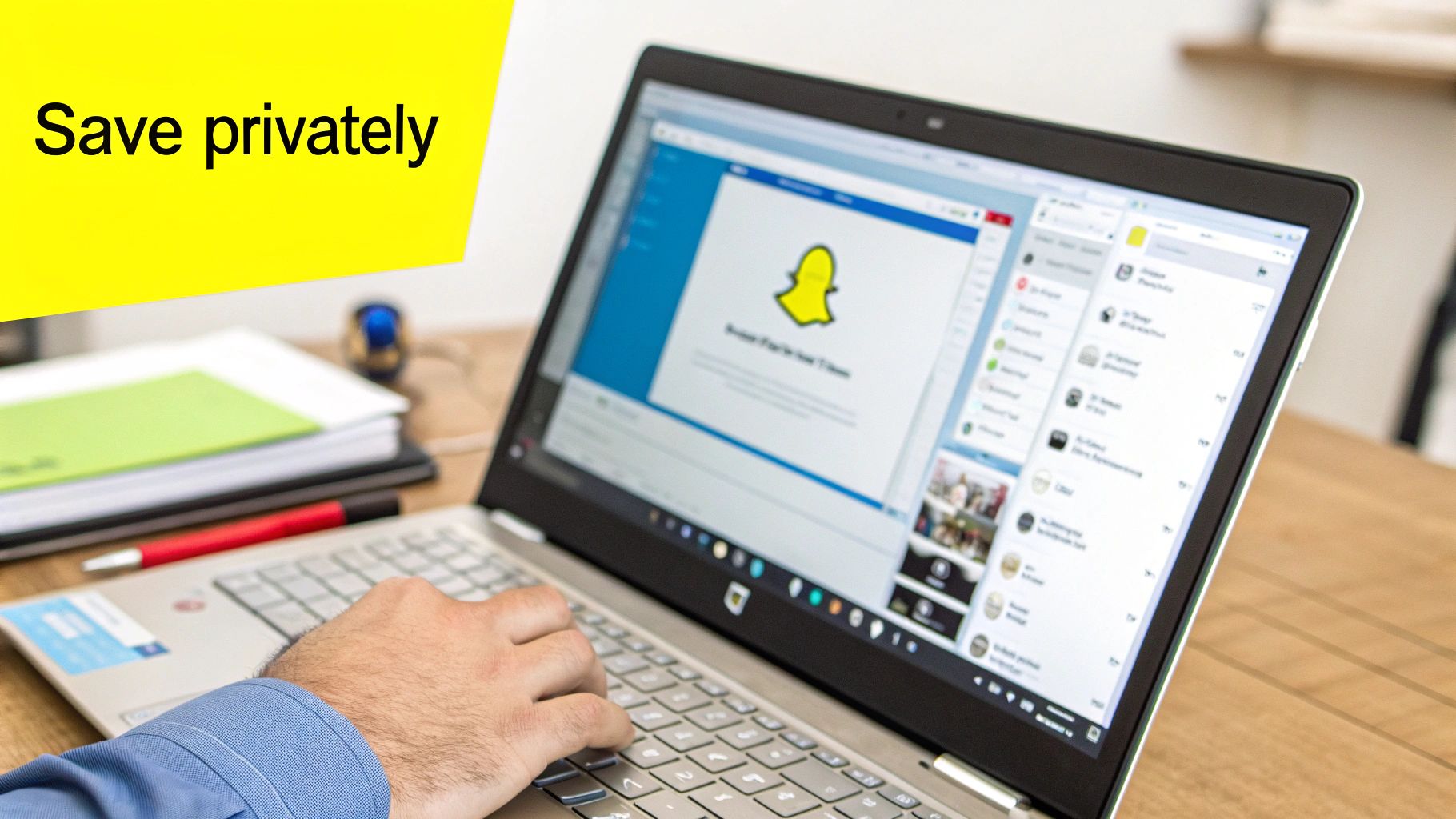
Forget those sketchy mobile hacks that can get your account flagged. The desktop is a much smarter and safer playground, and SnapNinja is the tool that unlocks its full potential. It’s a lightweight piece of software for both Windows and macOS that runs alongside your regular Snapchat Web session. It gives you the ability to archive memories and save content completely under the radar.
How SnapNinja Achieves the Impossible
So, how does it pull this off without triggering alerts? The magic is that SnapNinja operates entirely outside of the Snapchat environment. While you're logged into the official web.snapchat.com site in your browser, the tool works quietly on your desktop. It never asks for your password or interacts directly with Snap's servers, which means it doesn't raise any red flags.
This is the key difference. When you take a screenshot on your phone or even use your computer's built-in tools, Snapchat detects that action at the browser level and immediately sends that dreaded notification. SnapNinja bypasses this completely by capturing the content from your screen at the operating system level, making your actions totally invisible to Snapchat.
The core principle is simple but incredibly effective: if Snapchat can't see the action, it can't report it. By working independently on your desktop, SnapNinja ensures the sender never gets that "Saved to Camera Roll" notification.
This means you can finally save that sentimental video, keep proof of a conversation, or download a hilarious clip to share later, all with complete peace of mind.
Practical Scenarios Where SnapNinja Shines
So, when would you actually use something like this? The reasons are often more practical than you might think. It really comes down to having more control over your digital interactions and smart privacy.
- Archiving Sentimental Moments: Your friend sends a one-time-view video from a concert, or a family member shares a quick clip of a special event. These are memories you probably want to keep forever, not just for 24 hours.
- Keeping Important "Receipts": Someone makes a promise, shares important details, or says something you need to document. Archiving the snap ensures you have a reliable record.
- Saving Content for Later: You see a funny story or a cool video you want to show someone later who isn't on Snapchat. Now you can save Snapchat stories online and share them wherever you want.
The process itself is incredibly straightforward. Once you install the software from SnapNinja's official site, you just use Snapchat for Web like you normally would. When you view a snap or story you want to keep, the tool automatically handles the rest in the background. It's a "set it and forget it" solution for anyone wanting to protect their privacy.
To see just how much of a difference it makes, here's a quick comparison of what you can do with and without the tool.
SnapNinja Features vs Standard Snapchat Web
| Feature | Standard Snapchat Web | With SnapNinja |
|---|---|---|
| Save Snaps Privately | No. Triggers a notification every time. | Yes. 100% invisible to the sender. |
| Download Stories | No. Viewing only, no download option. | Yes. Save full video stories to your computer. |
| Account Safety | High. It's the official platform. | High. Operates outside Snapchat, avoiding detection. |
| Platform | Browser Only | Windows & macOS |
As you can see, using a tool like SnapNinja fundamentally changes what's possible when you bring Snapchat to your desktop, turning it from a simple messaging client into a much more powerful tool for managing your content.
Why Saving Your Snaps Matters More Than You Think
Snapchat’s whole “now you see it, now you don’t” thing is its biggest draw, but let's be honest—it can also be a massive headache. There are times you absolutely need to keep a record of something. This isn't about being sneaky; it's about being smart with your privacy and staying in control of your digital life.
We’ve all been in that spot. A friend sends a video so funny you wish you could show someone else later. A family member shares a heartfelt message you want to hang onto. Or maybe a conversation gets serious, and you suddenly realize you need to document exactly what was said. Having a way to archive snaps empowers you to decide what’s worth keeping and what can disappear forever.
It's More Than Just a Disappearing Photo
The reasons people want to save snaps are incredibly practical and deeply personal. It really boils down to having control over your own content and conversations.
Here are just a few real-world scenarios where archiving a snap becomes crucial:
- For Content Creators: You nail the perfect, viral-worthy clip for your Story. Instead of letting that gem vanish, you can save it and easily repurpose it for your TikTok or Instagram Reels, getting more eyes on your best work.
- For Personal Memories: A relative sends you that once-in-a-lifetime video of a baby’s first steps. That’s a memory you’ll want to cherish forever, not just for 24 hours.
- For Keeping Records: In more serious situations, a saved chat can be your proof. Whether it's to document harassment or just to hold someone accountable for what they promised, having that record is invaluable.
The entire Snapchat experience is designed around content that doesn't last. That forces you to be smart and selective about what you absolutely need to save. A solid method for doing this on your computer gives you the power to build your own digital archive, no compromises.
The Big Flaw in Saving Snaps on a Desktop
The numbers are staggering. As of 2025, Snapchatters are firing off over 5 billion Snaps every single day and popping into the app 30–40 times daily. Just think about how many of those important or hilarious moments are lost forever. You can learn more about the latest Snapchat usage trends on The Social Shepherd.
The official Snapchat Web client doesn't help much, either. There’s no built-in 'Download' button for Stories, and if you try to use your computer’s screenshot tool, it still sends that dreaded notification. This means crucial evidence or a sentimental video can be gone in a flash, which is why so many people are turning to desktop-first tools like SnapNinja that can capture Snaps without a trace.
This is what I call the "desktop advantage." While sketchy mobile hacks are a fast track to getting your account banned, using a dedicated tool like SnapNinja on your Windows or macOS machine works outside of Snapchat's typical detection methods. It lets you safely archive memories and protect your privacy, completely bypassing the "Saved to Camera Roll" alert and putting you back in the driver's seat.
Got Questions About Using Snapchat on Your Computer?
Moving your Snapchat experience from your phone to a desktop is a game-changer, but it's natural to have a few questions. The setup is a little different, and what you can (and can't) do isn't always obvious. Let's tackle some of the most common queries I hear so you can get started confidently.
The first thing most people ask about is security. Is it actually safe to log into your Snapchat account on a computer? When you're using the official Snapchat for Web, the answer is a firm yes. It's built and maintained by Snap, offering the same level of security you get on the mobile app.
Things get a little more interesting when you bring in specialized desktop tools. A solution like SnapNinja, for example, is built from the ground up for safety. A key reason is that it never asks for your password and operates independently of your browser. This is a fundamentally safer approach than sketchy mobile APKs that can tamper with the official app and get your account flagged or banned.
Will They Know If I Save Their Snaps?
This is the big one, isn't it? For many, this is the entire reason to seek out a desktop solution in the first place. And with the right tool, the answer is a clear, definitive no. A tool like SnapNinja is specifically designed to be completely undetectable.
Here's the catch with the official web version: if you try to use your computer's built-in screenshot function (like the Snipping Tool on Windows or Shift+Cmd+4 on a Mac), Snapchat for Web is smart enough to see it. It will still send that dreaded notification to the other person.
SnapNinja works differently. It captures the content outside of the browser's direct control, which means it completely bypasses Snapchat's detection system.
The bottom line: The sender will never get an alert that you archived or screenshotted their content. Your privacy is fully protected, whether you're saving a funny memory or keeping a record of a conversation.
Can I Use Every Single Snapchat Feature on My PC?
Not quite. Snapchat for Web is fantastic for handling the core, day-to-day stuff. You can chat, send snaps from your webcam, make video calls, and watch stories. It's brilliant for multitasking at your desk without having to pick up your phone every two minutes.
But it’s not a full-blown replacement for the mobile app. You won't be able to play around with AR lenses to create new snaps, nor can you browse the interactive Snap Map.
The best approach is to use both. Keep Snapchat for Web open for quick chats and viewing, and use a dedicated desktop tool when you need to privately archive the content that matters. Many find the available SnapNinja pricing plans give them a flexible way to add that missing piece to their desktop setup.
Do I Still Need to Pay for Snapchat Plus?
I've got great news for you—not anymore! When Snapchat for Web first came out, it was an exclusive feature for paying Snapchat+ subscribers.
Thankfully, Snap eventually opened it up to everyone. You can now log in and use Snapchat on your computer with any standard account, completely free. This change has made the desktop experience accessible to the entire user base.
Ready to get the full power of Snapchat on your desktop? SnapNinja is the ultimate privacy tool for saving snaps, stories, and videos without leaving a trace. It's safe, 100% undetectable, and puts you back in control. Download SnapNinja today and start archiving your memories securely.