
The Ultimate Guide to No Screenshot Snapchat Methods
The only surefire way to get that no screenshot Snapchat experience is to get off your phone. Seriously. The secret is moving the action to your desktop, where tools like SnapNinja can work with Snapchat Web, flying completely under the platform’s radar.
The Frustration of Disappearing Snaps
We’ve all been there. You get a hilarious video from a friend, a crucial "receipt" in a chat, or a sweet photo from someone special, and poof—it's gone forever just seconds after you see it. Snapchat was built on this disappearing act, which forces us into a constant cat-and-mouse game whenever we want to archive our own memories.

Unlike other social media, where saving content is a non-issue, Snapchat’s notification policy turns it into a high-stakes decision. This guide gets it. We're not talking about spying; this is about smart privacy—archiving your memories and taking control of your digital life.
Why You Need a Better Solution
Wanting to save a Snap is perfectly normal. Maybe you want to archive a funny memory to look back on, keep a receipt of a conversation for your own protection, or just hold onto a moment that made you smile. The real problem is that all the typical methods are flawed.
Here’s why the old tricks just don’t cut it anymore:
- Mobile apps are a trap: Using sketchy third-party apps or even built-in screen recorders on iOS or Android is the fastest way to get your account flagged or banned. Snapchat’s mobile app is incredibly good at detecting these.
- Notifications kill the vibe: That dreaded "You took a screenshot!" alert instantly makes things awkward. It can disrupt the natural flow of a conversation and make the other person wonder why you saved their Snap.
- You lose control: Without a reliable way to save content, you're completely at the mercy of the sender and the app's unforgiving timer.
The bottom line is this: if you want a dependable way to get no screenshot Snapchat notifications, you have to change your approach. The solution isn't on your phone—it's on your computer.
The Desktop Advantage
This is where the Desktop Advantage comes into play. By logging into Snapchat Web on a Windows or macOS computer, you’re already stepping outside the mobile app's heavily monitored territory. When you add a tool like SnapNinja, it becomes invisible to Snapchat because it operates outside the app's environment.
Think of it this way: SnapNinja doesn't "hack" or interfere with the Snapchat app itself. It simply captures what’s already being displayed on your desktop screen, a process that Snapchat has no way of detecting. This is the smarter, safer method for archiving memories and protecting your privacy without ever raising an alarm or putting your account in jeopardy.
Why Mobile Hacks and Screenshot Tricks Will Get You Banned
If you've ever googled how to save a Snap without the other person knowing, you've waded into a minefield of bad advice. It's tempting, I get it. These "tricks" promise a quick and easy solution, but what they almost always deliver is a fast track to getting your account locked—or worse, permanently banned.
Let's cut through the noise and talk about what's really going on with these mobile methods. From the long-dead "airplane mode trick" to sketchy screen recorders, they all share a fatal flaw: they try to operate inside the one environment Snapchat controls completely. Your phone.
The Problem with Mobile-Based Methods
Think of Snapchat's mobile app as a fortress. It's packed with sophisticated code designed to monitor everything happening on your device while the app is running. When you fire up a mobile tool to capture content, you're essentially trying to sneak past a guard who is watching your every move.
These are the usual suspects, and they're all incredibly risky:
- Third-Party Screen Recorders: Those apps from the app store that claim they can secretly record your screen? Many require invasive permissions, and Snapchat is specifically coded to detect them running in the background. It’s an instant red flag for your account.
- Modded Snapchat Apps: This is the big one. Using a "tweaked" version of the app like Snapchat++ or Phantom is a direct violation of their Terms of Service. Snapchat's security team actively hunts for and bans users of these unauthorized apps. It's not a matter of if you'll get caught, but when.
- The Airplane Mode Trick: This used to work, years ago. You’d open a Snap, flick on airplane mode, grab a screenshot, and clear the app's cache. Snapchat patched this loophole a long time ago. The app simply logs the screenshot action offline and tells their servers the moment you reconnect.
The core issue is that all these methods try to fight Snapchat on its home turf. The mobile app is where its security is strongest, making any attempt to bypass it there a losing battle that puts your entire account history at risk.
Snapchat built its brand on the idea of disappearing messages, but this has always come with security asterisks. The platform’s screenshot detection has been criticized for being less than foolproof, especially against third-party apps. In fact, the FTC even took action against Snapchat for misleading users that Snaps "disappear forever."
This vulnerability became glaringly obvious during the SnapchatDB hack, which exposed the data of 4.6 million users and proved the platform wasn't as private as claimed. If you're curious about the history here, you can explore the details of the FTC's settlement with Snapchat.
Why the Desktop Advantage Is the Only Safe Bet
This is where a change in strategy makes all the difference. By moving over to a desktop environment like Windows or macOS, you completely sidestep the mobile app’s intense surveillance. Snapchat Web runs inside your browser—a much more open and neutral playing field.
The difference in risk is night and day.
Mobile Screenshot Methods vs The Desktop Advantage
Looking at the options side-by-side, it becomes crystal clear why trying to outsmart the mobile app is a terrible idea.
| Method | Detection Risk | Account Ban Risk | Reliability |
|---|---|---|---|
| Mobile Screen Recorder | High | High | Hit-or-miss; often detected instantly. |
| Modded Snapchat App | Extremely High | Extremely High | Guaranteed to get you banned, eventually. |
| Airplane Mode Trick | High | Medium | Patched years ago. Doesn't work. |
| Desktop Tool (SnapNinja) | Zero | Zero | 100% reliable and completely undetectable. |
As you can see, the risk-to-reward ratio for any mobile trick just isn't worth it. You might get lucky once or twice, but the system will catch up. A temporary lock is the best you can hope for; a permanent ban means losing years of memories and contacts forever.
The desktop approach, using a tool like SnapNinja, isn't a "hack." It works outside of the Snapchat ecosystem entirely, capturing what's displayed on your screen without ever interacting with Snapchat's code. It's the smart, safe way to save what's important to you without ever putting your account on the line.
The Desktop Advantage: Your Undetectable Privacy Shield
If you’ve ever gotten that dreaded account warning after trying a shady mobile app, you already know the problem isn’t what you’re trying to do—it’s how you’re doing it. The real secret to a truly no screenshot Snapchat experience is to move your activity away from the highly monitored smartphone app and onto the open territory of a desktop computer.
This is what we call the "Desktop Advantage," and it’s a total game-changer. Think about it: Snapchat has spent years and millions of dollars engineering its detection systems for one platform—mobile. Their entire security apparatus is fine-tuned to spot screen recorders and modified apps on iOS and Android.
The desktop, however, is a different world. When you log into Snapchat Web on your computer, you're stepping outside their primary surveillance zone. This simple change of venue is the most important step toward becoming invisible.
Why the Desktop Method Is So Much Safer
Imagine the mobile app as a high-security fortress. Every tap, swipe, and action is logged and analyzed for anything suspicious. The desktop, on the other hand, is more like an open field. Snapchat Web runs inside your browser, an environment where Snapchat doesn't have nearly the same level of control.
When you bring in a tool built for this environment, like SnapNinja, it operates on an entirely different playing field. It doesn’t have to “hack” or mess with Snapchat's code. Instead, it works at the operating system level of your PC or Mac, simply capturing what's being displayed on your screen.
To Snapchat's servers, this is completely invisible. As far as they can tell, you’re just a regular user viewing Snaps in a browser. There are no digital fingerprints or tell-tale signs of interference that would ever trigger an alert or a ban.
That distinction is everything. It’s why this method is so reliable. Mobile "saver" apps have to directly interact with or modify the Snapchat application itself, which is an immediate red flag. Desktop tools, in contrast, work around the application, making them undetectable by their very nature.
By moving to a desktop, you completely sidestep the detection systems Snapchat has spent years building for mobile. This isn't about finding a loophole; it's a strategic shift to a platform where you have more privacy and control.
The Power of Operating Outside the App
Let’s get into the nuts and bolts of what makes the desktop approach the only truly reliable way to save content without leaving a trace. It all comes down to how the tech works.
- No App Interaction: Tools like SnapNinja never inject code or alter the Snapchat Web client. They just passively watch your screen, leaving no evidence for Snapchat to find.
- Operating System Level Capture: The software grabs the pixels directly from your computer's display output. This happens completely outside the browser and, by extension, outside of Snapchat's reach.
- Bypassing Mobile Security: Both iOS and Android have built-in security frameworks that Snapchat hooks into to detect screen recording. Desktop operating systems like Windows and macOS are far more open, allowing for this kind of screen capture without notifying web apps.
This approach is all about smart privacy. It’s for anyone who wants to archive their own memories, keep records of important conversations, or repurpose content without the risk and awkwardness of a screenshot notification.
A Real-World Scenario
Let’s say you’re a content creator and a friend sends you a hilarious, potentially viral video on Snapchat. On your phone, you’re stuck with risky options. You could try a screen recorder and cross your fingers, or you could ask them to send the video another way, which kills the moment.
With the Desktop Advantage, the whole process is effortless. You just open Snapchat Web on your laptop, view the Snap, and a tool like SnapNinja automatically saves the full-resolution video to a folder on your computer.
No notification gets sent. No awkward conversation is necessary. And most importantly, your account remains 100% safe. This is the power of using the right tool in the right environment—it turns a risky gamble into a simple, private act.
Meet SnapNinja: The Smart Way to Archive Snapchat
Okay, we’ve figured out that trying to outsmart Snapchat on your phone is a losing battle. The real playground for smart, private archiving is your desktop. But you need the right tool for the job, and that's where SnapNinja comes in.
This isn't your average screen recorder. SnapNinja was built from the ground up for one specific purpose: to archive content from Snapchat Web, and to do it 100% undetectably. It runs quietly on your Windows or macOS computer, automatically grabbing every photo, video, and Story you look at and saving it directly to a private folder on your hard drive.
There are no buttons to frantically press or timings to get right. More importantly, it generates zero notifications. It’s the definitive answer to Snapchat’s disappearing content problem and the only reliable way to bypass the "Saved to Camera Roll" notification.
How SnapNinja Pulls Off the Impossible
The secret to SnapNinja's success is its clever approach. Forget those shady mobile apps that try to hack or trick the Snapchat app—they're just asking for trouble. SnapNinja works completely outside of that system. It operates at the computer’s operating system level, which is just a technical way of saying it captures what's displayed on your screen without ever interfering with your browser or Snapchat Web.
That’s precisely why it's invisible to Snapchat. From Snapchat's perspective, there is absolutely no difference between you watching a Story with SnapNinja active and watching it without. There are no suspicious data packets to flag, no weird app behavior to detect, and no digital breadcrumbs leading back to your account.
Here’s an analogy: those mobile hacks are like trying to sneak a hidden camera into a secure building. SnapNinja is more like using a powerful telescope from a mile away—it sees everything perfectly without ever setting foot on the property.
SnapNinja completely avoids the "Saved to Camera Roll" notification because it never actually interacts with Snapchat’s code. It's a clean, passive capture method that keeps your privacy and your account safe.
Real-World Scenarios Where SnapNinja Is a Lifesaver
This is where the tool goes from a neat idea to an essential part of your digital toolkit. People use SnapNinja for all sorts of practical, legitimate reasons to regain control over their own content and conversations.
Here are a few situations where it really shines:
- Archiving Cherished Memories: Your partner sends a hilarious, sweet video message meant just for you. Instead of letting it disappear into the ether, SnapNinja saves it. You can build a private collection of moments that matter without the awkwardness of a screenshot notification.
- Keeping Important 'Receipts': We've all had conversations where having a record is critical for our own protection. Whether it's a disagreement with a landlord or a serious personal dispute, SnapNinja ensures you have an unaltered copy of the chat for your records.
- Repurposing Content for Creators: A friend posts a Story that’s pure gold—perfectly shareable and viral-worthy. As a creator, you can use SnapNinja to download the clip in its original high quality and repurpose it for your TikTok or Reels, all while maintaining your privacy.
This is what smart privacy is all about: using technology to protect your interests and archive your digital life responsibly. You can get a better sense of its capabilities by checking out the SnapNinja Snapchat downloader on their official site.
The Professional-Grade Archiving Solution
What really makes SnapNinja stand out is how simple and reliable it is. It was designed for regular people who just need a tool that works, no technical headaches required. There are no confusing settings to mess with or sketchy permissions to approve.
You just install it on your computer, log into Snapchat Web as you normally would, and that’s it. SnapNinja does all the heavy lifting in the background, building an organized archive of everything you view. It’s a professional-grade solution that truly delivers a no screenshot Snapchat experience, every single time. For anyone fed up with the cat-and-mouse game and the constant fear of getting their account banned, this is the final answer.
Your Guide to Using SnapNinja Undetected
Alright, so you’ve seen why using your desktop is the way to go, avoiding all those sketchy mobile workarounds. Now for the fun part: putting it all into practice. Getting SnapNinja up and running is incredibly straightforward, and I’ll walk you through everything so you can start archiving content without a trace.
The whole point here is to make this process feel second nature. You're not just installing a piece of software; you're creating a reliable, safe system for holding onto those moments that would otherwise just disappear.
Installing and Configuring SnapNinja
First, you'll need to get SnapNinja onto your Windows or macOS computer. The installation is exactly what you'd expect—a simple drag-and-drop or a quick installer wizard. No command lines, no weird permission requests.
Once it's installed, there are just a couple of small but essential settings to configure. The most important one is telling SnapNinja where to save everything it grabs. A little organization now will save you a massive headache later.
- Make a dedicated folder. Don't just let everything pile up on your desktop. I recommend creating a folder named something like "Snap Archives."
- Organize by person. If you really want to stay on top of things, create subfolders inside your main archive for each friend. It makes finding a specific memory from months ago a breeze.
SnapNinja is designed to run quietly in the background. Your only real job is to make sure it's running before you open Snapchat Web. Just a quick check for the SnapNinja icon in your system tray or menu bar is all you need to know you're good to go.
This simple diagram breaks down the process: you view the content, SnapNinja automatically saves it, and the file lands right in your chosen folder.
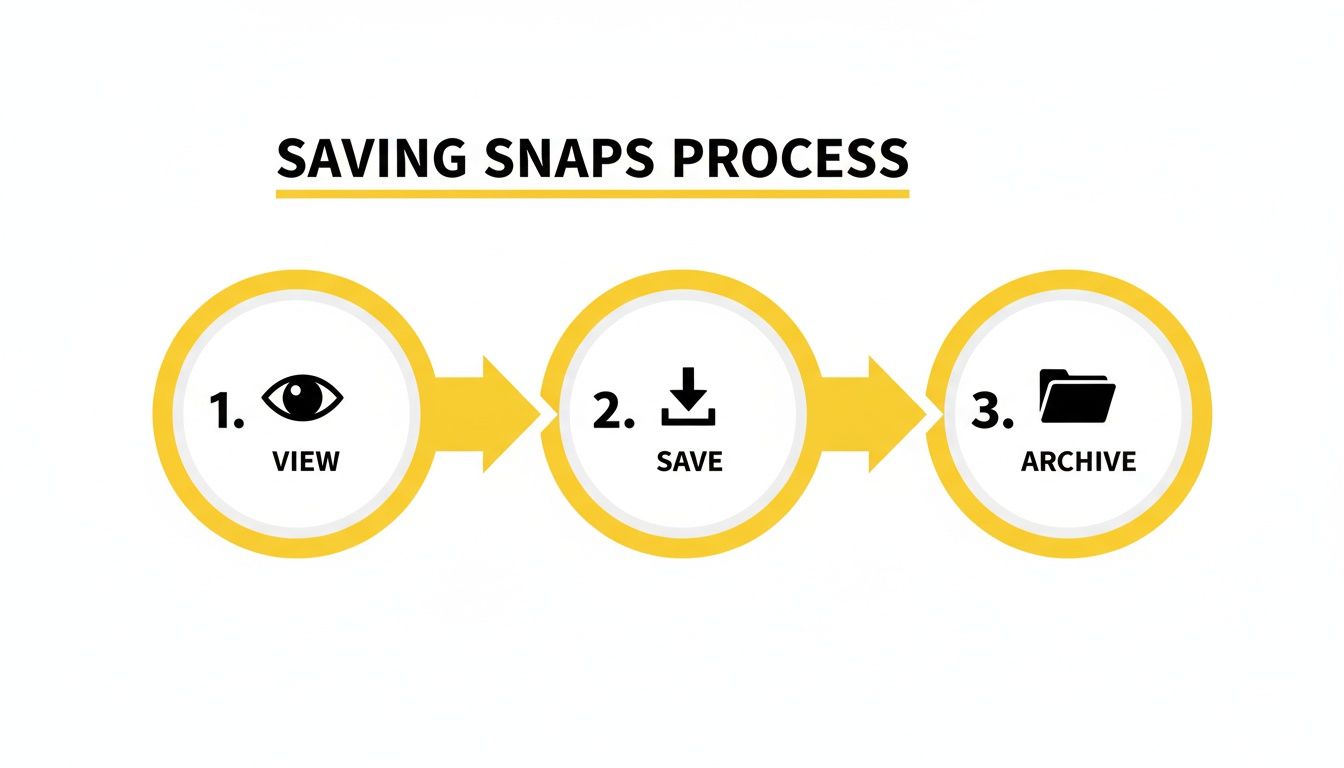
The real magic is in the automation. You don't have to manually click "save" on anything, which is what makes it both foolproof and completely undetectable.
Making the Most of Snapchat Web
To get the most out of SnapNinja, you need to be comfortable using Snapchat Web. After all, it’s the platform that makes this whole method possible. The web interface feels a lot like the app, but a few pro tips will ensure everything runs smoothly.
Stick with an up-to-date, mainstream browser like Chrome, Firefox, or Edge. While it should work on most modern browsers, the major ones are less likely to have weird glitches. If you ever run into an issue where Snaps won't load, clearing your browser's cache or temporarily disabling an extension (like an ad-blocker) usually does the trick.
The most crucial habit to build is this: Always launch SnapNinja before you open your browser to Snapchat Web. This ensures the tool is ready and waiting to capture the very first Snap you open. You won't miss a thing.
This approach is more important than ever. Snapchat's moderation is incredibly aggressive, and as their 2025 H1 Transparency Report shows, things are chaotic. They acted on 6.3 million reports against 4.1 million accounts, and their own AI proactively flagged 7.3 million pieces of content. With that kind of automated takedown system, saving your own copies of conversations or stories is the only way to ensure they don't get misinterpreted and deleted by the platform. You can review the complete Snapchat transparency report for the full picture.
Common Troubleshooting and Pro Tips
Even with a solid tool like SnapNinja, you might hit a snag now and then. Here are a few quick fixes for common issues to get you back on track.
- Check Your Firewall: Sometimes, an overzealous firewall or antivirus program can block SnapNinja. Just hop into your security software's settings and add SnapNinja as an exception.
- Keep Everything Updated: Make sure your operating system (Windows/macOS), your browser, and SnapNinja itself are all running the latest versions. Updates often contain important compatibility and performance fixes.
- Re-Select Your Save Folder: If files suddenly stop saving, go into SnapNinja’s settings and simply re-select your designated folder. OS updates can sometimes mess with file permissions, and this quick reset usually solves it.
Follow these steps, and you'll have a rock-solid system for a no screenshot Snapchat experience. It’s all about setting it up right the first time and then just letting it work its magic in the background. Our guide on how the Snapchat downloader tool works has even more specific details. This method puts you in control, letting you archive what's important to you without ever risking your account.
Got Questions About Saving Snaps? We’ve Got Answers.
When you start looking for a no screenshot Snapchat method, it’s only natural to have a few questions. The whole point is to be discreet and safe, so let's clear the air on some of the most common concerns people have about using a desktop tool like SnapNinja.
We’re big believers in smart privacy—that means archiving your own memories or keeping receipts for your own peace of mind, not being creepy or malicious.
Is a Desktop Tool Really 100% Safe?
Yes, and the reason is the Desktop Advantage. Most of the hacks you see online get people banned because they try to mess with the official Snapchat app on a phone, which is a huge red flag for Snap's security.
That’s exactly why SnapNinja is a desktop-only solution for Windows and macOS. It operates completely separately from Snapchat Web, capturing content at the operating system level. Snapchat's detection is laser-focused on what's happening inside its mobile app, not on passive screen recording on a computer. This desktop method is the key to staying off their radar and avoiding account bans.
Can I Save Videos and Stories, or Just Photos?
You can save it all. Seriously. SnapNinja is built to automatically grab whatever you're looking at on Snapchat Web.
This includes:
- Single photos saved in their original high resolution.
- Full video Snaps, with no annoying time limits or quality loss.
- Complete Stories, even if they have multiple parts.
Everything gets saved right to a folder on your computer, creating your own private archive of the moments you care about.
This kind of tool is for personal archiving and smart privacy. Think of it as saving a sweet message from your partner or keeping a record of an important conversation for your own protection. We're all about using it responsibly.
Is It Ethical to Save Snaps Without Someone Knowing?
This is the big one, and it really boils down to your intentions. The entire philosophy behind SnapNinja is about smart privacy and personal archiving. It's no different than keeping a diary or holding onto text message "receipts" for your own records.
The goal is to give you more control over the digital content and conversations you're a part of. To get a better sense of our approach, you can read more about our commitment to user privacy. The bottom line? Use the technology respectfully and responsibly.
Ready to start archiving your Snapchat memories safely and privately? SnapNinja is the only tool that uses the Desktop Advantage to offer a genuinely undetectable solution. Get started and save what’s important to you.