Snapchat on PC: The Tech-Savvy Guide to Using Snapchat on Desktop
So, you want to use Snapchat on your PC or Mac? Good call. It’s a total game-changer. The official way is "Snapchat for Web," which mirrors your chats and calls onto a bigger screen. But here's the catch: it has the same big limitation as the mobile app—everything is still designed to disappear.
The Desktop Advantage: Unlocking Snapchat's Real Power on PC
Let's be real: typing long stories on a tiny phone keyboard while juggling other apps is a drag. Moving your Snapchatting to a PC or Mac isn't just about getting a bigger view; it's about taking back control. I call this the "Desktop Advantage."
Think about multitasking like a pro. You can have a Snapchat conversation running in one browser tab while you're actually getting work done in another. No more constant app-switching that kills your focus. Plus, watching Stories on a full-size monitor means you catch all the details you’d normally miss. It’s just a smarter, more efficient way to use the platform.

The Core Problem with Snapchat Web
While "Snapchat for Web" is a decent official option, it’s built on the app's most defining—and sometimes most frustrating—feature: its self-destructing nature. Snapchat’s whole vibe is built on content that vanishes. That's cool for silly, in-the-moment snaps, but it becomes a major issue when you need to save something important.
This leads to the dilemma every user eventually faces. How do you archive that heartfelt video message from a friend you want to keep forever? Or what about keeping "receipts" of a conversation for your own records when things get complicated? The moment you try, Snapchat's screenshot detection kicks in, and the sender gets that notification we all dread: "You took a screenshot of the chat!"
It's an awkward spot. You're just trying to archive a memory, not make the other person feel like you're spying on them. This is exactly where a smarter, desktop-based approach really shines.
Why a PC-Based Solution Is Different
The desire to save Snaps isn't some niche thing; it's a massive need. Snapchat has grown into a global giant with 943 million monthly active users. With over 4 billion snaps and messages sent every single day, you can only imagine how many meaningful moments are lost forever. For the 90% of 13-24 year olds in the US who live on the app, finding ways to preserve important interactions is a constant search. You can dig into more stats on Snapchat's user base over at Charle Agency.
This is where the Desktop Advantage comes into play. Trying to use mobile hacks or sketchy modded apps on iOS or Android is a fast track to getting your account banned. A desktop tool, however, operates in a completely different ballpark.
The key difference is that a desktop solution works outside the official Snapchat app’s sandbox. By interacting with Snapchat through the web browser on Windows or macOS, it finds a blind spot that Snapchat's mobile-focused detection systems often can't see.
This isn't about being sneaky. It’s about smart privacy—archiving your personal memories, keeping records for your own peace of mind, or simply saving content that matters to you without causing any awkwardness. It puts you back in control of your own data in a way the mobile app is specifically designed to prevent.
Why Mobile Hacks Are a High-Risk Gamble
Before we get into the safer, smarter ways to use Snapchat on your PC, we need to talk about the minefield you absolutely have to avoid: mobile hacks. A quick search for ways to save Snaps will throw you down a rabbit hole of “modded” or “tweaked” apps for iOS and Android. They promise the world, but trust me, it's a gamble you don't want to take.
These unofficial apps are just hacked versions of the real thing. Their big selling point is usually the ability to do things the official app won’t let you, like secretly saving Snaps. The problem is, installing them often means jailbreaking your iPhone or sideloading a sketchy APK file on your Android, which immediately throws the door wide open to security risks.

The Inevitable Account Ban
Snapchat's security team is no joke. Their systems are constantly on the lookout for unauthorized versions of their mobile app. The moment they detect you’re using one, the consequences are swift and often permanent.
You might get a temporary lock first, but if you keep at it, you're looking at a permanent ban. All your streaks, memories, and friends—gone. Forever. There’s no appeal process to get it back. It’s a massive price to pay for a feature you can get through much safer means on a desktop.
Think of it like trying to sneak through airport security in a bad disguise. You might get lucky once, but the system is built to catch you, and it's only a matter of time before it does.
Malware and Stolen Data
Losing your account is bad enough, but these modded apps introduce even bigger security threats. Since they don't come from the official App Store or Google Play, they haven't been vetted by anyone. You have no clue what extra code the developer has slipped into the background.
Many of these apps are Trojan horses, built to do some serious damage:
- Steal your login credentials: They can easily snatch your username and password, giving hackers access not just to your Snapchat, but likely other accounts where you’ve reused those credentials.
- Install malware: These apps can infect your phone with spyware or even ransomware, putting your photos, contacts, and banking information at risk.
- Mine your data: Some are designed to quietly scrape your personal information and sell it off to the highest bidder without you ever knowing.
You’re basically handing the keys to your entire digital life to an anonymous developer and just hoping for the best. It's a risk that's simply not worth it, especially when a safer desktop solution exists.
How SnapNinja Privately Saves Snaps on Your Desktop
So, you've tried using Snapchat on your PC and realized the real prize isn't just a bigger screen. It’s gaining control over your content—specifically, being able to archive important moments without sending up a red flag. This is exactly why a tool like SnapNinja was created.
Forget those sketchy mobile workarounds that risk your account. SnapNinja is the only reliable solution that bypasses the "Saved to Camera Roll" notification. It's a purpose-built app for Windows and macOS that lets you privately and automatically save any Snap or Story you view on Snapchat Web. Think of it as your own personal, undetectable archive for the moments that actually matter.
The Desktop Advantage Explained
The real genius of SnapNinja is how it operates outside the Snapchat app environment. It runs entirely on your desktop, piggybacking on the official Snapchat for Web platform. When you view a Snap in your browser, SnapNinja simply captures the content as your screen displays it.
This might sound simple, but it's a critical distinction. The tool isn't hacking the Snapchat app or breaking its encryption. It’s working in a blind spot. Snapchat’s detection systems are built to monitor the mobile app environment, constantly scanning for tweaked APKs on Android or jailbroken apps on iOS. Your desktop browser, however, is a completely different playground—one they don't watch with the same intensity.
By capturing content directly from the browser display, SnapNinja completely sidesteps Snapchat's notification system. There's no mechanism for Snapchat to detect this kind of activity because it all happens on your desktop, far outside the confines of their mobile app. It's 100% reliable and, more importantly, 100% undetectable—a stark contrast to mobile hacks that often lead to account bans.
This desktop method gives you all the benefits without the usual headaches. There's no complicated setup, no need to jailbreak your phone, and no risk of waking up to a banned account. It just works quietly in the background, giving you the freedom to archive what you need.
Why You Need a Smart Archiving Tool
The need for a tool like this is a direct result of Snapchat's design. The platform is a whirlwind of activity, with users sending over 4 billion Snaps and messages every single day. A huge 60% of that volume comes from chats alone. For many teens in the US, checking the app more than 30 times a day is normal. This constant flow of vanishing content creates a real need to hold onto the important bits. You can find more wild stats about Snapchat's daily usage patterns on SQ Magazine.
This is where "smart privacy" comes into play. It’s not about spying; it’s about managing your own digital life and protecting your privacy.
Here are a few real-world situations where this becomes essential:
- Archiving Sentimental Memories: Your partner sends a hilarious video message you know you’ll want to see again. Instead of letting it disappear, you can archive it to your personal collection.
- Keeping Important 'Receipts': In a complicated conversation, having a record of what was said can be crucial for your own peace of mind. SnapNinja lets you keep that proof without escalating things.
- Repurposing Content for Creators: You post a Story that gets way more engagement than you expected. SnapNinja lets you download your own content, watermark-free, so you can easily repost it to TikTok, Reels, or YouTube Shorts.
The goal in all these cases is personal archiving. You're just taking control of media that was shared directly with you. For a deeper look, check out our guide on how to save a Snapchat without them knowing, which explores the technical and ethical angles in more detail.
Snapchat Saving Methods Compared
When it comes to saving Snaps, the options can seem confusing. But when you break down the methods, it's easy to see why the desktop approach is superior to risky mobile tricks.
| Feature | Mobile Screenshot | Modded Mobile Apps | SnapNinja (Desktop) |
|---|---|---|---|
| Notification Trigger | Yes (Always sends an alert) | Maybe (Unreliable and risky) | No (100% Undetected) |
| Account Safety Risk | None (But not private) | Extremely High (Frequent bans) | Extremely Low (Operates in a blind spot) |
| Setup Complexity | Instant | High (Jailbreak/sideloading) | Simple (Download and install) |
| Platform | iOS / Android | iOS / Android | Windows / macOS |
| Content Saved | Photos & Videos | Photos & Videos | Photos & Videos (Automatic) |
The table really lays it all out. A simple screenshot is safe for your account, but it completely defeats the purpose of being discreet. Modded apps are a gamble, plain and simple—one that often ends with a permanently banned account.
SnapNinja is the only solution that delivers both 100% privacy and near-zero risk, all thanks to the desktop advantage. It’s the smarter, modern way to manage your Snapchat experience on a PC.
Setting Up SnapNinja with Snapchat Web
So, you see the "Desktop Advantage" and why those shady mobile hacks just don't cut it. Now for the fun part: getting SnapNinja up and running on your computer so you can start privately archiving your snaps.
Don't worry, this isn't some overly technical software that needs a 50-page manual. The whole process is incredibly simple. We're talking about a quick download and install, and then it just does its thing in the background. Think of it as a quiet little helper, not another demanding program hogging your resources.
The entire philosophy here is automation. You won’t be fiddling with settings or manually clicking "save" every time a snap comes in. The idea is to set it up once and let SnapNinja handle the rest while you use Snapchat Web just like you normally would.
Getting Started on Windows and macOS
First, let's get the application on your machine. The good news is the process is identical whether you’re on a Windows PC or a MacBook—no special workarounds needed for either platform.
You'll want to head straight to the source. Grab the latest version from the official SnapNinja download page. This ensures you’re getting the clean, legitimate software directly from the developers.
Once the download finishes, installation is a walk in the park:
- On Windows: Just double-click the
.exefile you downloaded. The standard installer will pop up—just follow the simple on-screen prompts, and you'll be done in seconds. - On macOS: Open the
.dmgfile. A new window will appear prompting you to drag the SnapNinja icon into your Applications folder. Do that, and you're good to go.
After it's installed, go ahead and launch SnapNinja. You’ll notice the application itself is very minimal; it’s designed to stay completely out of your way. Once it’s running, it will just sit quietly in your system tray (Windows) or menu bar (macOS), waiting for you to fire up Snapchat Web.
Linking Up with Snapchat Web
With SnapNinja running in the background, your next move is to log into Snapchat on your browser. Open Chrome, Firefox, or whatever you use and head to web.snapchat.com.
Sign in with your usual Snapchat username and password. Snapchat will probably ask you to verify the login on your phone, which is just their standard security protocol. Once you're in, you’ll see your chat list and stories, but on a much bigger screen.
And that's it. This is where the magic happens. SnapNinja automatically detects that Snapchat Web is active and gets to work. From this moment on, you don't have to do anything else.
The whole process of saving your content is passive and fully automatic, as shown here.
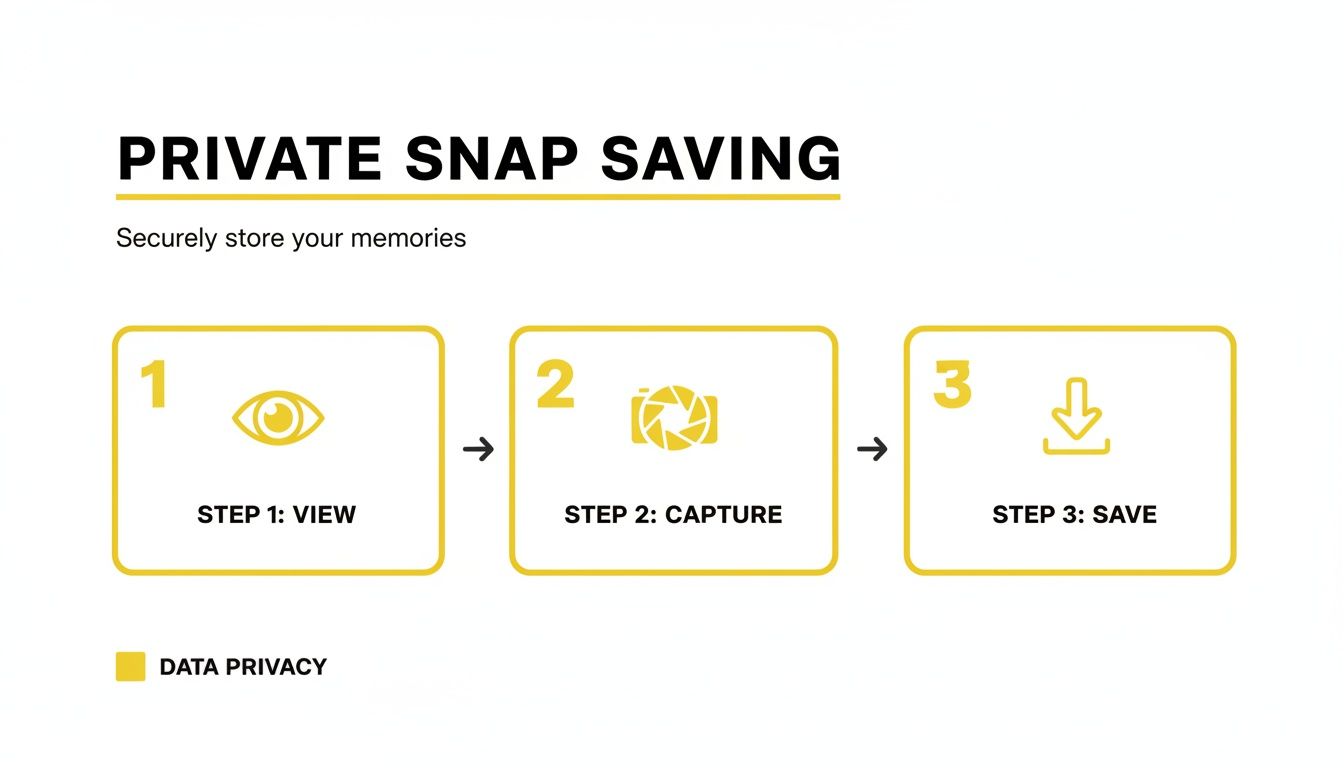
This graphic really captures the hands-off approach. Your only job is to view the snaps and stories you want, and SnapNinja takes care of saving them privately to your computer.
How Automatic Archiving Works
The real beauty of this setup is just how seamless it is. You never have to actively think about saving anything.
Here's what’s happening behind the scenes:
- You View Content: You open a snap from a friend or watch a story on Snapchat Web.
- SnapNinja Captures It: The moment the photo or video appears on your screen, SnapNinja grabs a perfect copy.
- It's Saved Instantly: That media is immediately saved to a dedicated folder on your computer's hard drive.
There’s no lag, no pop-ups, and zero interaction needed from you. The file is saved in its original quality, whether it's a high-res photo or a full-length video. Most importantly, the sender has no idea. As far as Snapchat’s servers are concerned, you just viewed it. No screenshot alert, no "Saved in Chat" notification—nothing.
The key takeaway is this: the act of viewing is the act of saving. By simply using Snapchat on your PC, you are building a private archive of the moments you want to keep, all without a single click.
This passive approach is what makes it such a powerful tool for anyone who values their privacy. Whether you're saving a funny clip from a friend to rewatch later or keeping a record of an important conversation for your own peace of mind, the process remains the same: effortless and completely invisible. It’s the ultimate "set it and forget it" solution.
Pro Tips for Smart and Ethical Archiving
Alright, so you’ve got SnapNinja up and running, and it's quietly archiving every snap you view on your PC. You've got the basics down, but now it’s time to level up your game. Using a tool like this is about more than just grabbing content; it’s about managing it smartly and, most importantly, ethically.
This is where the concept of “Smart Privacy” really comes into play. Think of what you're doing as building your own personal, encrypted time capsule. It’s for your eyes only. The whole point is to archive memories that mean something to you, keep receipts for your own peace of mind, or save a hilarious video that would otherwise disappear forever. It's a tool for personal preservation, not public broadcast.
The line is pretty clear: use it to protect your own memories and security. Never, ever use it to harass, blackmail, or embarrass someone. You've got the power, which means you've also got the responsibility.
Getting Your Archived Content in Order
Once you start automatically saving snaps, your archive folder can get chaotic fast. A little organization now will save you a massive headache later. Instead of letting everything pile into one giant folder, try creating subfolders by friend, date, or even context like "Vacation Snaps" or "Project Receipts."
This isn't just about being neat; it's about being able to find exactly what you're looking for weeks or months from now without having to scroll through hundreds of random files.
You also need to think about storage space. Videos, in particular, will chew through your hard drive. Here are a few quick tips to stay on top of it:
- Cloud Backup: Sync your archive folder with a service like Google Drive or Dropbox. This not only frees up local space but also acts as a safety net if your computer ever dies.
- External Drives: For long-term hoarding, an external SSD is your best friend. They’re fast, reliable, and perfect for offloading older files you don’t need to access every day.
- Regular Purges: Once a month, take five minutes to scroll through your saved snaps and delete anything you don’t actually need. You’ll be surprised how much digital clutter you can clear out.
Technical Tweaks for a Smooth Experience
SnapNinja is built to be a "set it and forget it" tool, but a few quick technical checks can ensure you're getting the best quality and performance, especially when you're using Snapchat on your PC.
The quality of your saved media is a direct reflection of what your browser is displaying. For the best video quality, make sure you have a stable internet connection while viewing content on Snapchat Web. A choppy connection can force a lower-resolution stream, and that's what gets saved to your archive.
Pro Tip: Sometimes, other browser extensions—especially aggressive ad blockers or privacy scripts—can mess with how web pages load media. If you ever notice snaps aren't saving correctly, the first thing to try is temporarily disabling your other extensions. This one simple troubleshooting step fixes 90% of common problems.
Ultimately, the goal is to create a reliable, private archive that just works for you. By combining smart organization with a few simple technical checks, you can elevate your Snapchat PC experience from just viewing content to truly preserving it. To better understand the principles guiding this approach, you can learn more about our commitment to responsible user privacy and how we designed the tool with these ethics at its core.
Common Questions About Snapchat on PC
Moving your Snapchat experience from your phone to a desktop naturally brings up some questions. It's smart to be a little skeptical, especially when it comes to tools that interact with your personal accounts. Let's dig into some of the most common concerns to clear the air.
The biggest hesitation for most people usually boils down to one simple question: is it safe? After all the stories you hear about mobile hacks and banned accounts, being cautious is just common sense. But it's important to realize that the desktop approach is a completely different ballgame.
Is It Truly Safe to Use a Tool Like This?
This is the big one, and the answer really comes down to the Desktop Advantage. Snapchat's security is hyper-focused on its mobile app. Their systems are incredibly good at spotting any modified or "tweaked" versions of the iOS and Android apps, which is why trying those methods almost always ends with a quick, permanent account ban.
A tool like SnapNinja, however, plays in a totally different sandbox. It works with Snapchat Web through your desktop browser, an area Snapchat doesn't scrutinize nearly as aggressively. It isn't messing with the app's code or violating the terms of service in the same way. This fundamental difference is what makes the desktop method safer and undetectable.
Because the tool never touches the mobile app itself, it stays off Snapchat's primary radar. That’s the key to why it’s a far more secure alternative to those high-risk mobile hacks that will get your account shut down for good.
Can I Save Both Photos and Videos from Chats and Stories?
Yep, absolutely. Any good desktop tool is built to be a complete solution for archiving your memories, not just bits and pieces.
It doesn't matter if you're looking at a private photo, a video message, or tapping through a friend's entire 24-hour Story. The tool is designed to capture everything. As long as you can see it in your browser on Snapchat Web, it can be saved for you automatically.
How Does This Compare to Using an Android Emulator?
Using an emulator like BlueStacks to run Snapchat on a PC might seem like a clever workaround, but you're essentially just putting the mobile app in a virtual box on your computer. You're still stuck with all the same old limitations. If you take a screenshot inside the emulator, your friend will still get a notification.
On top of that, Snapchat has been known to detect and block logins from emulators, which can lead to annoying access problems or even get your account flagged. A tool that works directly with the official Snapchat for Web, like SnapNinja, is a more direct, reliable, and ultimately safer approach built for one specific purpose: private archiving.
Do I Need to Be Tech Savvy to Use This?
Not at all. The whole point is to make it simple. If you can download and install a standard app on your Windows PC or Mac, you've already got all the technical skills you need.
The process is meant to be as hands-off as possible:
- Download and run the installer.
- Log into Snapchat Web in your browser like you normally would.
- That’s it. The tool just works quietly in the background.
There are no confusing settings to mess with or command lines to type. You just use Snapchat on your computer, and the saving happens on its own. It's built for regular users, not just tech wizards.
Ready to see the Desktop Advantage for yourself? Stop worrying about screenshot notifications and start privately archiving the moments that matter to you. SnapNinja is the simple, safe, and undetectable solution for saving any Snap or Story directly to your computer. Download SnapNinja today and take back control of your Snapchat experience.