
How to Convert Snapchat to MP4 Privately on Your Desktop
So, you want to convert a Snapchat video to MP4. The real trick isn't just saving the video—it's doing it privately, without sending that dreaded "You took a screenshot!" notification. The best way to pull this off is by using a desktop application that taps into Snapchat Web. This approach keeps you off the mobile app's radar, ensuring your account stays safe and your actions remain completely under wraps.
Why You Need a Private Way to Save Snapchat Videos
Let's face it, the whole point of Snapchat is that everything disappears. It's designed for those in-the-moment, unfiltered exchanges. But every now and then, something comes through that you just have to keep. It might be a ridiculously funny clip from a friend, a sweet message from someone special, or even important "receipts" you need to hang onto. This is all about smart privacy—archiving your memories, not spying.
The usual methods just don't work here. Slapping the screenshot button or firing up your phone's screen recorder instantly alerts the other person. That single notification can kill the vibe, make things awkward, and defeat the entire purpose of being discreet. This is the exact dilemma millions of us run into all the time.
A Quick Look at Snapchat Saving Methods
Here's a comparison of common methods for saving Snaps, highlighting why the desktop approach is superior for privacy and account safety.
| Method | Triggers Notification? | Risk of Account Ban? | Best For |
|---|---|---|---|
| Mobile Screenshot/Screen Record | Yes | Low | Quick, public saves when you don't mind the other person knowing. |
| Third-Party Mobile Apps | Usually | High | Not recommended. They violate Snapchat's ToS and often lead to account bans. |
| Snapchat Web + Screen Recording | No | Low | A solid manual option for saving content discreetly without extra software. |
| Snapchat Web + Desktop Tool (SnapNinja) | No | Very Low | The most reliable and private method for high-quality, undetectable saves. |
As you can see, working from your computer is the only way to guarantee both privacy and account safety.
The Pain Point of Public Notifications
That little alert is more than just a notification; it can change the whole dynamic of a conversation. Trust can be broken, and the casual, candid feel of the chat evaporates. For most people, the need to save a Snap isn't about being sneaky—it's about having control over your own digital archive.
Here are just a few real-world reasons why private saving is so essential:
- Archiving Memories: Holding onto a hilarious video from your best friend or a heartfelt message from a family member you want to cherish forever.
- Keeping Receipts: Saving important details from a conversation or a verbal agreement that would otherwise be lost.
- Protecting Your Privacy: Documenting conversations or interactions for your own records without altering the dynamic of the chat.
The Rise of a Global Phenomenon
The demand for a private solution has exploded right alongside Snapchat's user base. The platform has become a global giant, with its monthly active users jumping from 422 million in Q1 2024 to an expected 460 million by Q1 2025.
With 444 million people using the app every single day, you can only imagine how many fleeting moments users wish they could save. In a huge market like the US, where there are 106.7 million active users, the desire to privately save a funny chat or a sentimental video is a daily challenge.
The core issue is simple: you want control over your digital memories. You shouldn't have to announce to the world every time you decide to save something meaningful.
This is precisely where a dedicated desktop tool like SnapNinja comes in. By running on your Windows or macOS computer and working with Snapchat Web, it operates completely outside the mobile app's heavily monitored environment. It captures content directly, which means no "Saved to Camera Roll" notifications are ever sent. This "Desktop Advantage" is the only reliable way to convert Snapchat to MP4 without putting your privacy or your account at risk. You can learn more about this commitment in SnapNinja's privacy policy.
The Desktop Advantage Over Risky Mobile Hacks
If you've ever gone down the rabbit hole of trying to save Snaps, you’ve probably stumbled upon some pretty sketchy stuff. I’m talking about those modded apps from third-party stores, complicated jailbreak tweaks, and other mobile "hacks" that promise the moon. Let's be real: these are the fastest way to get your Snapchat account permanently banned.
The official Snapchat app on your phone (iOS or Android) is a fortress. It's built from the ground up to sniff out any unauthorized behavior happening within its environment. When you install a modded version, you're basically inviting a Trojan horse onto your phone that Snapchat’s security systems are specifically designed to find and shut down. The result is almost always a temporary lock, quickly followed by a permanent ban if you push your luck.
Why Mobile Hacks Are a Dead End
The fundamental issue is that these mobile solutions try to mess with the Snapchat app's core code. They hook into the app's processes to intercept media files and block the "seen" notifications from ever being sent. This kind of direct interference leaves digital fingerprints all over the place—fingerprints that are glaringly obvious to Snapchat's servers.
Think of it like trying to sneak a recording device into a high-security building. You might get past the front desk, but there are cameras and sensors everywhere. Sooner or later, you will get caught.
- Jailbreaking/Rooting: This isn't just a Snapchat problem; it compromises your entire device's security. You're opening yourself up to malware and voiding your warranty, all for a hack that Snapchat will probably detect anyway.
- Modded APKs/IPAs: These are unofficial app files that are notorious for containing malicious code. You aren't just risking your Snapchat account; you're risking every piece of personal data on your phone.
- The Constant Cat-and-Mouse Game: Even if you find a mobile hack that works for a week, a single app update from Snapchat can instantly make it useless and, worse, flag your account for suspicious activity.
The bottom line is this: trying to beat Snapchat on its home turf—the mobile app—is a losing battle. The company invests millions in security measures designed to prevent these exact workarounds.
The Undetectable Desktop Method
This is precisely where the Desktop Advantage comes in. When you use a tool like SnapNinja on your Windows or macOS computer, you move the entire operation to neutral ground where Snapchat has zero visibility.
Instead of trying to tamper with the mobile app, you just log into Snapchat Web in a standard browser. SnapNinja works quietly in the background on your computer, capturing the content as it’s displayed. To Snapchat's servers, there’s no difference between you legitimately watching a Story and a desktop tool saving it.
From Snapchat's point of view, all it sees is a user logged into their web client, viewing content just as intended. The process of converting the snapchat to mp4 happens entirely on your local machine, completely outside the app's jurisdiction. It’s a fundamentally safer approach because it never modifies or interacts with the Snapchat app's code. This is the smart, sustainable way to archive your memories without ever putting your account in jeopardy.
Your Guide to Using SnapNinja on Desktop
Alright, let's get down to business. Now that you know why a desktop tool is the only reliable way to save Snapchat content, it's time to walk through how it actually works. You might be picturing a complicated setup, but tools like SnapNinja are designed to be incredibly straightforward. Think "set it and forget it."
The whole idea is to make the process hands-off. Once SnapNinja is running on your Windows or macOS computer, it operates quietly in the background. You just log into Snapchat Web and go about your day. As you watch Stories or open Snaps, the software automatically saves them as high-quality MP4 files right on your machine.
Getting Started with SnapNinja
The initial setup is a one-time thing that honestly takes just a couple of minutes. The goal is to get the software installed and configured so it can monitor your Snapchat Web activity without you ever having to touch it again.
Here’s a quick rundown of what that looks like:
Download and Install: First thing's first, you need the software. Head over to the official SnapNinja download page and grab the installer for your operating system (Windows or macOS). The installation itself is standard—no tricky options or hoops to jump through.
Initial Configuration: The first time you open it, you’ll likely want to point it to a specific folder. I find that creating a dedicated "Saved Snaps" folder on my desktop or in my main Documents folder works best so everything stays organized.
Log into Snapchat Web: This is the trigger. Just open your favorite browser, go to Snapchat's web version, and log in as you normally would. SnapNinja detects that you've started a session and immediately gets to work.
How It Works in Real Time
This is where the magic happens. Once you're all set up, you don't have to manually start or stop anything. Just use Snapchat.
Let's say a friend posts a long, multi-part story from their trip. As you click through each video clip in your browser, SnapNinja is already grabbing every single one. Before you’ve even finished watching, the individual MP4 files are neatly saved in the folder you designated earlier. They're ready to watch offline, edit, or just keep for your records.
The same goes for private video Snaps sent directly to you. The moment you open one, the tool saves it. There’s no frantic rush to hit a record button before the timer runs out, and crucially, the other person never gets a notification. SnapNinja is the only reliable solution that bypasses the "Saved to Camera Roll" notification by operating outside the Snapchat app environment. It’s completely discreet.
Here’s a look at the simple interface where your captured Snaps show up.
As you can see, everything is cleanly organized. No digging through confusing menus—the content is right there.
The Power of Silent Archiving
The reason this method is so powerful is because of how it interacts with Snapchat's platform—or rather, how it doesn't. It acts as a passive observer, not an active participant.
This silent, background approach is a game-changer. The sheer volume of content on Snapchat is staggering. As of January 2025, there are over 709 million users advertisers can reach, with 453 million people actively using it every single day. Billions of temporary moments are shared, and people naturally want to hold onto some of them. As this breakdown of Snapchat statistics shows, the platform is a massive hub of fleeting content.
Taking a screenshot sends an alert, which can be awkward. A dedicated desktop tool, however, bypasses that problem entirely.
The bottom line is this: a desktop tool like SnapNinja turns the process of converting Snapchat to MP4 into an automatic, silent task. It's built for anyone who wants a reliable archive of their memories without the social friction of notifications or the risk of an account ban.
Why Other Saving Methods Fall Short
So, a dedicated desktop tool gives you a clean, foolproof way to save Snaps, but it’s worth taking a second to understand why the more common methods just don’t measure up. You’ve probably already thought about them—firing up your phone’s built-in screen recorder or maybe even trying a third-party capture app. On the surface, they seem like easy enough fixes.
The problem is, they all share one fatal flaw: they’re loud. Every single one triggers that dreaded screenshot or screen recording notification on the other person’s end. Snapchat is specifically built to detect these actions inside its mobile environment (both iOS and Android), and there’s really no reliable way to get around it.
The Notification Nightmare
Trying your phone's native screen recorder is the first thing most people do, and it’s also the most obvious. It doesn't matter if you're on iOS or Android; the moment you start recording your screen while Snapchat is open, the app knows. An alert gets sent to the user whose Story or Snap you're recording, which completely defeats the purpose of being discreet.
This instant giveaway makes the method pretty much useless for anyone trying to archive memories or keep a private record of a conversation. It’s the digital equivalent of shouting, "Hey, I'm saving this!" across a quiet library.
Quality and Convenience Issues
Even if you didn’t care about the notification, mobile screen recording often gives you messy, low-quality results. It’s a clumsy process that introduces a whole bunch of other headaches.
- Cluttered Recordings: You almost always end up capturing unwanted junk on your screen, like the record button, pop-up system notifications, or your battery life indicator. It completely ruins the clean look of the original Snap.
- Low Resolution: The final video quality is often heavily compressed and pixelated, a far cry from the crisp, original video. This is especially true if your phone isn't a flagship model.
- Awkward Crops: It’s incredibly difficult to start and stop the recording at the perfect moment. This usually means you’re left with awkward cuts at the beginning or end of your MP4 file.
The core issue here is that these methods are clumsy workarounds, not real solutions. They force you to manually capture content in a clunky, unreliable way, all while broadcasting your actions to the sender. This makes them completely impractical for anyone who values privacy and quality.
To really see the difference, let’s compare a dedicated desktop tool like SnapNinja against the other common methods people try. The Desktop Advantage is clear.
Feature Comparison SnapNinja vs Other Methods
| Feature | SnapNinja (Desktop) | Mobile Screen Recorder | Modded Mobile App |
|---|---|---|---|
| Notification Trigger | 100% undetectable. | Always triggers a notification. | Hit-or-miss; often detected by Snapchat. |
| Save Quality | Saves the original, full-resolution file. | Compressed, lower-quality video. | Can save original, but app is unstable. |
| UI Elements Recorded | None. Downloads the clean media file. | Captures screen buttons, status bar, etc. | None. Downloads the clean media file. |
| Batch Downloading | Yes, can download entire Stories at once. | No, must record each Snap individually. | No, manual saving is required. |
| Risk of Ban | Low risk; operates outside the mobile app. | No risk of a ban. | High risk; violates Snapchat's ToS. |
| Setup & Stability | One-time install, very stable. | Built-in, but the process is clumsy. | Complex install (sideloading), very unstable. |
As you can see, a dedicated tool is built for a specific purpose: clean, private, and high-quality downloads. The alternatives are riddled with compromises, from triggering notifications to risking your account's safety.
The simple, clean workflow of a tool like SnapNinja is a world away from fumbling with a screen recorder.
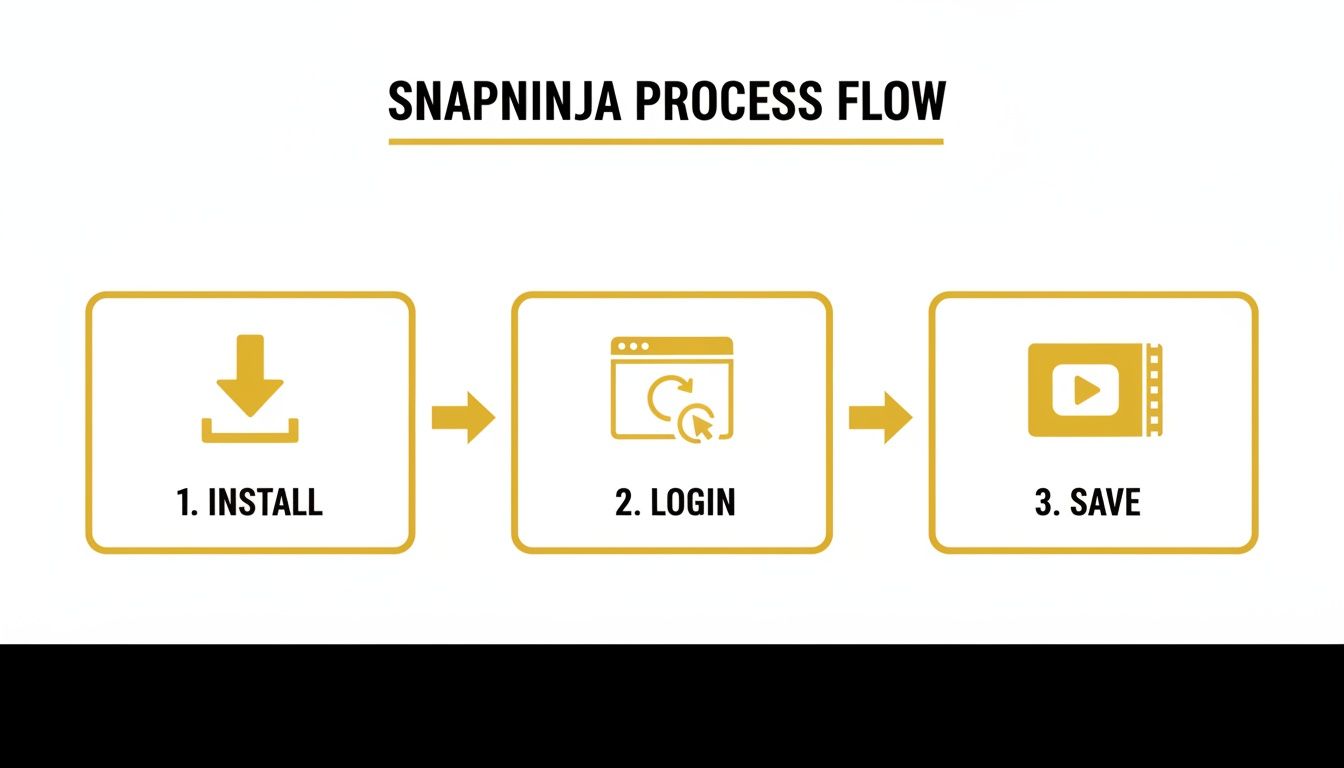
This process is intentionally streamlined to run in the background, which eliminates the manual errors and notification triggers you get with mobile methods. When you compare this to the clumsy alternative of recording your screen, it's easy to see why a desktop-based approach is the only truly reliable choice for clean, undetectable saves. It simply operates outside of Snapchat’s direct line of sight, keeping your activity private.
Pro Tips for Managing Your Saved Snaps
Alright, so you’ve got the hang of saving Snaps and converting them to MP4s. That's the easy part. The real challenge comes next: preventing your hard drive from turning into a digital junk drawer filled with randomly named video files. Let's talk about how to build a smart, organized archive and handle the privacy side of things responsibly.
A little structure now will save you a ton of headaches later. Trust me, you don't want to be scrolling through hundreds of generic filenames looking for one specific video.
Here’s a simple system I’ve found works best:
- Organize by Username: Start with a main "Saved Snaps" folder. Inside, create a subfolder for each person you're saving content from. It’s the cleanest way to keep everything sorted.
- Add Dates to Filenames: Get in the habit of renaming files as soon as you save them. A format like
Username_2024-10-26.mp4makes finding a specific moment incredibly easy.
Keep the Quality High and Your Archive Secure
One of the biggest advantages of using a desktop tool like SnapNinja is that you're grabbing the video in its original quality. Mobile screen recorders often compress the files to save space, which can result in a blurry, pixelated mess. Because you’re capturing the media directly as it streams, you get a clean, high-resolution MP4 every time—no on-screen buttons, no compression artifacts, just the video as it was meant to be seen.
Now, let's talk about keeping this archive safe. Think of your saved Snaps as a private journal. You wouldn't leave that lying around on a shared computer, right? Store your files on an encrypted external hard drive or a secure cloud service that you trust. It's all about "smart privacy"—keeping your memories for yourself and nobody else.
The goal here is responsible archiving. You’re saving this content for personal reasons—to hold onto a memory, document a conversation, or just keep 'receipts.' That comes with a duty to respect the trust of the person who sent it in the first place.
The Ethics of It All
Let's be real: saving Snaps operates in a bit of a gray area. You're preserving content that was designed to disappear. The demand for doing this is huge. Snapchat has over 106.7 million users in the US alone, with a massive global audience of 444 million daily active users projected for 2025. You can dig into the numbers in this in-depth analysis of Snapchat's user base. That’s a whole lot of people sharing fleeting moments, and many of them want to save a chat or story without tripping that notification.
Being a responsible archiver means knowing where the line is. Keep what you save for your eyes only. Never, ever share, repost, or use someone's private Snaps publicly without getting their explicit permission first. This is about preserving your memories, not violating someone else's privacy.
Answering Your Top Questions About Saving Snaps
Alright, let's get right into the questions I hear all the time. When people start looking for a way to turn a Snapchat video into an MP4, a few key concerns always pop up: safety, privacy, and quality. Let me break it down for you based on my experience.
Is It Actually Safe to Use a Third-Party Tool?
This is the big one, and the answer is yes—if you use the right kind of tool. The real danger comes from sketchy mobile apps (on iOS or Android) that try to hack or modify the official Snapchat app on your phone. That’s a fast track to getting your account permanently banned.
A desktop application like SnapNinja, however, is a different beast entirely. It runs on your Windows or macOS computer and works with Snapchat Web. It never touches or alters the mobile app's code. Because it just captures what’s already displayed in your browser, it’s invisible to Snapchat’s detection systems and 100% safe for your account. This is the core of the Desktop Advantage.
Will They Know I Saved Their Snap?
Nope, not a chance. This is precisely why this desktop method is so effective. If you try the usual tricks, like taking a screenshot on your phone or using its built-in screen recorder, Snapchat immediately sends a notification to the other person.
The beauty of a desktop tool like SnapNinja is that it operates completely outside of Snapchat's ecosystem. It bypasses the notification system entirely, so the sender has zero idea you’ve saved their photo, video, or Story. Your activity remains completely private.
This is the game-changing advantage. You can archive memories or keep receipts without making things awkward or tipping anyone off. If you're curious about the specifics, you can learn more in our detailed SnapNinja pricing and features guide.
Is the Saved Video Quality Any Good?
Absolutely. You get a perfect, high-quality copy every time. The saved MP4 file will be an exact match of the original resolution you see on Snapchat Web. These tools are built to grab the media directly, so there’s no added compression, ugly watermarks, or quality loss.
This approach helps you sidestep all the classic problems you run into with basic screen recorders, like:
- Pixelated or blurry footage.
- Annoying on-screen buttons and notifications in your final video.
- Choppy starts and stops that ruin the clip.
What you end up with is a clean, pristine copy of the original Snap, just as it was meant to be seen.
Does This Method Work for Everything? Snaps, Chats, and Stories?
It sure does. Anything you can view on Snapchat Web, you can save. This covers the whole spectrum of content you’d want to archive, including private photo and video Snaps, messages from your chats, and all the public Stories from your friends and favorite creators.
As long as you can see it in your web browser, a desktop tool like SnapNinja can automatically capture and save it for you in the background. It’s really the most complete way to turn any Snapchat video into an MP4 file on your computer, no hassles involved.
Ready to start archiving your memories privately and securely? Join thousands of users who trust SnapNinja to save their favorite Snaps without anyone knowing. Get started today at https://snapninja.app.