
Smart Privacy Snapchat Video Downloader Desktop Guide for Safe Archives
Quick Snapchat Video Downloader Overview
Ever wish you could archive memories or keep receipts without those pesky “Saved to Camera Roll” alerts? Meet SnapNinja, the only reliable snapchat video downloader that runs on Windows and macOS outside the Snapchat app environment. It grabs every clip in under a minute, sidestepping in-app notifications and keeping your archive private on your own drive.
Rather than juggling sketchy screen recorders or installing modded mobile clients (hello, account ban risk!), SnapNinja lives completely outside the Snapchat interface. That means zero alerts, no overlays, and less chance of getting locked out.
With 450–460 Million daily users and 900 Million active accounts each month, archiving Snaps is more than a novelty—it’s smart privacy. For a deeper dive into Snapchat usage stats, check out ElectroIQ.
Right after installation, you’ll hit a clean dashboard ready for action:
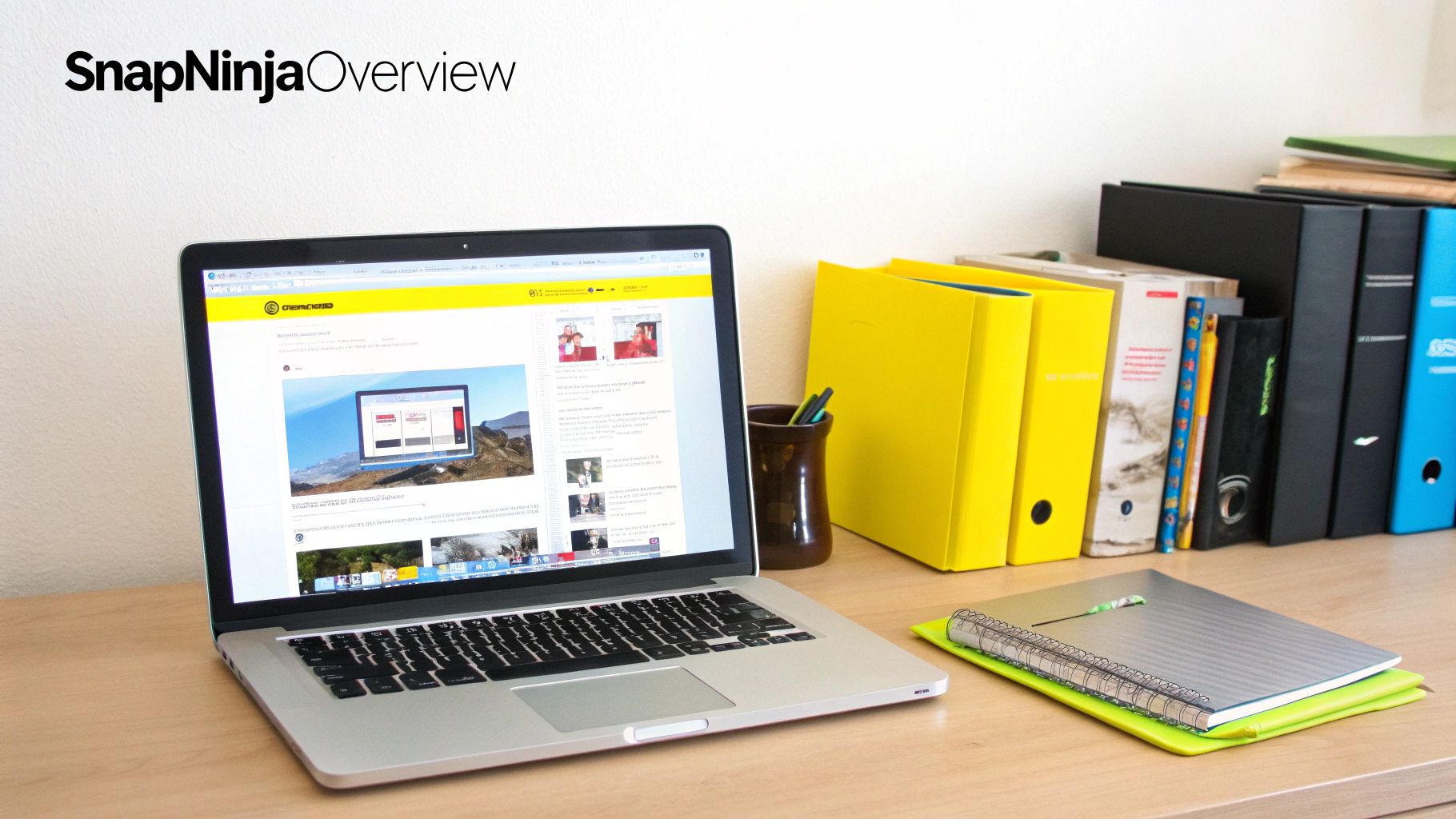
That view highlights live capture controls, folder rules, and real-time previews—no fluff, just what you need.
Key Wins
- No Alerts: Senders remain unaware of your saves.
- One-Minute Setup: Minimal permissions, maximum speed.
- Organized Archives: Auto-sorting and custom folder rules.
Mobile workarounds on iOS or Android often end in warning pop-ups, account locks, or ugly watermarks. With the Desktop Advantage, you keep your Snap history under wraps and off your phone’s storage.
SnapNinja Desktop Vs Mobile Hacks
Before you pick a sketchy phone hack, check out this side-by-side:
| Feature | SnapNinja Desktop | Mobile Hacks |
|---|---|---|
| Notification Alerts | None | Triggers alerts |
| Account Risk | Safe and undetectable | Risk of bans |
| Platform Compatibility | Windows & macOS | iOS & Android only |
| Archive Organization | Automatic folders | Manual save only |
See why desktop captures deliver a seamless, private experience compared to flaky phone fixes. Learn more at snapninja.app.
Initial Setup Process
Think of this as your Smart Privacy launchpad: a quick desktop setup that lets you archive videos without a trace. All you need is a Windows or macOS machine, a modern browser, and a couple of clicks.
Real-world test: I fired up SnapNinja before a surprise birthday Story—every clip landed perfectly, and no one had a clue.
Prerequisites:
- Chrome or Firefox 80+
- 150 MB free disk space
- Admin rights for screen-recording access
- Download SnapNinja from snapninja.app
- Run the installer and accept the license
- Grant screen-capture permission (macOS: System Preferences → Security; Windows: Privacy → App Permissions)
- Relaunch your browser if prompted
Once it’s live, you’ll see the SnapNinja icon in the tray or menu bar—your signal that you’re ready to record.
Smart Privacy means you control your own archive without tipping off anyone.
Download And Install SnapNinja
Follow these desktop-friendly steps:
- Head to snapninja.app and grab the Windows or macOS installer
- Double-click and accept the user agreement
- Approve screen-recording access when macOS or Windows asks
- Restart your browser if the setup prompts you
On Windows, disable notifications for Snapchat Web in Settings. On macOS, uncheck alerts under System Preferences → Notifications. This keeps pop-up interruptions out of your capture sessions.
Configure System Settings
Pro Tip: Pin SnapNinja to your taskbar or dock—one click and you’re live. Then:
- Disable browser extension auto-updates to avoid mid-capture surprises
- Create a “SnapArchive” folder in Documents
- In SnapNinja settings, enable auto-sorting by date or sender
A tidy folder hierarchy means less hunting later. For plan comparisons, peek at Explore SnapNinja Pricing Options.
Double-check your browser version to avoid capture glitches: outdated clients can drop frames or break the flow. A stable internet connection also keeps SnapNinja in sync with Snapchat Web.
With everything in place, your Desktop Advantage is locked: no mobile bans, no detection, just smooth archiving.
Capturing Snaps Safely on Desktop
My go-to: open Snapchat Web in Chrome or Firefox, layer SnapNinja’s capture window over the story pane, then hit your hotkey. Done and done—no pop-ups, no trace. If you only need photos, our free online story downloader handles that without any desktop software.
- Resolution Tweaks: Record at native size or dial back to 720p for smoother playback.
- Pause/Resume: Pinpoint control so you only archive what matters.
- Stack Recordings: Queue back-to-back stories without extra clicks.
Recording Workflow Overview
Choosing the right resolution is key. Native size looks sharp, but 720p can stop stutters on older rigs. Hit pause to nail specific moments—no extra editing needed. And stacking mode means you won’t miss anything when you binge multiple Snaps.
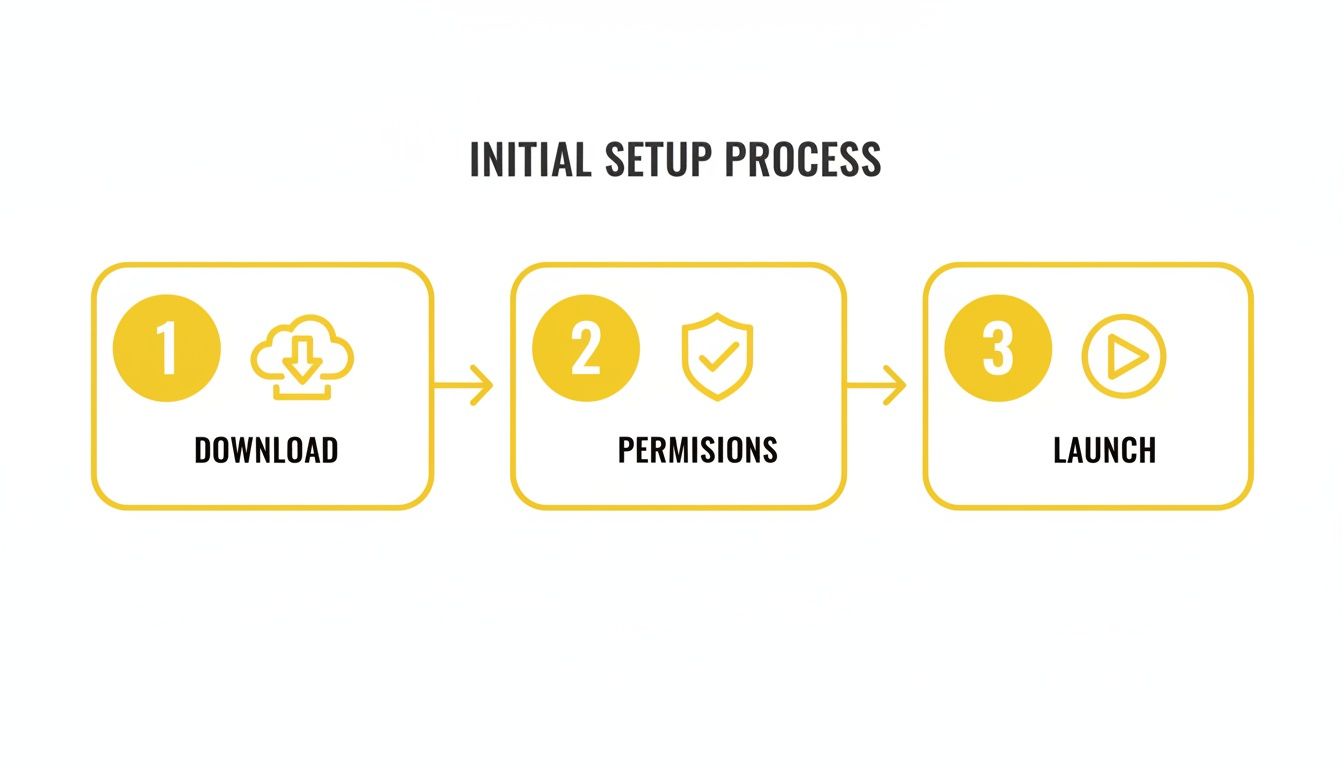
That diagram shows download, permissions, and first capture in under a minute—perfect for on-the-fly setups.
Pro Tricks for Stealth Mode
Capturing a private moment? Kill overlay visibility in settings. No blinking icons, no status bars—just pure, stealthy archiving.
- Turn off system tray alerts
- Mute notification sounds
I tried this during a game-night reveal; nobody even blinked when I hit record.
Stacking And Pausing Tips
Batch mode is your best friend at events. Tap your hotkey for each Snap and SnapNinja queues them all—no juggling windows required.
Keep receipts without a trace by letting desktop capture handle everything in the background.
Fine Tune Your Capture Settings
Match the Snap’s original frame rate for smooth playback. 30 fps works for casual Stories; 60 fps shines on action. If files get too big or choppy, tweak bitrate and codec until you find your sweet spot. Save custom profiles for one-click switches.
- Set browser zoom to 100% for accurate dimensions
- Close unused tabs/apps to free up CPU
- Restart SnapNinja after major browser updates
Little tweaks save big headaches when you’re in marathon mode.
Wrapping Up This Workflow
Desktop capture on Windows and macOS gives you full control over your private archive. No in-app saves, no Camera Roll alerts, no risk of bans. SnapNinja runs outside the Snapchat app environment—capturing videos exactly as they appeared.
Ready to start building your private video library? Head to SnapNinja, set your hotkeys, and enjoy Smart Privacy archiving.
Managing And Organizing Downloads
When SnapNinja drops videos, it names files by date and sender—think 2024-06-15_Alice. You can point downloads to a custom folder or let SnapNinja nest everything in year/month subfolders.
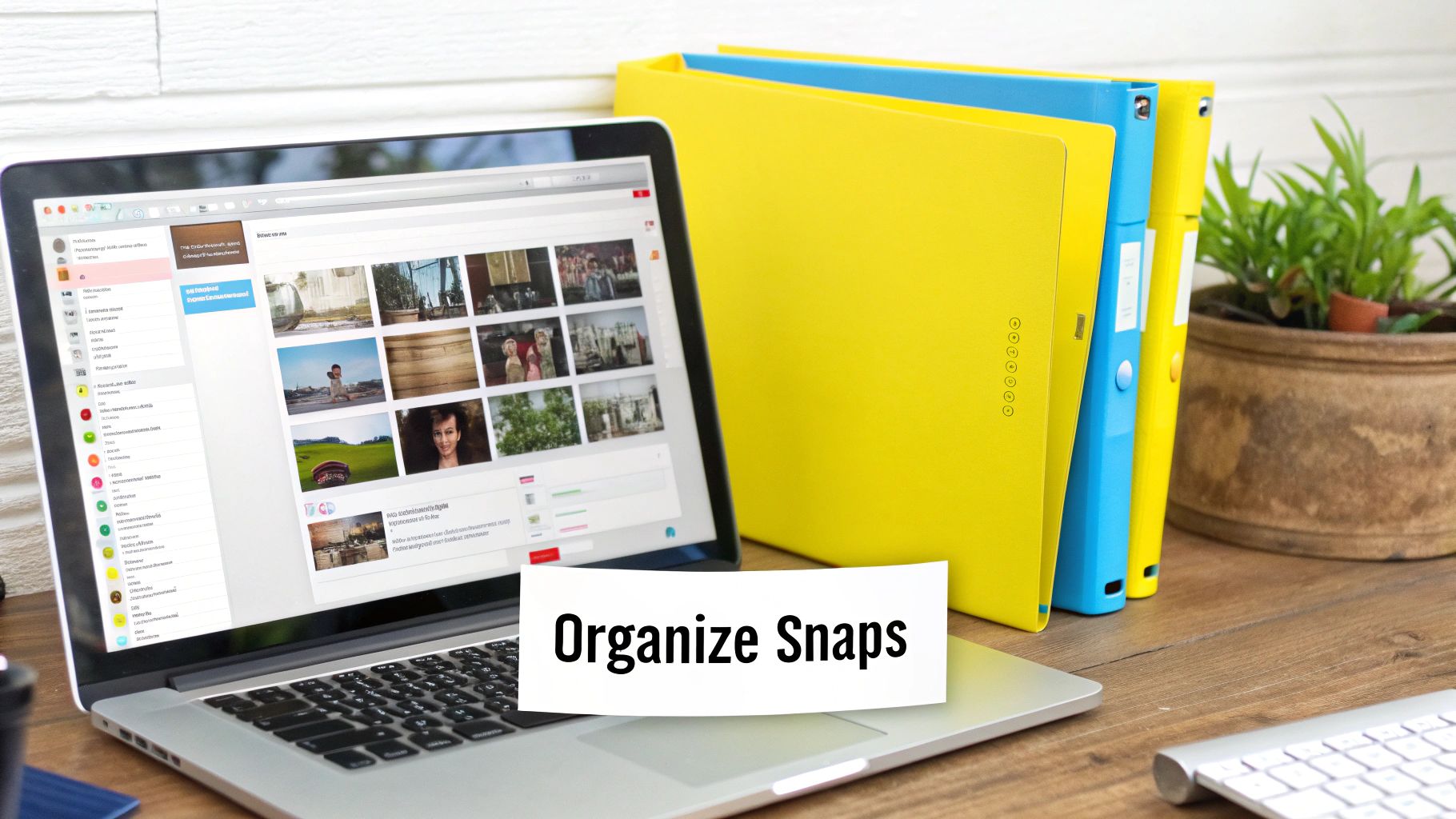
Custom Tags And Batch Renaming
Tag clips with keywords (sender names, event titles) and cut search times by up to 70%. Batch-renaming tools can swap in timestamps or custom labels for dozens of files at once.
- Keyword tagging speeds up lookup
- Auto-nested folders keep things tidy
- Batch rename utilities handle mass edits in one shot
I run my SnapArchive off a fast NVMe drive, then stream previews via Plex or VLC.
Integrate With Media Libraries
SnapNinja hooks into servers like Plex and Jellyfin. Your naming conventions become metadata those apps read—no extra tagging needed.
Automate folder structures and tags so you spend more time watching and less time sorting.
Label “Festival” for concert Snaps or “RoadTrip” for travel memories. Once you hit 1000 videos, those tags pay off.
| Feature | Auto Naming | Manual Renaming |
|---|---|---|
| Date Folders | Yes | No |
| Keyword Tags | Yes | Optional |
| Media Server Preview | Yes | Manual Copy |
This setup feels more like a digital scrapbook than a basic downloader.
Troubleshoot Folder Conflicts
Ran into duplicate names or overwrite prompts? Tweak your file rules—add prefix timestamps or enable overwrite protection.
- Dedicate one drive for your SnapArchive
- Prune old clips on a regular schedule
- Mirror important folders to cloud storage or NAS
Stick to these tips and your archive stays curated, not chaotic.
Best Practices For Archives
- Consistent naming conventions prevent confusion
- Monthly backup checks avoid data loss
- Plan tags and folders before your clip count explodes
Apply these methods now and turn your Snapchat archive into an effortless, browsable collection.
Enhance Quality And Repost Strategies
Exporting Snaps like a pro means zero notifications and no bans. SnapNinja quietly captures on Windows and macOS, bypassing the “Saved to Camera Roll” alert by operating outside the Snapchat app environment.
Choose your frame rate: 60 fps for skate tricks or action shots, 30 fps for casual chats. Aspect ratios unlock different vibes—9:16 for vertical authenticity, 1:1 for Instagram squares, 16:9 for widescreen.
Downscale to 720p and slash file sizes by 40% while keeping sharpness.
Frame Rate And Aspect Ratio
| Profile | Best For |
|---|---|
| 60 fps | Sports highlights, action shots |
| 30 fps | Casual chats, slow-moving scenes |
| Aspect Ratio | Use Case |
|---|---|
| 9:16 | Full-screen vertical Snaps |
| 1:1 | Instagram-friendly square posts |
| 16:9 | Widescreen layouts, YouTube clips |
Maintaining original frame rates preserves lens effects and audio sync.
Test a quick clip, then tweak bitrate 10% at a time until size and clarity hit the sweet spot.
Repost Tips And Watermarks
Keep it consistent with SnapNinja’s built-in editor:
- Add a punchy overlay caption
- Place a watermark at 10% opacity in a corner
- Batch-export to apply the same look across clips
Do an audio check—SnapNinja remaps system sounds, so you won’t catch random notification pings.
Quality is more than pixels—it’s that seamless playback of memories.
This desktop workflow beats flaky phone mods. Because SnapNinja runs outside Snapchat Web, it’s the safest, most reliable snapchat video downloader.
Privacy And Legal Considerations
Smart Privacy isn’t about sneaking; it’s about archiving moments you care about. Each clip becomes a personal keepsake stored on your desktop.
Always ask before saving someone else’s Story. A quick heads-up shows respect, keeps trust intact, and steers clear of legal issues.
- Treat each save as a personal backup
- Capture only the Stories you’re allowed to archive
- Avoid downloads that breach trust or Snapchat’s TOS
Snap Inc. clamps down on unauthorized saving with API restrictions and rate limits. Read the full research about Snapchat API restrictions and rate limits.
API Limits Enforcement
Desktop recording sidesteps Snapchat Web’s official API entirely. No server calls, no alerts, no rate-limit blocks.
| Approach | Alerts | Risk | Compliance |
|---|---|---|---|
| SnapNinja Desktop | None | Low | No API Calls Made |
| Mobile Hacks | Triggers Alert | High | Violates TOS Frequently |
Desktop Captures Stand Out
Think of it like a manual screen recording. No forged API calls, zero digital fingerprints in Snapchat Web, and you bypass the rate limits that kill mobile scrapers.
- Functions like any standard recorder on your PC
- Leaves no trace inside Snapchat Web
- Keeps your account safe from bans and restrictions
Ethical Archiving Practices
- Archive only your own Snaps to stay within legal bounds
- Clearly label backups as private to avoid accidental sharing
- Delete clips if someone withdraws consent
For more privacy best practices, see SnapNinja privacy and ethics.
FAQ
Will SnapNinja work on my desktop?
Yes—every modern browser on Windows and macOS is supported with the companion extension.
Will SnapNinja leave a trace in Snapchat?
Not a single one. It lives outside the official client, so you capture videos without any warnings.
Are there recording limits?
Only your storage space. For marathon sessions, flip on batch mode and go hands-free.
- Browser Compatibility: Chrome, Firefox, Edge, Safari
- Recording Duration: Unlimited (storage-dependent)
- Audio Sync: Configurable buffer for perfect timing
Troubleshooting Audio Sync
If audio drifts, bump the capture buffer by +20 ms in Settings. Make sure system volume is steady and drivers are up to date.
Managing Multiple Accounts
Switch profiles on Snapchat Web and SnapNinja sorts new recordings into username folders. Easy peasy.
Recording Limits And Updates
SnapNinja checks for updates at launch—turn on auto-update for seamless feature drops. Prefer manual? Grab the latest installer from the site.
Pro tip: close unused tabs to free CPU and keep recordings crisp.
“I archive entire Story sessions without a hiccup, thanks to SnapNinja’s batch mode and auto-update support.”
Customization And Troubleshooting
Can’t find theme options? Ensure you’re on vX.X or newer, or go to Help → Reset Preferences and restart. If frames drop, lower resolution or close extra tabs.
- Version Check: Keep auto-update on
- Performance: Close unused tabs
- Theme Reset: Reset Preferences under Help
Additional FAQ Tips
When SnapNinja won’t record, confirm Snapchat Web is front and center, then verify your download path in Settings.
- Dedicated Folder: Set a SnapArchive directory
- Backups: Mirror your recordings to cloud or NAS
Archiving with SnapNinja isn’t just proof—it’s preserving memories. Try it at https://snapninja.app