
How Do I Record a Video on Snapchat Web: The Undetectable Desktop Method
Let’s cut to the chase. You want to know how to record a video on Snapchat Web, and you want to do it without tipping anyone off. The best and safest way is to use a solid screen recorder on your computer. It’s an external tool, so Snapchat has no idea it’s running, making it a far smarter choice than any of those sketchy mobile app hacks that risk your account.
The Desktop Advantage: Why Snapchat Web Is Your New Secret Weapon
If you've ever tried saving a Snap on your phone, you already know the risks. You're stuck dealing with sketchy third-party apps, trying clumsy airplane mode tricks, and constantly worrying about Snapchat flagging your account. It’s a frustrating game of cat-and-mouse that you'll probably lose.
Using your desktop (Windows or macOS) completely changes the rules.
Smart Privacy on Windows and macOS
Working on a Windows PC or a Mac gives you a layer of privacy that a phone just can't match. When you record your screen on a computer, you're operating completely outside of Snapchat's sandbox. The app is stuck inside your web browser, totally blind to what your computer’s operating system is up to.
This "Desktop Advantage" is the secret to recording snaps without anyone knowing. The logic is pretty straightforward:
- Mobile Hacks Lead to Bans: Using modified apps or system glitches on your phone directly messes with the Snapchat app itself. This is a huge red flag that can get your account suspended fast.
- Desktop Recording is Undetectable: A screen recorder simply captures what’s displayed on your monitor. From Snapchat's perspective, nothing out of the ordinary is happening.
This isn't about spying; it's about smart privacy. Sometimes you just want to archive a hilarious video a friend sent, keep receipts of an important chat, or hold onto a memory you don't want to lose forever.
The real magic of the desktop method is its undetectability. Because the recording happens at the operating system level, Snapchat Web remains entirely unaware. This eliminates the risk of sending that dreaded "You saved a Snap!" notification.
A Better Way to Archive Memories
The table below breaks down exactly why the desktop method is superior to any mobile workaround you might have tried.
Desktop vs Mobile Snap Saving: A Quick Comparison
| Feature | Desktop (Using Screen Recorder) | Mobile App (Third-Party Hacks) |
|---|---|---|
| Detection Risk | Virtually zero. Snapchat Web cannot detect OS-level screen capture. | Very high. Directly modifies or hooks into the app. |
| Account Safety | Safe. No violation of Snapchat's Terms of Service. | Risky. High chance of account suspension or permanent ban. |
| Notifications | No notifications are sent to the other user. | Often triggers "screenshot" or "saved" notifications. |
| Setup & Reliability | Simple setup. Consistently reliable. | Complicated, often breaks with app updates. |
| Video Quality | Records in the original screen resolution. | Can be compressed or low-quality. |
As you can see, there’s really no contest. The desktop approach keeps your account safe and your actions private.
The Ultimate Solution for Undetected Archiving
Snapchat isn't just for phones anymore. The web version has become a core part of the experience, especially with video blowing up on the platform. With over 10 billion video views daily as of 2025 and a user base of 469 million, desktop integration is more critical than ever.
This is where a purpose-built tool becomes your best friend. A solution like the undetected screen recorder SnapNinja is the only reliable solution designed to take advantage of this desktop privacy loophole, bypassing Snapchat's notification system by operating completely outside the app's environment.
Getting the Hang of Recording Snaps on Your Computer
Before we get into archiving received videos, let's walk through the basics. You have to learn the official way to record a video on Snapchat Web first—think of it as laying the groundwork.
First up, head over to web.snapchat.com and get logged in. That's the easy part. The next step, however, is where a lot of people get stuck.
Granting Browser Permissions
Once you're logged in, you’ll spot a camera icon in the sidebar. The very first time you click it, your browser—whether it's Chrome, Firefox, or something else—is going to ask for permission to use your webcam and microphone.
This is a critical step: you must click "Allow."
If you accidentally hit "Block," don't panic. It's a simple fix. Just look for the small lock icon in your browser's address bar. Click it, and you should see toggles to grant camera and microphone access to the site.
With permissions sorted, you're ready to start recording. The process is pretty intuitive.
- Find and press the circular record button to start.
- You can capture clips up to 60 seconds long.
- This keeps your desktop Snaps in the same vertical format that dominates mobile viewing, which makes sense given that 98% of mobile video is watched vertically. You can dig into more Snapchat user trends on Sproutsocial.com.
You'll even have access to a handful of basic filters and lenses, though it's not the massive library you're used to on your phone.
After you record your clip, you can preview it, add a quick text overlay, and fire it off to your friends or add it to your Story. Getting this simple workflow down is the key before we move on to the more advanced stuff.
Smart Privacy: How to Record Received Snaps Undetected
Alright, let's get to the real reason you're here. You want to archive a video Snap without sending that dreaded "You saved a video in Chat" notification. Forget about those sketchy mobile apps; the secret is using your desktop and a good screen recorder.
This works because a dedicated tool like SnapNinja captures what's on your computer's screen—whether it's a Windows PC or a Mac. It records the pixels directly, long before Snapchat's code (which is stuck inside your web browser) has any clue what's happening. This bypasses Snapchat’s notification system entirely, making the whole process invisible. It’s not about spying; it’s about having control to archive important memories or conversations privately.
The Desktop Method: Safe and Undetectable
Unlike risky mobile hacks that mess with the Snapchat app itself and can get your account banned, this desktop approach is much safer. Because the recording happens completely outside of Snapchat’s environment, the app can’t detect it. You're just recording your own screen.
This simple workflow shows just how straightforward it is to record a Snap on your desktop.
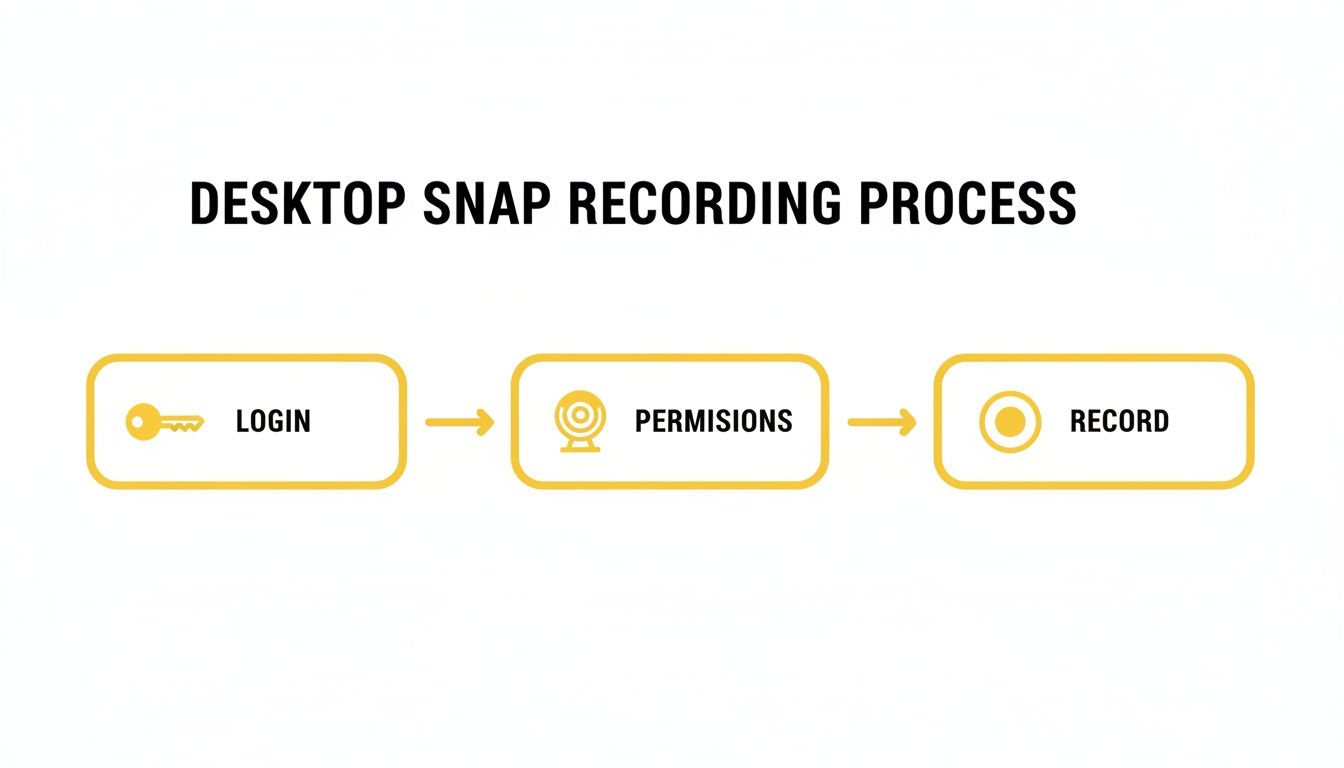
As you can see, the process is clean: you log in, sort out any browser permissions, and hit record. It all happens on your computer, well away from Snapchat's watchful eye.
Setting Up for a Perfect Capture
The key to success, especially with "view once" videos, is to get everything ready before you open the Snap.
- Get Your Recorder Ready: First things first, launch your screen recording software. With a tool like SnapNinja, you can choose to record the entire screen or just draw a box around the Snapchat Web window to keep your recording clean.
- Find the Snap: Log in to
web.snapchat.comand pull up the chat containing the video you want to save. Just don't click on it yet. - Start Recording: Now, hit the record button or use your hotkey. With the recording active, go ahead and click to play the video Snap.
- Save Your File: Once the video is done, stop the recording. It'll save directly to your computer—no notifications sent, no questions asked.
Pro Tip: Recording at the operating system level isn't just about avoiding a notification. It's about keeping your account safe. This method doesn't break Snapchat's terms of service in the same way modified mobile apps do.
If you're interested in the "how" behind this, you can learn more about SnapNinja's commitment to user privacy and its undetectable approach. This is all about giving you the power to archive memories and keep receipts with total peace of mind.
Wrestling With Snapchat Web Recording? Here's What to Do
Even the most straightforward tech can throw you a curveball. If you’re hitting a wall trying to record a video on Snapchat Web, don’t panic. The fix is usually something simple, often related to browser permissions or a bogged-down system. Let's walk through the common culprits.
The classic "camera or microphone not detected" error is far and away the most frequent issue. More often than not, this just means you accidentally clicked "Block" when your browser first asked for access.
To fix it, just look for the small lock icon in your browser's address bar, right next to the Snapchat URL. Give that a click, and you should see toggles to grant camera and microphone permissions. Flip them on, give the page a quick refresh, and you should be good to go.
Diving Deeper: Permissions and Performance Fixes
If tweaking the browser settings didn't do the trick, the next stop is your computer's system-wide privacy settings. Sometimes, the operating system itself is blocking access.
- For macOS users: Head over to
System Settings>Privacy & Security. You'll see separate sections for bothCameraandMicrophone. Just make sure your browser of choice, whether it's Chrome or Safari, has a checkmark next to it. - For Windows users: The path is similar. Go to
Settings>Privacy & security. From there, check theCameraandMicrophonetabs to ensure your browser has the green light.
What if everything is connected, but your video is choppy or lagging? This is almost always a performance issue. Your computer is likely juggling too many tasks at once. Start by closing any background apps and extra browser tabs you don't need—those can really hog your system's resources. A spotty Wi-Fi connection can also cause stuttering, so it's always worth checking that your internet is stable before you start recording.
From my experience, Google Chrome tends to offer the smoothest performance for Snapchat Web. This kind of widespread compatibility is a big reason why Snapchat's desktop presence is growing so fast, with ad completion rates a whopping 4-5 times higher on desktop. You can read more about Snapchat's impressive growth stats on sqmagazine.co.uk.
Pro Tips for Mastering Snapchat on Your Desktop
So, you've got the hang of recording videos on Snapchat Web. But now it's time to go from simply using it to truly mastering it. With a few smart adjustments, you can make your desktop Snapchat experience feel incredibly smooth and professional.
Let’s start with your own webcam snaps. The single biggest factor for quality is lighting. Your laptop’s built-in camera will make you look grainy and washed out in a poorly lit room. The easy fix? Face a window instead of having it behind you. Natural light is your best friend here, and it’ll make a night-and-day difference in how clear your videos look.
Also, get familiar with keyboard shortcuts. Clicking around with a mouse works, but learning the key commands lets you navigate through chats and stories so much faster. It's one of those small changes that makes you feel like a power user.
Next-Level Recording with SnapNinja
When you need to archive a Snap without leaving a trace, your desktop gives you an edge. A tool like SnapNinja is the only reliable solution that offers a level of control you just can’t replicate on a phone.
Instead of capturing your whole screen—complete with your browser tabs and bookmarks—get in the habit of using the region selection feature. This lets you draw a precise box right around the Snapchat video. The result is a clean, perfectly cropped video file, free of any on-screen clutter. It’s ideal for archiving memories without the extra digital noise.
Here's the real game-changer: Set up your recording hotkeys. You can configure a simple keyboard shortcut to instantly start and stop recording. The next time a "view once" video pops up, you won't be scrambling to find the record button. Just hit your hotkey, open the Snap, and you’ll capture it perfectly.
Adopting these little habits is what separates the casual user from someone who's really making the most of Snapchat on their computer. It's all about working smarter.
Common Questions About Archiving Snaps on Desktop
We've walked through the whole process, but you probably still have a few questions. Let's dig into some of the most common concerns about recording video on Snapchat Web.
Will Using a Screen Recorder Get Me Banned?
This is the big one, and it’s where the Desktop Advantage really comes into play. On mobile (iOS/Android), trying to use sketchy third-party apps that hook into Snapchat is a surefire way to get your account flagged or banned.
But a desktop screen recorder is a different beast entirely. It’s completely separate from Snapchat—it just captures what’s displayed on your screen. Snapchat has no way of knowing it's even running, which makes this desktop method much, much safer and essentially undetectable.
Can I Archive Snaps That Are Set to "View Once"?
You bet. This is one of the best reasons to use a desktop recorder. Since a tool like SnapNinja is just capturing your screen's output, it doesn't matter what the Snap's settings are.
It works perfectly for "view once" videos or Snaps that disappear after a single loop. The key is to have your recording software running before you click to open the Snap.
Does This Work on Both Mac and Windows?
Absolutely. Because Snapchat Web is just a website, it works in any modern browser on any desktop operating system.
The screen recording method we've covered is universal, too. SnapNinja is built for both macOS and Windows, so you're covered no matter what you use. The Desktop Advantage is available to everyone.
This whole method is about "smart privacy." It’s for archiving your own important memories, keeping receipts, or protecting your privacy by giving you control over your own data. It's not about violating anyone's trust. Always be respectful and mindful of why you're saving something.
If you’re looking for a solid tool that’s built for both systems, you can check out the SnapNinja pricing options and features to see what plan makes sense for you.
Ready to archive your Snaps with complete privacy and safety? SnapNinja is the only tool designed to bypass screenshot notifications on your desktop. Get started today at https://snapninja.app.