How to Record Snapchat Without Notification Safely
So, you want to reliably record Snapchat content without sending that dreaded notification? You'll need a desktop tool like SnapNinja paired with Snapchat Web. Forget those old mobile tricks like toggling airplane mode—they're basically myths at this point and can get your account flagged. The real secret is the Desktop Advantage: moving your activity to a PC or Mac, where you can operate outside the app's detection mechanisms, making the process safer and totally undetectable.
Why You Want to Save Snapchat Memories Privately

We’ve all been there. A friend sends a video that makes you cry with laughter, your partner shares a sweet message you want to keep forever, or you come across a story that's just too good to let disappear. Your first instinct is to save it.
But then you hesitate, remembering that awkward notification: "[Friend] took a screenshot!" Suddenly, what should be a simple act of saving a memory feels sneaky.
This isn’t about spying; it’s about smart privacy and having control over your digital life. It's about archiving your memories. In a world where moments vanish in a flash, being able to keep your own experiences is just common sense. Think of it as a modern-day photo album. Sometimes, you just need to save things for yourself—whether it's a funny clip to rewatch later or an important conversation you want to keep as a "receipt."
The Ephemeral Dilemma
Snapchat’s whole vibe is built on disappearing content. Every single day, a staggering 4.75 billion snaps are created—a massive, constantly flowing river of ephemeral moments. While that's great for casual sharing, it's a real problem when you receive something you genuinely want to hold onto.
The app's screenshot detection, a feature that’s been around since 2014, is a constant source of friction for its enormous community of over 443 million daily active users.
This forces a choice: risk the social awkwardness of that notification, or let a valuable memory vanish forever? The demand for a private way to archive content comes from wanting to solve this problem without the drama.
Key Takeaway: The goal isn't to invade privacy but to reclaim your own. People want a way to manage their digital keepsakes—the sentimental, the hilarious, and the important—without making the other person feel watched.
Fortunately, the solution isn't some sketchy mobile hack that could get your account banned. The real answer is the Desktop Advantage. By shifting your activity from your phone to your computer, you move outside the app’s direct line of sight. This is where a dedicated tool designed for smart privacy becomes essential. You can learn more about how our approach prioritizes user privacy at https://snapninja.app/privacy.
Why Risky Mobile Hacks No Longer Work
If you've spent any time on tech forums or YouTube, you’ve probably seen guides promoting "foolproof" tricks to record Snapchat secretly. Let's be real: those methods are relics. Trying them today is like playing Russian roulette with your account. Mobile hacks are a direct path to getting banned.
Snapchat is in a constant cat-and-mouse game with users trying to bypass its features. What worked last year is almost certainly patched now. The platform’s detection algorithms are smarter than ever, and they’ve been beefed up to shut down these exact loopholes on iOS and Android.
The Airplane Mode Myth Busted
The most famous trick is the old airplane mode maneuver. The theory was: load the Snap, go offline, screenshot it, and force-close the app. For a while, this actually worked.
Not anymore. Snapchat's app is wise to this game and now simply queues up notifications. The moment your phone reconnects to Wi-Fi or cellular data, that dreaded screenshot alert gets sent. The app logs your action offline and reports it as soon as it's back online, making this classic hack useless.
Screen Recording Is Not Your Friend
Another common suggestion is to use your phone's built-in screen recorder. Seems logical, but both iOS and Android have tightened their security, and Snapchat takes full advantage of it. The app can now reliably detect when a screen recording function is active.
This means starting a recording before you open a Snap will trigger a notification, just like a screenshot. The platform has become incredibly adept at recognizing system-level actions, making this a highly unreliable and risky move.
The Hard Truth: By 2026, Snapchat's ironclad screenshot detection has evolved dramatically, notifying senders not just for snaps but also for stories. Third-party apps are even worse—forums now report that over 90% are loaded with malware or designed for data harvesting, leading to permanent account locks. Dive into the latest on Snapchat's new security measures.
Third-Party Apps: The Ultimate Gamble
If you see a sketchy app promising to save Snaps secretly, just run. These "modded" versions of Snapchat require you to hand over your login credentials—a massive security red flag.
Worse, they directly violate Snapchat's Terms of Service, putting your account on the fast track for a permanent ban. Even if they work for a hot minute, they are notoriously unstable and break with every update. The risk of losing your account or having your data stolen just isn't worth it.
So, how do we get around this? The only truly reliable way to record Snapchat without notification is to move away from the mobile environment entirely.
Mobile Methods vs. The Desktop Advantage
It’s clear why the old tricks fail: they try to outsmart an app that has total control over its mobile environment. This is why the Desktop Advantage is the only safe and effective approach.
| Method | Detection Risk | Account Ban Risk | Reliability |
|---|---|---|---|
| Airplane Mode | High | Medium | Fails 100% of the time |
| Screen Recording | High | Medium | Almost always detected |
| 3rd-Party Apps | Very High | Very High | Unstable and unsafe |
| Desktop + SnapNinja | Zero | Zero | Consistently works |
The Desktop Advantage is simple: you operate completely outside of the mobile app's control. A tool like SnapNinja works with your web browser on Windows or macOS, a space where Snapchat has no visibility or authority. It’s not a hack; it’s just a smarter, safer way to archive your memories.
Taking the Sneak Peek to Your Desktop
If you've tried to save a Snap on your phone, you know it’s a losing game. The mobile app is a fortress designed to catch you. Every mobile trick, from screen recorders to airplane mode, gets patched or flagged, often leading to account bans. So, what's the real secret to saving content without that notification?
Simple. You change the playing field.
The most reliable and undetectable method isn't on your phone—it's on your computer. By using Snapchat Web on a PC or Mac, you move the whole operation outside of Snapchat's heavily controlled mobile world. This is the Desktop Advantage: on your computer, Snapchat is just another browser tab, stripped of its all-seeing power.
Why a Desktop Workflow Stays Off Snapchat's Radar
Think about it. On your phone, the Snapchat app has deep hooks into the OS. It knows when you screenshot and can see other apps. But in a desktop browser? Its vision is incredibly limited. It has no idea what other software you're running on your Windows or macOS machine.
This is exactly where a purpose-built tool like SnapNinja shines.
SnapNinja isn't a shady app modification. It's a smart privacy tool designed to work alongside your browser, operating outside the Snapchat app environment. It simply captures the content being displayed on your screen while you're on Snapchat Web. It's the only reliable solution that bypasses the "Saved to Camera Roll" notification.
The Big Realization: Snapchat looks for actions inside its app, like a screenshot command from your phone. It has no way of knowing that a separate program is recording a portion of your computer screen. SnapNinja lives in this blind spot, making it totally invisible and safe for your account.
This fundamental difference is what makes the desktop approach so much safer and more effective than any risky mobile workaround. You're not breaking any of Snapchat's rules within their ecosystem. You're just recording what's already on your own screen.
Your Go-To Tool for Private Archiving
This is where all the pieces come together. SnapNinja was designed to leverage the Desktop Advantage, giving you a seamless way to archive memories without a trace. It’s the definitive answer for anyone wondering how to record Snapchat without notification.
Here’s why it’s the only method I recommend:
- 100% Undetectable: It works completely outside the Snapchat app environment, leaving zero digital footprints.
- Cross-Platform Support: It works flawlessly on both Windows and macOS.
- Incredibly Simple: No tech wizardry needed. Just install it, log into Snapchat Web, and let it do its thing.
It quietly saves Snaps, videos, and Stories as you view them, building a private collection on your computer. If you're tired of walking on eggshells with risky mobile hacks that lead to account bans, the SnapNinja desktop tool is the logical next step.
Your Guide to Using SnapNinja Undetected
Alright, let's get down to it. You know why tricking the mobile app is a losing game and why the Desktop Advantage is the smart way to go. Now, let’s walk through how you can actually use SnapNinja to archive those moments without ever letting anyone know.
The whole idea is to keep things simple. You won't be wrestling with complex settings. All you need is your computer—it works on both Windows and macOS—and a few minutes to get set up.
This flowchart lays out the entire process, showing how you move from the risky mobile app to a secure, private archive on your desktop.
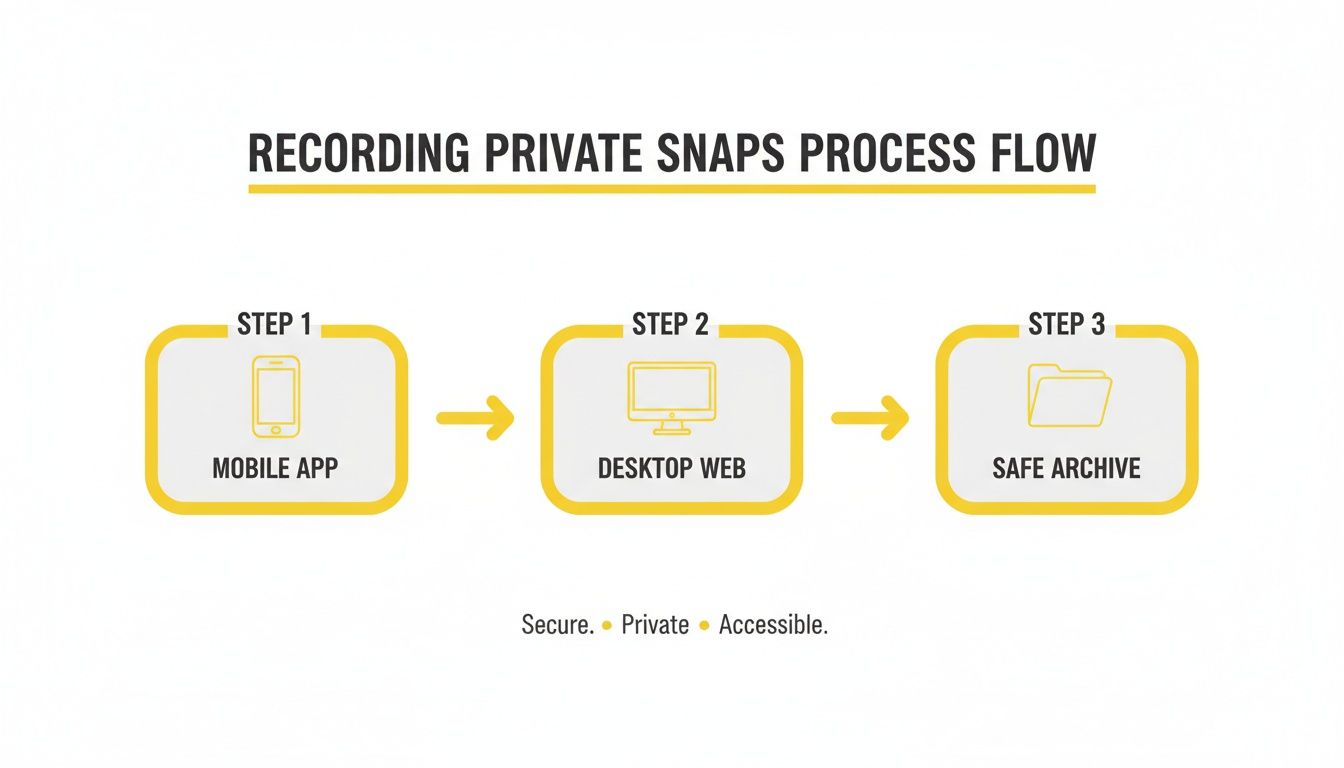
The real takeaway here is the shift in environment. You're moving from the heavily monitored mobile space to the much safer desktop, where SnapNinja can do its job completely under the radar, ensuring your account's safety.
Setting Up Your Private Archive
First, you’ll need to get SnapNinja installed on your computer. It’s a straightforward one-click installation. Once it's on your machine, it just runs quietly in the background, ready when you need it.
With SnapNinja active, the next step is to open up Snapchat Web in your favorite browser. Just log in with your usual username and password. From here, everything is pretty much automatic.
Pro Tip: Make sure your browser is up to date. SnapNinja plays nicely with the latest versions of Chrome, Firefox, and Edge. A current browser helps guarantee that everything runs smoothly when you’re archiving Snapchat content.
The Magic of Automatic Capture
This is where SnapNinja really proves its worth. There’s no big red "record" button to hit. The moment you open a Snap, watch a Story, or scroll through a chat on Snapchat Web, the tool detects it and saves a high-quality copy directly to your computer.
How does it work without getting caught? It's not interacting with Snapchat's servers. Instead, it captures the media as your own browser displays it—a process that is completely invisible to Snapchat's detection systems.
Here’s a quick rundown of what it archives for you, all on its own:
- Photo Snaps: Saved as crisp, clear image files.
- Video Snaps: Captured from start to finish, audio included.
- Stories: Every photo and video clip in a Story is saved as its own separate file.
- Chat Media: Any pictures or videos sent in your direct messages get archived, too.
Finding and Organizing Your Saved Snaps
So, you’ve viewed some Snaps and you're probably wondering where they went. By default, SnapNinja creates a specific folder right on your desktop or in your "Documents" to keep everything tidy.
From there, you’re free to organize them however you like. You can rename files, sort them into folders for different friends, or arrange them by date. The important thing is that you now have permanent, high-quality copies of memories that were designed to vanish.
This whole workflow is the most reliable way to record Snapchat without a notification. It's safe for your account, completely discreet, and gives you back control. For a closer look, our guide on how to safely screen record Snapchat has even more detail.
Real-World Situations Where SnapNinja Just Makes Sense
Alright, so we've covered the "how" of using your desktop to get around Snapchat's notifications. But let's get into the why. The reasons people want to save a Snap are all over the map, and it's rarely about being creepy. It’s usually about smart privacy—archiving memories and keeping receipts.
By shifting to your computer with SnapNinja, you can hang onto moments or important info without that awkward "You took a screenshot!" notification. Let's walk through a few situations where this approach is a total game-changer.
For the Memory Keepers
Think about this: your best friend is on vacation and sends you a bunch of hilarious video Snaps. They’re candid, funny, and the kind of thing you'll want to laugh about for years. Screenshotting feels weirdly formal and kills the vibe when they get that notification.
Instead, you can just have SnapNinja running in the background while you watch their story on Snapchat Web. Every video gets quietly saved right to your computer. Later on, you've got a private collection of genuine moments, all archived without making your friend feel like they were "on the record."
For When You Need a Receipt
We’ve all been there. You have a conversation that you really need to keep a record of. It could be a friend promising to pay you back or something more serious where you need to document what someone said for your own protection.
When that conversation happens on Snapchat, the whole "disappearing message" thing can become a massive problem.
Here's the bottom line: In a high-stakes situation, the last thing you want is to alert the other person that you’re saving the chat. That can make a tense situation worse. SnapNinja lets you discreetly archive the entire exchange—text, photos, everything—giving you a solid record to back you up if you ever need it.
For the Content Creators
Snap Map and public Stories can be a goldmine for viral content. You might stumble upon a hilarious public moment or footage from a local event that would be perfect for a reaction video or a compilation for your TikTok or YouTube channel.
Of course, asking for permission is always the right move. But sometimes you need to save the clip first just to see if the quality is even usable. Screen recording on your phone often notifies the user and gives you a lower-quality video. By using the Desktop Advantage, you can grab the original, high-res video, giving you much better material to work with.
For the Cautious Dater
Let's be real, modern dating is tricky. Snapchat often plays a big role when you're first getting to know someone. You're exchanging flirty messages, inside jokes, and photos that build that initial spark.
Screenshotting those early conversations can sometimes send the wrong signal, coming off as a little too intense. Using a private method gives you a way to archive those sweet or funny exchanges for your own personal memories. It lets you enjoy the new connection without the social pressure of announcing every little thing you decide to keep.
Got Questions About SnapNinja? We've Got Answers
Even with a step-by-step guide, you're bound to have some questions. It's totally normal. Let's walk through some of the most common things people ask so you can feel confident using SnapNinja.
Is My Snapchat Account Actually Safe if I Use This?
Absolutely. SnapNinja is engineered to be 100% undetectable and safe. Here’s why: it runs on your desktop (Windows or macOS) and has nothing to do with the mobile app itself.
Most tools that get accounts banned are mobile hacks that mess directly with Snapchat's code, which is a huge red flag. SnapNinja just captures what's already displayed in your web browser. From Snapchat's perspective, you're just a regular user on their website. They have no way of knowing anything is being recorded, which is why the desktop method is safer and eliminates the risk of account bans.
Think of it as the "Desktop Advantage"—you aren't modifying their app, you're simply archiving what’s on your own screen.
Does SnapNinja Work on Videos and Stories, or Just Static Snaps?
It works for everything you can see on Snapchat Web. Photos, videos, multi-part Stories... you name it.
SnapNinja is designed to automatically archive whatever you click on. There’s no special process. Just browse through Snaps and Stories like you normally would, and the tool saves a high-quality copy of everything for you in the background.
The Takeaway: No need to manually pick and choose what to save. If you can view it on Snapchat Web, a copy will be waiting for you on your computer. It’s built to be a true "set it and forget it" solution.
Do I Need to Be a Tech Guru to Get This Working?
Not in the slightest. We specifically designed SnapNinja for simplicity. The installation is a straightforward one-click process that works on both Windows and macOS.
Once it's up and running, you just open Snapchat Web and use it like you always do. There's no code to write, no complicated settings to tweak, and no technical headaches involved.
What Happens if Snapchat Changes Its Website?
Our team keeps a close eye on any and all updates to Snapchat Web. When they push a change, we get to work right away and release a new version of SnapNinja to match.
We're fully committed to keeping the tool reliable for the long haul, so you can count on it to be there when you need it.
Ready to start archiving memories without tipping anyone off? SnapNinja is the only desktop tool that lets you save Snaps without leaving a single trace. Grab it now and take back control of your digital keepsakes.