How to Save to Camera Roll Snapchat Without Them Knowing
Let's be real—you're looking for a way to save a Snap without the other person getting that dreaded notification. Forget the old "airplane mode" trick or other sketchy mobile workarounds. In today's world, those are a one-way ticket to getting your account flagged.
The only truly reliable and invisible method involves moving off your phone entirely. This is where the Desktop Advantage comes in. A dedicated desktop tool for Windows or macOS is the only real answer, as it works in a space where Snapchat's mobile app simply can't see what's happening. The key is to operate outside the app's environment, and that's where a tool like SnapNinja shines.
The Desktop Method: Your Only Undetectable Option

If you've searched for this before, you've probably seen dozens of videos and articles promoting quick fixes on your phone. Most of these are completely outdated. Back in the day, you might have gotten away with them, but Snapchat's detection systems are far more sophisticated now.
Trying those mobile tricks today is like trying to sneak past a high-tech security system. The Snapchat app is woven deep into your phone's operating system, whether you're on iOS or Android. It uses system-level alerts to instantly detect screen recording or screenshots. Any funny business on your phone is reported back immediately. For a deeper dive, you can learn more about how Snapchat’s detection systems have evolved and why those old mobile methods are doomed to fail.
Why The Desktop Advantage Works
This is exactly why moving to a computer is such a game-changer. When you use a desktop tool like SnapNinja on your Windows or macOS machine, you're operating completely outside the mobile app's jurisdiction. The app on your phone has no idea what your computer is doing.
Here's a simple breakdown of why this approach is so effective:
- Bypasses Mobile Monitoring: The entire act of saving the content happens on your desktop. Snapchat's mobile screenshot and recording alerts are never triggered because they aren't even in the picture.
- Keeps Snaps "Unopened": The best part? You can view and download the media before it's ever marked as "Opened" on your phone. To the sender, it looks like you haven't even seen their Snap yet.
- Smart Privacy, Not Spying: This isn't about breaking into Snapchat's servers. It’s about using a smarter, more private way to access and archive content that was already sent to you. Think of it as creating a personal backup of a conversation or saving a memory you don't want to disappear forever.
The key takeaway: To save a Snap without them knowing, you have to use a method that never interacts with the mobile app's notification system. The desktop approach is the only one that guarantees this level of privacy and keeps your account safe.
It's a complete shift in strategy—from risky phone tricks to a secure, undetectable solution.
Saving Methods Mobile vs Desktop
When you weigh your options, the Desktop Advantage becomes crystal clear. Trying to trick the app on your phone (iOS/Android) is a gamble that often leads to account bans, while the desktop approach is a calculated, safer method.
| Method | Detection Risk | Account Safety | Reliability |
|---|---|---|---|
| Mobile Tricks (iOS/Android) | Very High | Low - Risk of account suspension or ban. | Poor - Often patched by Snapchat updates. |
| Desktop Method (Windows/macOS) | Extremely Low | High - Operates outside the mobile app's watch. | Excellent - Consistent and not affected by app updates. |
Ultimately, SnapNinja's desktop method removes the guesswork and the risk, making it the only approach we can confidently recommend.
Why Mobile "Hacks" Are a Fast Track to Getting Banned
Ever see one of those viral videos showing a "foolproof" way to save a Snap on your phone without getting caught? There's a reason those tricks stop working almost as soon as they appear: you're trying to outsmart Snapchat in its own house. Mobile hacks, whether on iOS or Android, are a direct path to getting your account locked or banned.
The mobile app isn't just a program; it's woven deep into your phone's operating system. Both iOS and Android give the app special permissions to know exactly when you hit that screenshot combo or start a screen recording. Trying to sneak past these built-in tripwires is a fool's errand.
Using a sketchy third-party app or trying to exploit some weird glitch is basically waving a giant red flag at Snapchat's security team. These actions trip their automated systems, and before you know it, you’re hit with a temporary lockout or, even worse, a permanent ban. It's a game you're set up to lose from the very beginning.
The Inherent Flaws of Mobile Workarounds
Most of these mobile "solutions" are just variations on a few bad ideas. People will tell you to use a friend's phone to record your screen, download a shady app from an unofficial store, or use a modified "Snapchat++" type of client.
Here's the hard truth: these methods are unreliable and incredibly risky. Security researchers have shown time and again that these approaches are easily detected, often lead to account suspension, and are frequently bundled with malware. If you want to see just how seriously platforms take this, you can get a deeper look at their enforcement actions and understand the real dangers involved.
Ultimately, mobile methods fail for a few key reasons:
- Deep OS Integration: Snapchat’s app is designed to communicate directly with your phone's core functions. It knows when you're trying to record what's on screen.
- Unofficial App Detection: The moment you log in with a tweaked or modified version of Snapchat, their servers can tell. It's one of the quickest ways to get your account permanently shut down.
- Behavioral Red Flags: Even seemingly harmless things, like screen-mirroring to another device, can create unusual data patterns that Snapchat's anti-abuse systems are built to catch.
Look, the takeaway is simple. When you're on your phone, you're playing in Snapchat's sandbox. They make the rules, and they have all the tools to enforce them.
The Desktop Advantage: A Smarter, Safer Path
This is precisely why shifting to a desktop approach changes everything. When you use a dedicated tool like SnapNinja on a Windows or Mac computer, you’re interacting with Snapchat’s data outside the mobile app environment. This is a completely different ballgame with a different set of rules.
It helps to think of it as two separate platforms. The mobile app is a high-security vault. A well-designed desktop tool, on the other hand, can access the media stream without ever alerting the hyper-sensitive detection systems built into the mobile app.
This fundamental separation is the secret to how you save to camera roll Snapchat without them knowing. The desktop method sidesteps all the common traps. It’s a fundamentally safer way to keep your memories because it avoids the very mobile activities that Snapchat is constantly watching for. It’s about being smart, not sneaky—and keeping your account safe in the process.
Your Guide to Using SnapNinja Safely
So, you're ready to start archiving your Snaps from your computer. Good choice. Using a desktop tool like SnapNinja is the only reliable way to save content without the other person knowing. Let's walk through how to get it set up and working on your Windows or macOS machine.
First things first, you need to grab the software. Head directly to the official SnapNinja website to download the installer. I can't stress this enough: only download it from the source. Going anywhere else is asking for trouble. Once you have the file, installation is what you'd expect—a quick drag-and-drop on a Mac or a simple wizard on Windows. You'll be ready to go in about a minute.
The Golden Rule Before You Begin
Before you even think about logging in, there’s one critical rule you absolutely have to follow. Do NOT open the Snap on your phone first. Seriously. This whole method hinges on viewing and saving the content through the desktop app before your mobile Snapchat app knows you've seen it. If you open it on your phone, the notification goes out, and the entire point is lost.
With that out of the way, go ahead and open SnapNinja and log in with your Snapchat details. The interface is clean and straightforward, showing you your unopened Snaps and Stories without any confusing clutter. From here, just find the Snap you want to save.
At its core, SnapNinja works by intercepting the media on your computer before it’s officially marked as "opened" on Snapchat's servers. Since this all happens on your desktop (Windows or macOS), the mobile app stays in the dark, meaning no screenshot or "Saved to Camera Roll" notifications are ever triggered.
This is a fundamentally different (and safer) approach than mobile-based hacks, which are easily detected and often lead to your account getting flagged or banned.
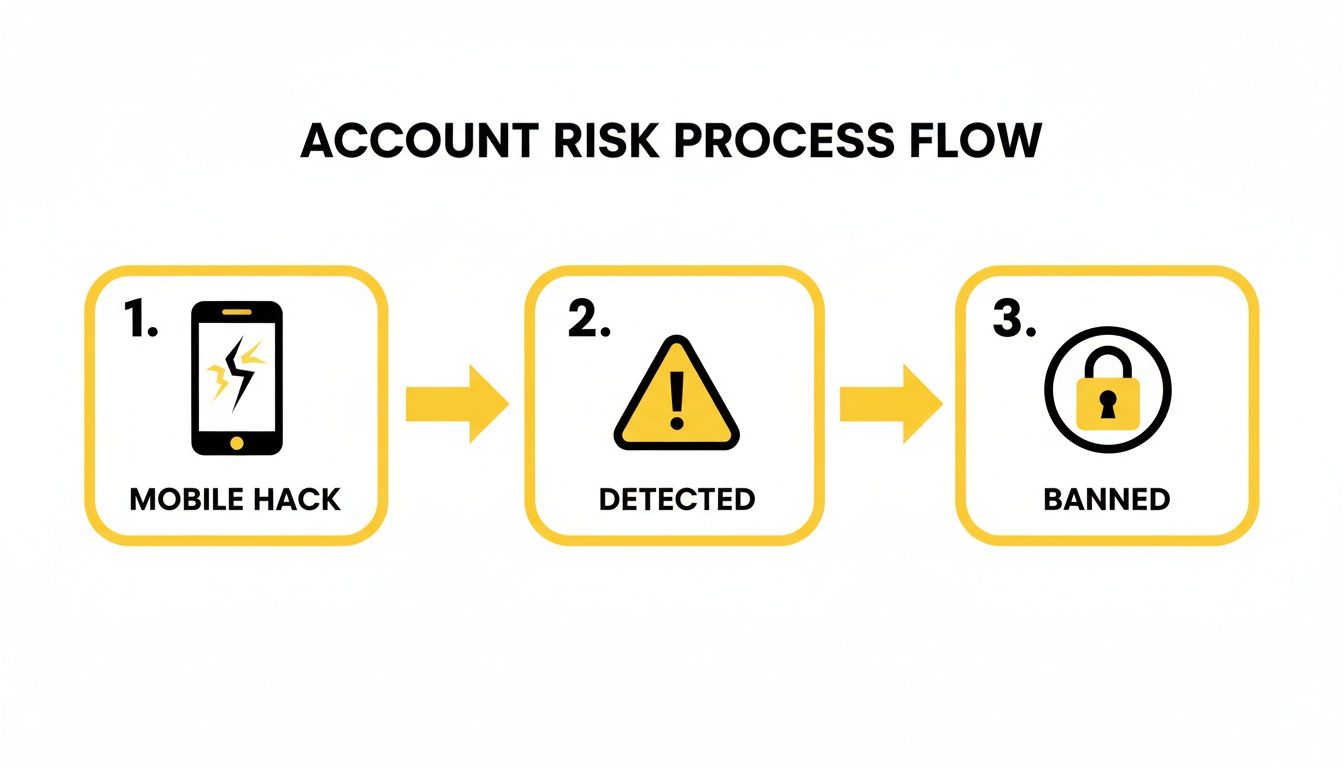
As you can see, trying to trick the mobile app itself is a direct path to detection and a potential ban. The desktop method is specifically designed to sidestep that entire risk.
Saving Your First Snap
Once you're logged into the SnapNinja client, you'll see a list of your unread Snaps. The next part is incredibly easy.
Here's the simple breakdown:
- Find the Snap: Scroll through your conversations or Stories to locate the unopened media you want to archive.
- Hit Download: You’ll spot a download button right next to the photo or video. Just click it.
- Save It: The content will save directly to your computer's hard drive, preserving its original quality.
And that's it. The photo or video is now saved on your machine, and the sender is none the wiser. You can log out of the desktop client, and when you eventually open Snapchat on your phone, the Snap will still be there, waiting for you to open it for real.
Archiving Memories for Smart Privacy

Let's get one thing straight: figuring out how to save Snapchat content without notifying the other person isn't about "spying." It’s about smart privacy and having control over your digital life. In a world where content is designed to disappear in seconds, being able to archive your own memories or keep receipts is more important than ever.
Think of it this way: you're just keeping a personal copy of a conversation. Maybe it's a hilarious video from a friend you want to keep, or perhaps it's an important piece of information. The whole point is to give you the power to responsibly manage the media and messages shared directly with you.
Redefining What It Means to Save a Snap
When you save a Snap using a desktop method, you're creating a personal backup—an archive that lives on your own device, completely separate from the app's self-destruct timer.
Here are a few real-world situations where this comes in handy:
- Archiving Cherished Moments: A friend sends you a once-in-a-lifetime photo from their travels. Instead of letting it vanish, you can add it to your personal collection.
- Keeping Important Info: A chat contains crucial details, like an address, a date, or a promise you need to remember. Saving it gives you an accurate record to look back on.
- Protecting Your Privacy: Sometimes, you may need to document an interaction for your own peace of mind or safety down the line. Keeping receipts is a part of smart digital living.
This approach is for archiving content shared directly with you, and it's built on respecting the sender's trust. It’s for personal use—creating a backup for yourself, not for distributing someone's private moments without their permission.
This ethical line is critical. Responsible use means honoring the original, private context of the Snap. If you want to dive deeper into this, SnapNinja offers a clear breakdown in their privacy policy and user guidelines, which I recommend reading.
The Desktop Advantage for Privacy
This is exactly where using a desktop-based method really stands out. Forget those sketchy mobile apps that operate in a legal gray area and put your account at high risk of being banned. A tool like SnapNinja works entirely outside the Snapchat app's ecosystem.
Because it runs on your Windows or macOS computer, it’s fundamentally more private and secure. The saving process happens on your machine, far away from the mobile app's watchful eyes. This complete separation is what guarantees the "Saved to Camera Roll" or screenshot notification is never triggered. It's a clean, undetectable method for anyone who wants to be smarter about their digital memories.
Troubleshooting Common Issues
Even the best methods can hit a snag now and then. If you run into a hiccup while using a desktop tool to save Snaps, don't worry. Most problems are easy fixes that won't compromise your goal of staying under the radar.
Let's walk through some of the most common issues and how to smooth them out so you can get back to saving content interruption-free.
Handling Logins and Loading Glitches
The most frequent challenge you'll probably face is a login verification request. When you sign into Snapchat from a new device—like your computer for the first time—it’s going to ask you to prove it’s really you. This is a totally normal security measure, not a red flag that you've been caught.
Just check your email or phone for the code Snapchat sends, pop it into the desktop client, and you're good to go. It's usually a one-time thing to confirm you're the account owner.
But what if a specific Snap or Story just won't load? Sometimes, there's a temporary connection issue between the tool and Snapchat's servers. The simplest and most effective fix is often just to log out of the desktop app, close it down completely, and then log back in. A quick refresh like this clears the cache and usually solves the problem right away.
Finding Your Saved Snaps
Another common question I hear is, "Where did my files go?" By default, most of these tools will drop your saved media right into your computer's main "Downloads" folder. If you've saved a few things and can't find them, that's the first place to look.
Here’s a pro tip from experience: create a dedicated folder just for this. Call it "Snapchat Archive" or something similar, and then go into the tool's settings and set that as your default download location. It keeps everything organized and easy to find later on.
Key Takeaway: Login verifications are normal security checks, not a sign of detection. For most loading problems, a simple restart of the desktop client does the trick.
Best Practices for Staying Undetected
To keep this method working for the long haul and your account secure, it pays to build a few good habits. Think of it as your personal operational security—simple steps that ensure everything remains private and undetectable.
Here are a few practices I always follow:
- Log Out After Every Session: This is a big one. Don't just close the window; make sure you fully log out of the desktop client when you’re done. This severs the connection and is a crucial step for maintaining your privacy.
- Keep Your Software Updated: The people who build these tools are constantly making them better. Always run the latest version of any third-party app to get the newest performance tweaks and security patches.
- Avoid Public Wi-Fi: When you're logging into your Snapchat account—especially through a desktop client—stay off unsecured public Wi-Fi networks. Stick to a trusted connection, like your home network, to avoid any potential security risks.
Following these simple rules will help you master how to save to camera roll Snapchat without them knowing, ensuring the process stays safe, effective, and completely private.
Common Questions, Answered
If you're considering this desktop method, you probably have a few questions. I've been in your shoes, so let's clear up some of the most common things people wonder about before they get started.
Can I save videos and stories, or just photos?
You can absolutely save everything. A well-built desktop tool like SnapNinja isn't just for static pictures; it’s designed to handle any type of media you come across on Snapchat.
You'll be able to grab:
- Video Snaps: Those quick, dynamic moments can be saved in their original quality.
- Entire Stories: You can download a friend's full Story, keeping the complete sequence just as they posted it.
- Chat Media: Any photos or videos sent directly to you in a chat are fair game.
The great part is that the process doesn't change whether it's a photo, a video, or a 10-part Story. The tool intercepts the media before Snapchat registers it as "viewed," letting you download a perfect copy straight to your computer.
Is this method really undetectable?
Yes, because of the Desktop Advantage. This method works because it operates completely separate from the Snapchat mobile app's world.
Think about it: the app on your phone is built to police its own environment. It's deeply woven into your phone's OS (iOS or Android) to detect screenshots and screen recordings. That’s its job.
But when you use a desktop client on your Windows or Mac, you're coming at Snapchat from a different angle. The mobile app has zero clue what’s happening on your computer. Since the saving happens on your desktop, the triggers that would normally fire off a notification simply never get pulled. SnapNinja is the only reliable solution that bypasses the "Saved to Camera Roll" notification by operating outside the Snapchat app environment.
What if I open the Snap on my phone first?
This is the one crucial mistake to sidestep. If you open a Snap on your phone, it's game over. The "Opened" receipt is sent to the sender immediately, and the content is gone.
Trying to save it on your desktop after that point is useless—the notification has already been sent. The entire magic of this technique hinges on viewing and saving the content on your computer before the mobile app even gets a chance to see it. Always, always make your computer the first stop for any Snap you intend to keep.
Is using a tool like SnapNinja against Snapchat’s rules?
This is a really important point to understand. Snapchat’s Terms of Service (TOS) are notoriously strict, especially about third-party apps that mess with the mobile client. Using a "modded" or tweaked version of their app is the fastest way I know to get your account permanently banned.
A desktop tool like SnapNinja, however, exists in a much safer gray area. It doesn't touch or modify the mobile app at all. Instead, it interacts with Snapchat's web platform, which is a completely different system. While no third-party service is ever 100% risk-free, this desktop method is fundamentally safer because it avoids the exact kind of mobile hacks on iOS/Android that Snapchat’s security team is constantly hunting for.
Let's be real: with an estimated 453 million daily active users pumping out over 5 billion snaps a day, their security focus is almost entirely on the mobile ecosystem where the action is. You can see for yourself just how massive Snapchat's scale is and why their attention is locked on mobile. This reality is what makes the desktop method a much quieter, lower-risk path.
Ready to start archiving your memories privately and securely? SnapNinja provides the only truly undetectable desktop solution for both Windows and macOS. Take a look at our flexible pricing options and get started today.