
Master Guide: How to Screenshot on Snapchat Without Them Knowing on iPhone
If you're trying to figure out how to screenshot on Snapchat without the other person knowing, you’ve probably hit a few dead ends. Let's get straight to it: the only truly reliable way is to mirror your iPhone's screen to a desktop computer and capture it from there.
This method works because the actual screenshot or screen recording happens on your Mac or PC, completely separate from your phone. Snapchat is blind to it.
The Only Method That Actually Works for iPhone
You can forget all the so-called "tricks" you've seen online. The old Airplane Mode hack, weird button combinations, and sketchy third-party apps are all relics of the past. They don’t work anymore, and trying them is a good way to get your account banned.
Snapchat's app is built like a fortress. It's deeply integrated into your iPhone's operating system, which means it knows exactly what's happening on your device. The moment you press the screenshot buttons or start a screen recording, Snapchat flags it and sends that dreaded notification.
That’s why you need to stop looking for a loophole on your phone and start thinking about a different workflow entirely.
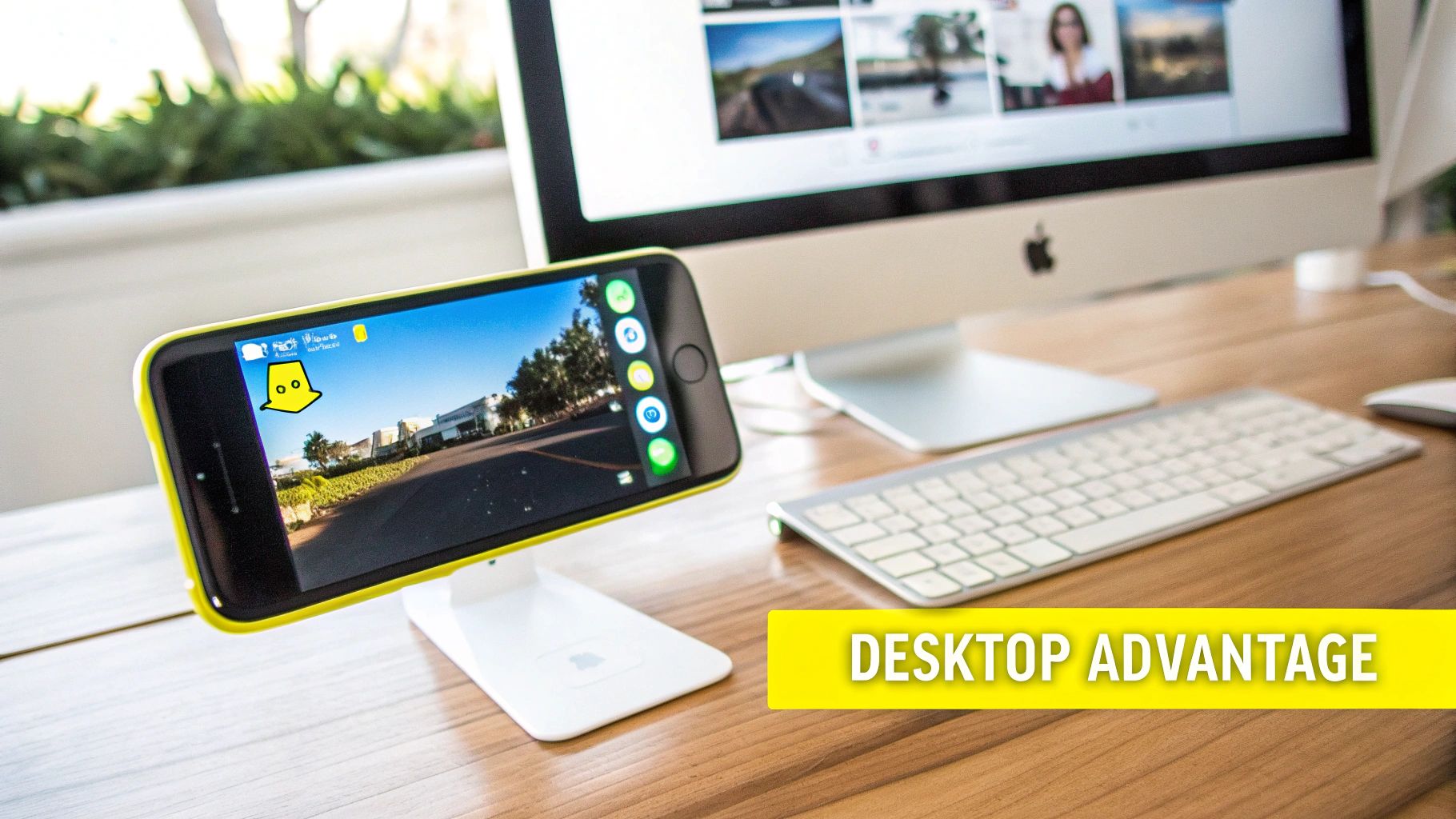
Embracing the Desktop Advantage
The real solution is moving the entire capture process off your iPhone. By mirroring your screen to a Windows PC or Mac, you create a safe zone where you can screenshot or record whatever you want. The Snapchat app is still running on your phone, completely oblivious to what's happening on your desktop.
This is what I call the Desktop Advantage.
Its power comes from this separation of hardware. Your computer is just passively displaying a video feed of what’s on your iPhone screen. From Snapchat’s perspective, you taking a screenshot on your Mac is no different than if you took a picture of your phone with a separate camera. The app has zero visibility into your computer's operating system.
The key takeaway is simple: To remain undetected, the capture action cannot happen on the device running the Snapchat app. This is the fundamental reason why desktop mirroring is the only foolproof method.
This isn't some temporary glitch you're exploiting. It's a solid strategy that works because of a basic technological boundary. You aren't trying to trick the app; you're just capturing its visual output on a completely different system.
Let's break down why this is the superior approach.
Why the Desktop Advantage Beats On-Device Tricks
Here’s a quick comparison that shows why mirroring your iPhone to a desktop is the only method you should trust for archiving memories safely.
| Method | Detection Risk | Account Safety | Reliability |
|---|---|---|---|
| Desktop Screen Mirroring | None. The capture happens on a separate device. | Completely Safe. No app modification or ToS violation. | 100% as long as your connection is stable. |
| On-Device Screenshot/Recording | Guaranteed. Snapchat instantly detects this. | Safe, but obvious. The other user is notified. | Reliable for capturing, but not for being discreet. |
| Airplane Mode Trick (Outdated) | High. Snapchat logs the action and sends a notification once you're back online. | Moderate Risk. Repeated attempts could flag your account. | Zero. This trick no longer works. |
| Third-Party "Saver" Apps | Extremely High. These often violate Snapchat's ToS. | Very High Risk. Can lead to a temporary lock or permanent ban. | Unreliable. Often break with app updates. |
This table makes it clear. While on-device tricks are a cat-and-mouse game with Snapchat's developers, the desktop method is a consistent and safe solution. It's the secret to archiving important memories, keeping receipts from conversations, or just protecting your privacy without tripping any alarms.
Why All Mobile Screenshot Hacks Eventually Fail
If you've spent any time searching for ways to save Snaps, you've probably stumbled across countless guides promising a foolproof way to screenshot on an iPhone without anyone knowing. The old "Airplane Mode trick" was the classic for years, but try it now, and you'll get busted almost instantly. So, what changed?
Snapchat basically turned its app into a privacy fortress. It’s no longer just a simple application; it's deeply integrated into iOS. It hooks into system-level alerts to know the very instant you hit the screenshot combo or tap the screen record button. This isn't a glitch—it's a core design choice meant to protect the whole "disappearing message" idea the platform was built on.
The Rise of Predictive Detection
Snapchat has gotten a lot smarter than just waiting for you to press a button. It's now using a predictive approach to spot suspicious behavior before you can even capture anything. Think of it less like a simple alarm and more like a smart security system that learns your patterns and flags anything out of the ordinary.
This advanced system is constantly analyzing what you do in the app in real-time. It's on the lookout for a very specific set of actions that scream, "I'm trying to get around the rules!"
- Rapid App Switching: Jumping back and forth between Snapchat and your home screen or another app is a huge red flag.
- Control Center Toggling: Constantly swiping down to access your Control Center, especially right before opening a Snap, looks incredibly suspicious to the app's detection algorithm.
- Third-Party Recorders: Trying to use another app to record the screen is one of the easiest things for Snapchat to catch. It knows when another app is trying to overlay itself.
Pull any of these moves, and you'll likely trigger a warning. That’s when the sender sees that dreaded double-arrow icon next to your name, and the jig is up. It’s Snapchat’s way of saying, “Hey, this person tried something sketchy.”
A Never-Ending Cat and Mouse Game
Snapchat's detection has become incredibly sophisticated, making it almost impossible to capture snaps on an iPhone without alerting the sender. This is all thanks to advanced iOS APIs and AI-powered monitoring. Back in 2014, simple tricks worked because the app's security was basic. Today, its internal systems look at over a dozen behavioral signals—like how you switch apps, if there are overlays, or sudden changes in your phone's state—to flag you in real-time. You can read more about their commitment to privacy to see just how seriously they take this.
Here's the hard truth: any method that relies on a trick on your iPhone is a ticking time bomb. Snapchat's developers are relentless. They patch loopholes with nearly every single update. A hack that works today is almost guaranteed to be useless tomorrow, and trying it could even put your account at risk.
This is exactly why shifting to a desktop method is the only reliable path forward. It completely sidesteps this cat-and-mouse game. A tool like SnapNinja runs on your Windows or macOS computer, an entirely separate environment that the Snapchat app can't see or control. It just captures the visual feed being mirrored to your screen, making the process fundamentally invisible to Snapchat’s detection and bypassing any "Saved to Camera Roll" notifications.
Reclaiming Your Snaps: It's All About Smart Privacy
Let's get one thing straight. Figuring out how to screenshot a Snap without sending a notification isn't about being sneaky. It’s about smart privacy. We live in a world where our digital moments are designed to vanish, often before we're ready to let them go. Creating a personal archive of your own conversations is just a form of digital self-defense.
Snapchat’s whole appeal is its temporary nature, but that’s also its biggest flaw. Important info, hilarious memories, or even proof of a conversation can disappear forever in a puff of digital smoke. When you take control of your data, you ensure you have a record when it matters most.
Why You'd Want to Save More Than a Funny Photo
There are tons of perfectly good reasons to archive a Snap that have nothing to do with spying. More often than not, it's about protecting yourself and holding onto important context.
Consider these real-world situations:
- Archiving a Core Memory: A friend sends a video of a once-in-a-lifetime moment or a photo that’s too good to be lost after 24 hours. You want to keep that forever.
- Keeping Digital Receipts: Someone sends you an address, a flight confirmation, or even just a promise in a chat. Saving it gives you a reliable "digital receipt" you can look back on.
- Documenting for Your Safety: In more serious scenarios, you might need to preserve evidence of harassment, bullying, or inappropriate behavior. Disappearing messages make it one person's word against another's, and an archived Snap can be crucial for your own protection.
The goal isn't to invade someone else's privacy; it's to secure your own. By building a personal archive, you're the one in control of your digital life and interactions.
Take Back Control of Your Digital Footprint
At the end of the day, this is about reclaiming a little bit of control over your own data. Social media platforms are built to keep you scrolling, not to help you manage a personal log of your life.
Using a safe, desktop-based method is the smartest way to build that personal archive without putting your account at risk. To understand our commitment to this, you can read about SnapNinja's privacy-first approach and see exactly how we handle user data. This isn't about breaking the rules—it's about using the right tools to manage your own digital history in a way that feels secure and puts you in the driver's seat.
Your Guide to Capturing Snaps on a Desktop
Tired of trying risky mobile hacks? Let's move on to the Desktop Advantage. This is your practical guide to the whole process, and it’s a lot simpler than you might think. We'll be using tools you likely already have, making this the most reliable answer for how to screenshot on Snapchat without them knowing on your iPhone.
The whole idea is to create a safe, separate space for capturing content. By mirroring your iPhone’s screen to your computer, you're putting a wall between the Snapchat app and the act of screenshotting. Your computer is just showing a live video feed of your phone's screen; the app itself has no clue what's happening on your desktop monitor.
Think of it as a smarter approach to privacy—a way to archive your memories, keep digital receipts, and protect your privacy.
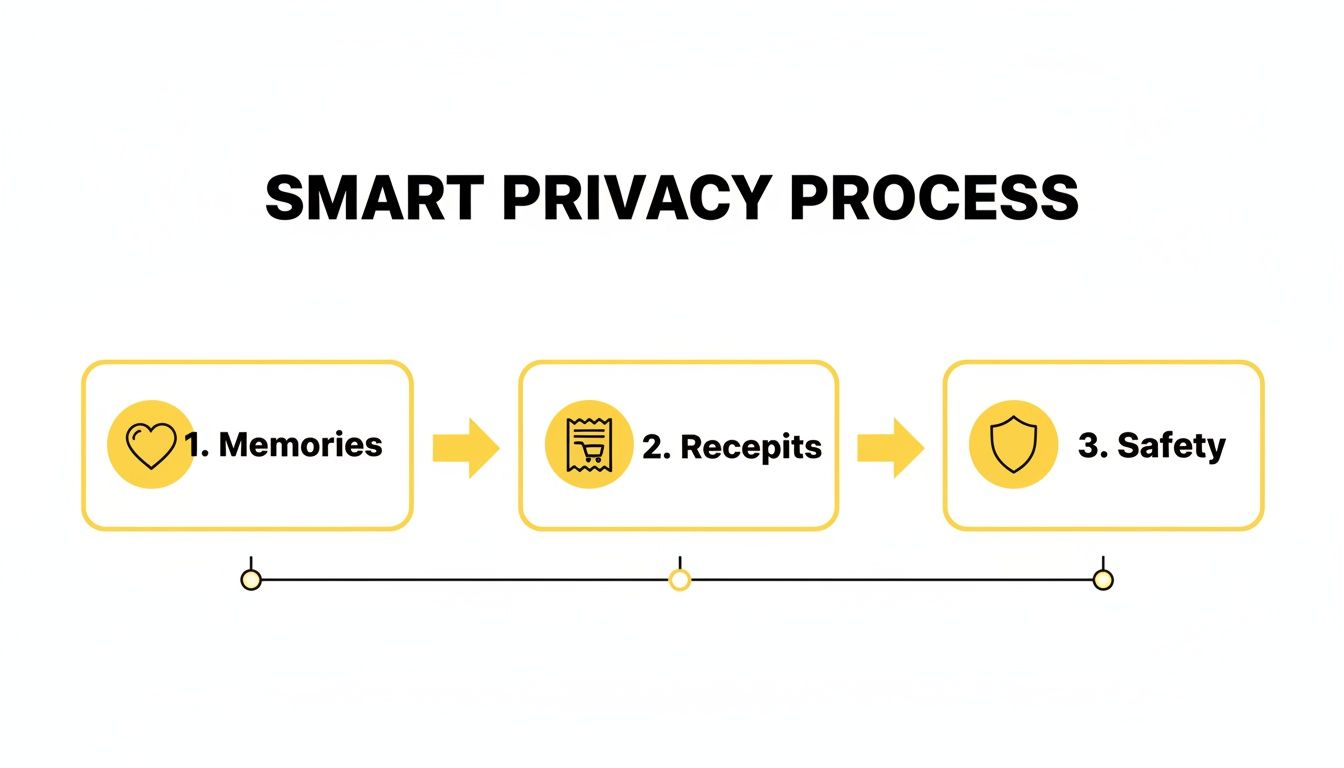
This process shifts capturing snaps from a quick, risky action to a deliberate act of managing your own data. It puts you back in control.
Setting Up Your Screen Mirroring
Getting your iPhone screen to show up on your desktop is the most important step. The good news? It's pretty easy on both macOS and Windows, and you can do it for free.
If you're a macOS user, Apple's ecosystem makes this incredibly smooth.
- AirPlay to Mac: Got a compatible Mac and iPhone? You're all set. Just swipe down to open the Control Center on your iPhone, tap the Screen Mirroring icon (it looks like two overlapping rectangles), and pick your Mac from the list. Your iPhone's screen will pop up in a window on your desktop. Simple as that.
For Windows users, you'll just need a little help from a third-party app, but there are some great free options out there.
- Third-Party Apps: Programs like LonelyScreen or Reflector essentially turn your Windows PC into a device that can receive an AirPlay signal. After you install one, the steps are the same: open your iPhone's Control Center, hit Screen Mirroring, and select your PC.
Once your phone screen is mirrored, go ahead and open Snapchat. You’ll see it running in real-time on your computer monitor, ready for you to capture whatever you need without a single worry.
Capturing Snaps Undetected
With your iPhone screen neatly displayed on your desktop, the final part is a piece of cake. Just use your computer's built-in screenshot and screen recording functions. Since these tools are part of your desktop's operating system, they are 100% invisible to the Snapchat app running on your phone.
- For Screenshots: On a Mac, hit Shift + Command + 4 to select and capture an area. On Windows, the Snipping Tool or the Windows Key + Shift + S combo works perfectly.
- For Videos: On a Mac, open QuickTime Player and go to File > New Screen Recording. On Windows, the Xbox Game Bar (activated with Windows Key + G) has a great built-in recorder.
The key takeaway here is that the Snapchat app is trapped inside your iPhone. It has zero access to or awareness of what your computer is doing. This fundamental separation is what makes the desktop method completely foolproof.
This is a world away from those shady mobile apps that try to meddle with Snapchat directly, which is a fast track to getting your account banned. Desktop mirroring is a workflow, not a hack.
For a more polished experience that automates this process, a privacy-focused tool like SnapNinja is the only reliable solution. It's built on these same safe, desktop principles (for both Windows and macOS), ensuring you never miss a thing while keeping your privacy intact.
The Dangers of Third-Party Mobile Apps
If you're looking for a way to screenshot Snapchat on your iPhone without the other person knowing, you've probably seen a bunch of apps in the App Store with names like "Snap Saver" or "Ghost Keeper." They all make the same promise: to let you save Snaps discreetly. It sounds like the perfect solution, but let's be clear—it's a trap.
Downloading and using one of these third-party mobile apps is the single fastest way to get your Snapchat account permanently banned.
These apps aren't just clever screen recorders. They are unauthorized clients that plug directly into Snapchat's private code to intercept content before a notification can ever be sent. From a security standpoint, this is a massive red flag, and Snapchat's systems are specifically designed to sniff out this kind of meddling almost instantly.
Why Mobile Apps Are a Guaranteed Ban
Snapchat is notoriously protective of its closed ecosystem. When you give a third-party app your login details, you're not just letting it save photos—you're handing over your credentials to an unknown developer and giving their code permission to tamper with the official app's core functions.
Snapchat’s detection algorithms are no joke. On iPhones, the app ties directly into iOS's screenshot APIs, which is how it knows the very moment you try to capture a Snap or story. This system has been evolving since 2013 and now includes screen recordings, which is why that double-arrow symbol pops up.
The numbers don't lie. In the first half of 2025 alone, Snapchat detected and took action on an incredible 3,395,968 violations, affecting over 1.7 million unique accounts. Its "Ghost Defense" system doesn't just look for basic screenshots; it actively hunts for the exact kind of workarounds these apps use, and the company aggressively patched them throughout 2024-2025. You can dig deeper into the data with recent Snapchat statistics and reports.
The bottom line is this: interfering with the Snapchat app on your phone is a dangerous game. Capturing its screen from a separate computer is a safe and intelligent workflow.
The Desktop Advantage: A Safer Alternative
This is where the Desktop Advantage really shines. Unlike risky mobile hacks (iOS/Android) that often lead to account bans, a desktop solution like SnapNinja (for Windows and macOS) never touches or modifies the Snapchat app itself. It operates entirely outside of Snapchat's environment, which makes it fundamentally undetectable.
Here’s the key difference:
- Risky Mobile Apps: Directly hook into the Snapchat app's code on your iPhone. This is a clear violation of their rules and is easily caught.
- Safe Desktop Method: Simply captures the visual output of your iPhone screen being mirrored to a separate device (your Windows or macOS computer). The Snapchat app has zero awareness of this external action.
By operating outside the Snapchat app's environment, SnapNinja is the only reliable solution that bypasses the "Saved to Camera Roll" notification. You're just capturing pixels on your monitor. This approach respects the integrity of the app and your account's safety while still giving you the ability to archive memories or save important information.
Common Questions About Screenshotting Safely
Even when you've got a solid plan, a few questions always pop up. That’s perfectly normal, especially when you’re trying to archive Snaps without setting off any alarms. You want to be sure you’re doing it right.
Let's dive into the most common concerns I hear and get you some clear, straightforward answers. This isn't about exploiting a temporary bug; it’s about using a smart, reliable workflow to keep the memories you care about.
Will This Get My Snapchat Account Banned?
This is the big one, and I get it. The good news is, the answer is a firm no. Using the desktop mirroring method is fundamentally safe because the actual screenshot or recording is happening on your computer, not your iPhone.
Think of it this way: the Snapchat app lives inside a bubble on your phone. It can't see what your Mac or Windows PC is doing. It’s like taking a picture of your phone’s screen with a completely separate digital camera—Snapchat has zero clue it’s happening. Mobile hacks are what get you banned; the desktop method is safe.
Does This Work for Videos and Stories?
Absolutely. Because you're mirroring your entire iPhone screen to your desktop, anything you can see on your phone can be captured. This includes video Snaps, complete Stories, and even chat histories.
You just need to use your computer’s built-in screen recording tool to grab the video while it plays on your mirrored screen.
- On macOS: QuickTime Player is your best friend here. It has a super simple screen recorder.
- On Windows: The Xbox Game Bar is surprisingly useful for this. Just hit Windows Key + G to bring it up.
The logic is the same as taking a screenshot. The recording is done on your desktop, making it totally invisible to Snapchat.
The core takeaway is that this method isn't limited to just photos. It’s a complete solution for how to screenshot on Snapchat without them knowing on an iPhone, whether it's a static image or a full video story. For an even smoother experience, you can explore the various SnapNinja pricing plans that cater to different needs.
Ready to archive your memories and keep your conversations secure? SnapNinja provides the only reliable, 100% undetectable way to save Snaps directly from your desktop. Move beyond risky mobile hacks and embrace a smarter, safer solution. Get started at https://snapninja.app today.
Article created using Outrank