How to Screenshot Snapchat Without Notification: The Undetectable Desktop Guide
Ever wanted to save a Snap without sending that dreaded notification? Your best bet is to get off your phone entirely. Using a desktop tool like SnapNinja with Snapchat for Web is the only truly reliable way to fly under the radar. It works on your Windows or macOS computer, completely outside the mobile app's detection systems. Forget the old mobile tricks like Airplane Mode—they're a fast track to getting your account banned. The secret is moving the whole operation to the desktop, where the Snapchat app has zero jurisdiction.
The Smart Privacy Play for Archiving Snaps

Let's clear the air: needing to save a Snap isn't about "spying." It's about smart privacy. In a world of disappearing messages, sometimes you genuinely need to keep a record—whether it's to archive a precious memory, hold onto a digital receipt, or protect yourself with proof of a conversation.
That little "Saved to Camera Roll" notification, however, turns a simple action into an awkward or even confrontational situation. This guide is all about giving you control over your own digital interactions, not being sneaky.
Think about how often these totally reasonable scenarios pop up:
- Archiving Memories: A friend sends a once-in-a-lifetime hilarious video. You want to be able to look back on it years from now.
- Keeping Receipts: Someone snaps you concert ticket details, a confirmation number, or an address you’ll need to pull up later.
- Protecting Yourself: In a misunderstanding or online dispute, having a record of what was said is essential for clarity and your own safety.
The challenge is that Snapchat’s entire platform is built on temporary content. Its notification system is the gatekeeper of that philosophy, but it doesn't have to be the final word.
The Problem With Old Tricks
If you've Googled this before, you've seen the classic "Airplane Mode trick." For a long time, the routine was: enable Airplane Mode, screenshot, and clear the app's cache. But those days are long gone.
Snapchat's detection has gotten incredibly smart. The app now logs your screen activity while you're offline and patiently waits. The second you reconnect, it sends the notification you were trying to avoid.
This is all part of a bigger picture. The screenshot notification is a core part of Snapchat's privacy promise. The system now uses AI to watch for any unusual behavior, flagging rapid app switching and screen overlays, successfully alerting senders in over 90% of detected cases.
Since its creation, Snapchat has blocked an estimated 1.2 billion stealth screenshot attempts worldwide. Interestingly, a huge chunk of those—65%—were on Android devices, likely due to the OS's more open nature. You can learn more about how Snapchat's detection technology has evolved and what it means for user privacy.
The bottom line is this: any trick that happens on your phone—whether it's a third-party app, a screen recorder, or a system setting—is happening on Snapchat's home turf. They control the environment, and they will almost always win.
This is exactly why we need a different strategy, one that takes the action completely off your mobile device. By moving to a desktop, you step outside the app's direct line of sight, creating a genuinely private way to archive the content that matters to you.
Why Mobile "Hacks" Are a Fast Track to Getting Banned
If you've searched for ways to screenshot a Snap without the other person knowing, you've waded into a minefield of sketchy advice. The internet is littered with so-called "hacks" involving shady third-party apps, screen recorders making impossible promises, or elaborate rituals with Airplane Mode.
Let's cut to the chase: these mobile methods are a terrible idea. They are a direct line to getting your account flagged and, eventually, banned.
The fundamental problem is that you're trying to outsmart Snapchat on its home turf—your phone. The Snapchat app, whether on iOS or Android, is an incredibly smart piece of software designed to control its environment, and that includes detecting when you try to pull a fast one.
The App Always Has the Home-Field Advantage
Using a mobile workaround is like trying to sneak past a security guard while standing inside their command center. The app has deep hooks into your phone's operating system and knows immediately when you try something fishy.
- iOS Detection: On an iPhone, Snapchat is wired directly into Apple's native system that signals when a screenshot or screen recording kicks off. There’s no hiding it; the alert is instant.
- Android Detection: Modern Android gives apps explicit permission to know when the screen is being captured. Snapchat uses this to get a direct ping from the system the moment a recorder or screenshot tool runs.
- Behavioral AI: Beyond simple system alerts, Snapchat’s AI analyzes user behavior for anything out of the ordinary. It spots weird app-switching patterns, detects overlays from other apps, and can even flag suspicious timing when you flick on Airplane Mode.
This multi-layered defense is brutally effective, which is why those old tricks you see on TikTok just don't work anymore.
Attempting them is a massive gamble. First, you might get a warning. Keep it up, and you're looking at a temporary lock. Push your luck too far, and Snapchat will drop the hammer with a permanent ban. All your memories, streaks, and contacts—gone for good.
The Desktop Advantage: A Safer, Undetectable Approach
This is precisely where the Desktop Advantage comes in. When you use a specialized tool like SnapNinja on a Windows or macOS computer, you're taking the game off Snapchat's home field. Mobile hacks lead to account bans; the desktop method is safer and undetectable.
The key takeaway is this: When you're on Snapchat Web, the mobile app has zero visibility into what your desktop operating system is doing. It can't monitor your PC's background processes or detect a system-level screen capture.
It’s a different world entirely. Instead of fighting a losing battle against a hyper-aware mobile app, you're simply capturing content in a completely separate environment. SnapNinja is the only reliable solution that bypasses the "Saved to Camera Roll" notification by operating outside the Snapchat app environment. This protects your privacy and, most importantly, keeps your account safe.
Mobile Hacks vs. Desktop Method: Risk Comparison
To put it in perspective, let's directly compare the risks. It becomes pretty clear why one method is a recipe for disaster and the other is a reliable strategy.
| Method | Detection Risk | Account Safety | Reliability |
|---|---|---|---|
| Mobile App "Hacks" (iOS/Android) | Extremely High. Apps are designed to detect these tricks. | Very Poor. High chance of warnings, locks, or permanent bans. | Low. Constantly patched by Snapchat; what works today is broken tomorrow. |
| Desktop Tool (SnapNinja on Windows/macOS) | Near Zero. Operates outside the mobile app's monitoring. | Excellent. No direct interaction that violates app terms. | High. Based on stable web and desktop functionality. |
The table tells the whole story. Messing around with workarounds on your phone is a high-risk, low-reward game. Moving to the desktop flips that script, offering a dependable and safe way to archive content.
The Desktop Method: Your Go-To for Undetectable Captures
Alright, let's cut through the noise. Forget the risky mobile tricks that get accounts flagged. If you want a reliable way to save Snaps without anyone knowing, the solution isn't on your phone—it's on your computer.
The whole game changes when you embrace the Desktop Advantage. The Snapchat mobile app is a tightly controlled fortress built to detect every tap and swipe. But once you log into Snapchat for Web on your Windows or Mac machine, you're playing on a completely different field.
Why Your Computer Is a Blind Spot for Snapchat
The beauty of this method lies in its simplicity. The Snapchat app on your phone has absolutely zero visibility into what’s happening on your computer's operating system. It has no way of knowing what programs you're running or when you hit a screen capture command. You’re operating outside its jurisdiction.
This is where a purpose-built desktop tool like SnapNinja really shines. It's designed from the ground up to work within this blind spot.
- It captures your screen, not the app. SnapNinja doesn’t hook into Snapchat’s website or code. It simply records the pixels on your screen at the system level, something Snapchat can't monitor remotely.
- It’s invisible to the mobile app. Since SnapNinja is a program running on your PC or Mac, Snapchat's mobile detection algorithms can't see it. It's like it doesn't even exist.
- It leaves no trace. The capture happens quietly on your end. There’s no digital handshake or signal sent back to Snapchat’s servers that could possibly trigger a notification.
This isn’t some glitch or a temporary loophole. It’s a solid strategy that takes advantage of the fundamental separation between mobile and desktop systems. You're not trying to break down the fortress walls; you're just walking around them.
The key takeaway is this: Snapchat can only police its own territory—the mobile app. Your desktop is neutral ground where you call the shots, making it the perfect environment for discreetly archiving content.
The Real-World Difference
Snapchat's notification system is famously persistent. Platform transparency reports show it alerts users to screenshots of stories, chats, and snaps with 98% accuracy. That's what makes it so different from Instagram or TikTok, which don't offer any alerts at all.
Even screen recording on your phone gets caught 76% of the time, according to cybersecurity audits. This is precisely why old-school mobile workarounds, like the "half-swipe" trick that once had a 52% success rate on Android, just don't work anymore. If you're curious, you can get a full breakdown of how modern detection catches these tricks and see how sophisticated the system has become.
A desktop tool like SnapNinja, however, isn't playing by those mobile rules. It was created for one job: capturing content on your computer without leaving a footprint. This is the reliable way to archive important conversations, save memories someone shared with you, or keep a record of something without the drama or risk. It’s safe, it’s consistent, and most importantly, it’s completely undetectable.
A Practical Guide to Using SnapNinja
Alright, let's get down to the nitty-gritty. This is your straightforward guide to using SnapNinja on your desktop to finally save those Snaps without setting off any alarms. No fluff, no jargon—just what you need to know.
The entire strategy hinges on a simple shift: moving from your phone to your computer. On your desktop, the Snapchat mobile app is completely out of the picture, which is exactly what we want. This is the only truly safe way to operate.
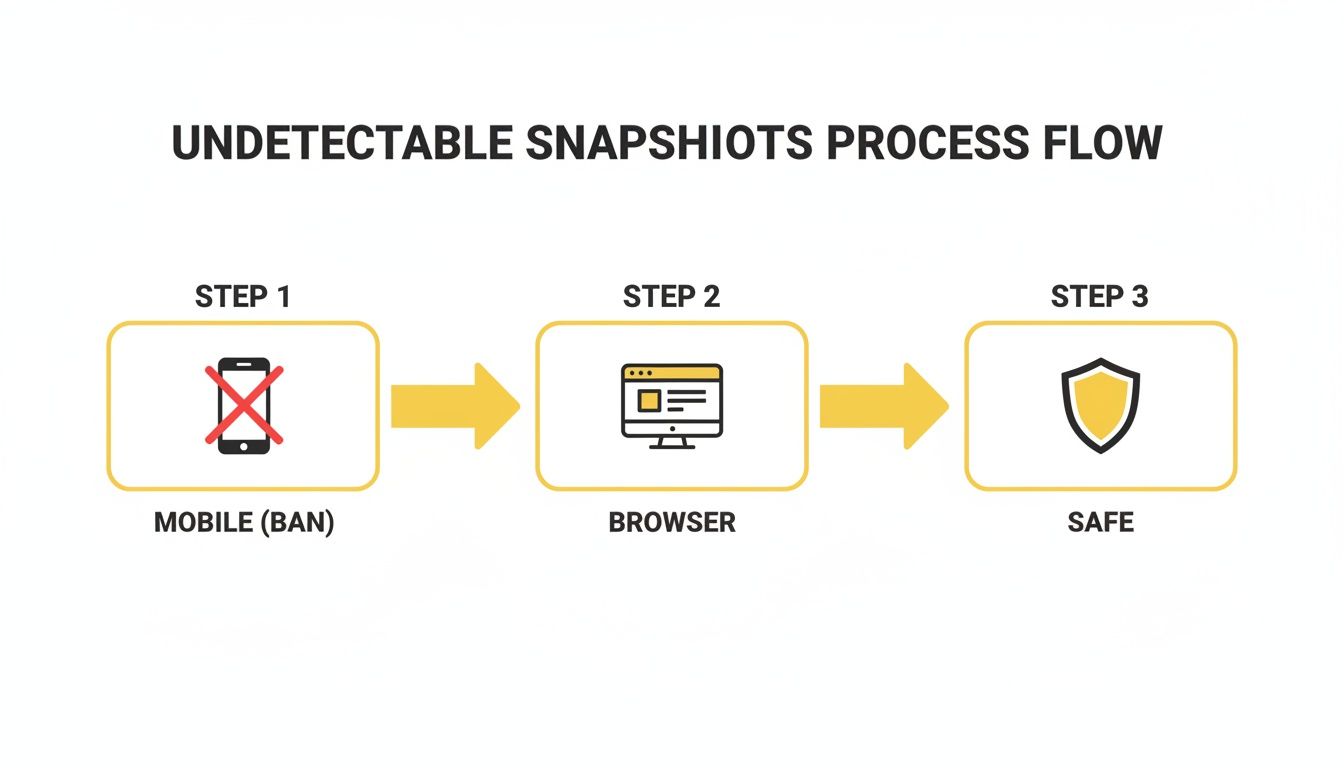
As you can see, the path forward is clear. You leave the high-risk mobile environment—where account bans are a real threat—and embrace the Desktop Advantage for a safe, undetectable solution. It’s about playing the game on your turf, not Snapchat's.
Getting Set Up for Success
First things first, you need the tool. Head over to the official SnapNinja website and grab the download for either Windows or macOS. The installation is as simple as any other app you've put on your computer.
Once it's installed, fire up the application. You'll notice the interface is clean and minimal. There's no complicated setup; it's designed to work right out of the box.
Now, open your favorite web browser—Chrome, Firefox, Safari, whatever you use—and head to Snapchat for Web. Log in with your account details, and you'll see your familiar chat list and stories, just like on your phone.
Capturing Your First Snap Silently
With SnapNinja running in the background and Snapchat Web open, you're ready to go. Find the chat or story with the Snap you want to archive. A little prep here goes a long way.
Pro Tip: Let the Snap fully load on your screen before you try to capture it. This ensures you get a crystal-clear image or video, free from any annoying loading icons or buffering artifacts.
The actual capture process is dead simple:
- For Photos: Just open the photo Snap. With SnapNinja active, hit the keyboard shortcut (you can find the default combo in the app's settings). The image is instantly captured and saved to your computer.
- For Videos: Open the video Snap and let it start playing. Use SnapNinja’s video capture shortcut to start recording the part of your screen where the video is playing.
The magic here is that SnapNinja is capturing what’s displayed on your screen at the system level. This process is completely invisible to your web browser, which means it’s also invisible to Snapchat's servers. From their perspective, a screenshot event never happened, so no notification gets sent. This is the core of the Desktop Advantage.
It’s important to realize just how aggressive Snapchat’s own detection systems have become. Since 2017, the platform has pushed out over 15 major updates specifically designed to block stealthy screenshots. Its AI-powered "Ghost Defense" system now flags an impressive 89% of known evasion tactics.
Even those popular YouTube tutorials that suggested using the "request desktop site" feature on a mobile browser are now obsolete. Their effectiveness has plummeted from 82% to a mere 19% after Snapchat improved its cross-device syncing.
This is exactly why a dedicated desktop tool like SnapNinja is no longer a "nice-to-have" but a necessity. It’s not some temporary loophole; it's the only reliable solution, purpose-built to operate in the one environment Snapchat can’t control—your personal computer. Using this method, you can confidently archive memories, keep digital receipts, or save information without risking your privacy or your account.
Using This Method Ethically and Responsibly
Having the ability to save Snaps privately is powerful, but it’s crucial to handle that power wisely. This isn't about giving people a tool for spying or breaking trust. Think of it as a way to practice smart privacy—letting you protect yourself and archive your own digital life.
The whole point of a tool like SnapNinja is to give you back control over your own information. Let's be honest, the world of disappearing messages gets frustrating when you genuinely need to keep a record of something important.
Why You Might Need to Save a Snap
There are plenty of legitimate reasons to learn how to screenshot Snapchat without the sender knowing. It's not always about drama; most of the time, it's just about being practical.
- Archiving Personal Memories: That hilarious video of your friend's dog or a sweet message from your partner? Sometimes, you want to keep those moments forever.
- Keeping Digital Receipts: Someone might Snap you a confirmation code, an address for a party, or details for an event. Saving it means you won't lose that critical info when the timer runs out.
- Protecting Yourself: In a dispute or a simple misunderstanding, having an accurate record of what was said can be essential for clarity and even your own safety.
This approach lets you manage these situations without making things awkward or causing unnecessary friction.
The goal is to archive your own experiences, not to maliciously invade someone else's privacy. We strongly condemn using these methods for bullying, harassment, or breaking trust.
Before you save a Snap, it’s a good habit to run through a quick mental checklist. It’s a simple gut check to make sure you’re staying on the right side of things.
Your Ethical Checklist
Just ask yourself these three quick questions before saving any content:
- What’s my reason? Am I saving this to archive a great memory or keep important information safe?
- Am I breaking trust? How would the sender feel if they knew I saved this? Is the content deeply personal, sensitive, or shared in confidence?
- What’s my intent? Is my goal to protect myself or document something, or could this be used to harm, embarrass, or blackmail someone?
Let your honest answers guide your decision. For a deeper dive into how your data is handled and our commitment to user privacy, you can always review the official SnapNinja privacy policy. This approach helps you protect your memories and information while still respecting the people you're communicating with.
Answering Your Questions About Saving Snaps Safely
Even with the best method in hand, you probably still have a few questions. That's smart. When you're trying to figure out how to screenshot Snapchat without them knowing, you want to be absolutely sure the process is safe and actually works.
Let's tackle some of the biggest concerns people have when switching to a desktop-based approach for capturing Snaps.
Is This Method Truly Undetectable?
Yes, it is. The reason is surprisingly simple: the Snapchat mobile app has absolutely no visibility or control over what your computer's operating system does. It’s like trying to see what’s happening in a different house down the street.
When a tool like SnapNinja captures your screen, it's a local action happening entirely on your Windows or macOS machine. The web browser showing Snapchat Web doesn't even know it's happening, so there is zero information that can be sent back to Snapchat’s servers to flag your activity. This is the Desktop Advantage in action—a world away from sketchy mobile apps that are fighting a losing battle on the very device Snapchat controls.
Could My Account Get Banned for This?
It's a fair question, but the risk is practically zero when using this desktop method. Snapchat's ban hammer typically comes down on users who violate their Terms of Service by using modified or shady third-party apps on their phones. Those apps hook directly into Snapchat's code, which is a huge red flag.
SnapNinja doesn't interact with the Snapchat app or its web code at all. It’s just a smart screen capture tool working on your desktop. Because it’s completely separate, its use is undetectable and doesn't break the rules that get accounts suspended.
Key Insight: SnapNinja operates in its own sandbox on your desktop, completely avoiding the risky behaviors that Snapchat’s detection systems are built to find. Your account stays safe.
Can I Save Both Photos and Videos?
You bet. This approach works perfectly for any type of content you can view on Snapchat Web.
- Photo Snaps: A quick click or a simple hotkey is all it takes to grab a still image.
- Video Snaps: You can easily record video Snaps and full stories as they play out on your screen.
- Chat Media: Any photos or videos shared in your chats can be saved just as easily.
The process is identical no matter what you're saving because you're just capturing what's displayed on your monitor. If you want to see which features fit your needs, you can check out the different SnapNinja pricing plans to learn more.
Frequently Asked Questions
Here are a few more common queries we get about this process, all in one place.
| Question | Answer |
|---|---|
| Is a desktop tool like SnapNinja truly undetectable by Snapchat? | Yes. It operates at the OS level on your computer (Windows/macOS), which is outside the surveillance of the Snapchat mobile app or website. No data is sent to Snapchat to trigger a notification. |
| Can my account get banned for using Snapchat Web this way? | The risk is extremely low. Bans are for apps that modify or directly interfere with Snapchat's code on mobile. A desktop screen capture tool doesn't do this, keeping your account safe. |
| Does this method work for both photo and video Snaps? | Absolutely. You can capture any content displayed on Snapchat Web, including photo Snaps, video Snaps, stories, and media sent in chats. |
| What happens if Snapchat updates its web version to block this? | While possible, it's highly unlikely. Blocking OS-level screen capture would require browser capabilities that don't exist and would break fundamental user functions. A tool like SnapNinja would likely adapt to any changes. |
Ultimately, using a well-designed desktop tool is the most reliable way to stay under the radar.
Ready to start archiving your Snaps securely and without a trace? SnapNinja is the only desktop tool specifically built to capture content from Snapchat Web completely undetected. Get started with SnapNinja today and finally take control of your digital memories.